

The Checkout Page
The checkout page is the central page your students reach when they decide to purchase a course or membership through a LifterLMS Access Plan.
On the checkout page, students can log in to an existing account, create a new student account, submit their payment information, and apply discount codes with LifterLMS Advanced Coupons.
How to Create a Checkout Page
LifterLMS creates the checkout page for you automatically when you install the core pages during the LifterLMS setup wizard. The setup wizard begins immediately after you activate the LifterLMS plugin on your site. If you ever need to restore your default pages, you can rerun the setup wizard at any time.
If you want to set up the checkout page manually, follow these steps:
- Navigate to Pages in your WordPress admin menu and click the Add Page button.
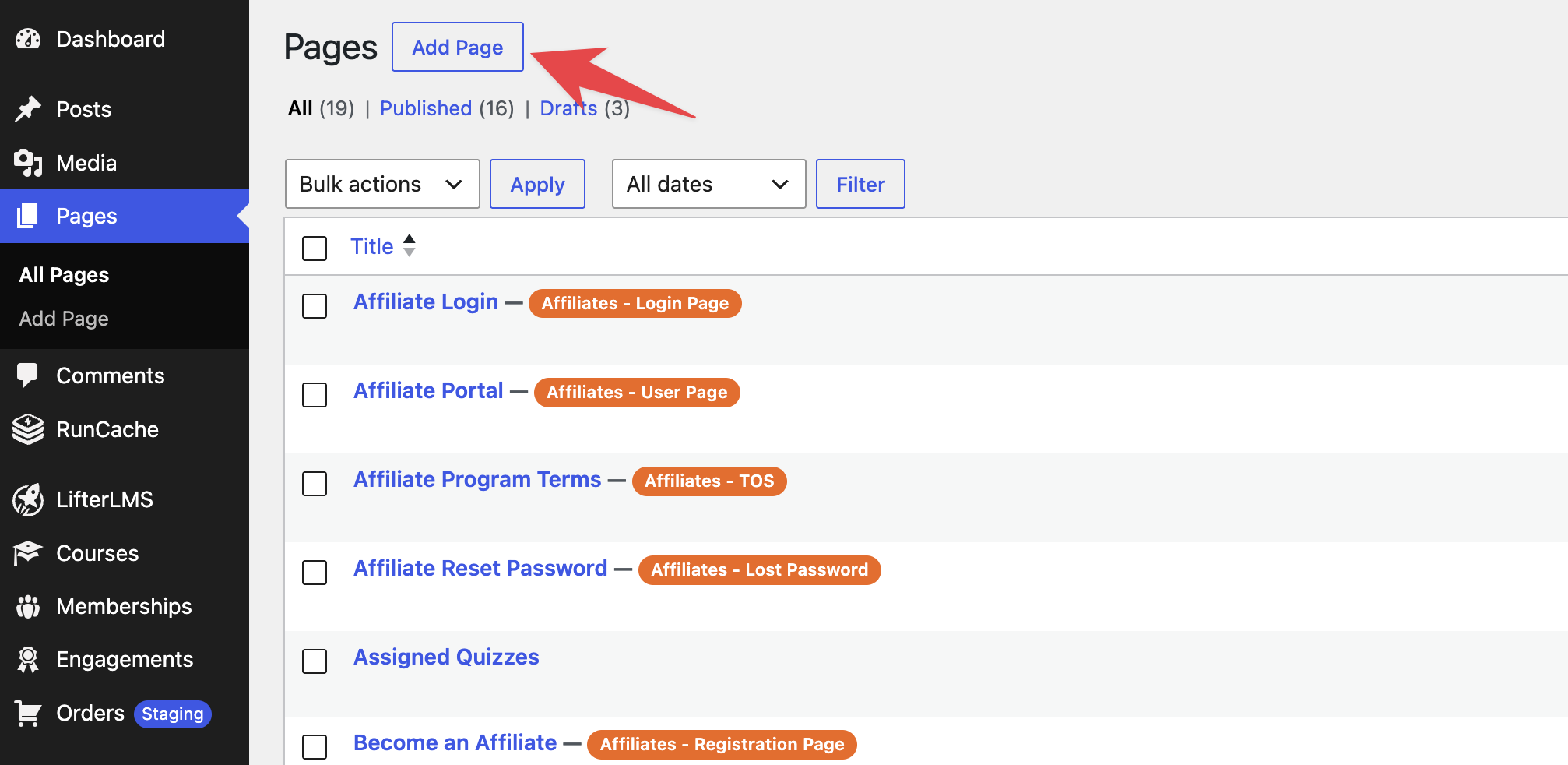
- Enter a page title, such as “New Checkout”.
- Add a “Shortcode” block into the editor content area and enter the checkout shortcode
[lifterlms_checkout]. You can also review the LifterLMS Shortcodes documentation for a full list of parameters. - Click the Publish button to publish your new page.
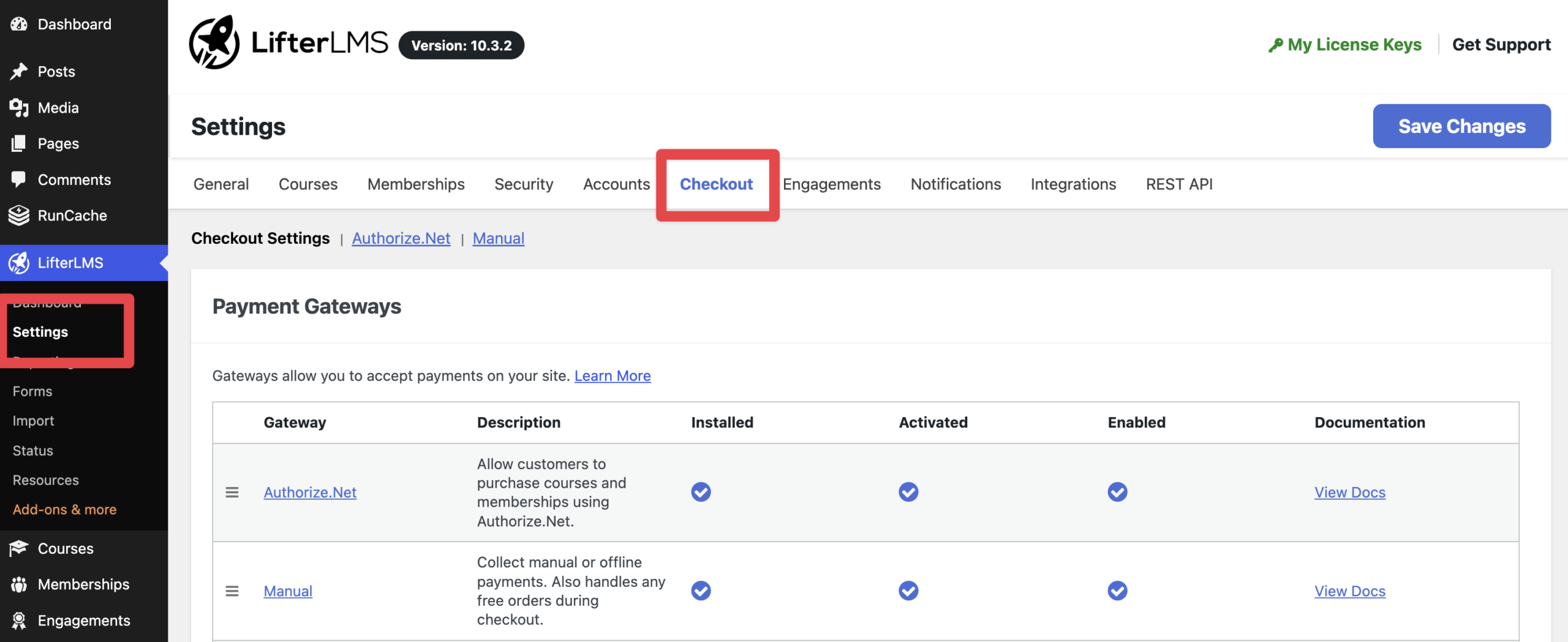
- Navigate to LifterLMS > Settings in your WordPress admin menu.
- Click the “Checkout” tab and scroll down to the “Checkout Settings” section.
- Find the “Checkout Page” setting and select the option from the dropdown.
- Select the checkout page you just published.
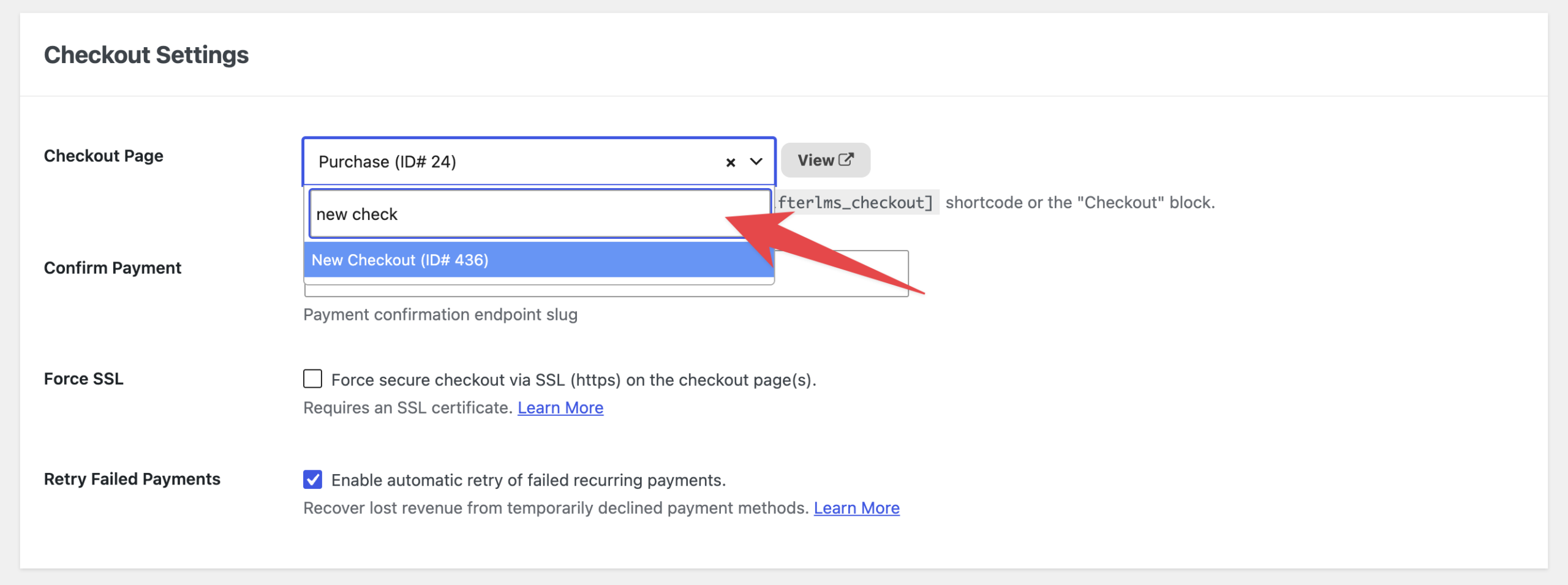
- Click the Save Changes button. You can then visit a course or membership page on your site to test your setup.
Note: You can select any standard WordPress page to serve as your checkout page. However, you must never use your checkout page as your Course Catalog, Membership Catalog, or Student Dashboard. Each of these features requires its own separate page so your site can direct students to the right place.
Video Tutorial
Customizing Checkout Form Fields
LifterLMS gives you direct control over the personal information and billing fields that appear on your checkout form.
To customize your checkout form:
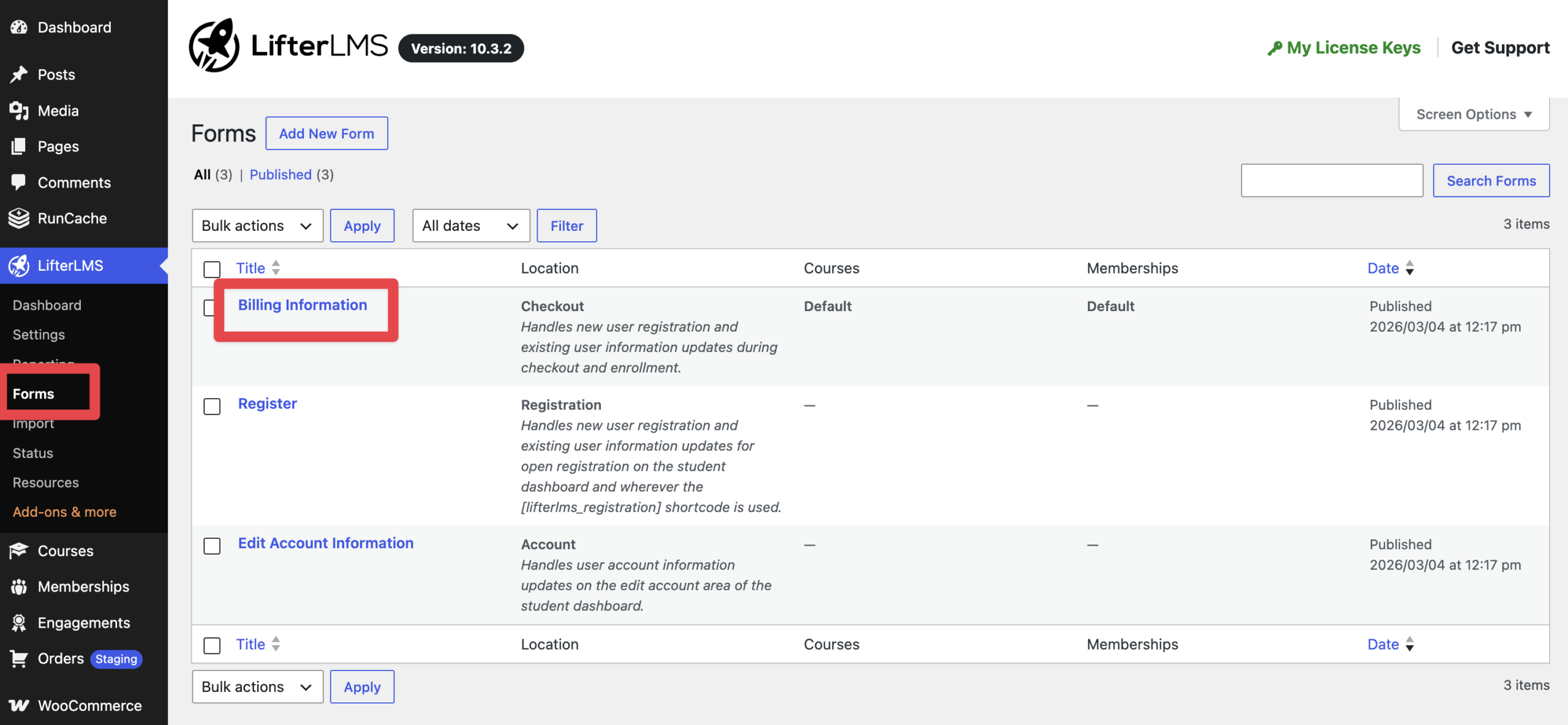
- Navigate to LifterLMS > Forms in your WordPress admin menu.
- Locate the form named “Billing Information”.
- Click the Edit button to open the form editor. On the next screen, you can use the WordPress block editor to customize the page and save your changes.
You can learn more about managing your forms in the LifterLMS Form Fields documentation.
For visual instructions on managing your forms, watch this video tutorial:
Adding Content to the Checkout Page
You can use the WordPress block editor to insert custom content directly above or below the [lifterlms_checkout] shortcode. This is a helpful way to share contact details, return policies, or security badges with your buyers.
If you need to collect additional custom details from your students during registration, you can use the LifterLMS Custom Fields add-on. To learn how to add custom fields to your forms, read the LifterLMS Custom Fields documentation.
Free Access Plans
When a student enrolls through a free access plan, LifterLMS automatically simplifies the checkout page. LifterLMS removes the payment fields, so the page functions like a simple registration form. This allows students to create an account and join your course without unnecessary steps.
To learn more about free enrollments, take a look at the Checkout for Free Access Plans guide.
Guest Checkout
LifterLMS does not support guest checkout. A guest checkout occurs when a customer buys a product without creating a user profile on the site.
A learning management system needs a registered user account for every student. LifterLMS uses this account to track lesson progress, record quiz scores, issue certificates, and deliver private course content. Because of this, every student must log in or create an account at checkout.
If you want visitors to view course lessons without creating an account, follow our guide on how to create a free course that does not require registration.


