

Why are my pricing tables not displaying on the front end?
If your pricing tables are not appearing in the front end of your LifterLMS courses or memberships, there are a few things you’ll need to check. Here’s a breakdown of the most common reasons and how to fix them.
First, confirm that you have created and published access plans for your LifterLMS courses or memberships. A pricing table cannot be displayed if there are no access plans to show.
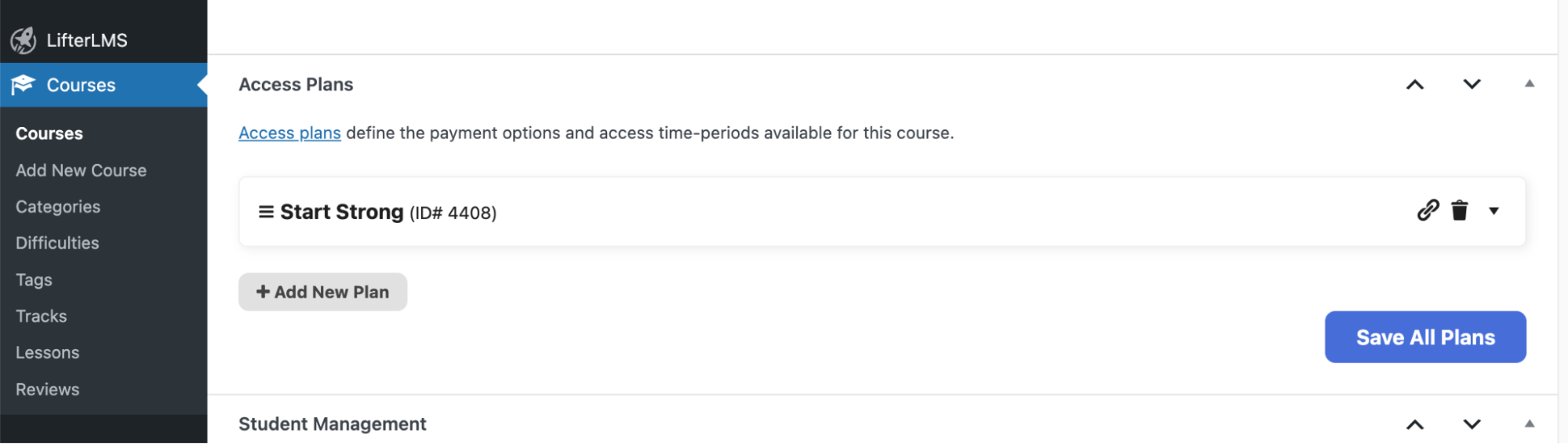
Please note that if your access plans are set to “hidden,” they will not be displayed in the pricing table on the front end. Ensure your access plans are clearly visible.
Next, ensure you have added a pricing table block to your course or membership page using the block editor.
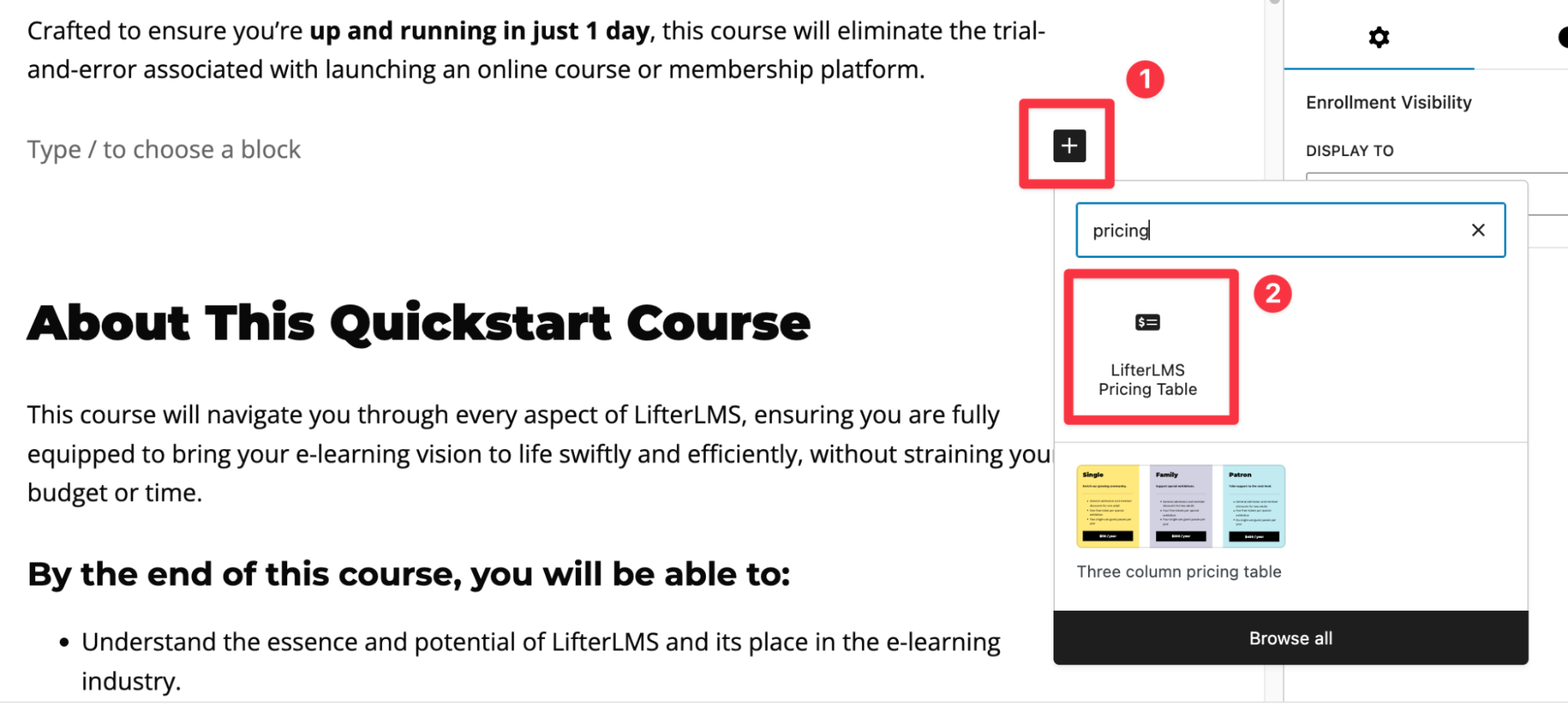
While editing a course or membership in the WordPress block editor, add the “LifterLMS Pricing Table” block to the page. You can follow this YouTube tutorial for a step-by-step guide on how to add the block:
Finally, for the pricing table to display correctly, you must have at least one payment gateway add-on installed, activated, configured, and enabled on your WordPress site.
LifterLMS payment gateway add-ons such as LifterLMS Stripe, LifterLMS PayPal, and LifterLMS Authorize.Net are included in the Universe Bundle subscription.
To install these, you’ll first need to add your license key to your LifterLMS settings. For instructions on how to do this, please see our help document on how to add your license key to LifterLMS.
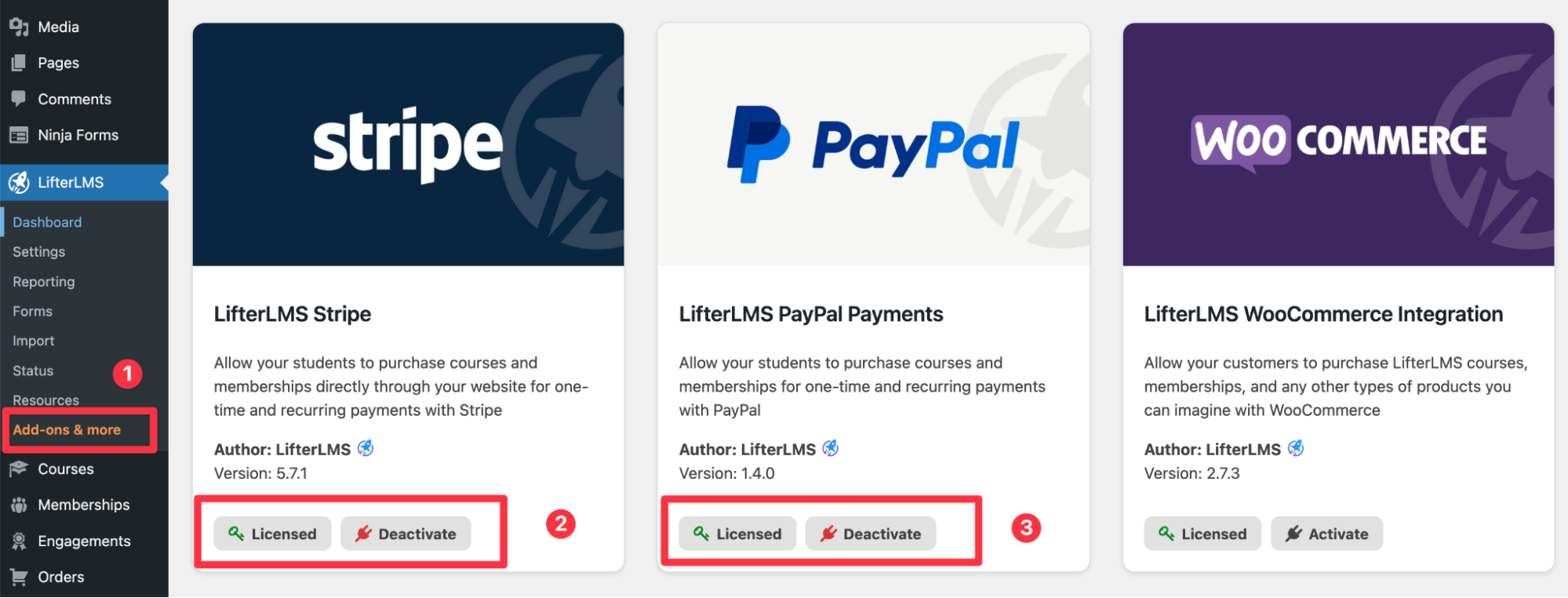
Once you’ve installed your preferred payment gateway add-on, you’ll need to configure it. Follow the detailed instructions for your chosen gateway:
By following these steps, you can ensure that your pricing tables are correctly displayed on the front end of your LifterLMS website. If you have any further questions, please don’t hesitate to contact us.


