Getting Started with LifterLMS Advanced Videos
Create professional video experiences in your courses using the LifterLMS Advanced Videos add-on. This tool offers a suite of features to help your learners stay engaged and get the most from your lesson videos.
Key features include:
- Requiring learners to watch the whole video before they can complete a lesson.
- Advanced video analytics to show video effectiveness and student progress.
- Player branding and component controls to match your site design.
- An auto-resume feature that protects learner focus by saving their exact spot in a video.
- App-like lesson options to create a familiar user experience.
LifterLMS Advanced Videos works with Vimeo, Wistia, YouTube, and self-hosted videos.
To use LifterLMS Advanced Videos, you must install the core plugin first.
- Install and activate the LifterLMS core plugin.
- Navigate to Dashboard > LifterLMS > Add-ons & more.
- Enter your license key.
- Click Install next to the LifterLMS Advanced Videos add-on.
Alternatively, you can download the add-on directly from your account dashboard and upload it manually.
LifterLMS Advanced Videos integrates with Vimeo, YouTube, and Wistia. Each provider offers different functionalities. You must enable support for a specific video provider before you can use its unique settings.
Enable your video provider by navigating to LifterLMS > Settings > Integrations, selecting your video provider, clicking Enable, and saving your changes.
Once you enable a video provider, you gain access to global course progression settings.
To manage these global settings:
- Navigate to LifterLMS > Settings.
- Click the “Courses” tab.
- Configure your desired progression settings.
- Click Save Changes.
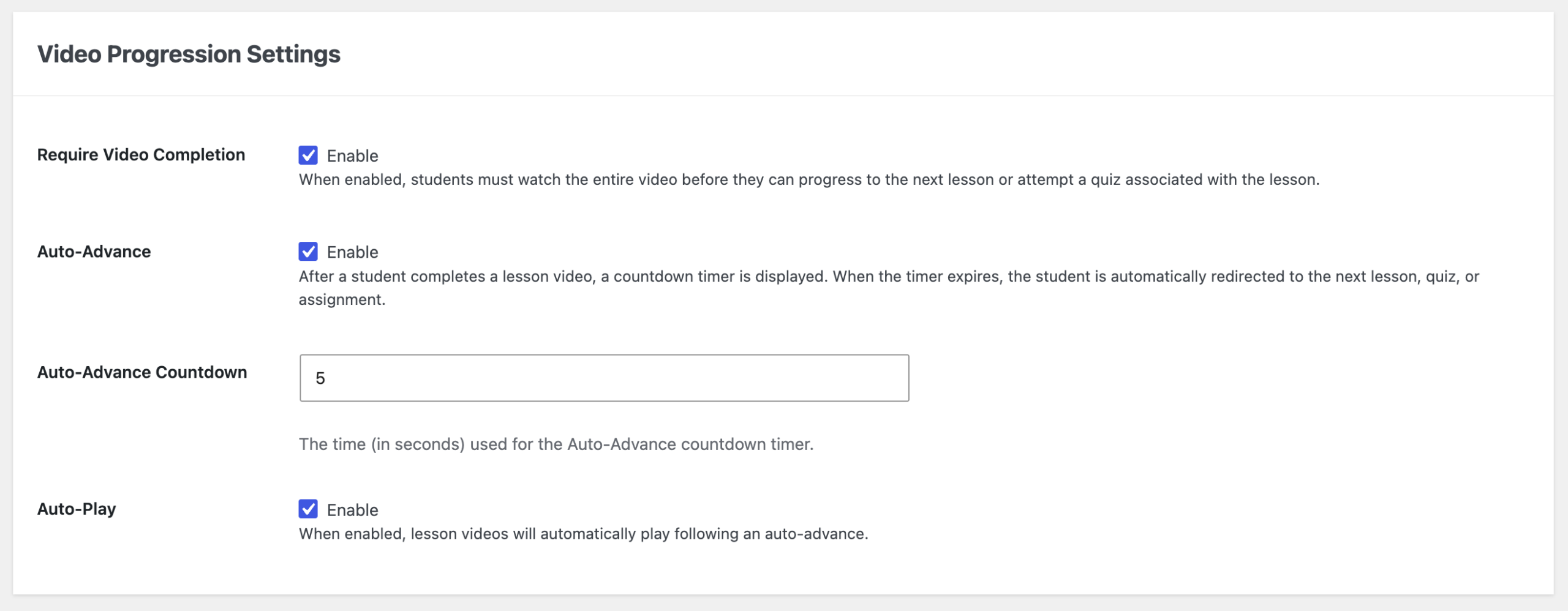
Note: All progression settings require at least one video provider to be enabled. Enable one or more video provider integrations and then return to the progression settings to configure them.
You can adjust the following settings in this section:
Require Video Completion
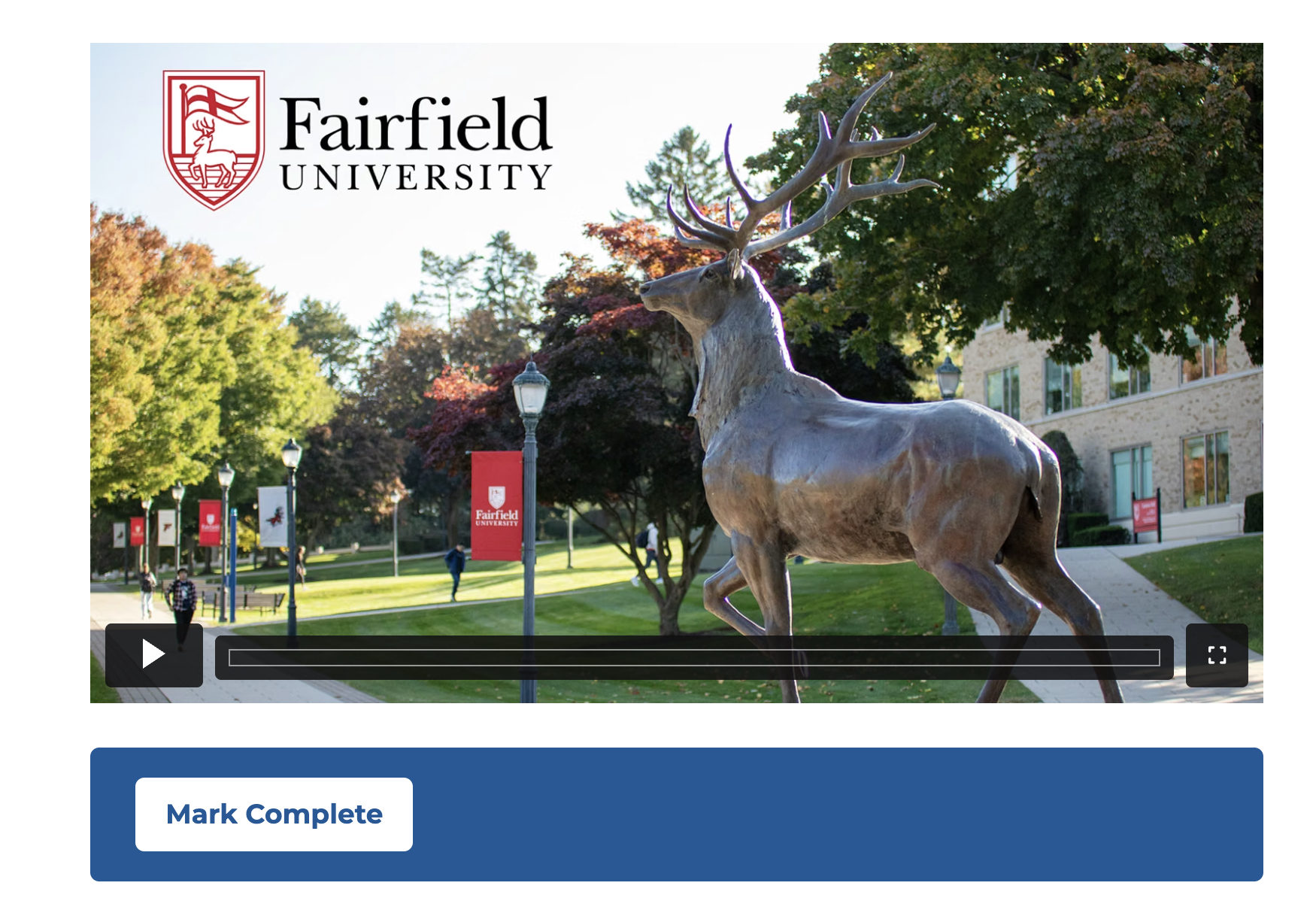
When you enable this feature, students must watch the entire video before they can mark the lesson as complete. The Mark Complete button remains disabled until the student finishes the video. When the video finishes playing, LifterLMS Advanced Videos will automatically attempt to mark the lesson as complete.
This setting does not prevent students from opening the next lesson. To restrict access until the current lesson is complete, set the current lesson as a prerequisite for the next. Any separate quiz, assignment, or prerequisite requirements still apply before the student can complete the lesson or continue through the course as configured.
We recommend removing your “Lesson Progression” blocks from your lessons when you use video-only lessons. If you use a YouTube video, ensure the video link does not contain the phrase “watch_popup”.
Example: https://www.youtube.com/watch_popup?****
Auto-Advance
After a student completes a lesson video, a countdown timer displays. When this timer expires, the system automatically redirects the student to the next lesson, quiz, or assignment.
Auto-Advance Countdown
Use this setting, along with “Auto-Advance,” to specify the exact countdown timer length in seconds.
Auto-Play
When you enable this option, lesson videos will automatically start playing immediately after an auto-advance redirect.
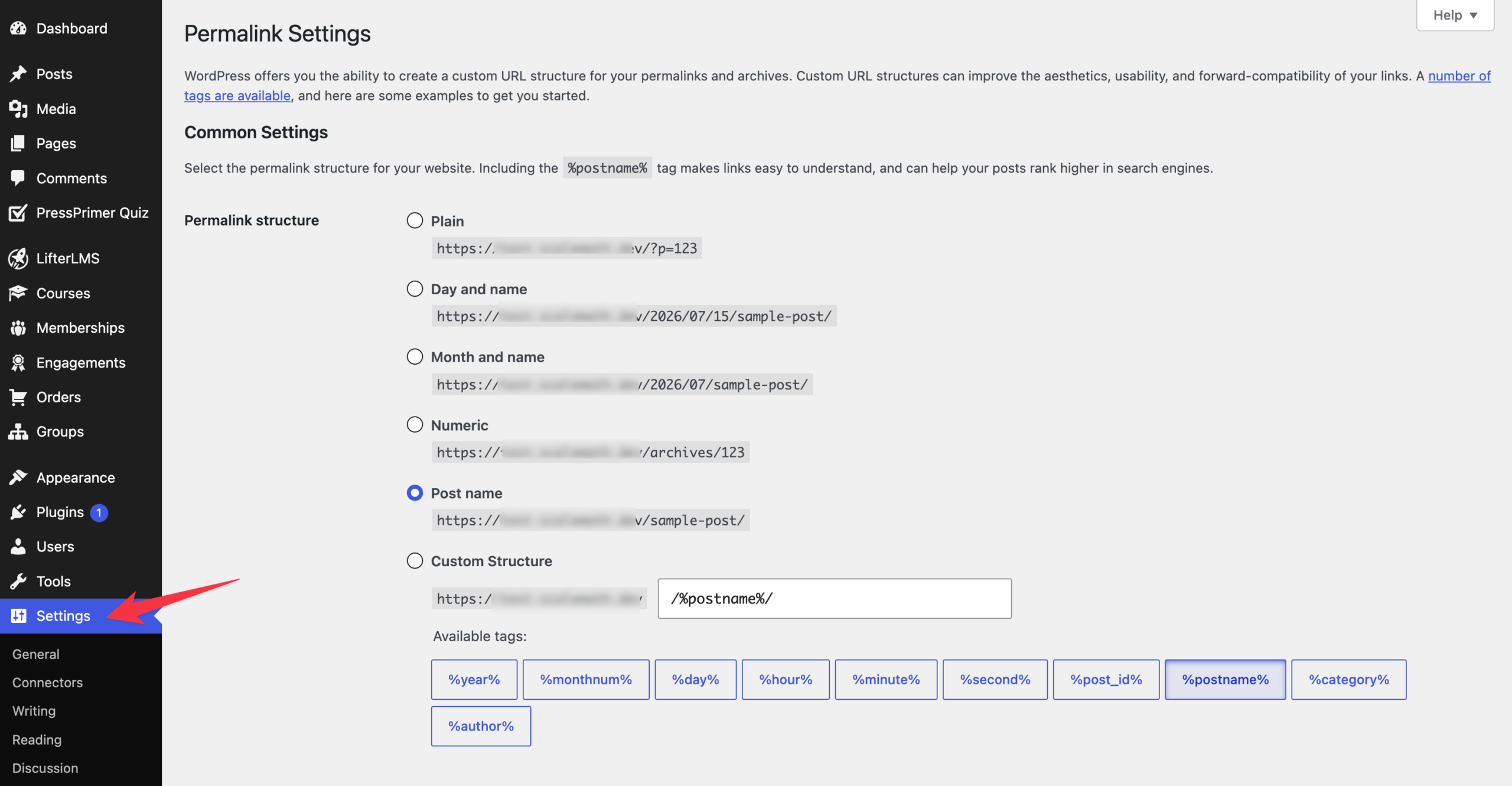
To ensure permalinks function properly in LifterLMS Advanced Videos, set your site permalinks to the “Post name” format.
To change your permalink settings:
- Navigate to Settings > Permalinks.
- Select “Post name” under the “Common Settings” menu.
- Click Save Changes.
You can manage the Advanced Video settings for individual courses. To adjust these settings:
- Navigate to Courses, then click a course to edit it.
- Scroll down to the “Course Options” section.
- Click the “Advanced Videos” tab.
- Adjust the settings to “Enabled” or “Disabled”, or leave them at the global default.
- Click Update to save the course.
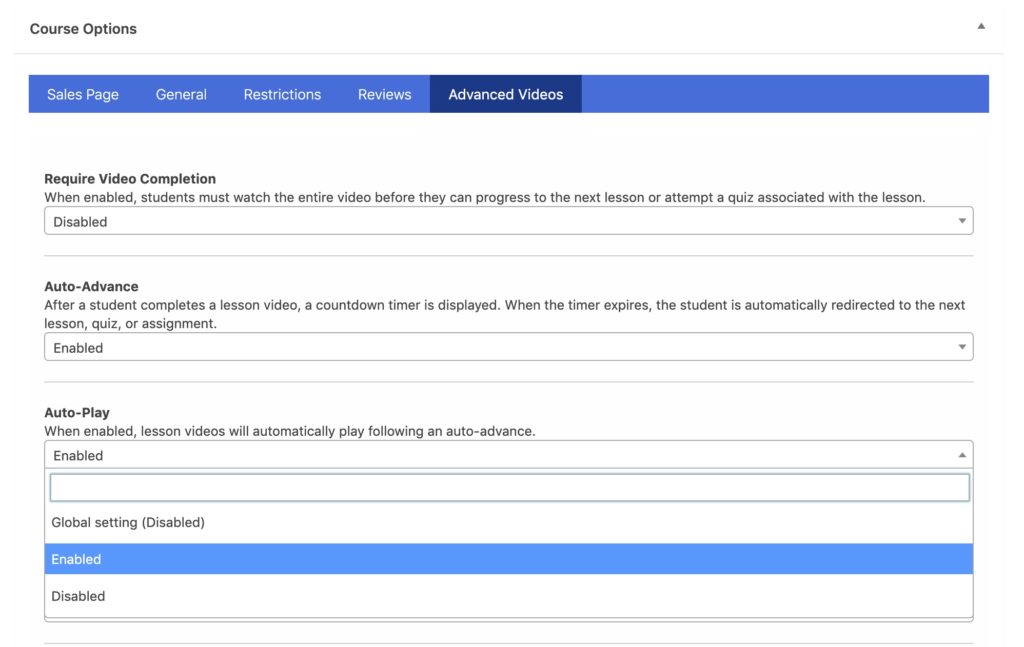
Each setting allows you to use the global setting by default. If you use the global setting, the course setting updates automatically whenever you change the global value. Choosing “Enabled” or “Disabled” overrides the global value for that course and any lessons that inherit the course setting.
You can also manage video progression settings for individual lessons. To configure a single lesson:
- Navigate to Courses, then click a course to open it.
- Click Launch Course Builder to open the builder.
- Click the gear icon to open the lesson settings sidebar for a specific lesson.
- Enter a video URL into the “Video Embed” field.
- Click outside of the field to make the video settings appear.
- Adjust the dropdown settings to your preference.
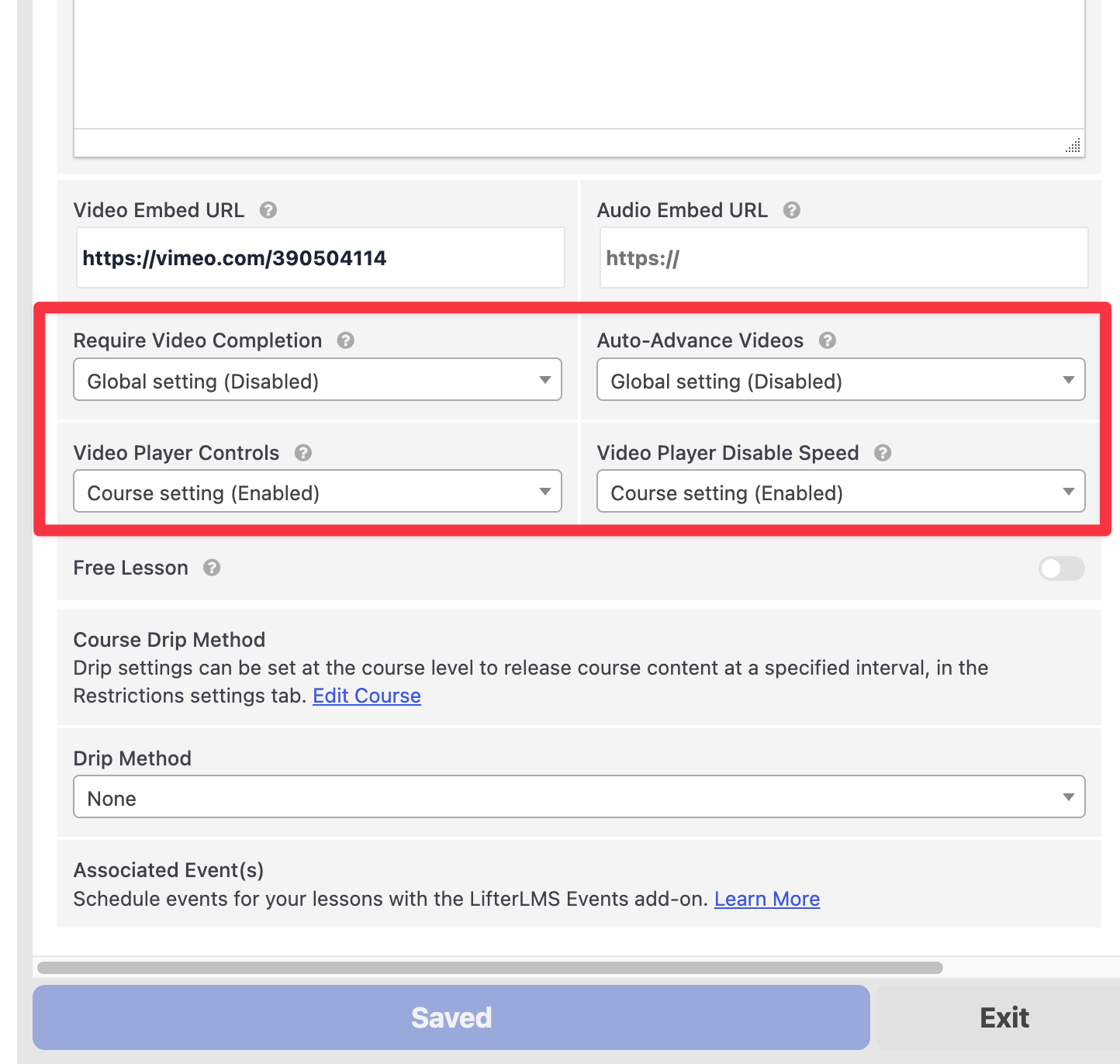
Just like the course-level settings, lesson settings inherit the parent course setting by default. Selecting “Course Setting” tells the lesson to use the current course setting. Selecting “Global Setting” bypasses the course entirely and uses the global configuration. Selecting “Enabled” or “Disabled” explicitly overrides the inherited settings for that lesson.
Settings in LifterLMS Advanced Videos exist at the global, course, and lesson levels. This allows you to set default values and customize them only when a specific course or lesson requires it.
- New and existing lessons automatically inherit the parent course setting.
- New and existing courses automatically inherit the global setting.
- All global settings are disabled by default.
- Settings cascade down from the global level to courses and then to individual lessons, unless a course-level or lesson-level setting overrides the inherited value.
All video provider integrations include a setting to disable default video player controls. When you use this setting, LifterLMS Advanced Videos displays a slim video player interface with only two functions: play and pause. By removing the progress tracking bar, you prevent students from skipping ahead in the video.
LifterLMS Advanced Videos tracks student progress through each lesson video. When a student returns to continue watching a video they started previously, the video automatically resumes from their last reported progress point.
To help the student easily recall where they left off, the system automatically subtracts five seconds from their saved timestamp. When a student completes a video, it will start over from the beginning the next time they visit.
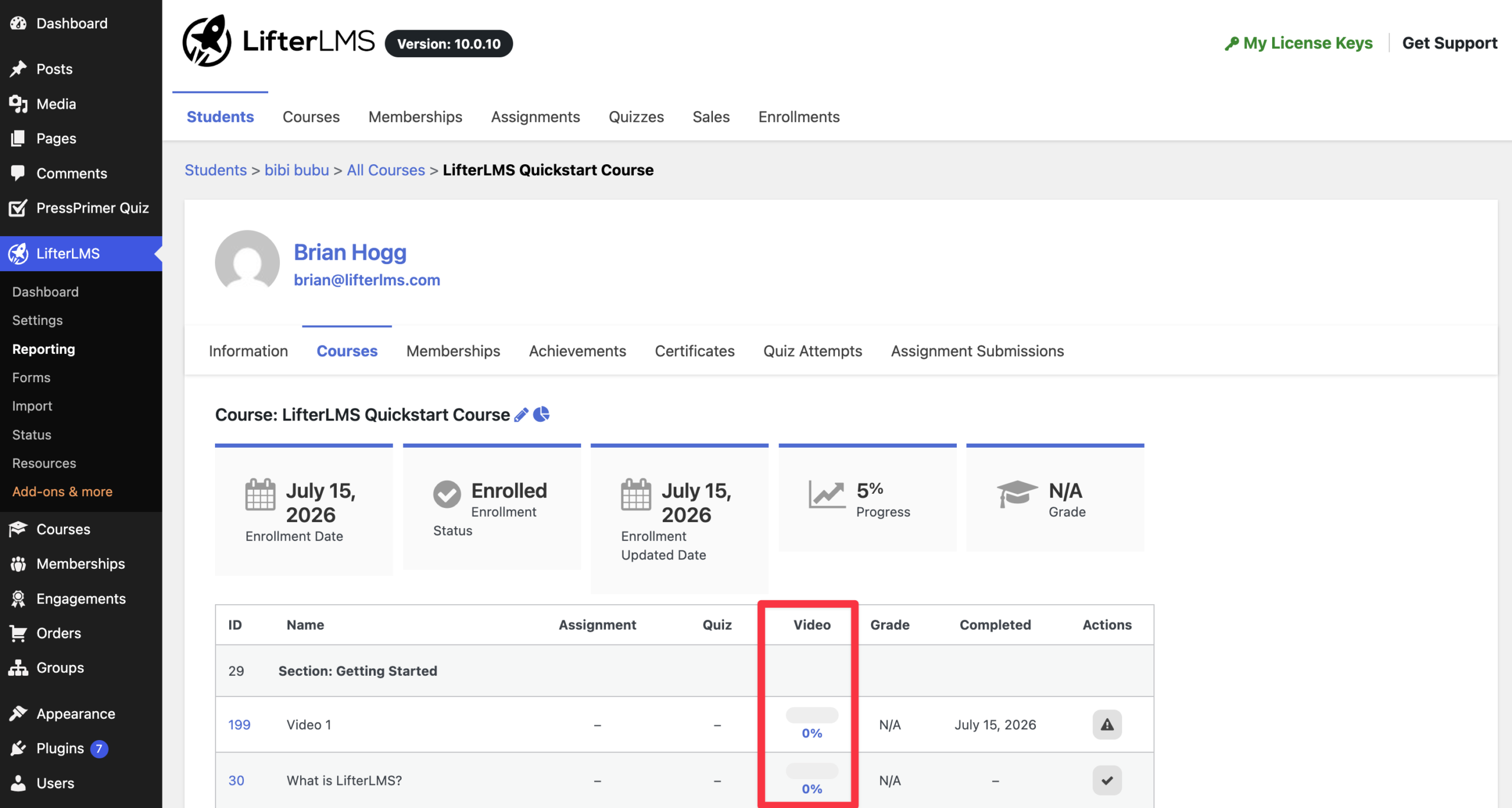
You can view student video progress on the individual student’s course report. The “Video” column displays the percentage of the video that the student has watched.