

A guide to understanding and fixing email issues in LifterLMS
Few things are more frustrating than discovering that your students never received an important email. Password resets fail, engagement notifications disappear, certificates never arrive, and course enrolment emails quietly vanish without warning.
The difficult part is that LifterLMS is rarely the actual source of the problem.
Email delivery in WordPress depends on several separate systems working together correctly, including your hosting environment, SMTP service, DNS records, spam filtering, and the recipient’s mail provider. When something breaks, it can be surprisingly difficult to work out where the failure happened.
This guide explains how WordPress and LifterLMS emails actually work, why delivery problems happen, how to test your setup properly, and what you can do to improve deliverability and reliability.
What this guide will do:
- Help you understand how emails work with LifterLMS (and WordPress).
- Describe the role of your hosting provider in sending emails.
- Explain how and why email sending can fail or get delayed.
- Explain why emails can end up in the spam folder and how to check for and prevent it.
- Introduce you to dedicated SMTP providers and the problems they can solve.
- Help you get the most out of LifterLMS support when you need help with email issues.
What this guide won’t do:
- Give you a lot of details or exact step-by-step instructions. We will provide pointers and the general idea, but the exact instructions will differ from host to host.
- Make you an expert of some kind who can handle all email-related issues on their own. You may still need to hire a developer for some of the things described in this guide. Emails are critical and sensitive, so we don’t recommend messing with them on your own.
SMTP
Emails are sent and received using the Simple Mail Transfer Protocol (SMTP). SMTP is similar to the File Transfer Protocol (FTP) for transferring files and the Hypertext Transfer Protocol (HTTP) for transferring web pages, in that they are concerned with transferring data between clients and servers. (A more detailed explanation can be found here: How Emails Work.)
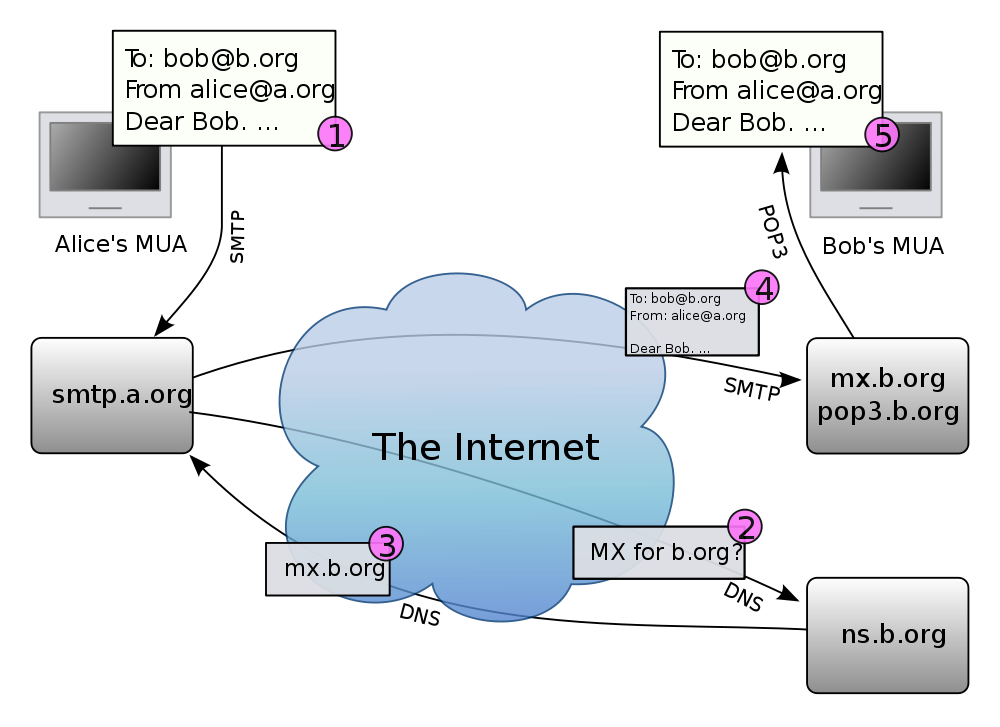
The SMTP server is separate from your HTTP server (which handles web pages). The key thing to understand here is that whether the email is created in an email client (like Outlook or Gmail) or via code on your WordPress site (like LifterLMS), the SMTP server handles the actual transfer.
Usually, a web hosting plan includes all three server types in the same setup. This means that:
- Your website’s performance and speed differ from those of your emails.
- You can use a separate SMTP server outside your hosting plan to send emails if you have difficulties with the bundled SMTP service.
Outgoing Queue
Once an email is created and sent, it isn’t actually sent immediately. All outgoing emails are placed in a queue, which is processed gradually based on available resources and settings.

An SMTP server is just a piece of software consuming memory, processing, and storage. If there were no queue and a large number of emails were sent at once, the SMTP server could become overwhelmed and fail to deliver most of them. In theory, a queue ensures that emails get sent out, even if they get delayed.
Incoming Emails
Emails are sent to the recipient’s SMTP server. From this server, they are downloaded onto the receiver’s email client using other protocols (IMAP or POP).
The recipient SMTP server (or the email client) has mechanisms that can identify an email as useless and dump it into the user’s spam folder. Additionally, it can immediately reject an incoming email if it violates policies or appears dangerous. Such emails don’t reach the user at all (not even as spam)!
As described in the earlier section, emails can be sent by code. Technically speaking, LifterLMS doesn’t send any emails; PHP does (since LifterLMS is built on top of WordPress, which is written in PHP). Under the hood, LifterLMS uses WordPress’s wp_mail() function, which in turn uses PHP’s mail() function.
It’s important to note that LifterLMS, WordPress, and PHP don’t actually send the email; they just add it to the outgoing queue. The SMTP server actually sends the email.
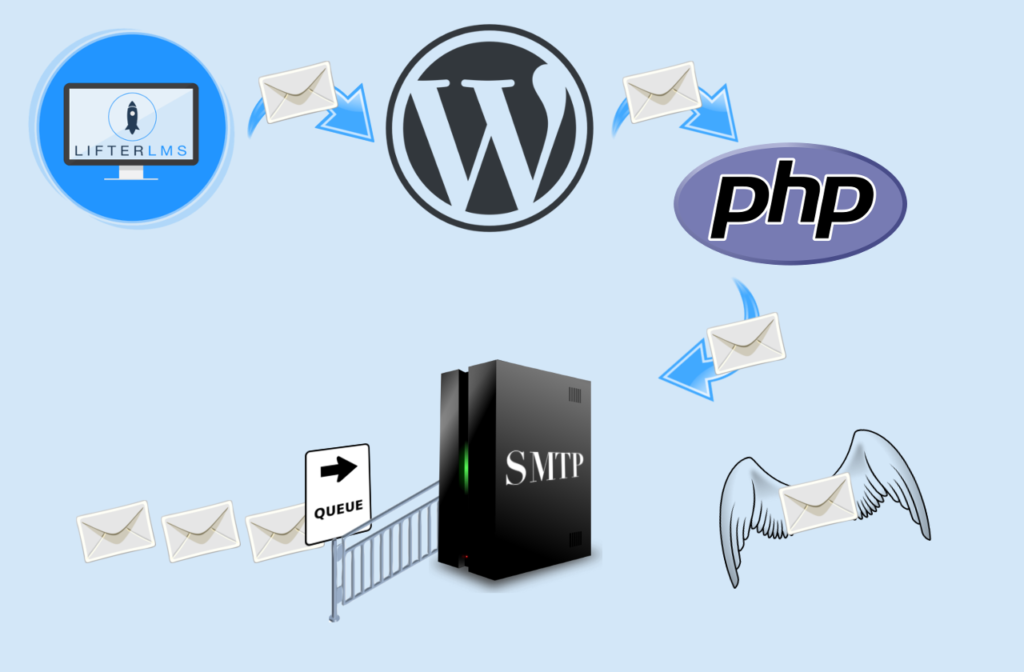
Since LifterLMS doesn’t (and can’t) send the email, it can’t really tell whether the actual send succeeded or failed. We assume that once the email is added to the queue, it will be sent successfully. That’s why, even with a success message from LifterLMS, an email could still fail because of issues with the SMTP service.
Depending on your hosting plan, the resources available to your site (and, by extension, your SMTP service) can be limited, which can affect the processing of the outgoing queue. In addition, many web hosts will place a limit on the number of emails processed per hour, per month, or something similar.

At best, it means that some emails will get delayed until their turn arrives. The delay can be for a few minutes, hours, days, or longer. In the worst-case scenario, your provider may simply drop any emails beyond the allowed capacity.
The problem is that neither LifterLMS nor any other WordPress plugin or tool can identify or fix this issue. Only your hosting provider (or one of their tools) can help. This is why we often recommend switching to a dedicated third-party SMTP provider if emails fail. Especially when nothing seems wrong in WordPress, and your web host isn’t really helpful.
A note on shared hosting
On a shared hosting plan, the performance of your SMTP service can be affected by the other sites in the same shared environment. You might be roomies with a site that sends out a lot of emails, consuming an unfair share of resources.
Sharing resources also means sharing what the recipient understands as the email’s origin. If you share resources with a spammy site, your emails could be considered spam by association.
For an email from your LifterLMS site to reach your users’ inboxes, many steps and factors are involved. Any of them could go wrong in many ways:
- LifterLMS needs to correctly compose and use WordPress’s email API.
- WordPress’s email function needs to work correctly.
- PHP’s mail functionality needs to work correctly.
- Your SMTP server needs to work correctly and process the queue properly.
- The recipient’s SMTP server should accept the incoming email (because it can simply refuse to do so).
- The recipient’s email client (which connects to the recipient’s SMTP server to fetch the email) should recognize the email as legitimate and place it in the recipient’s inbox. It could identify your email as spam, and that’s not good!
That’s why it can be difficult (but not impossible) to pinpoint the exact reason an email fails to send or why your recipients won’t receive it.
With a simple process of elimination, though, you can at least figure out who to contact – the LifterLMS team, your webhost, or a WordPress developer for hire. That could really save you a lot of time, even if it doesn’t solve your problem instantly.

Locating the Culprit
Working backward through the steps of email transfer above, we could locate the source of the problem, at least partially:
1. Do some users receive the email, and others don’t, or is no one getting your emails?
Those who didn’t receive your email may find it in their spam folder. Email clients often dump emails from unknown addresses into the spam folder. To prevent this, users can simply add your email address to their Address Book. At other times, it may be more complicated, and you may need to engage in more complex troubleshooting.
If your emails don’t show up even in spam, it could mean two things. First, it could be that the outgoing queue is currently overwhelmed, and those emails are being delayed or dropped by your SMTP server. In such a case, contact your web host for more information.
What’s equally possible is that the recipient server rejected your email. In such a case, it would usually send a message back to the address, notifying you. If the sender’s email address has an inbox, you should ideally check it for any rejection messages.
In any case, neither LifterLMS nor WordPress can do anything to help. If your emails are rejected or marked as spam, use the troubleshooting techniques described in a later section.
2. Do some emails just arrive late?
If your emails are getting delayed, obviously, your SMTP server is unable to keep up. Again, switching to a third-party SMTP service is recommended.
3. Do email issues only crop up sometimes, intermittently?
This means that when your email load increases, your SMTP server can’t keep up. Again, switching to a third-party service is the way to go.
4. Are all emails from your site affected, or only LifterLMS ones?
There could be a lot of emails outside LifterLMS that are sent by your site (new account registration, reset password, for example). You may also have other plugins that send emails as part of their functionality. If those emails work just fine and only the LifterLMS ones are affected, it could be a LifterLMS issue. You should definitely reach out to us for help with this.
It is important to note that this may not be an issue within LifterLMS. Since LifterLMS uses WordPress’s email mechanisms, another plugin could interfere with and prevent LifterLMS emails from working properly. This would only happen if a poorly built plugin tries to take over and control WordPress’s default email mechanisms. Always choose well-coded plugins from reputable teams over obscure ones.
Another thing to note is that sometimes web hosts prioritize user management emails over those sent by plugins like LifterLMS. In such a case, all such emails would get delivered promptly without any issues, but all other emails (including LifterLMS ones) will get delayed or simply dropped. In this case, you would also face issues with other plugins’ emails. If you don’t have such a plugin, you can use tools to test your outgoing email.
Emails are marked as spam to protect the receiver. SMTP allows using any “From” address on the outgoing email. Without this flexibility, WordPress or LifterLMS wouldn’t be able to send emails on your behalf. However, this means that anyone can send an email claiming to be from any address in the world. This spoofing is what has evolved into dangerous scams, including phishing.

So, the receiver (SMTP/Client) needs to ensure a couple of things:
1. Is the sender trustworthy?
Well, this depends on many factors. Organizations cooperate to maintain and share blacklists of known offenders.
When you buy hosting or a domain name, it could so happen that the last owner was a scumbag and hence ended up on one or more blacklists. If you’re on a shared host, any of the current or former sites that share your resources could land all the sites in the same environment on such a blacklist.
If your site is on one of these blacklists, there’s practically nothing you can do to get off of it. The only way out is to move your site to a different server. If you’re on a shared hosting plan, your web host can move you to a different box.
2. Is the email a forgery?
A recipient SMTP service (or client) can verify that an email is from the real sender only if the email’s source can be authenticated. Authentication can take two common forms: Sender Policy Framework (SPF) and DomainKeys Identified Mail (DKIM). You may need help from your web host or a competent developer to set them up correctly.
SPF
An SPF policy is simply a TXT record in your domain’s DNS settings. Recipients can check your domain registry to see which SMTP service you’ve authorized to deliver emails on your behalf. You can find instructions on how to set that up for almost all web hosts here.
DKIM
DKIM adds a digitally encrypted signature to outgoing messages. Setting up DKIM is a bit like SPF. You start by adding a new TXT record to your DNS. Then you add a unique public key for each email source for your domain.
Most web hosts (and third-party SMTPs) will provide you with the public key and other instructions. This can be used by recipients to verify that the email isn’t spoofed and that messages haven’t been altered en route.
You can check your SPF & DKIM records here: https://www.mail-tester.com/spf-dkim-check. If they aren’t set up or you don’t know what to do, contact your hosting/SMTP provider.
3. Does the email contain stuff that looks suspicious?
Most email clients will also use algorithms to check the content for spam in ways similar to the tools that identify spam comments on your blog. If the email reads like spam, it will most likely end up in the spam folder.
One way email clients recognize spam is by comparing it with what the particular recipient (and all recipients on their system) usually marks as spam. That’s how they train their algorithms.
Obviously, this can be fixed by using original, good-quality content instead of generic spins and rip-offs. If you send poor, spammy content, there’s a good chance a user or algorithm will start marking your emails as spam, setting off a chain reaction that ultimately lands you on a blacklist!
Outgoing Email
You can test whether your site can send outgoing emails at all using the nifty Check Email plugin.
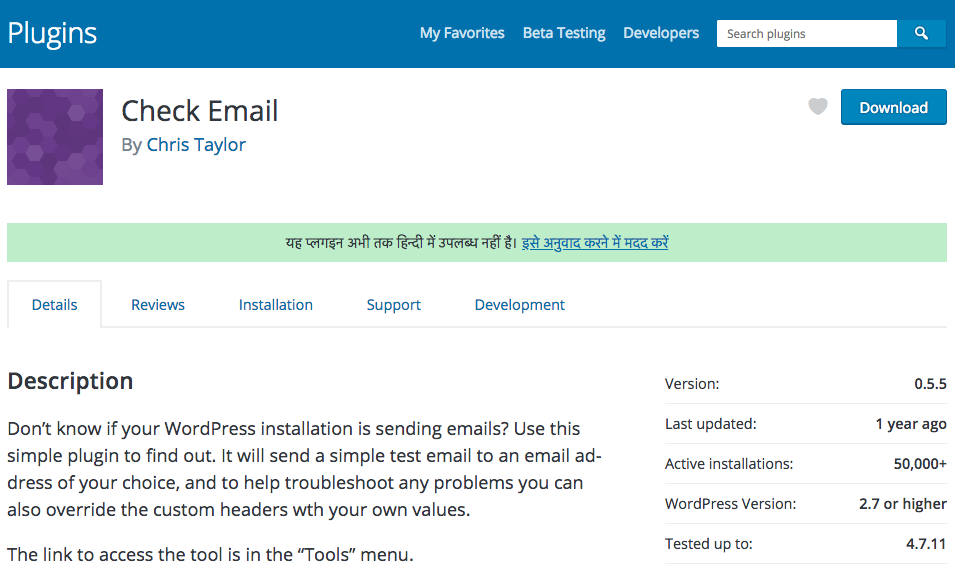
After installing it, go to Tools > Check Email to see a screen that allows you to enter a recipient address and send a test email:
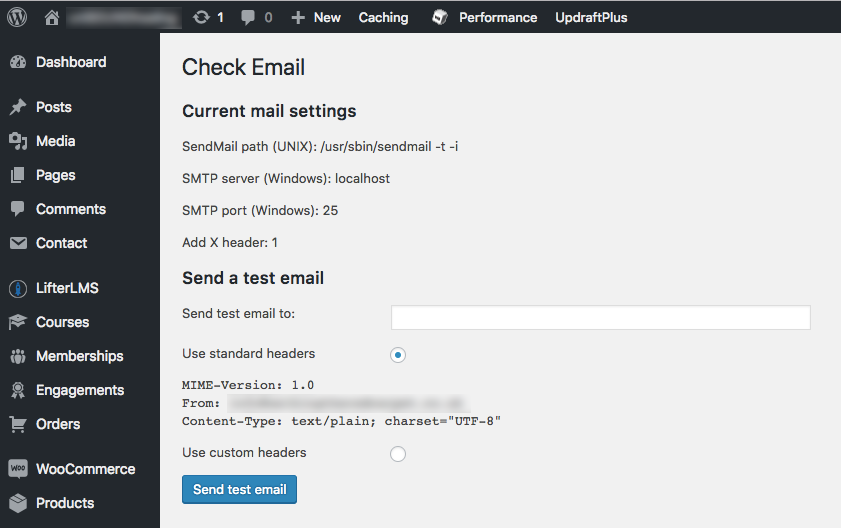
If the email arrives in the recipient’s inbox (even if in spam), your outgoing SMTP service is working just fine!
Spam Check
We recommend using MailTester.com, along with the Check Email plugin above, to check the spamminess of your emails.
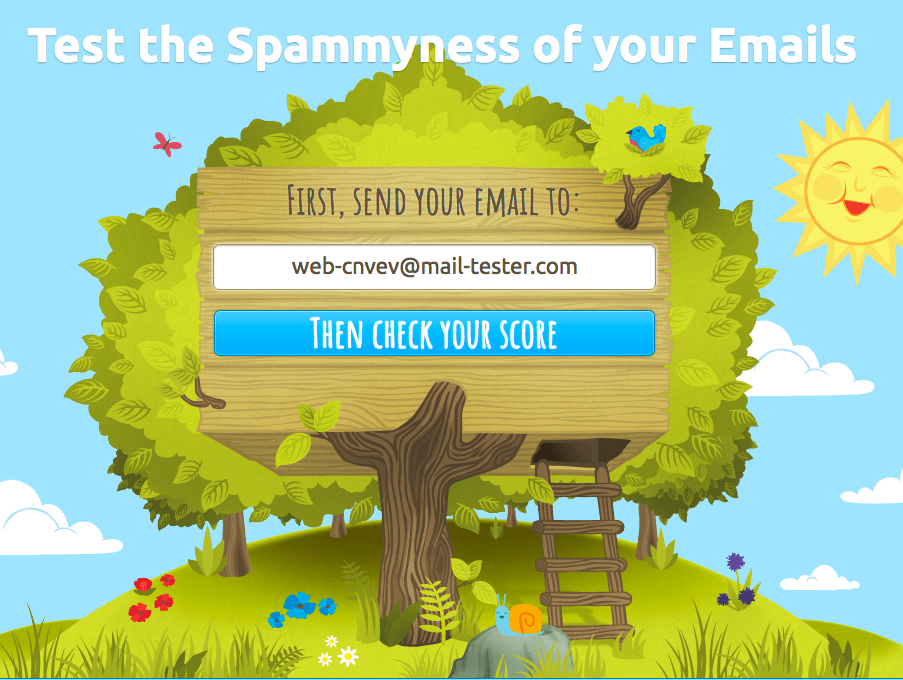
To run the test,
- Visit mail-tester.com and copy the automatically generated email address.
- Go back to Check Email (under Tools > Check Email) and paste this address in the field labeled “Send test email to:” and hit “Send test email“.
- Go back to the tab where Mail-Tester is open, then click the “Then Check your Score” button.
- The test may finish quickly or take some time (indicating issues with your SMTP service), but eventually you will get a score and a list of issues, along with a unique URL for the spam test report.
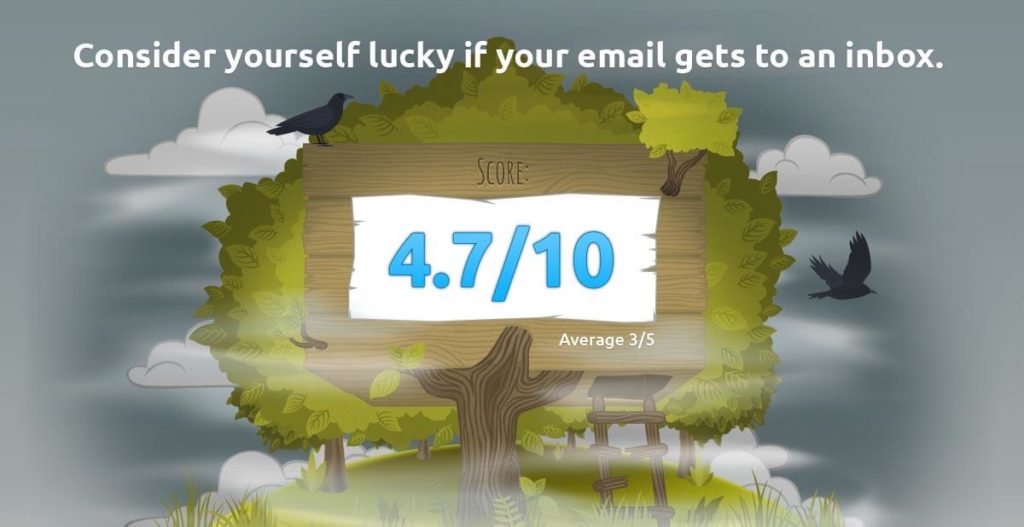
Share the copy of the generated report with your hosting provider/ developer to fix any issues and improve your score. (Read more about this test here: https://www.mail-tester.com/faq.)
The easiest way to fix this is to just switch to an SMTP service listed in the next section.

Understanding Why WordPress Emails Fail
WordPress uses the “wp_mail” function to send emails for tasks such as password resets or course certificates. By default, your web hosting server tries to send these emails. Most web servers are not configured for high-volume email delivery. This often results in emails being blocked by providers like Gmail or Outlook, or in them ending up in the “Spam” folder.
To ensure your students receive their lessons and certificates, you should use a dedicated SMTP (Simple Mail Transfer Protocol) provider.
Recommended SMTP Providers
Using a dedicated service improves your deliverability. Here are the top services we recommend for LifterLMS users.
- MailHawk
MailHawk is a service built specifically for WordPress. It handles the technical setup for you and ensures your emails don’t end up in the spam folder.- Price: Plans start at approximately $10 per year.
- Best for: Users who want a simple, “set it and forget it” solution.
- SendWP
SendWP is a reliable service that replaces the default WordPress email function with a dedicated mail server.- Price: $9 per month.
- Best for: Beginners who want an affordable, easy setup.
- Postmark
Postmark is known for extremely fast delivery and high reliability.- Price: Starts at $15 per month for 10,000 emails.
- Best for: Professional sites that need the highest possible delivery rates.
- Brevo (formerly Sendinblue)
Brevo offers a generous free tier and is very easy to connect to WordPress using their official plugin.- Price: Free for up to 300 emails per day. Paid plans start at $9 per month.
- Best for: New course creators on a budget.
- Twilio SendGrid
Twilio SendGrid is one of the largest email providers in the world.- Price: Their “Free” plan allows for 100 emails per day. The “Essentials” plan starts at $19.95 per month for up to 50,000 emails.
- Best for: Growing businesses that need to scale, or LifterLMS users who already use the LifterLMS Twilio integration.
- Mailchimp Transactional Email (formerly Mandrill)
This is an add-on for Mailchimp users.- Price: You must have a paid Mailchimp plan. The email service costs an additional $20 per month for a “block” of 25,000 emails.
- Best for: Users who already use Mailchimp for their marketing.
- Amazon SES
This is the most cost-effective service available, but it requires technical knowledge to set up.- Price: $0.10 for every 1,000 emails sent.
- Best for: Developers or high-volume senders.
Getting Help with LifterLMS Emails
If you continue to have trouble with LifterLMS engagements or certificates, please follow these steps before contacting support.
- Navigate to LifterLMS > Status.
- Click on the Logs tab at the top of the screen.
- Look for a log file that starts with “email” or “engagements” in the dropdown menu.
- Click View to see if any errors are listed.
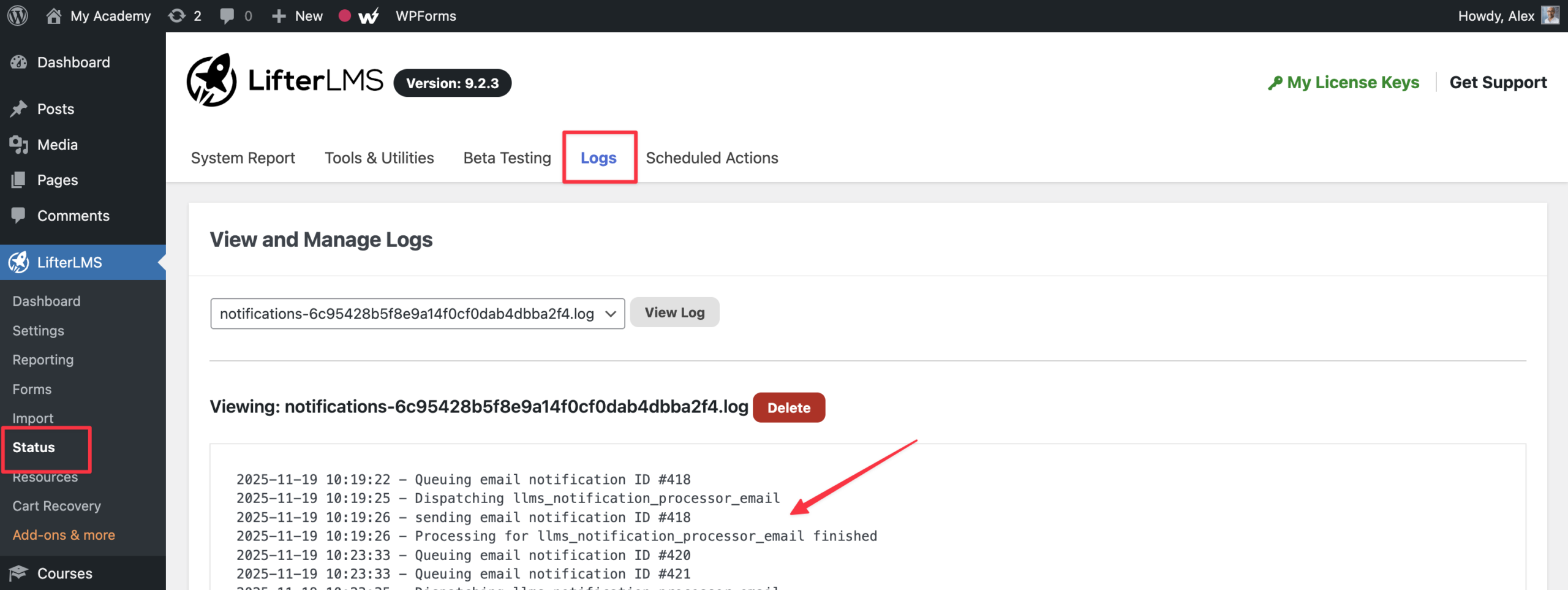
The LifterLMS support team is always ready to help you. We want to solve your email issues as quickly as possible and save you time.
Follow these steps to get a fast resolution for your email problems:
- Review the questionnaire in the previous section to see if LifterLMS is causing the issue.
- Contact your hosting provider or switch to a third-party SMTP provider if the issue is not caused by LifterLMS. Most email delivery problems happen at the server level, so your hosting provider or SMTP service can fix them much faster.
- Enable debug logging on your site if you need to open a support ticket with us.
- Trigger a few test emails on your site to generate new log data.
- Attach the debug log file to your support ticket before clicking the Submit button.
As must be absolutely clear by now, a lot of factors outside LifterLMS control determine whether your email will be sent or received successfully. There is a questionnaire and a couple of tools that can help you locate the issue, or at least, the right people to reach out to. This can save you (and us) a lot of time, effort, and frustration.
More often than not, the issue is related to the settings and capabilities of your SMTP service, and switching to a third-party SMTP service will solve most of your problems.
If you have any questions or feedback about this guide or anything else LifterLMS-related, feel free to get in touch with our support team by logging into your account at https://lifterlms.com/my-account/ and submitting a support ticket or posting the issue in our WordPress support forum at https://wordpress.org/support/plugin/lifterlms.


