

Using Lesson Time Tracking
LifterLMS includes a Lesson Time Tracking feature that provides insight into student engagement. This tool lets you monitor how long students spend on your content and, optionally, enforce a minimum time requirement before they can mark a lesson as complete.
This is an effective way to ensure students fully review text-based materials, quizzes, or assignments before progressing through your course.
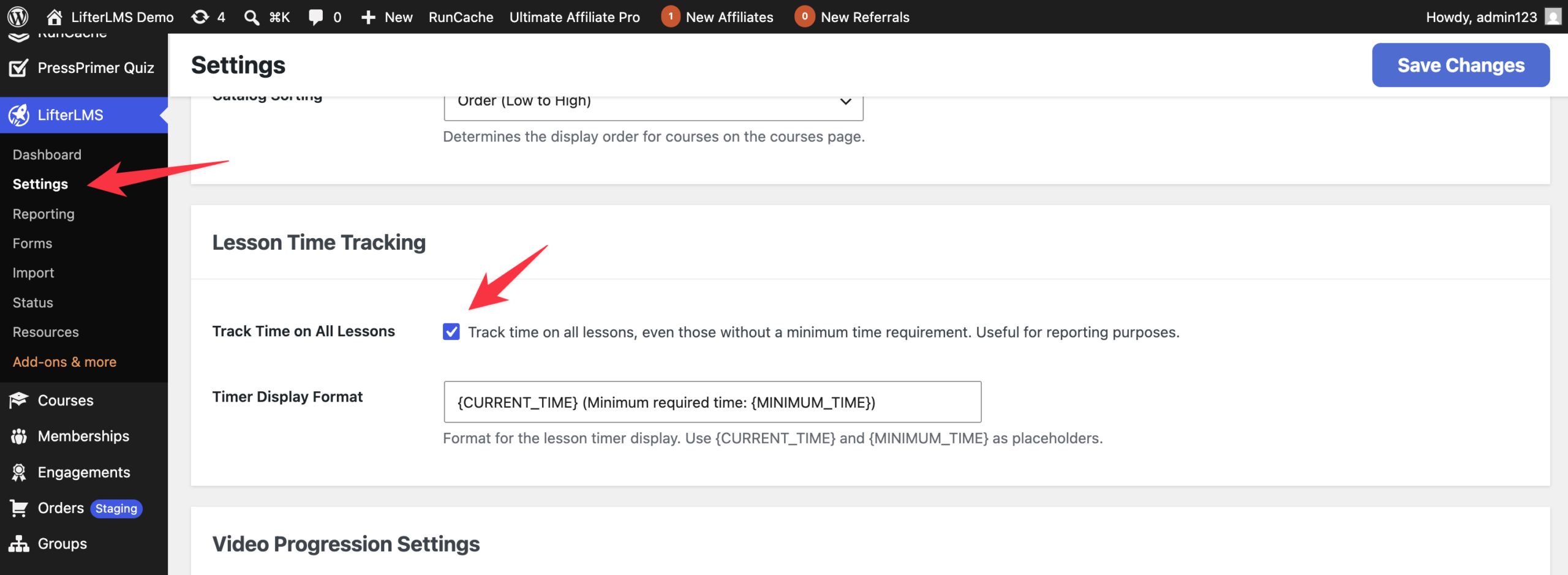
Before you can access the time-tracking reports for individual lessons, you must enable the tracking feature in your LifterLMS settings.
- Navigate to LifterLMS > Settings.
- Click on the Courses tab.
- Locate the “Lesson Time Tracking” section.
- Check the box labeled “Track Time on All Lessons” if you wish to record data for every lesson, even those without a time requirement.
- Optionally, you can customize the “Timer Display Format” to change how the timer appears to your students. You can use the placeholders {CURRENT_TIME} and {MINIMUM_TIME} to show progress.
- Click the Save Changes button to update your settings.
Note: Enabling “Track Time on All Lessons” is not required to set a minimum time requirement for individual lessons. These are independent features; the global setting is strictly for reporting purposes, while time requirements can be configured on a per-lesson basis regardless of this setting.
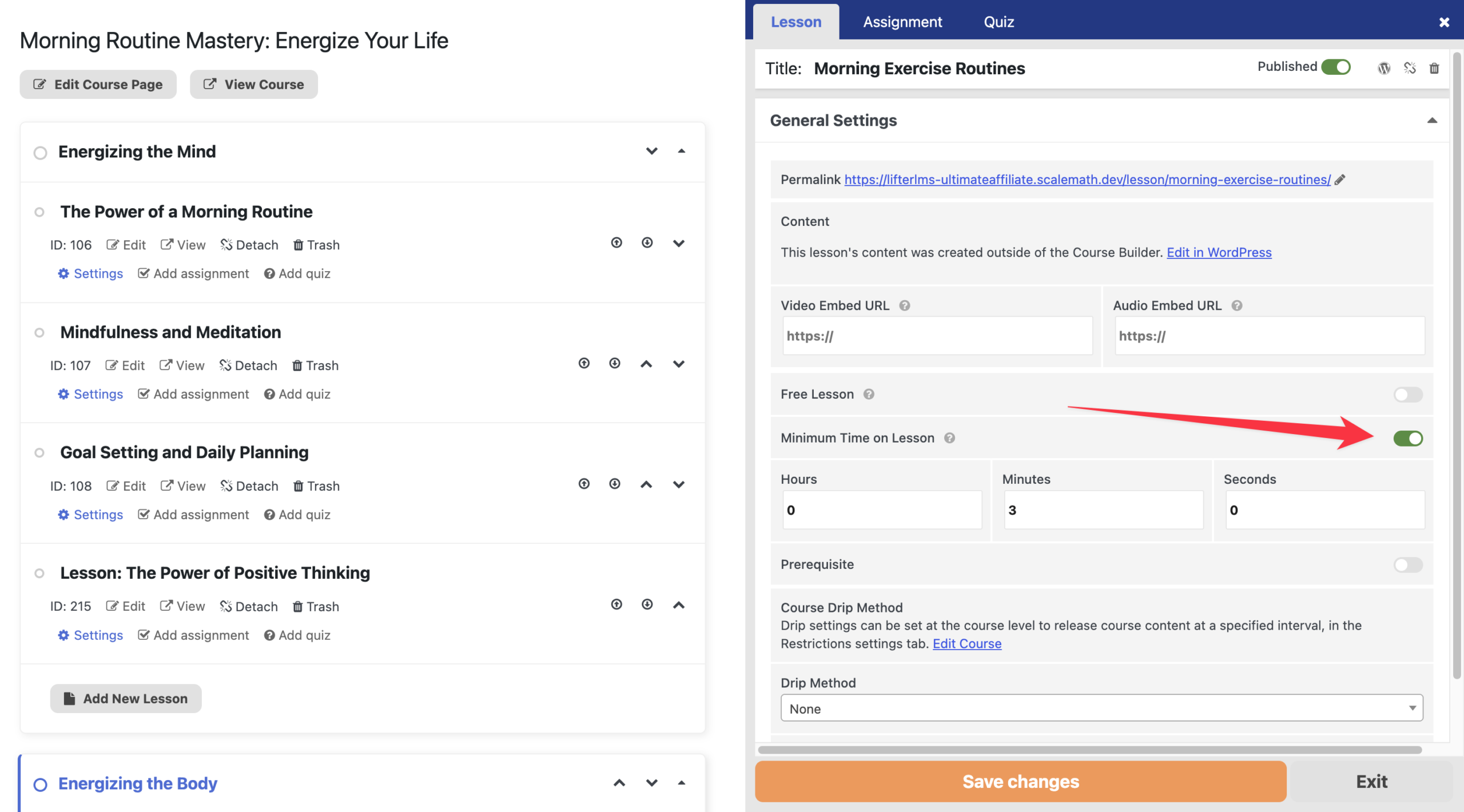
You can apply specific time constraints to your lessons through the Course Builder.
- Click the Courses tab and select the course you wish to edit.
- Click the Launch Course Builder button.
- Find the lesson you want to update and click the settings icon (or the lesson title) to open the individual lesson settings.
- Look for the “Minimum Time on Lesson” option and click the toggle switch to enable this feature.
- Enter your desired time in the boxes provided for “Hours,” “Minutes,” and “Seconds.”
- Click Save Changes to update your lesson settings.
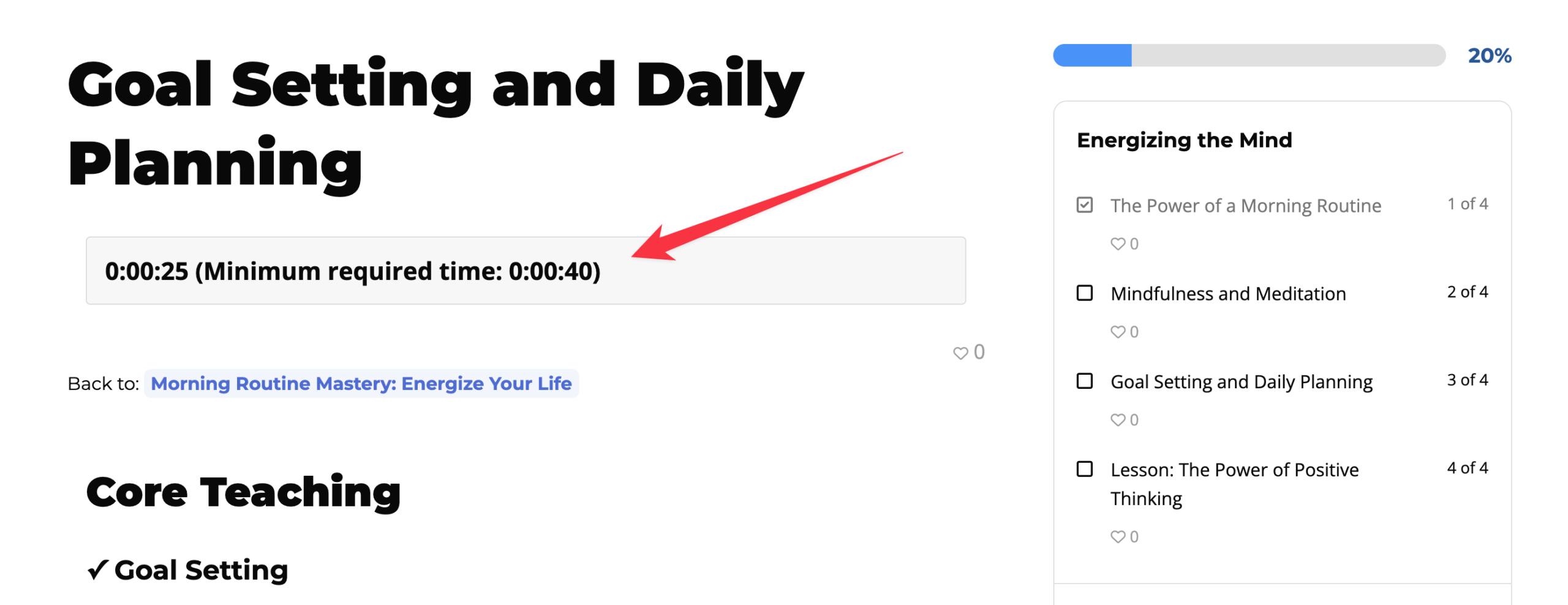
When a student opens a lesson with a time requirement, they will see a timer on their screen. The “Mark Complete” button remains disabled until the student meets the minimum time threshold you set. Once the required time has passed, the student may mark the lesson as finished.
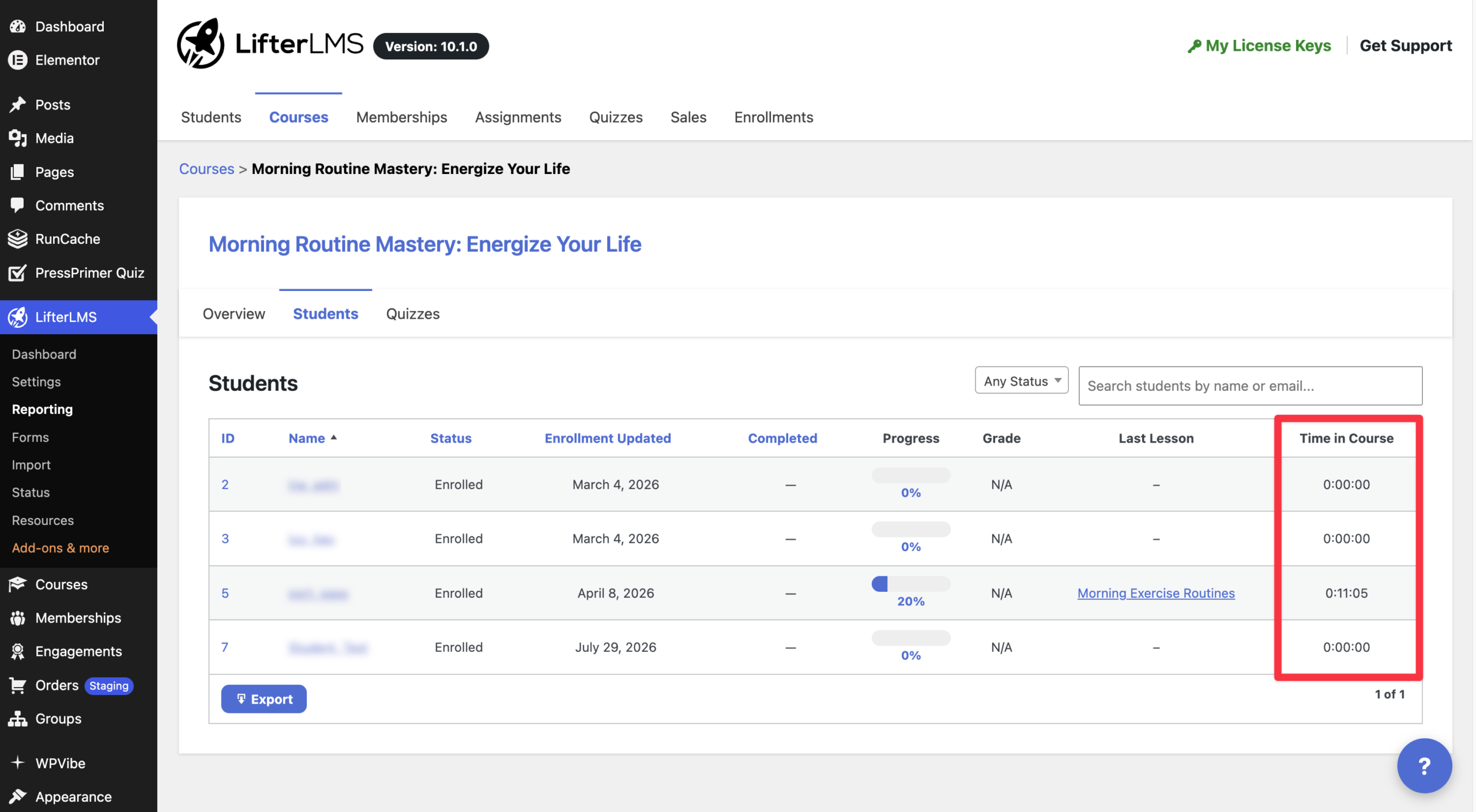
You can view the time students spend in your courses through the reporting dashboard.
- Navigate to Reporting > Courses.
- Select the specific course you wish to view.
- Click on the Students tab.
The “Time in Course” column displays the total tracked time for the student in that course. This data allows administrators to effectively monitor student engagement and track overall progress.
Does this feature work with video lessons?
While you can use this for any lesson type, we recommend using the LifterLMS video progression features if your primary goal is to ensure students watch a video in its entirety.
What happens if a student refreshes the page?
The timer tracks time on the server side. If a student refreshes the page, the timer will resume where they left off, provided they are logged in.
Can I track time without requiring a minimum?
Yes. By checking “Track Time on All Lessons” in the global settings while leaving the “Minimum Time on Lesson” toggle off for a specific lesson, LifterLMS will record the time spent for reporting purposes without requiring the student to stay for a specific duration.
Does this feature affect existing students?
Changes made to the “Minimum Time on Lesson” settings apply immediately to anyone viewing the lesson. If a student is currently in a lesson when you change the settings, they may need to refresh their browser for the new requirements to take effect.
What happens if a student closes their browser tab?
The timer continues running as long as the browser tab remains open. If a student closes the tab, the timer will pause, and it will resume from the same point once the student returns and reopens the lesson.


