

How to Require Completion with LifterLMS Advanced Videos
The “Require Video Completion” feature, available in the LifterLMS Advanced Videos add-on, requires students to watch the full video before they can mark a lesson as complete.
Requiring video completion only affects the “Mark Complete” button. It does not stop students from opening the next lesson. It only prevents the student from marking the current lesson as complete.
To restrict access to the next lesson until the current one is completed, you must configure prerequisite lessons, which is explained at the end of this page.
- Navigate to LifterLMS Settings: From your WordPress dashboard, go to LifterLMS > Settings.
- Enable Video Provider Integrations: Go to the “Integrations” tab. You must enable the integration for your video provider (Vimeo, YouTube, or Wistia) for the advanced video features to work.
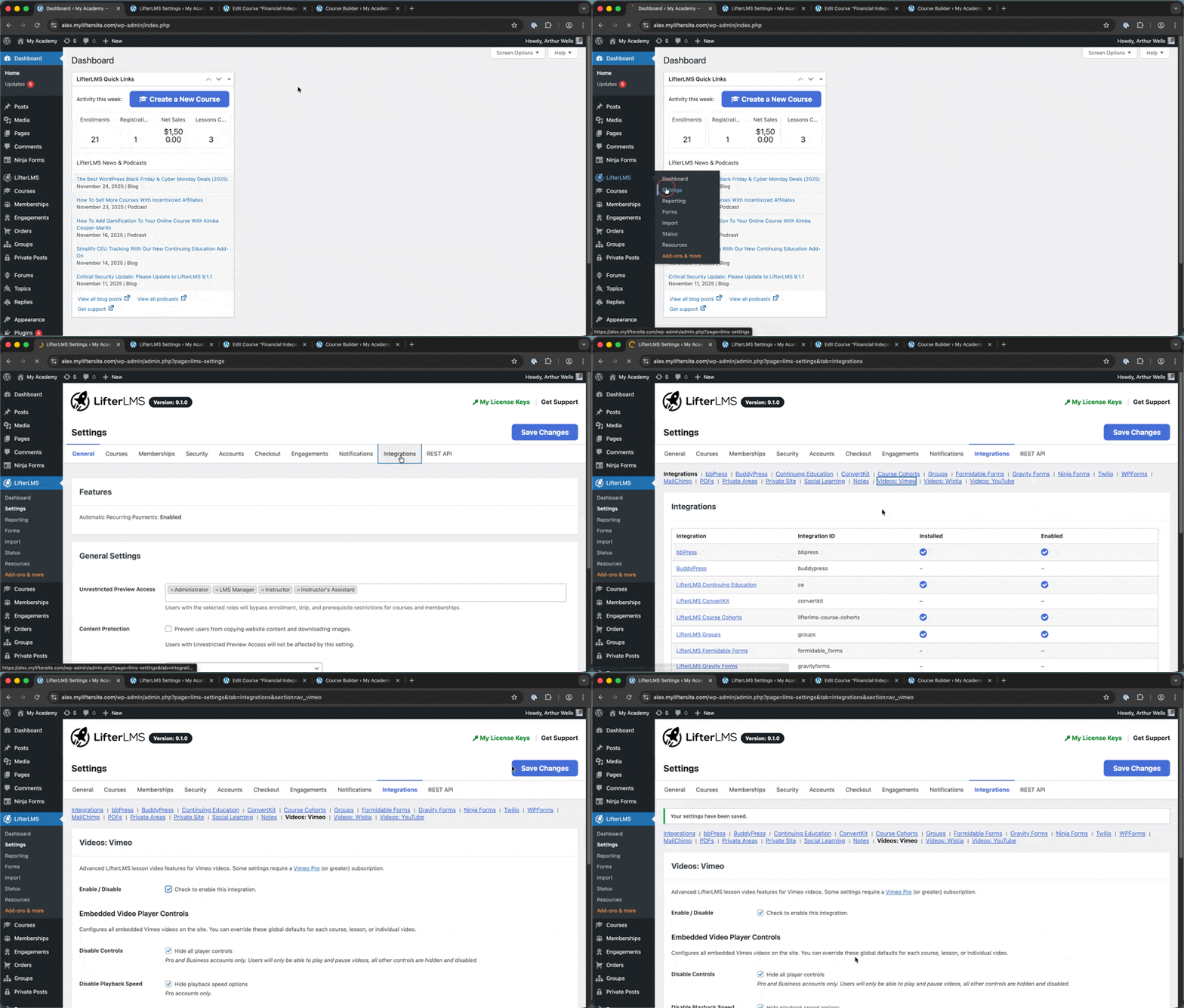
- Enable “Require Video Completion”: You can enable this setting at three levels, listed below in order of precedence:
-
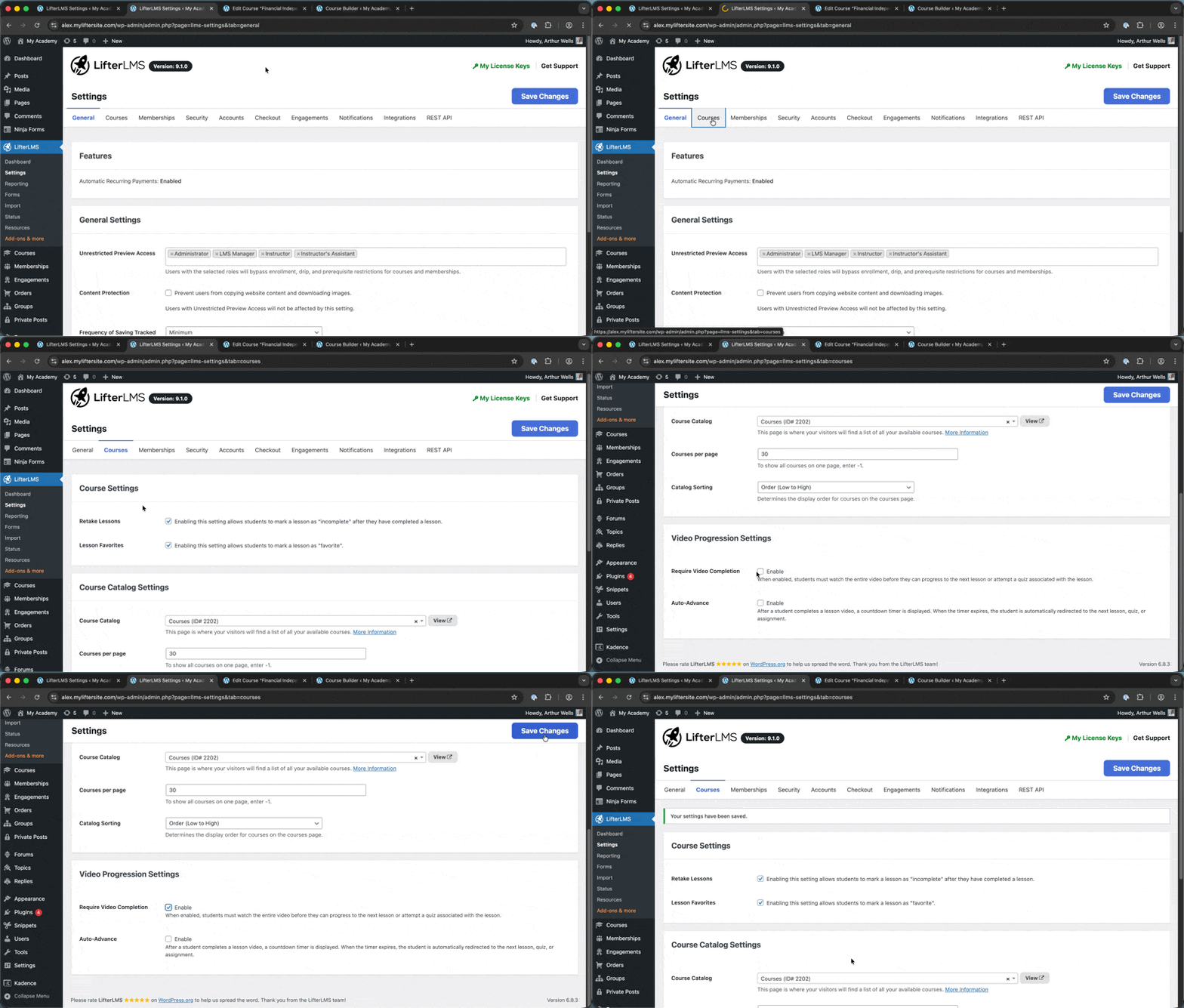
- Global Setting: To enable this feature for all courses, go to the Courses tab. In the “Advanced Video Progression Settings” section, check the Require Video Completion box, then save your changes.
-
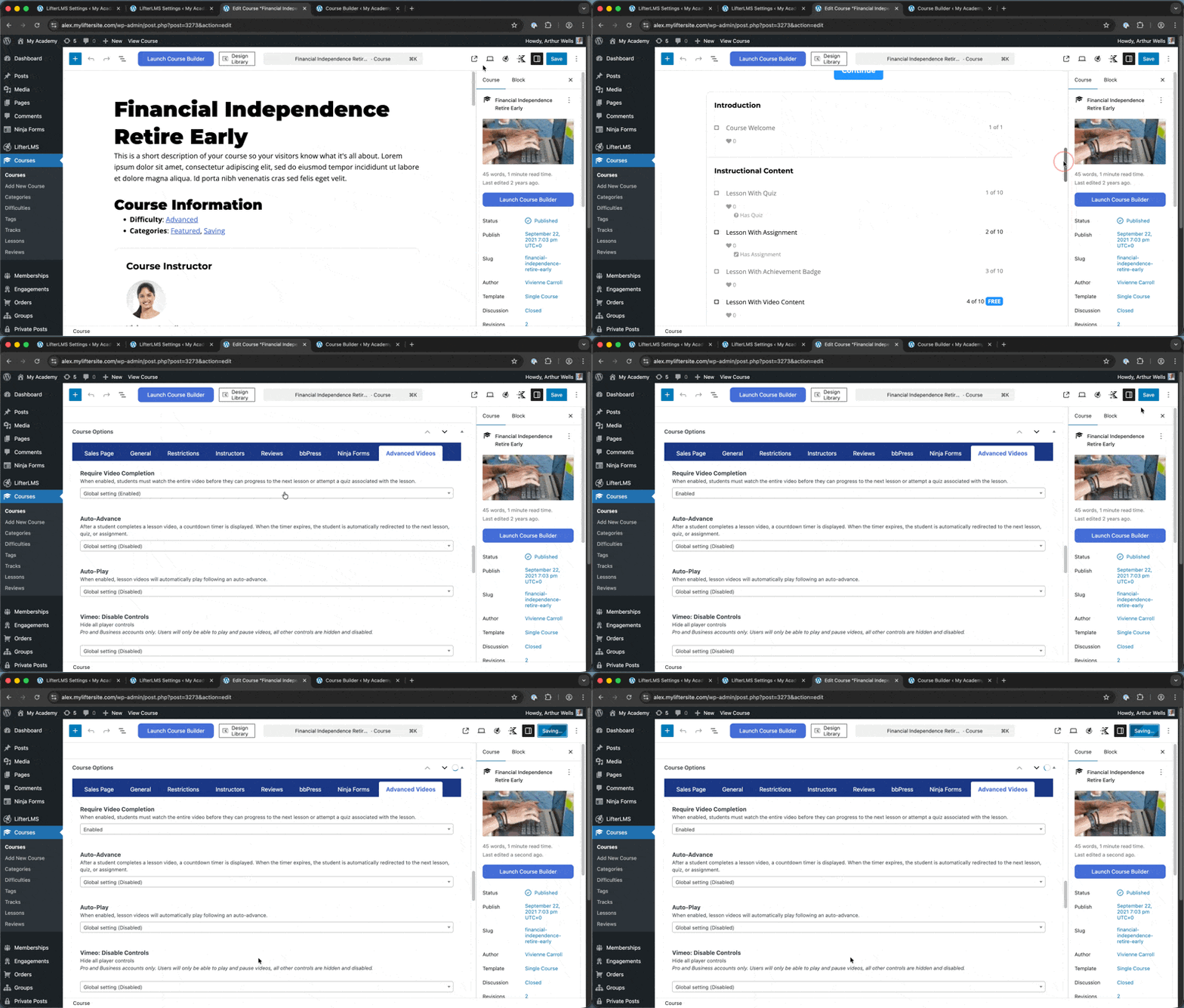
- Course-Specific Setting: To override the global setting for a specific course, edit the course and go to the Advanced Videos tab in the “Course Options” metabox. Here, you can enable or disable “Require Video Completion” for that particular course. Once you have made the necessary changes, click Save to save your changes.
-
- Video-specific setting: You can enable or disable this setting for a specific video. Open the lesson editor and locate the “Require Video Completion” dropdown in the lesson settings panel. In this dropdown, select the desired value and click Save to save the changes.
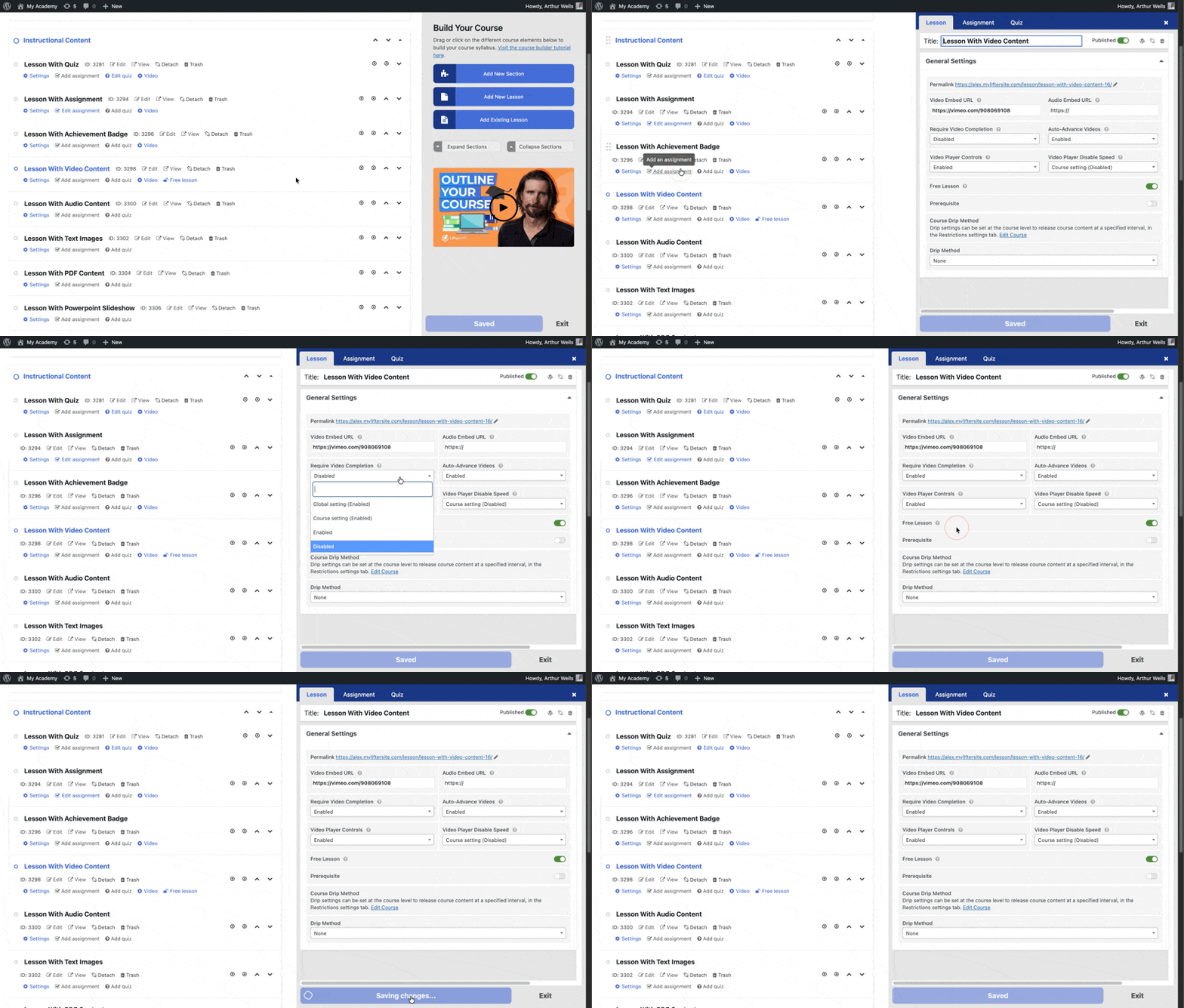
- Add Your Video: In the lesson editor, enter your video URL in the “Video Embed URL” field provided by LifterLMS. This feature only works when the video URL is added to the “Video Embed URL” field. Videos embedded directly into lesson content are ignored.
- (Optional but Recommended) Disable Video Controls: For providers like YouTube and Vimeo, you can disable the video player controls. This prevents students from skipping ahead in the video. This setting is typically found in the integration settings for the respective video provider (e.g., under LifterLMS > Settings > Integrations > YouTube).
When “Require Video Completion” is enabled, students cannot click Mark Complete until the full video has been watched. In the following screenshot, the Mark Complete button is disabled until the video finishes playing.
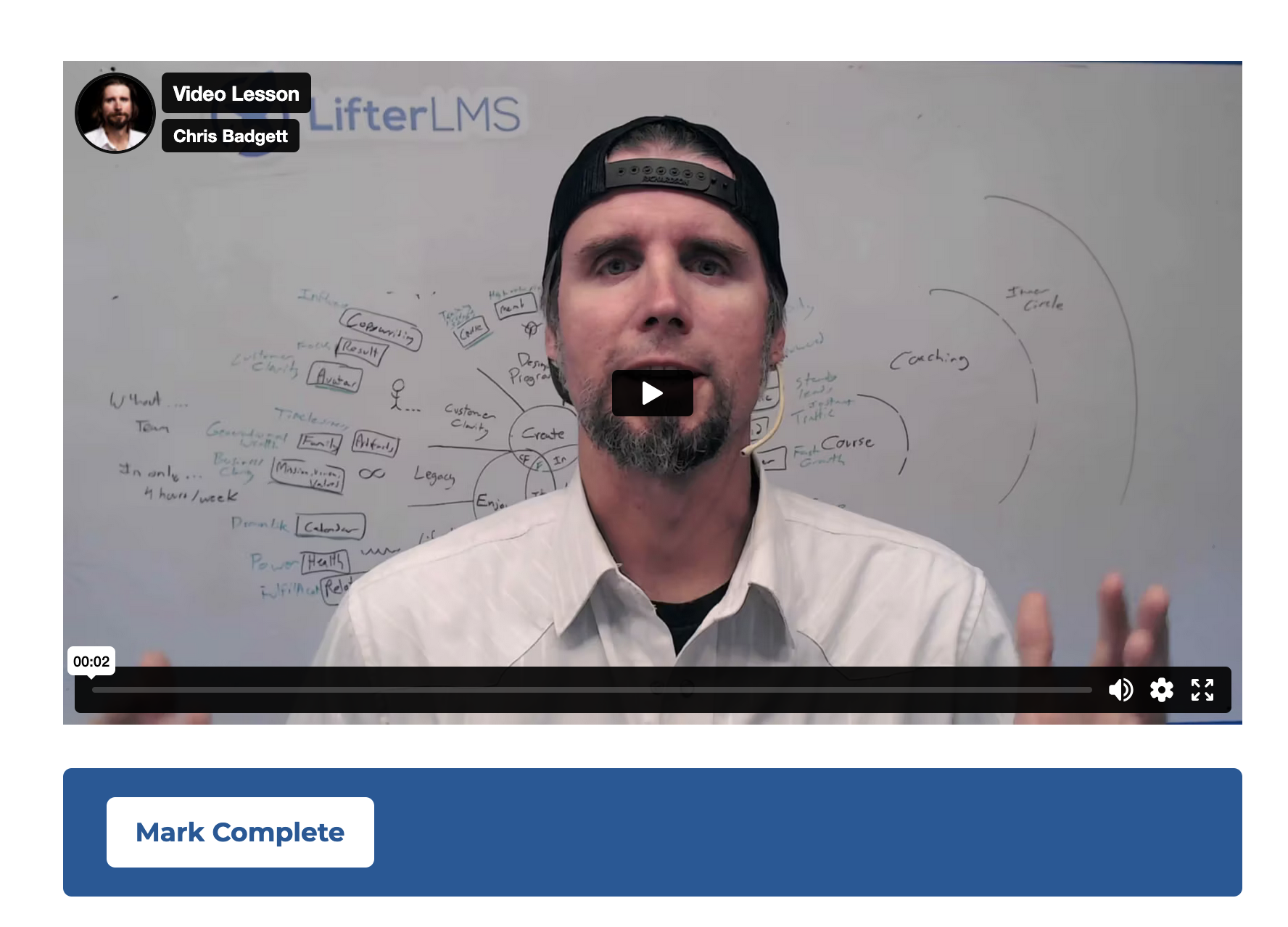
After enabling the “Require Completion” setting in the course menu, the button is disabled and can not be clicked by students.
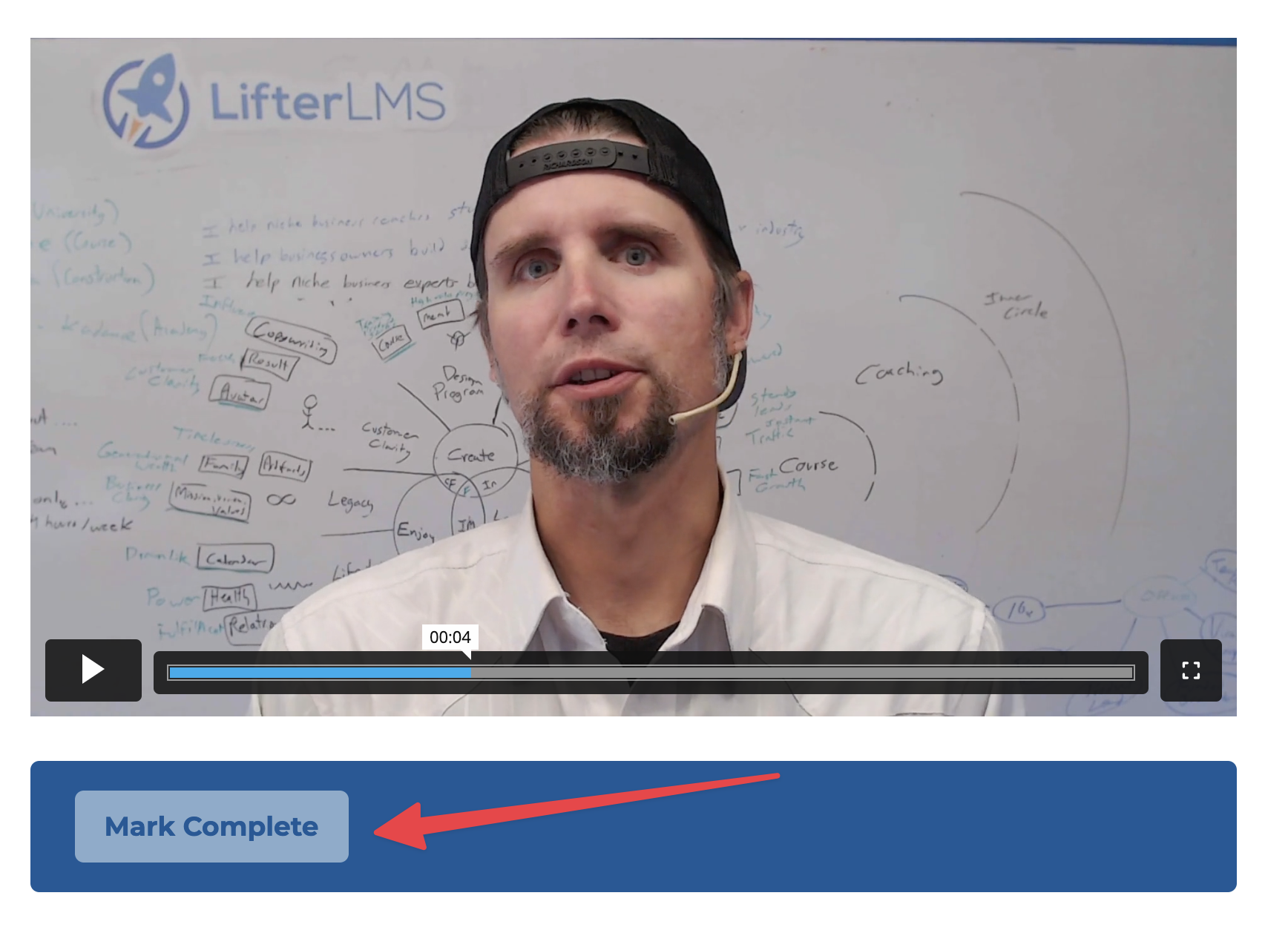
However, this setting alone does not prevent the next lesson from being accessed. A student can still proceed to the next lesson in the course even if they have not completed the current lesson’s video.
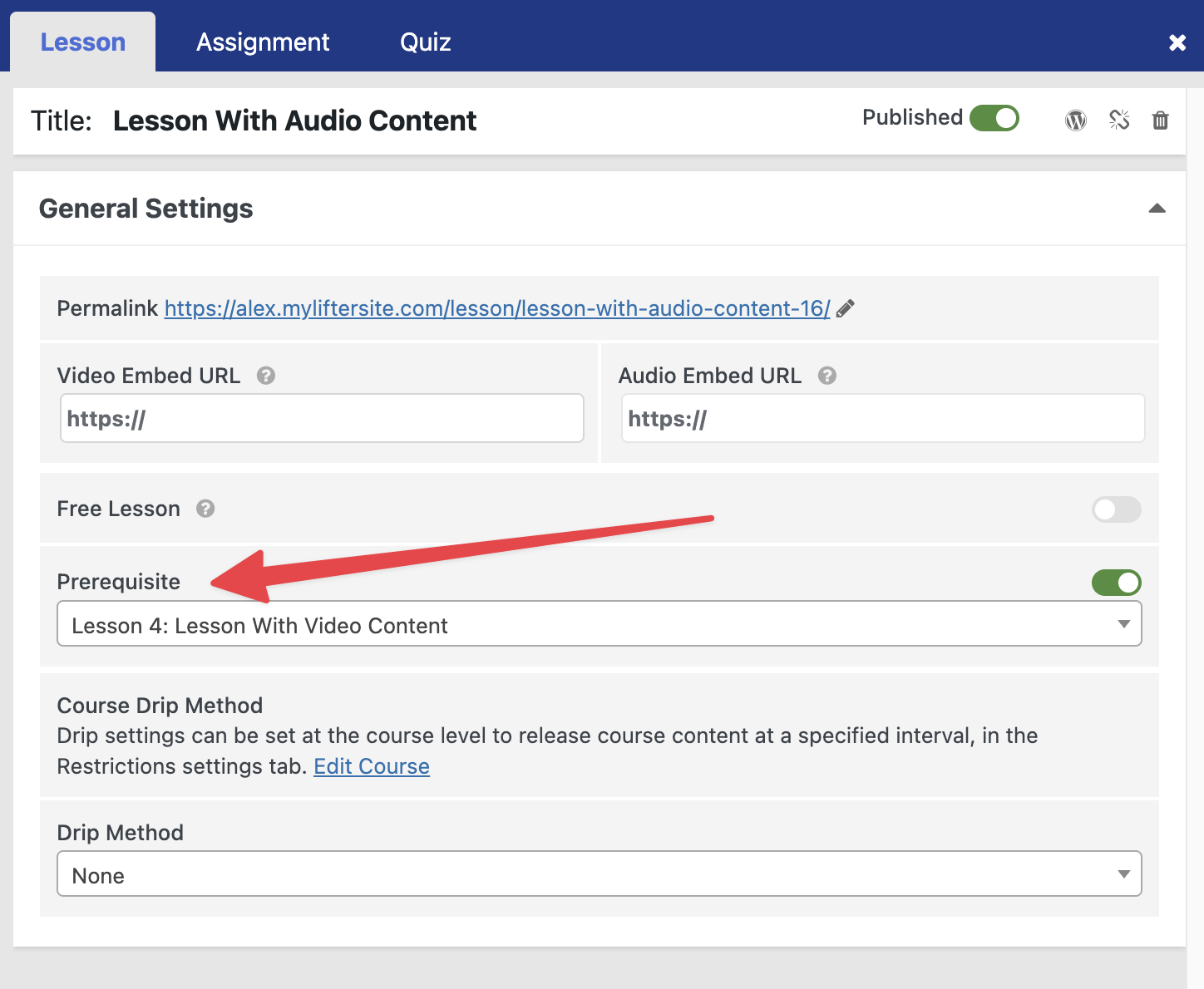
To prevent students from moving on before completing a lesson, you must use LifterLMS’s prerequisite feature. You can set the current lesson as a prerequisite for the next one. This prevents access to the next lesson until the current lesson is marked complete, which in turn requires full video playback.
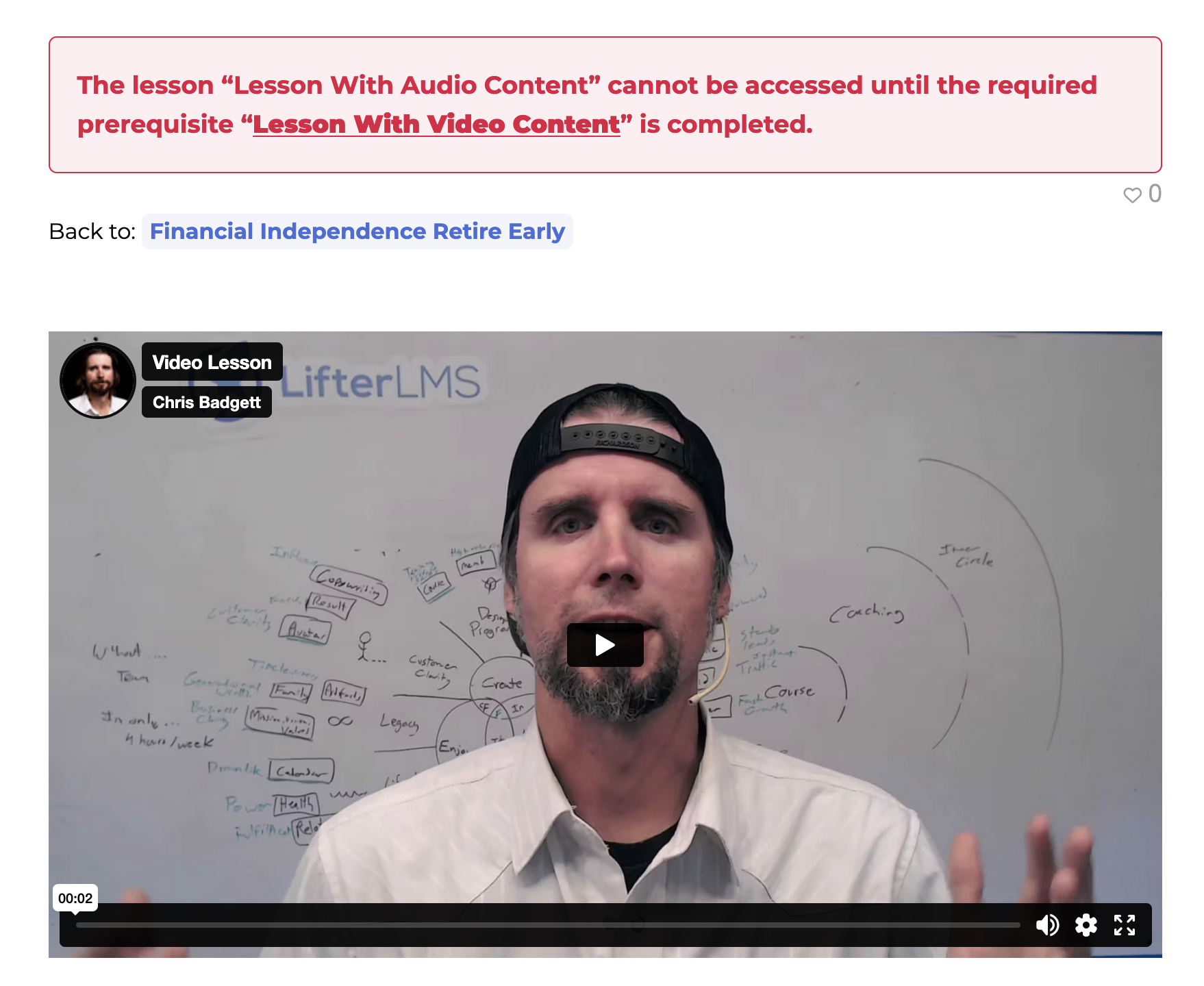
Once you have enabled the prerequisite functionality, users will see an error message if they try to access the next lesson before completing the prerequisite lesson.


