

How to Restrict WooCommerce Products to Specific LifterLMS Members
You can limit who can buy a WooCommerce product on your website by requiring that a user belong to a specific LifterLMS membership before they can purchase it.
When you connect this restricted product to a course, the system will require users to sign up for the required membership before they can purchase the course.
Restricting products allows you to create unique sales strategies and reward your loyal students. Here are a few ways you can use this feature:
- Preferential Pricing: You can create a VIP membership that gives users access to lower prices on your courses. Only users with the VIP membership will see and be able to purchase the discounted WooCommerce product.
- Better Payment Options: You might want to offer a flexible monthly payment plan to your existing members, while requiring non-members to pay for a course in one full payment.
- Exclusive Content: You can sell premium coaching packages, physical workbooks, or advanced courses exclusively to users who have already purchased a basic membership.
Before you begin, ensure your website meets a few basic requirements:
- Install and activate the LifterLMS plugin.
- Install and activate the LifterLMS WooCommerce integration add-on Version 3.0.0 or higher.
- Create at least one membership in LifterLMS.
Follow these steps to limit a WooCommerce product so that only users with a specific membership can purchase it.
- Go to your WordPress dashboard.
- Navigate to Products > All Products.
- Click the Edit button on an existing product, or click the Add New button to create a completely new product.
- Scroll down the page until you find the “Product data” section.
- Click on the “Advanced” tab located on the left side of the “Product data” box.
- Look for the setting labeled “Members Only”.
- Click inside the “Members Only” dropdown menu.
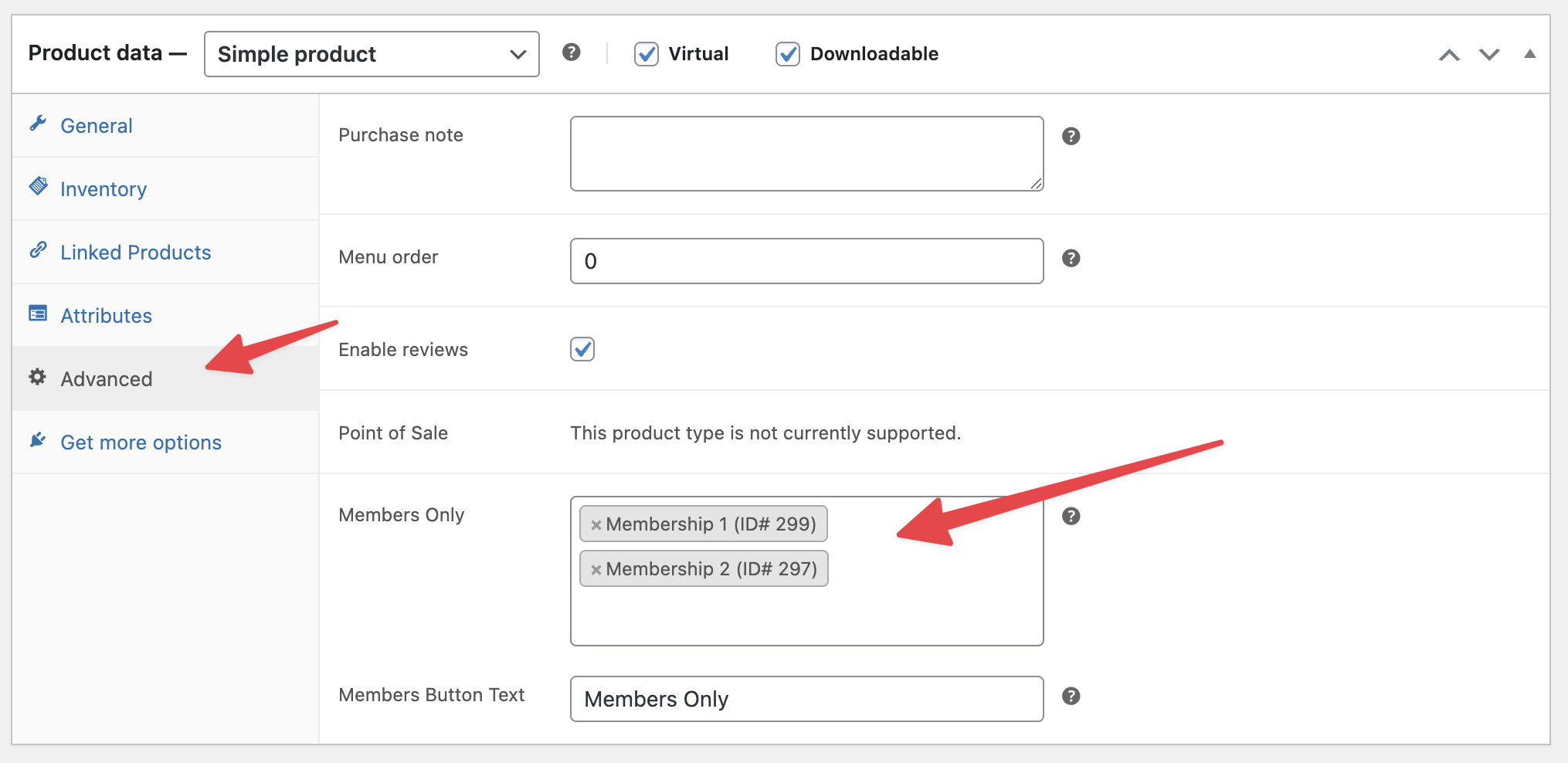
- Select the existing membership that you want to require for this purchase. The dropdown will display your membership names along with their ID numbers, such as “Membership 1 (ID# 299)”.
- Repeat the previous step if you want to allow multiple different memberships to buy this product.
- Scroll up to the top right corner of the screen.
- Click the Publish button if this is a new product, or click the Update button if you are editing an existing product.
Now that you have saved the product, you can use it to create new payment plans for your existing LifterLMS courses.
When you link this restricted WooCommerce product to a course as a payment plan, the course becomes restricted as well. A site visitor must purchase and join the required membership before the system will allow them to purchase the course.
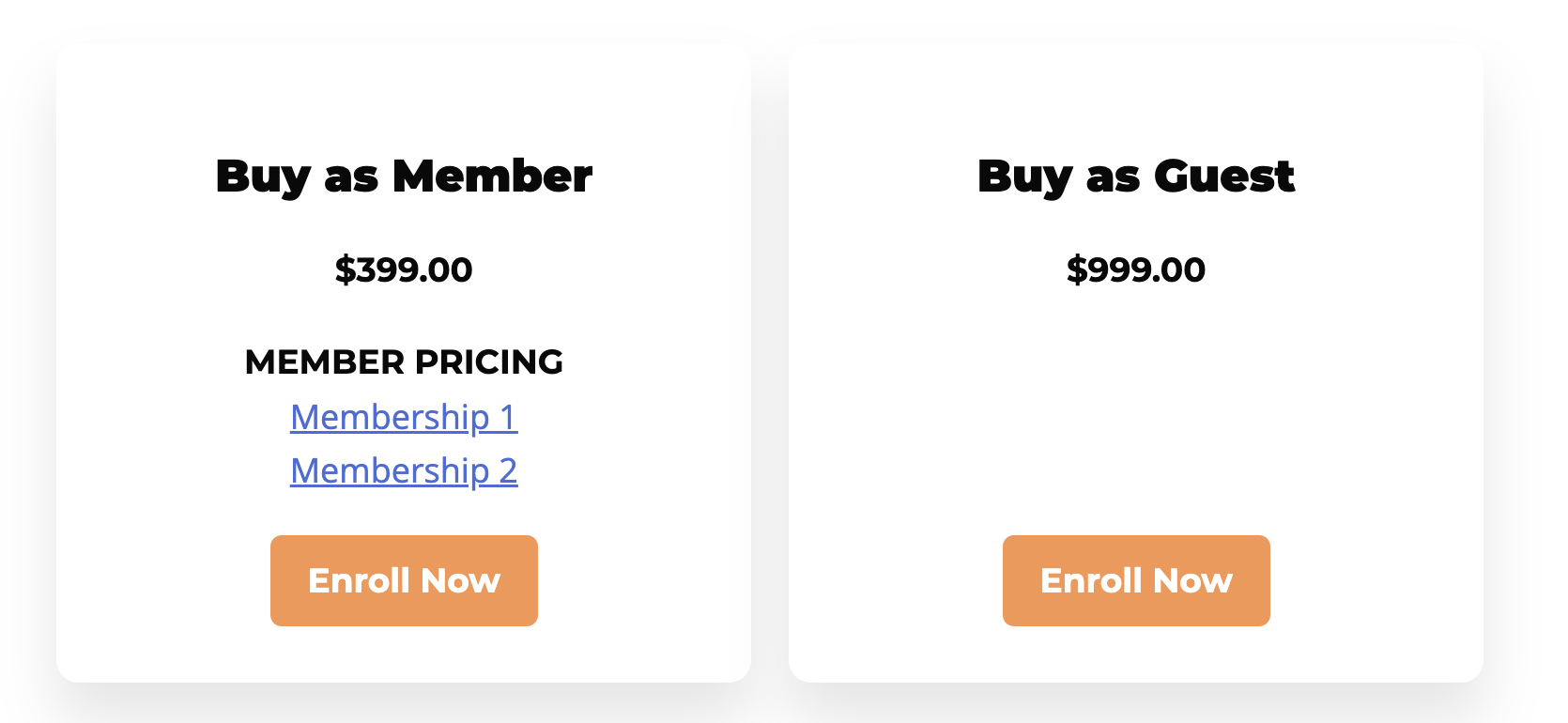
To learn more about connecting your LifterLMS access plans to WooCommerce products, we recommend reading our documentation on How do I set up a LifterLMS Access Plan that is associated with a WooCommerce Subscription Product.


