

How to edit lessons, courses, and memberships in Bricks
Customers who are using the Bricks WordPress theme can follow the getting-started tutorials in the Bricks Academy. This help document focuses on the basics of how to create lessons, courses, and memberships in LifterLMS using the Bricks theme.
Step 1. From the WordPress administration dashboard, navigate to Bricks > Settings.
Step 2. Under the General tab, scroll down to the “Post types” section.
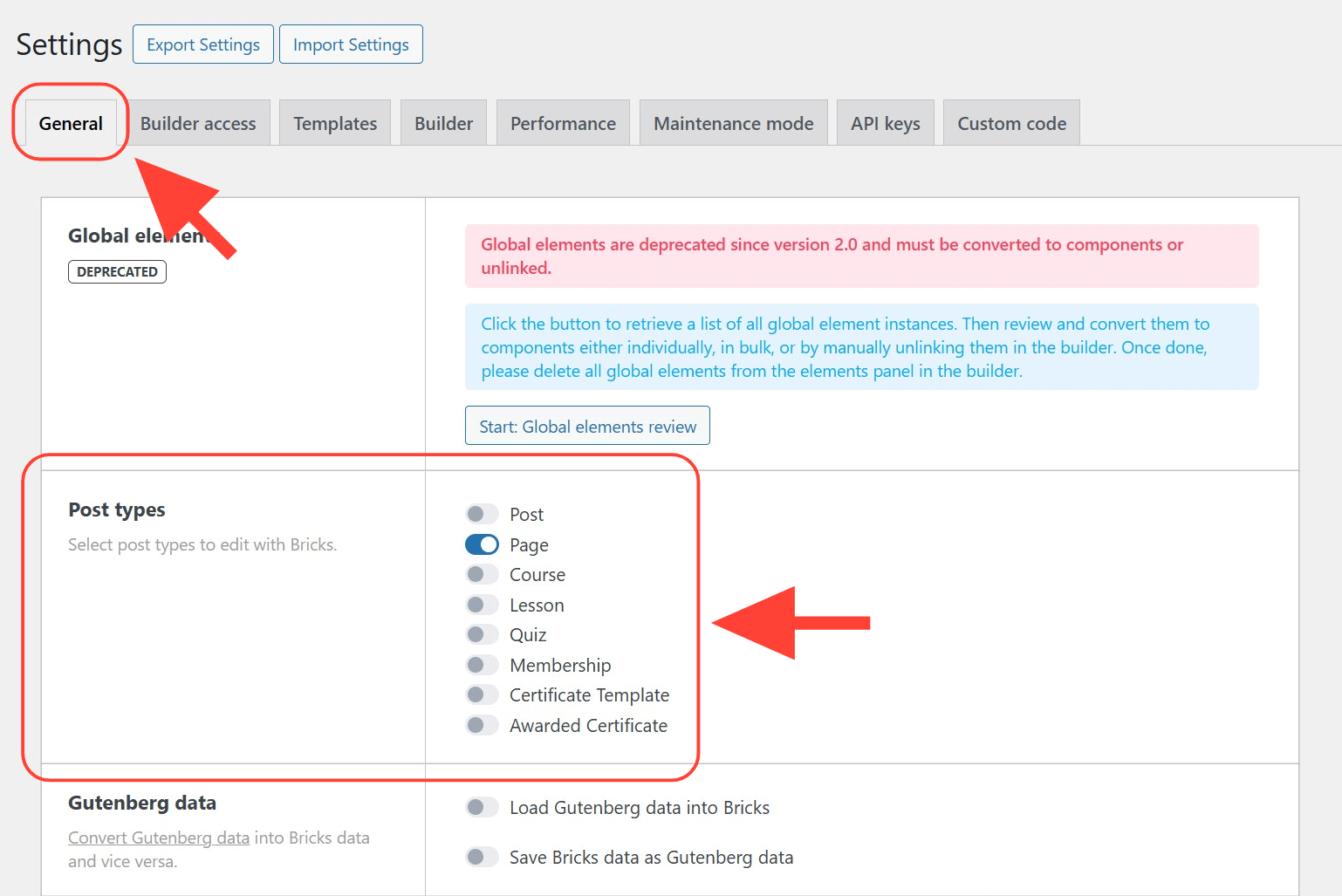
Step 3. Toggle on Lessons, Courses and Memberships and save the changes.
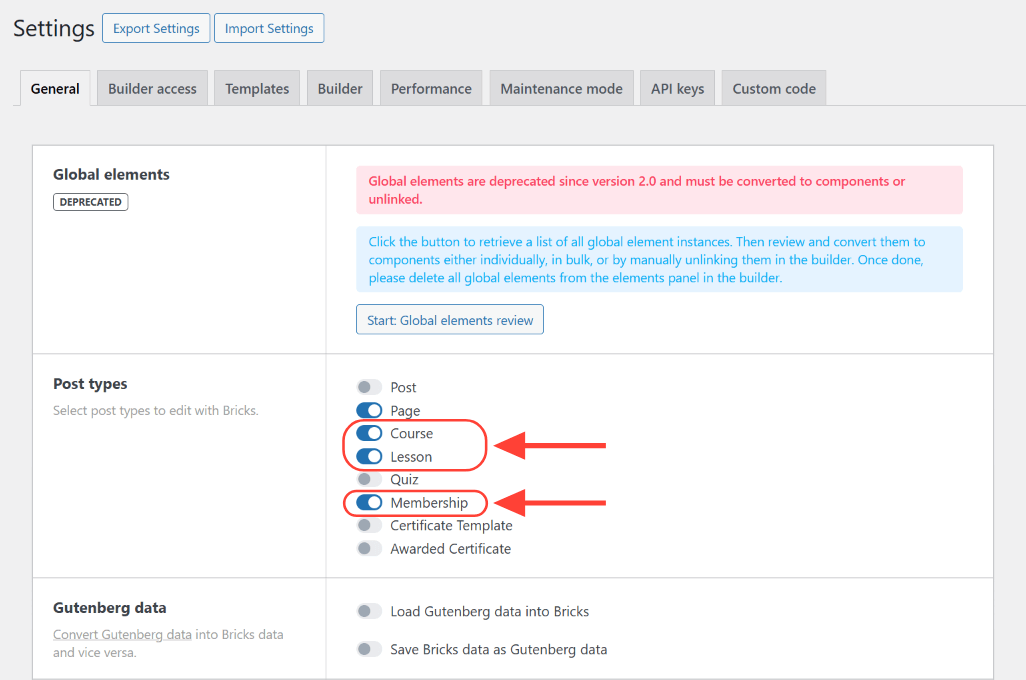
To open a course in Bricks, you can follow any one of the following options.
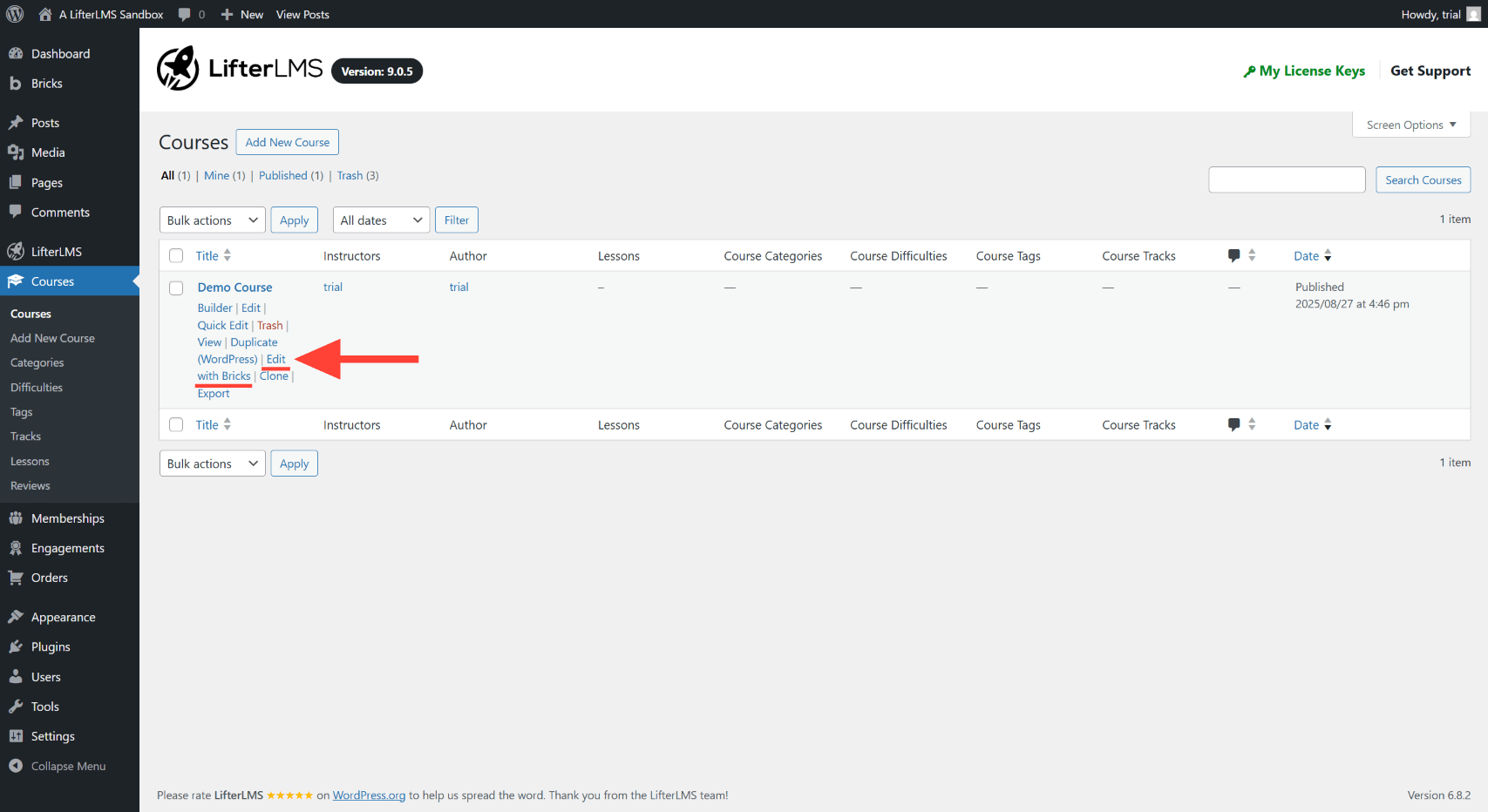
Option 1. Click on the Edit with Bricks link in the lesson/course/membership list.
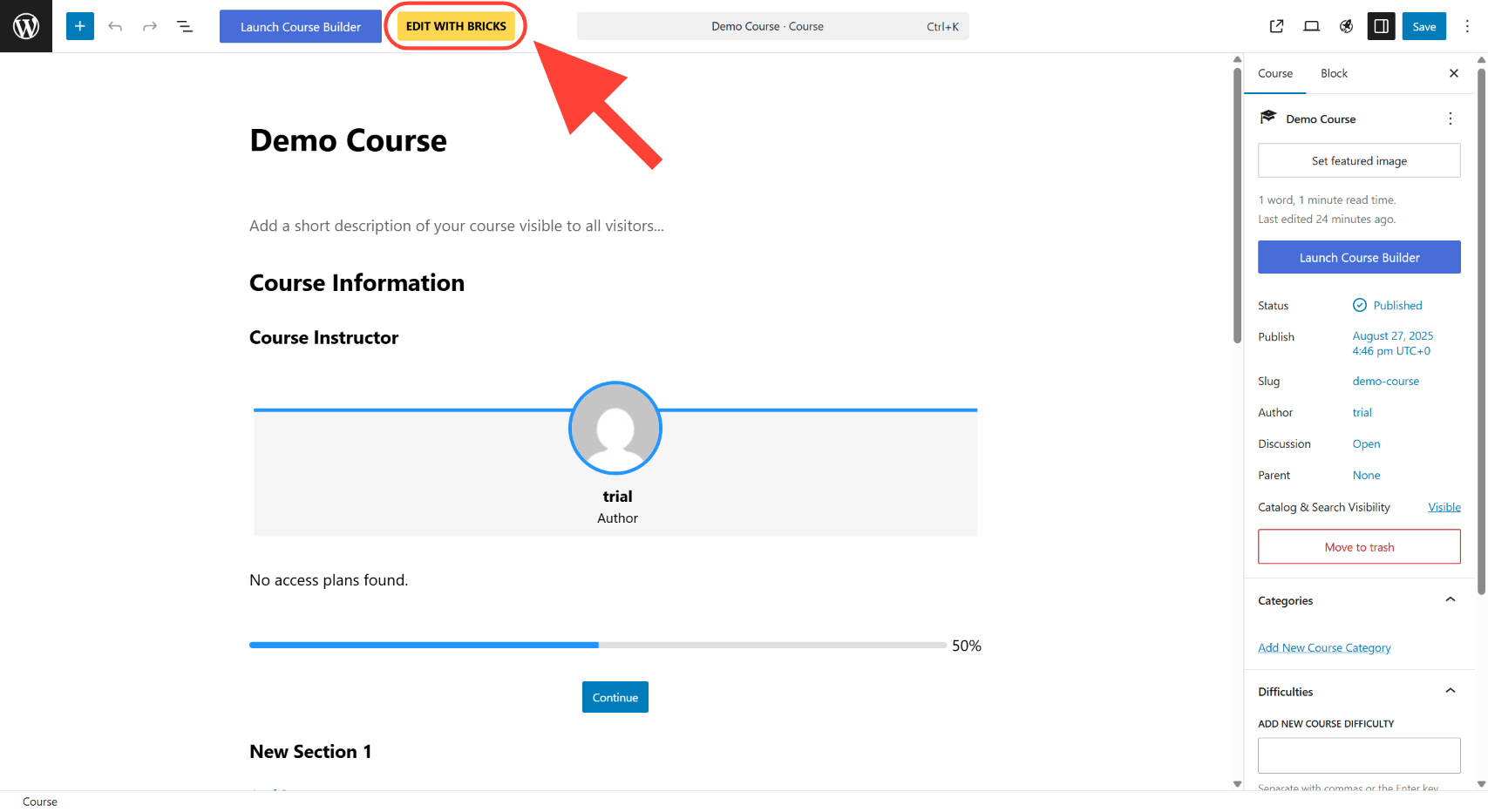
Option 2. Click on the Edit with Bricks button in the block editor.
Option 3. Click on the Edit with Bricks button in the admin toolbar.
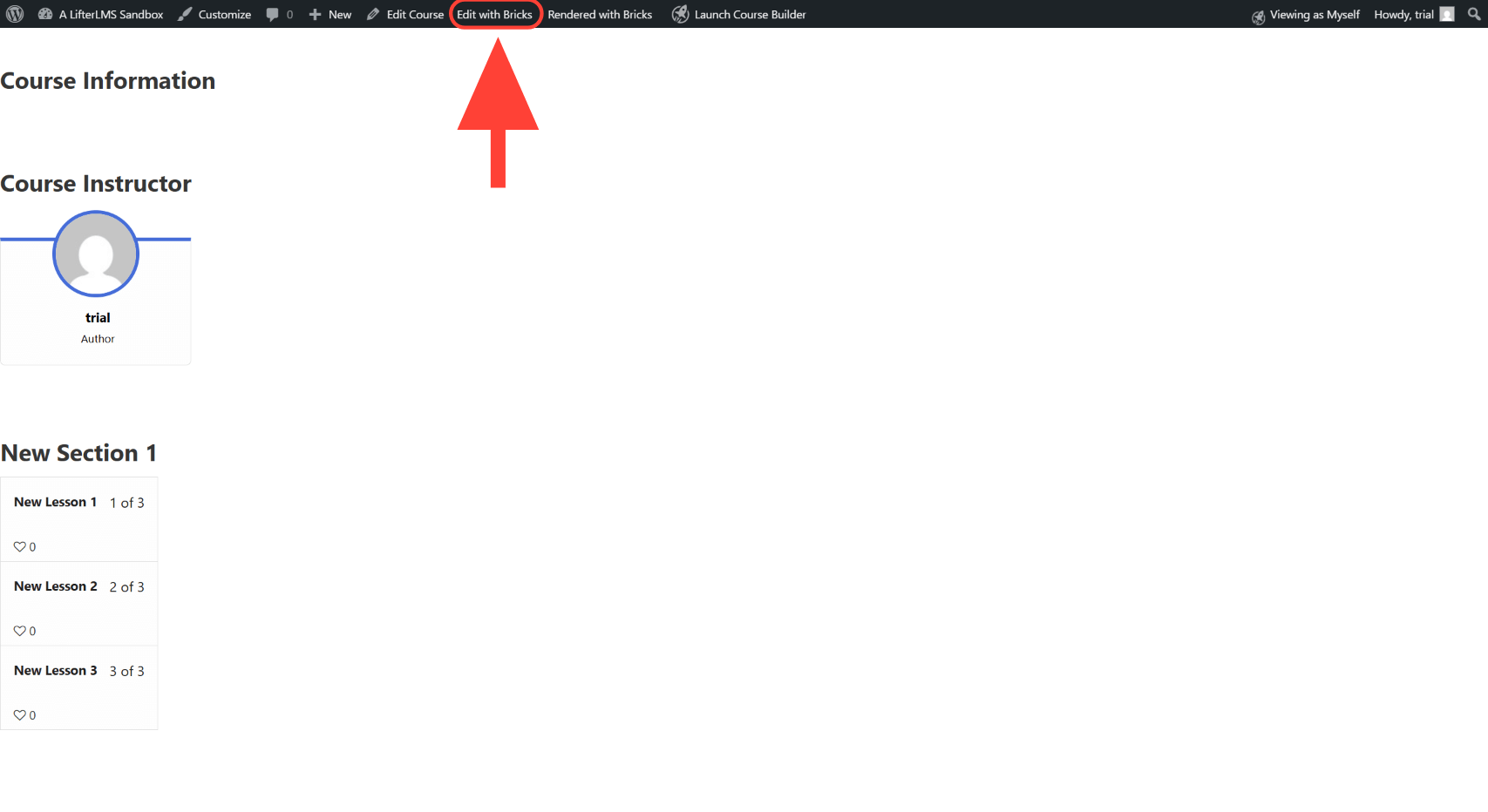
Any of the above options will open your lesson/course/membership page in the Bricks page editor.
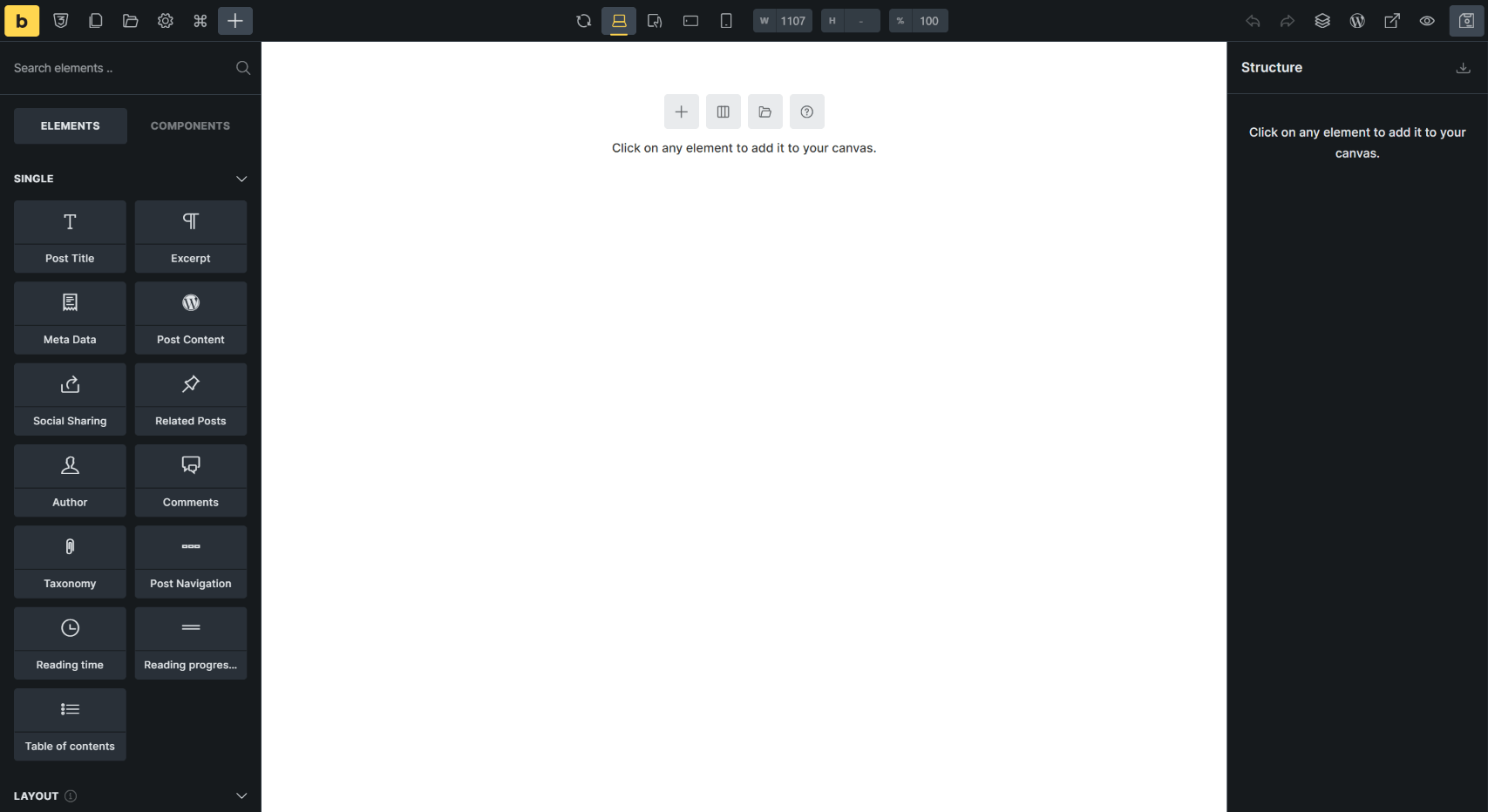
When you first open a lesson page, course page, or membership page in Bricks, you will see a blank canvas, as shown below.
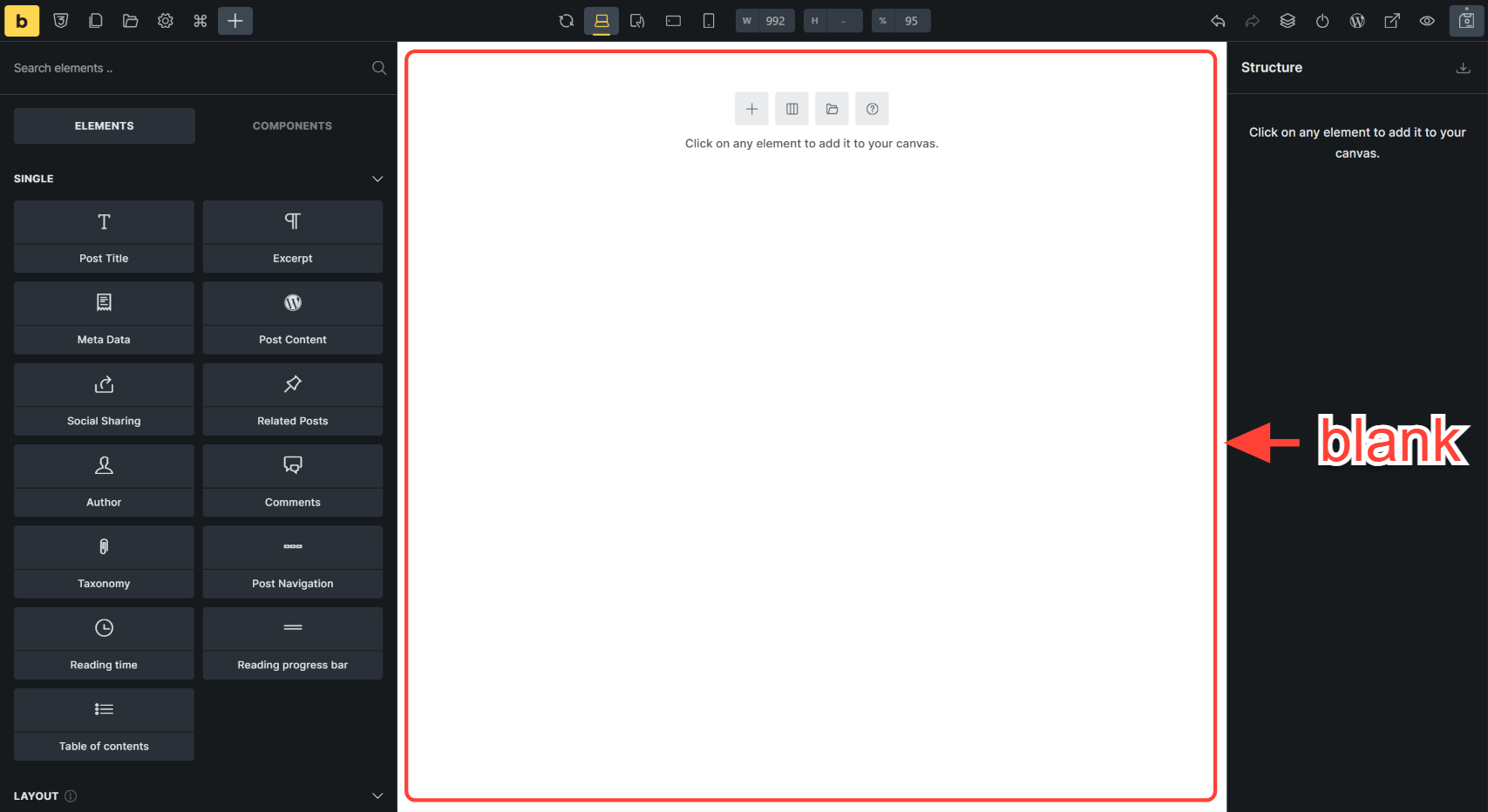
You can quickly add content to this blank canvas by using any of the available Bricks elements and templates. Bricks also adds some LifterLMS-specific Bricks elements.
These elements are:
- The Course Author element
- The Course Progress with Continue Button element
- The Course Information element
- The Course Meta Information element
- The Course Progress element
- The Course Syllabus element
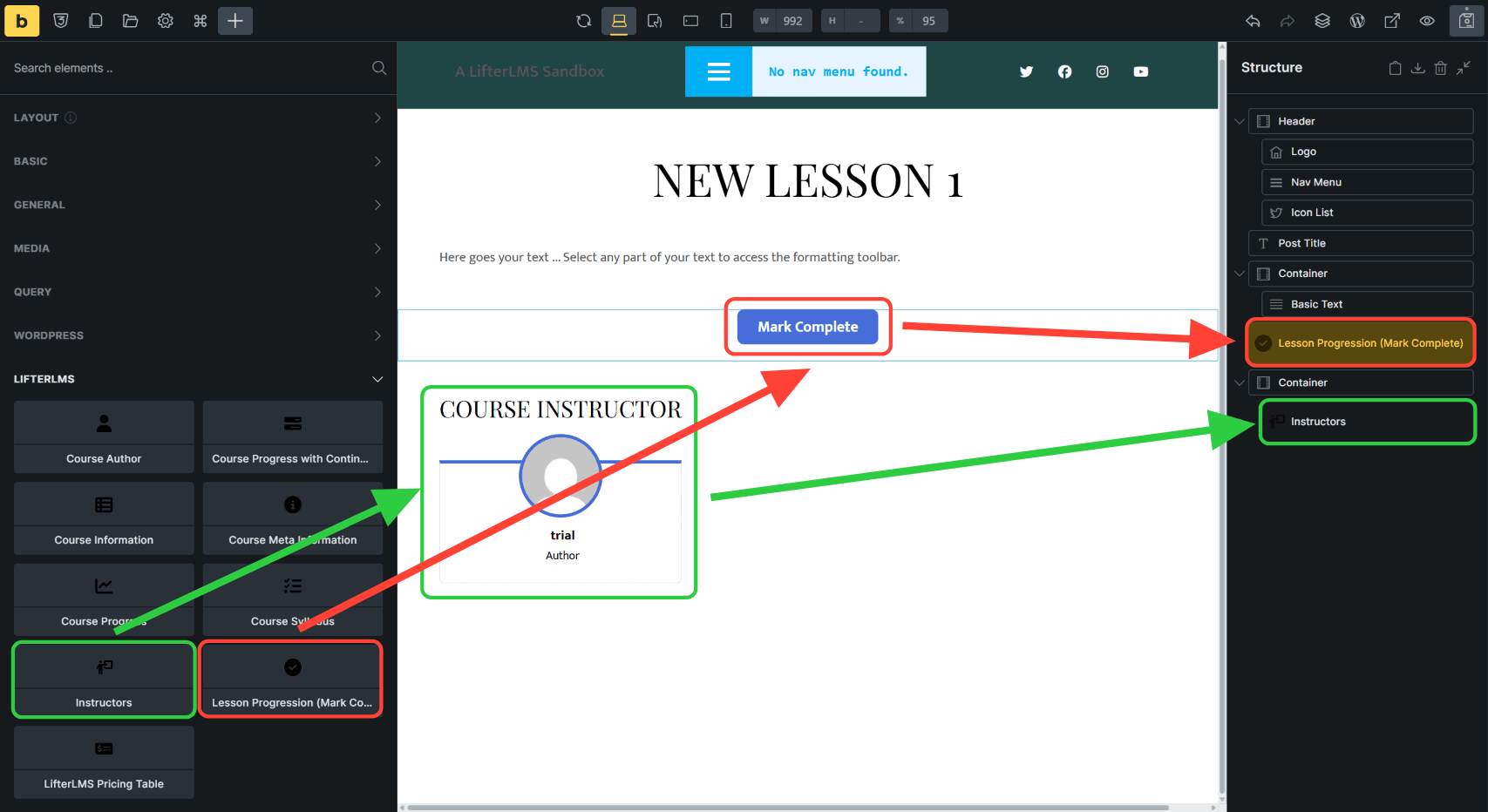
- The Instructors element
- The LifterLMS Pricing Table element
- The Lesson Progression (Mark Complete) element
These LifterLMS-specific elements provide information about a specific LifterLMS course. The only exception is the Lesson Progression (Mark Complete) element, which applies to lesson pages only.
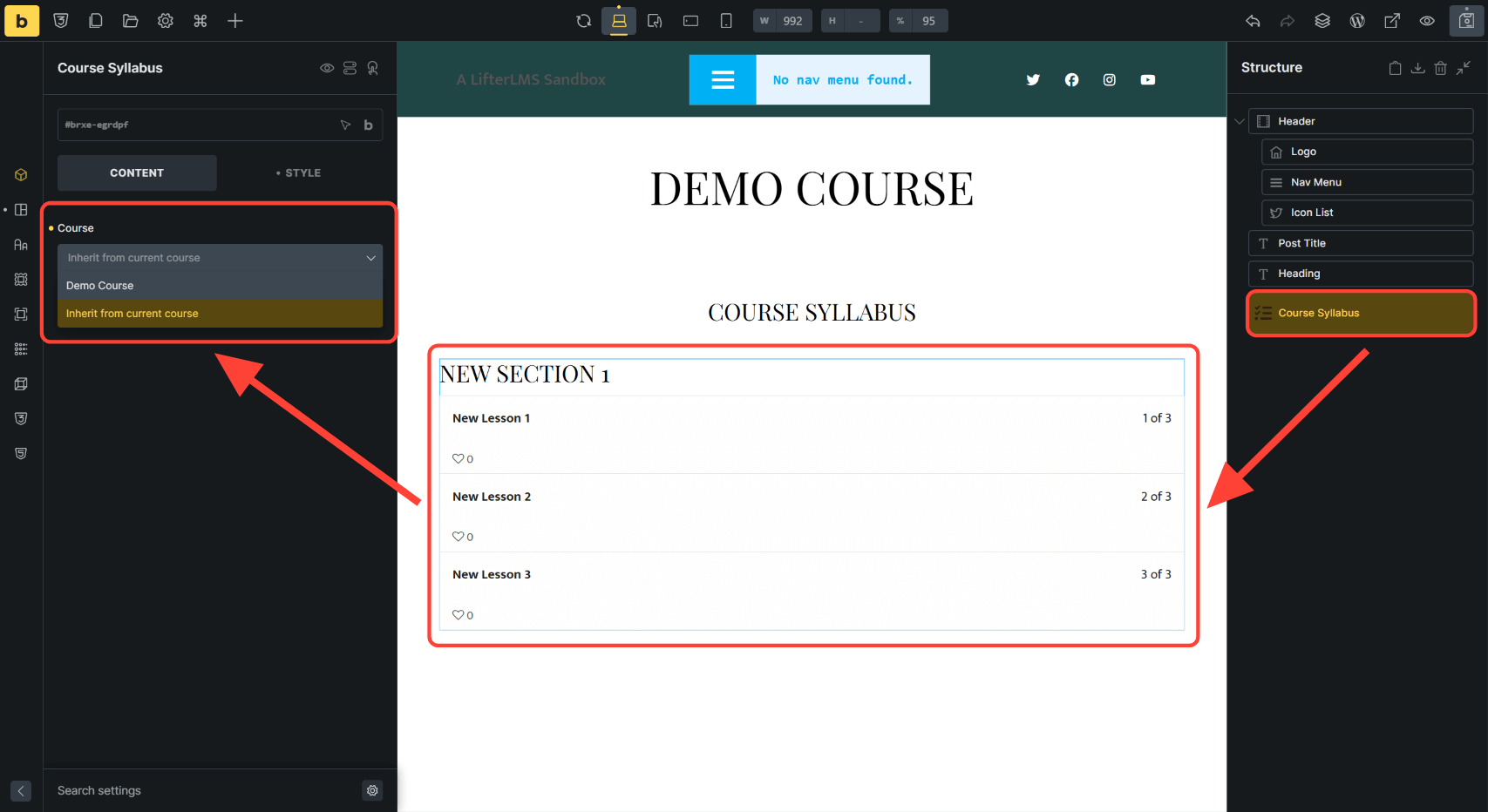
Some, but not all, of these course-specific elements can be added inside lesson pages and membership pages, not just course pages. For example, the Lesson Progression (Mark Complete) element can only be added inside a lesson page. The Instructors element, on the other hand, can be added to lesson pages, course pages, and membership pages.
If you have existing courses created using the WordPress block editor, you may want to edit the content of your existing courses in Bricks.
Step 1. From the WordPress administration dashboard, navigate to Bricks > Settings.
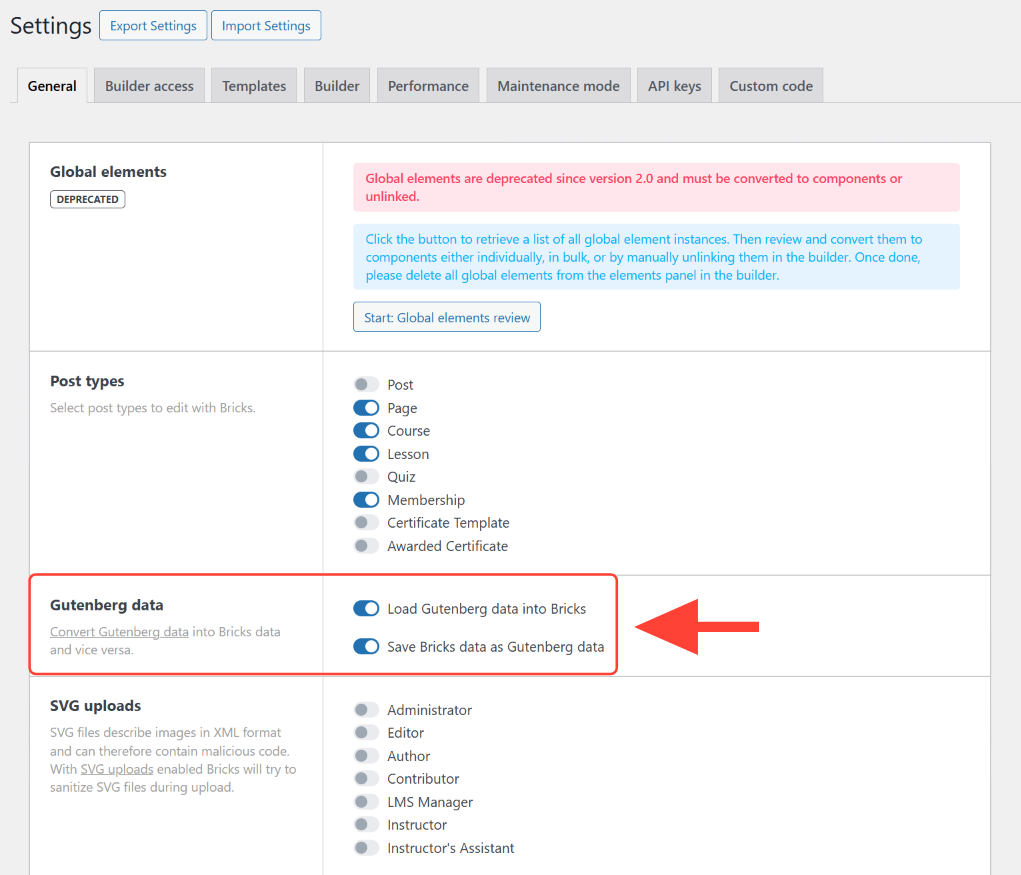
Step 2. Under the General tab, scroll down to the “Gutenberg data” section.
Step 3. Toggle on the following:
- Load Gutenberg data into Bricks
- Save Bricks data as Gutenberg data
Once you do this, LifterLMS and many WordPress blocks will be translated into Bricks elements for editing within the Bricks editor.


