

How to Display Your LifterLMS Course and Membership Catalog
By default, LifterLMS adjusts the display of your course and membership pages based on a user’s enrollment status. Enrolled students see a progress bar and their lesson status, while visitors see the public-facing description and enrollment options.
If you want to change this default behavior, for example, by displaying a full catalog of offerings on a custom page, you have two main options: using WordPress blocks or shortcodes.
If you use a modern block theme or a Full Site Editing theme, using LifterLMS blocks is the easiest way to display your catalog.
To display your courses using a block:
- Navigate to Pages > All Pages in your WordPress dashboard.
- Click the Edit button on the page where you want to show your courses.
- Click the Add Block button.
- Look for “Course” in the results, then click it to add the block to your page.
- Click the Publish or Update button to save your changes.
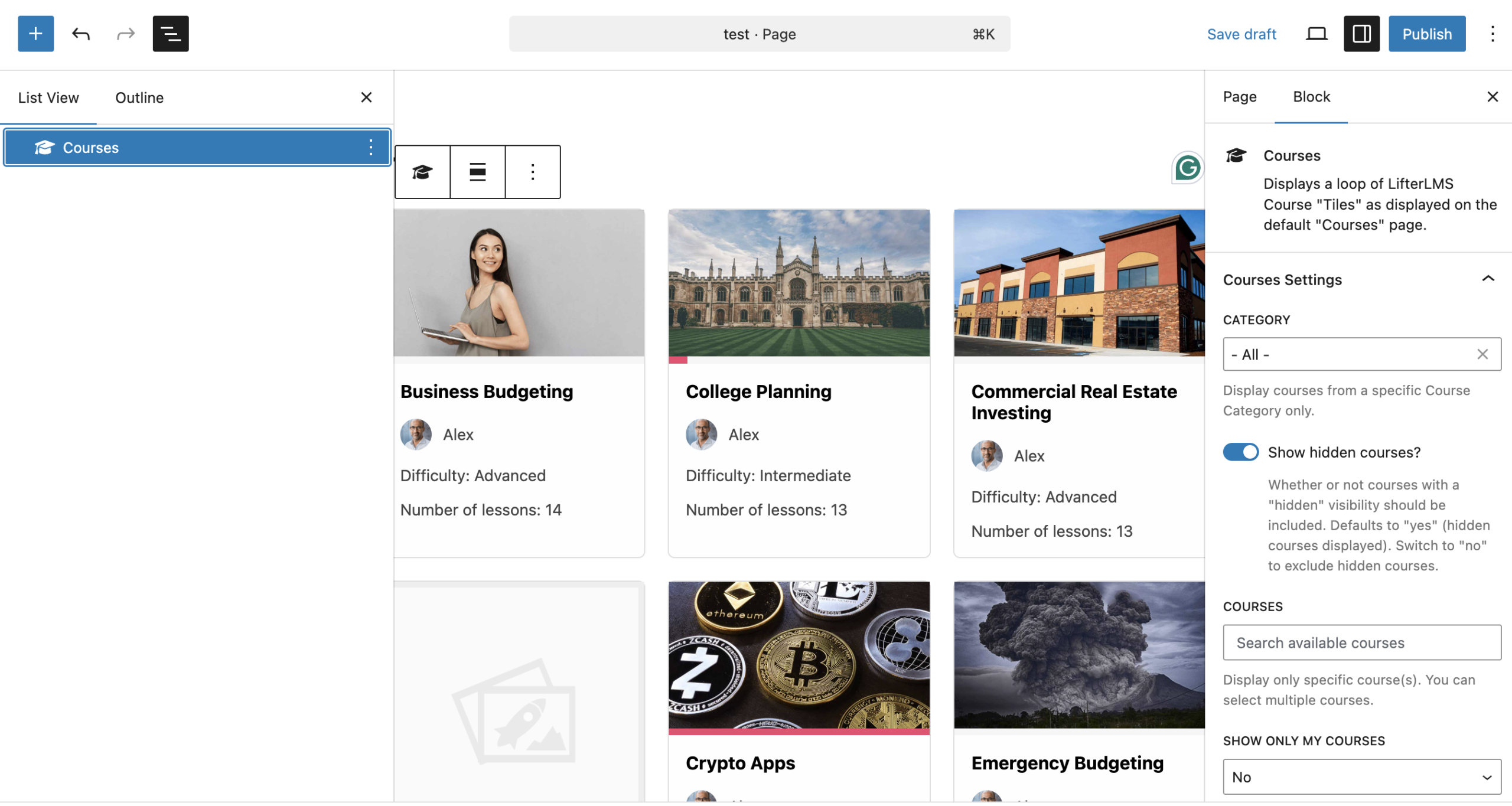
To display your memberships using a block:
- Navigate to Pages > All Pages in your WordPress dashboard.
- Click the Edit button on the page where you want to show your memberships.
- Click the Add Block button.
- Look for “Membership” in the results, then click it to add the block to your page.
- Click the Publish or Update button to save your changes.
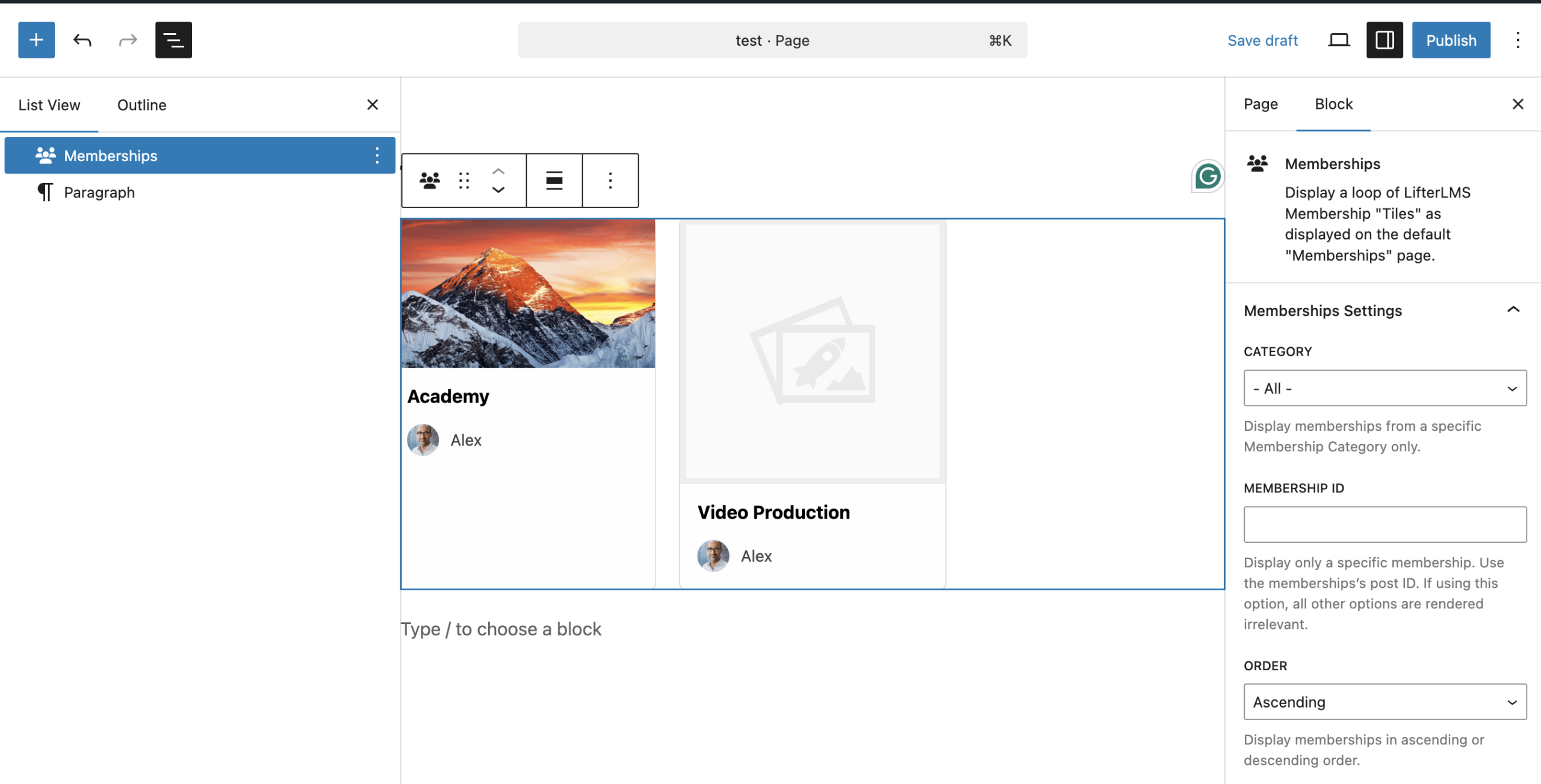
If you use a classic theme or a third-party page builder, you can use shortcodes to display your courses and memberships. You can find a complete list of LifterLMS shortcodes in our documentation.
You can use the [lifterlms_courses] shortcode to show your courses, and you can type the [lifterlms_memberships] shortcode to show your memberships.
To display your catalog using a shortcode:
- Navigate to Pages > All Pages in your WordPress dashboard.
- Click the Edit button on the page where you want to show your catalog.
- Add a “shortcode” block to your page.
- Type
[lifterlms_courses]into the block to show your courses, or type[lifterlms_memberships]into the block to show your memberships. - Click the Publish or Update button to save your changes.


