

If you sell courses or run a membership site, your resources matter as much as your lessons. This guide compares the five best document library plugins for organizing and sharing PDFs, worksheets, templates, and other files. Each one helps your students and members find exactly what they need.
Every course and membership site accumulates files such as worksheets, templates, slide decks, transcripts, checklists, and replays. At first, you drop them into individual lessons, and it works fine.
Then the library grows.
A member asks where last month’s template went. A student can’t find the workbook for module three.
You end up with the same file uploaded in four places, with no easy way for anyone to search across them all.
A document library plugin fixes that. It gives you one organized, searchable home for every resource, with categories, filters, and access control, so the right people can find the right file in seconds.
We’ve compared five options that can work with a LifterLMS site, looking at their front-end displays, search tools, access controls, cloud connections, download tracking, and pricing.
TL;DR: Document Library Pro is the strongest all-around option for creating a searchable resource library, while the other plugins may be better suited to access control, cloud storage, download tracking, or version management. All five can be used alongside LifterLMS, but their access restrictions do not necessarily follow individual LifterLMS course enrollments.
Quick Verdict
Short on time? Here are our picks by use case:
- Best all-around library: Document Library Pro for displaying searchable and filterable resources in tables, grids, or folders.
- Best for members-only downloads: WordPress Download Manager when access control is your priority.
- Best for cloud storage: WP File Download if your files live in Google Drive or Dropbox.
- Best for tracking and lead magnets: Download Monitor when you need download stats or email-gated files.
- Best free option: WP Document Revisions for versioned document management on a budget.
What To Look For In A Document Library Plugin
Not every plugin that stores files is built for a course or membership site. Before choosing one, check how it handles these:
- Front-end display: Can students and members browse and search your files on the front end, or does everything live in wp-admin? A searchable table or grid beats a plain list of links.
- Search and filters: Once your library grows past a handful of files, instant search and category filters decide whether people find what they need or give up.
- Categories and tags: You’ll want to group resources by course, module, topic, or file type.
- Access control. Can you restrict a library or individual files to logged-in users, specific WordPress roles, or named users? Check whether these restrictions correspond with your LifterLMS course or membership enrollments, as role-based access alone does not automatically restrict a file to students enrolled in a particular course.
- Bulk and cloud import: Adding files one at a time gets old fast. CSV import, folder upload, or cloud sync saves hours.
- Download tracking: Knowing what gets downloaded tells you which resources earn their place.
At-A-Glance Comparison
| Plugin | Best for | Free version | Front-end library | Access options | Cloud connections |
| Document Library Pro | Searchable resource libraries | Separate free Lite plugin | Tables, grids, and folders | Passwords, roles, and individual users, depending on the plan | Hosted version available |
| WordPress Download Manager | Controlling access to downloads | Yes | Available, with more options on paid plans | Passwords, roles, email locks, and social locks | Remote file support and add-ons |
| WP File Download | Managing files stored in cloud services | No | Gallery, table, tree, and accordion layouts | WordPress roles and individual users | Google Drive, Dropbox, OneDrive, Amazon S3, and Nextcloud |
| Download Monitor | Tracking and gating downloads | Yes | Available through its document library features | Rule-based restrictions on paid plans | Google Drive and Amazon S3 on supported plans |
| WP Document Revisions | Internal version control | Yes | No dedicated searchable library | WordPress roles | No |
The 5 Best Document Library Plugins
1. Document Library Pro
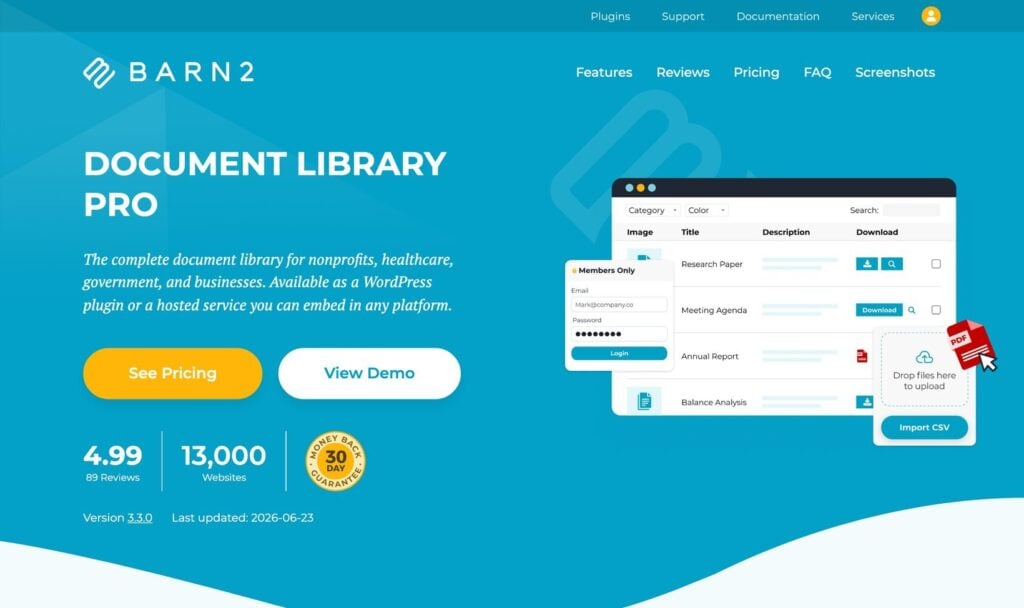
Document Library Pro is a strong choice when your main priority is giving students or members a searchable front-end resource library. It’s designed specifically for displaying and organizing documents rather than managing download links alone.
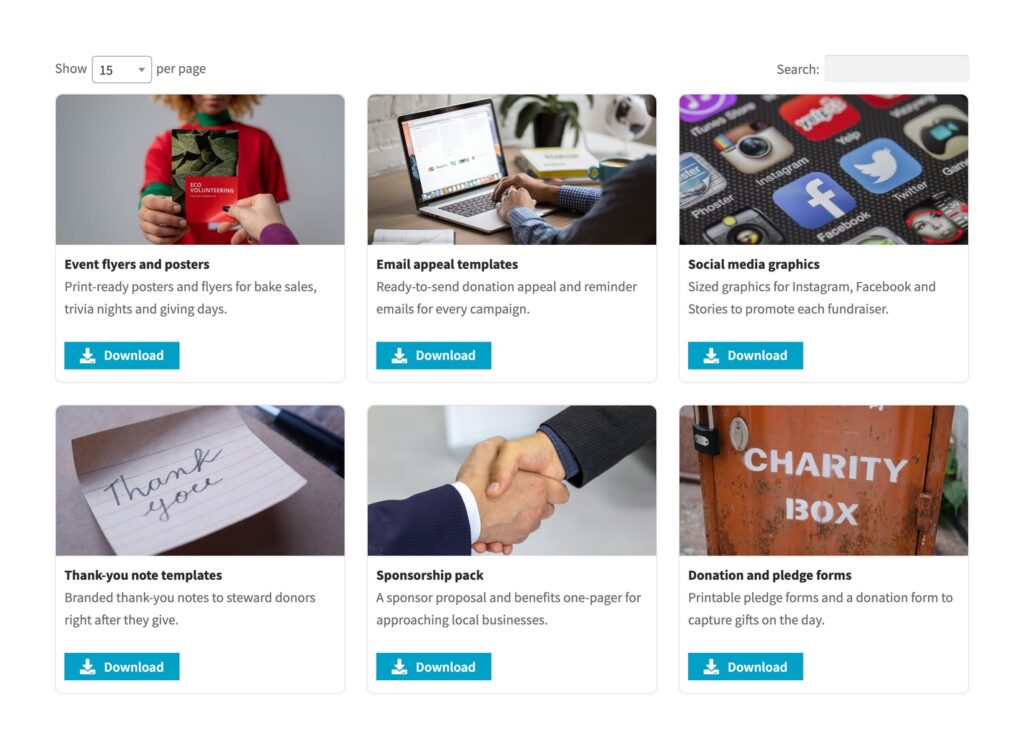
You add your documents individually, by drag-and-drop, or in bulk via CSV, then organize them with categories, tags, and custom fields. Displaying the library is a matter of dropping in a shortcode, and it appears as a searchable table, a grid of cards, or collapsible folders. Visitors get instant keyword search, sortable columns, and filter dropdowns, so finding the right file takes seconds even in a library of hundreds.
On a LifterLMS site, you can place a Document Library Pro shortcode inside a lesson, course page, membership-restricted page, or separate resource area. This lets students browse resources without leaving the learning experience.
Placing a library within restricted LifterLMS content can also help control who can access it. The plugin’s own role-based or user-based restrictions should not be treated as a direct replacement for LifterLMS course enrollment restrictions.
Depending on the plan, access controls can include password protection, user roles, and specific users. Lead capture can require an email address before a download, while download tracking helps you see which resources people use.
These controls apply to the library itself. To restrict the surrounding page or lesson to active students in a particular LifterLMS course or membership, use the relevant LifterLMS content restrictions as well.
Document Library Pro is also available as a hosted service that can be embedded on non-WordPress platforms, including Shopify, Squarespace, and Wix. This may suit businesses that run their courses on WordPress but need to display the same resource library elsewhere.
Pros
- Purpose-built searchable front-end library, shown as a table, grid, or folders.
- Instant keyword search, sortable columns, and category filters.
- Bulk CSV import and drag-and-drop uploads for fast setup.
- Access control by password, role, or user, plus an optional lead-capture popup.
- Drops into any LifterLMS lesson or page via shortcode.
- Also available as a cloud version that can be embedded on any platform.
Cons
- The full Document Library Pro feature set is premium-only, although Barn2 also offers the separate Document Library Lite plugin with a smaller free feature set.
- Document previews only work with supported file types.
- The cloud version has simpler access controls than the self-hosted plugin.
Pricing: The hosted version currently starts at $149/year for Essentials or $199/year for Advanced, with a 14-day free trial. Advanced adds access controls, lead capture, version control, and automatic document expiration.
2. WordPress Download Manager
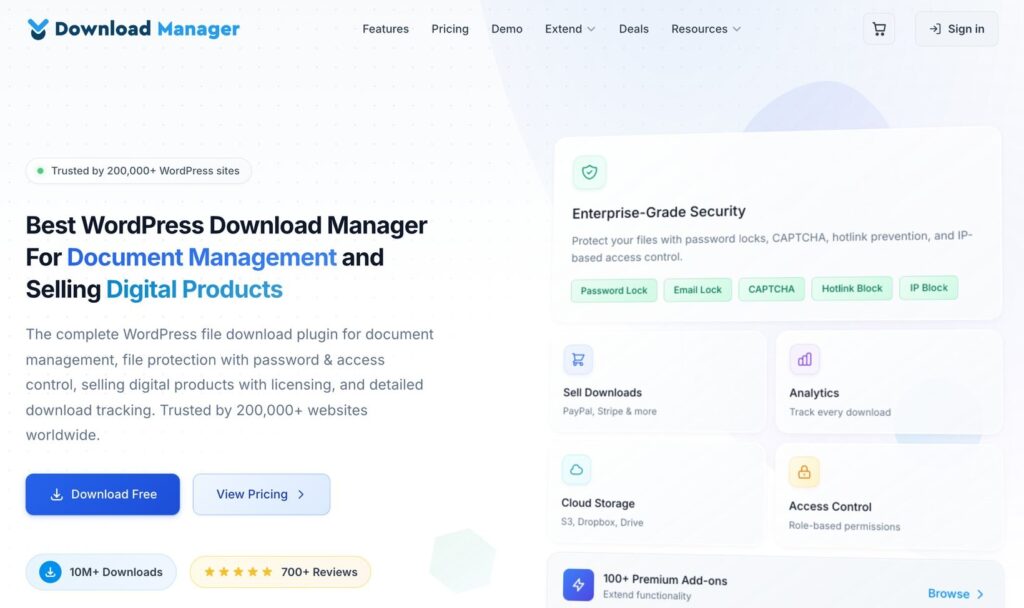
If your priority is controlling access to individual downloads, WordPress Download Manager is one of the stronger options in this comparison. Its free and paid versions include several restriction tools, although these controls do not automatically correspond with enrollment in a particular LifterLMS course or membership.
You can protect files with passwords, restrict access by user role, and add email or social locks on supported paid plans. The plugin also supports multi-file packages, download statistics, custom templates, and a front-end file manager on its higher plans.
The trade-off is complexity. WPDM’s features are spread across many separate add-ons and bundles, so building the exact setup you want can mean stacking several purchases, and the interface feels more functional than modern. For a membership site where controlling access is the whole point, though, it earns its place.
Pros
- Strong access control, including a capable free version.
- Password, role-based, and email or social lock options.
- Download statistics and multi-file packages.
- Front-end file manager on higher tiers.
Cons
- Features are fragmented across many add-ons and bundles.
- The interface is functional rather than modern.
- A polished front-end library needs the paid tiers.
Pricing: Free version available. Pro from $99/year for one site, Business $299/year, Developer $499/year.
3. WP File Download
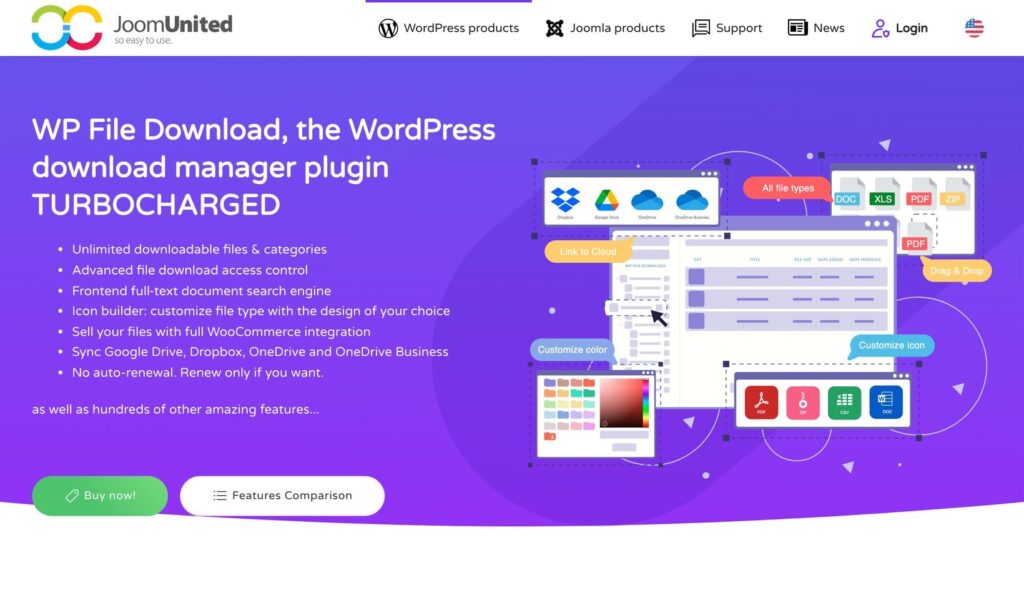
WP File Download is the one to pick if your files already live in the cloud. Its standout feature is two-way sync with Google Drive, Dropbox, OneDrive, Amazon S3, and Nextcloud, so you can manage files where they already are and have them automatically appear on your site.
On the front end, it offers several display themes, including gallery, table, tree, and accordion, along with full-text search, file previews, and bulk zip downloads. You also get category management, role and user permissions, versioning, download stats, and a WooCommerce integration if you sell files.
It’s worth being clear about what the plugin is. WP File Download is primarily a file manager with a front-end display, rather than a dedicated searchable document library. For a course site that mostly needs an organized, searchable resource list, that distinction matters. But if two-way cloud sync is central to how your team manages resources, WP File Download has the broadest set of cloud connections in this comparison.
Pros
- Two-way sync with Google Drive, Dropbox, OneDrive, S3, and Nextcloud.
- Several front-end display themes with search and previews.
- Role and user permissions, versioning, and stats.
- Affordable entry price covering unlimited sites.
Cons
- No free version.
- More of a file manager than a purpose-built document library.
- Cloud integrations need the higher add-on tier.
Pricing: Pro from $49/year, Pro with all add-ons (including cloud) $69/year, all-plugin bundle $199/year. Every plan covers unlimited sites.
4. Download Monitor
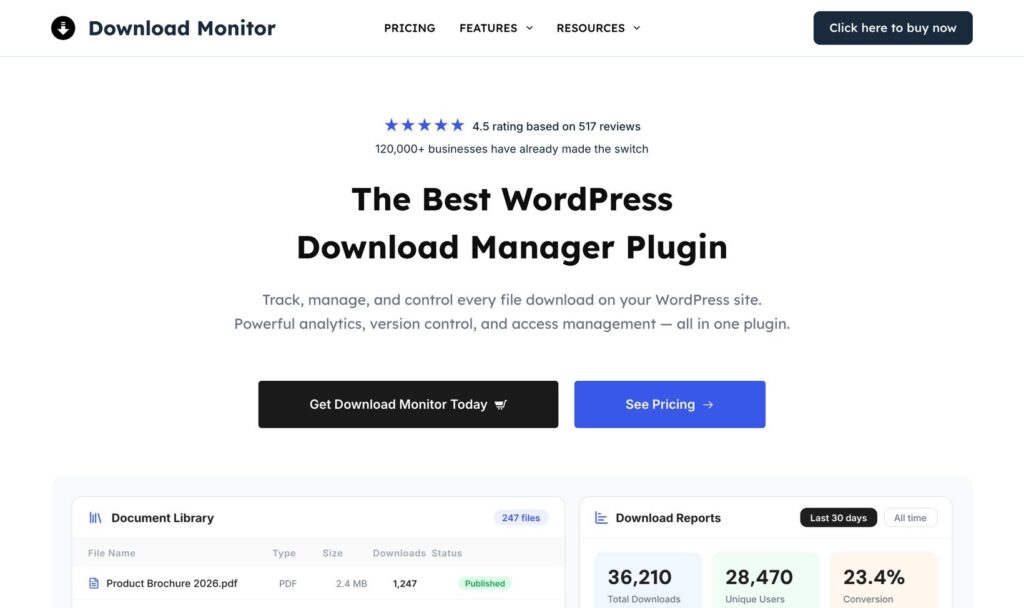
Download Monitor is built around tracking and gating downloads, which makes it a good fit if you use resources as lead magnets or want to know exactly what’s being downloaded. The core plugin is free, and the paid tiers add the features most course sites will want.
Its metrics are the highlight, with detailed download logs and stats across every tier. The paid plans add an ‘Email Before Download’ lock for capturing addresses, integrations with Ninja Forms, Gravity Forms, WPForms, and MailChimp, rule-based access management, and cloud hosting via S3 or Google Drive. Its Document Library Manager features can add a browsable front-end display, although you should confirm which current plan includes the required library and restriction tools before publication.
Out of the box, Download Monitor is closer to a download-link manager than a browsable library. Building the searchable, members-only library that a course site typically wants requires moving to higher tiers. If your main goal is tracking and email capture rather than presentation, it’s an efficient choice.
Pros
- Free core plugin with strong download tracking.
- Email and form-based locks for lead capture.
- Rule-based access and cloud hosting on higher tiers.
- Clean, focused feature set.
Cons
- A browsable front-end library is a paid, higher-tier feature.
- More of a download manager than a library by default.
- Access rules need the top plan.
Pricing: Free core version. Basic from $69/year for one site, Popular $129/year for three sites, Complete $199/year for five sites.
5. WP Document Revisions
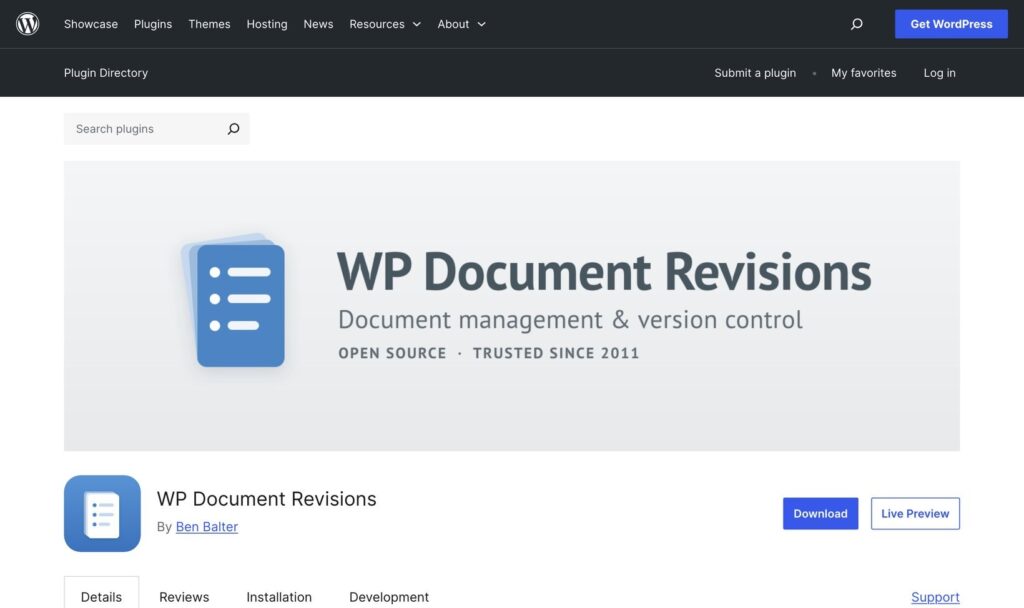
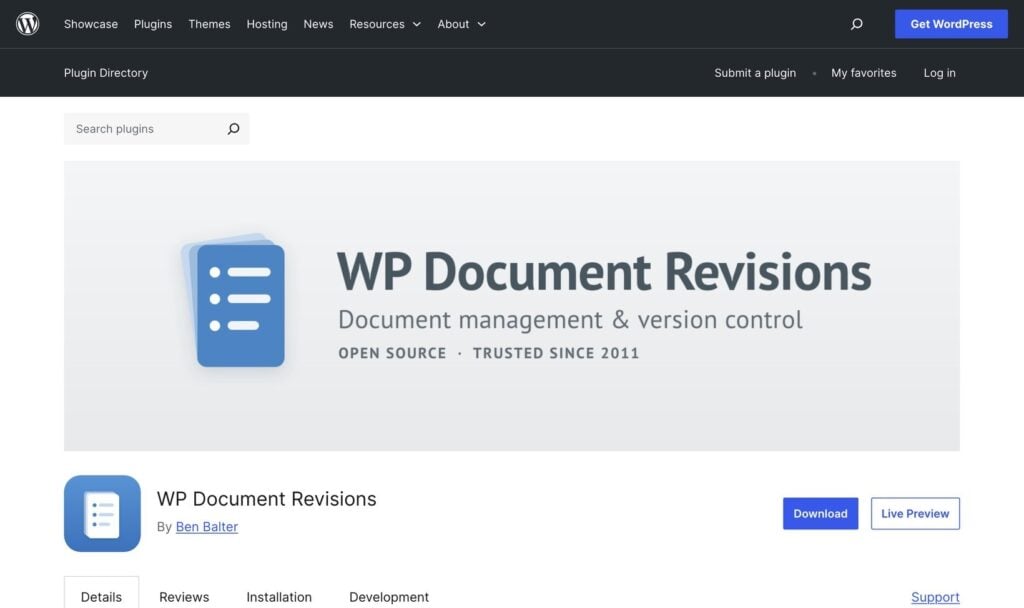
If budget is the deciding factor, WP Document Revisions is the best free option. It’s an open-source document management plugin focused on version control and collaboration, which makes it useful for teams that need to track document history rather than just publish files.
Every document keeps a full revision history, with workflow states, check-in and check-out, and access controlled by standard WordPress roles. For an internal team library or a course business that collaborates on documents before sharing them, that’s genuinely handy and costs nothing.
Where it falls short is presentation. WP Document Revisions is a back-end document management tool, not a polished front-end library. There’s no searchable table or grid for students to browse, and the interface shows its age. For a member-facing resource library, it’s a stretch, but for versioned document management on a zero budget, it does a job that nothing else here does for free.
Pros
- Completely free and open-source.
- Full version control and revision history.
- Workflow states and check-in/check-out for teams.
- Access managed through familiar WordPress roles.
Cons
- No searchable front-end library display.
- The interface feels dated.
- Better for internal collaboration than a member-facing library.
Pricing: Free.
How To Add A Document Library To Your Lifterlms Site
Whichever plugin you choose, start by deciding where the library belongs in the student experience. You might create:
- A library inside an individual lesson for resources needed at that point in the course.
- A central course resource page for files used across several lessons.
- A membership-restricted page containing resources shared across multiple courses.
- A public library for samples, lead magnets, or pre-enrollment materials.
After choosing the location, install the plugin, organize the files by course, module, topic, or file type, and insert the library using its block or shortcode.
Next, configure access at both levels. Use the document plugin to control access to the library or its files, where required. Use LifterLMS restrictions when the page, lesson, or block should be available only to students enrolled in a specific course or membership.
Test the library using a separate student account. Confirm that an enrolled student can find and download the expected resources, while a visitor or unenrolled student cannot reach protected materials.
For detailed setup instructions, follow the LifterLMS guide to listing documents and resources in your online courses. It covers installing Document Library Pro, creating document categories, and adding a library to your course content.
You can also listen to the LMScast interview with Barn2 co-founder Katie Keith for more guidance on creating a document library in WordPress.
Which Document Library Plugin Should You Choose?
All five plugins address a different part of document management:
- Choose Document Library Pro when students need a polished library with search, filters, and several layout options.
- Choose WordPress Download Manager when controlling access to individual downloads is your main concern.
- Choose WP File Download when your team manages resources through services such as Google Drive or Dropbox.
- Choose Download Monitor when download data, email capture, or gated files matter more than the library’s presentation.
- Choose WP Document Revisions when you need free internal version control rather than a student-facing resource library.
For most course creators, the decision comes down to how students will find the files and how access will be controlled. A searchable library can improve the student experience, but it should sit within the same course and membership restrictions as the rest of your LifterLMS content.
Build A Course Website That Keeps Learning Resources Organized
LifterLMS gives you control over your courses, memberships, lessons, student access, and learning experience from your own WordPress website. Add the document library setup that fits your needs, and manage your protected learning content from one platform.
Start your LifterLMS trial and build your first course.
Frequently Asked Questions
Yes, but you may need to configure restrictions in both the document plugin and LifterLMS. Document Library Pro, WordPress Download Manager, WP File Download, and Download Monitor provide their own access controls on supported plans. These may restrict files by login status, password, user, or WordPress role.
To restrict the surrounding content to students enrolled in a particular LifterLMS course or membership, place the library inside an appropriately restricted lesson, page, post, or content block. Don’t assume that a plugin’s WordPress role restriction automatically follows a student’s LifterLMS enrollment status.
These plugins can display a library through a shortcode, block, or other front-end element that you add to WordPress content used by LifterLMS. Depending on the plugin, you can place the library in a lesson, a course-related page, or a membership-restricted resource area.
This is not the same as a dedicated LifterLMS enrollment connection. Configure and test the relevant LifterLMS restrictions to ensure files are available only to students in a particular course or membership.
Document Library Lite is Barn2’s free option for creating a basic front-end document library. It’s a separate plugin with fewer features than Document Library Pro.
WP Document Revisions is better suited to free document version management and internal collaboration, while Download Monitor and WordPress Download Manager offer free tools for managing downloads. The best choice depends on whether you need a browsable library, version control, access restrictions, or download tracking.
For a handful of files, adding them to individual lessons is fine. Once you have a growing library that students need to search across, a dedicated plugin gives you search, filtering, and centralized organization that lesson attachments can’t provide.
The WordPress plugins in this comparison require a WordPress website. The hosted version of Document Library Pro can be used separately or embedded on platforms such as Shopify, Squarespace, and Wix.



