

Managing Email Notifications in LifterLMS Continuing Education
The LifterLMS Continuing Education add-on supports both Basic and Email notifications.
These notifications automatically alert learners when they earn Continuing Education Units (CEUs), helping them track progress and stay engaged.
Notifications use the same system as the core LifterLMS notifications feature, with merge codes and customization options for both Basic (on-site) and Email messages.
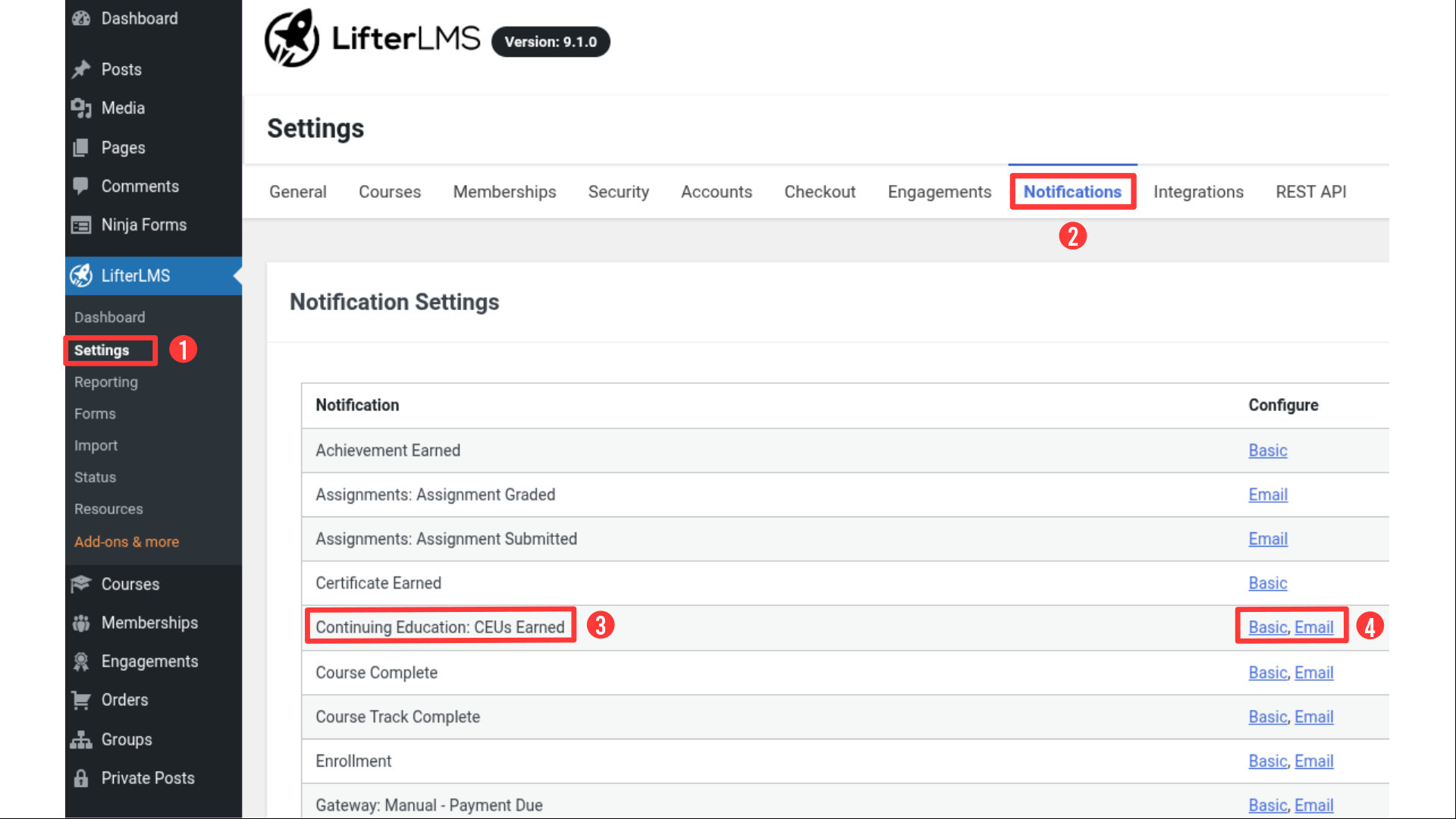
To access and configure Continuing Education notifications:
- From your WordPress dashboard, go to LifterLMS > Settings.
- Select the “Notifications” tab.
- Locate “Continuing Education: CEUs Earned” in the list.
Click Basic or Email under the “Configure” column to edit that version.
The CEUs Earned notification triggers whenever a learner completes a course that awards Continuing Education Units.
Both Basic (on-site pop-up) and Email formats are available and can be customized independently.
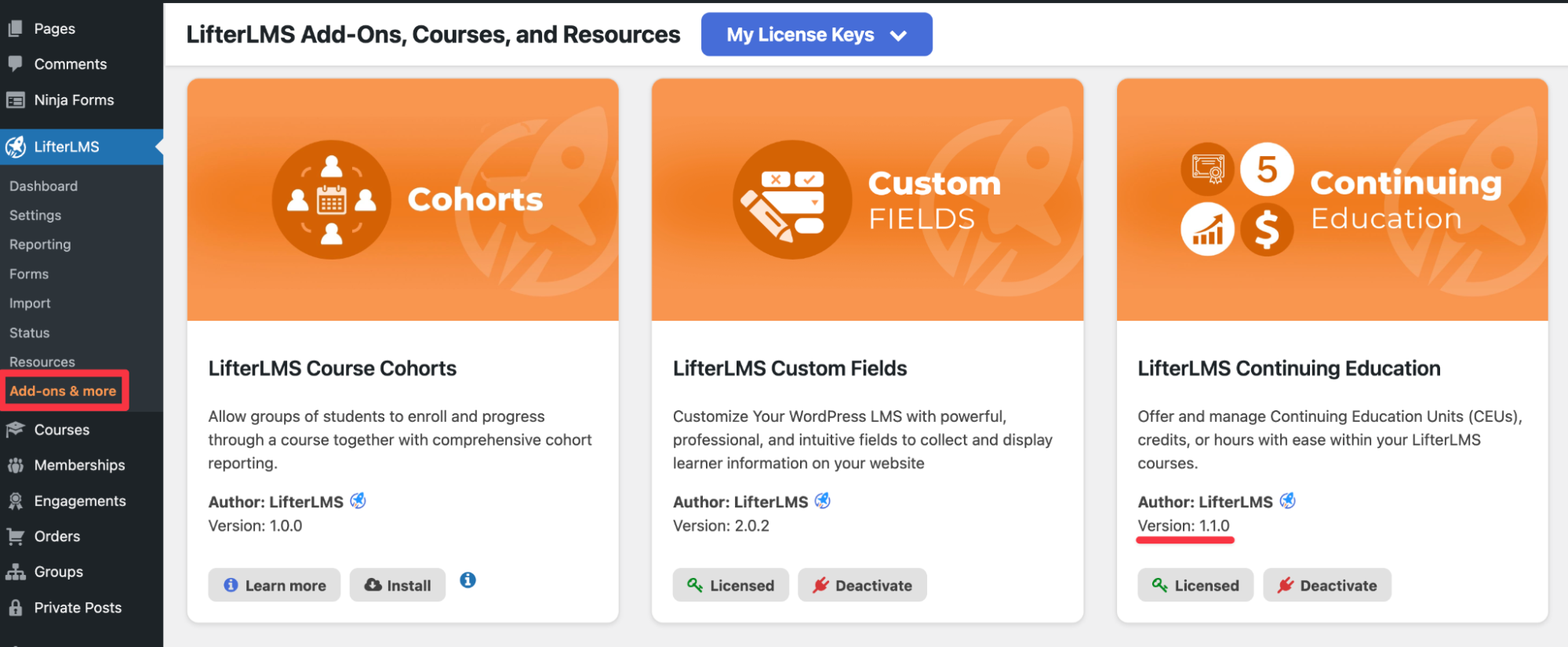
This is currently the only Continuing Education–specific notification type added in version 1.1.0.
Each notification in LifterLMS can be sent in two ways: as a Basic (on-site) message or as an Email.
Both are triggered by the same event – in this case, when a learner earns Continuing Education Units (CEUs) – but they differ in how and where the message is delivered.
| Feature | Basic Notification | Email Notification |
| Delivery | Appears on-site in the learner’s dashboard as a pop-up or banner message. | Sent to recipients via email. |
| Purpose | Provides immediate, in-platform feedback when CEUs are earned. | Keeps learners (and optionally others) informed even when they’re not logged in. |
| Customization | Editable title, body text, and optional icon. | Editable subject, heading, and body text. |
| Recipients | Student only. | Student plus optional additional recipients (admins, instructors, or custom addresses). |
| Ideal Use | Quick confirmation of CEU awards within the LMS. | Record-keeping, progress tracking, or notifying multiple people. |
You can enable and customize one or both versions depending on how you want learners and staff to be notified.
- Click “Basic” next to “Continuing Education: CEUs Earned.”
- Adjust the Title and Body fields as needed.
- Optionally, upload or replace the notification icon.
- Check or uncheck the “Disable Icon” to show or hide it.
- Ensure the “Student” box under “Subscribers” is checked (default).
- Click Save Changes in the upper right corner.
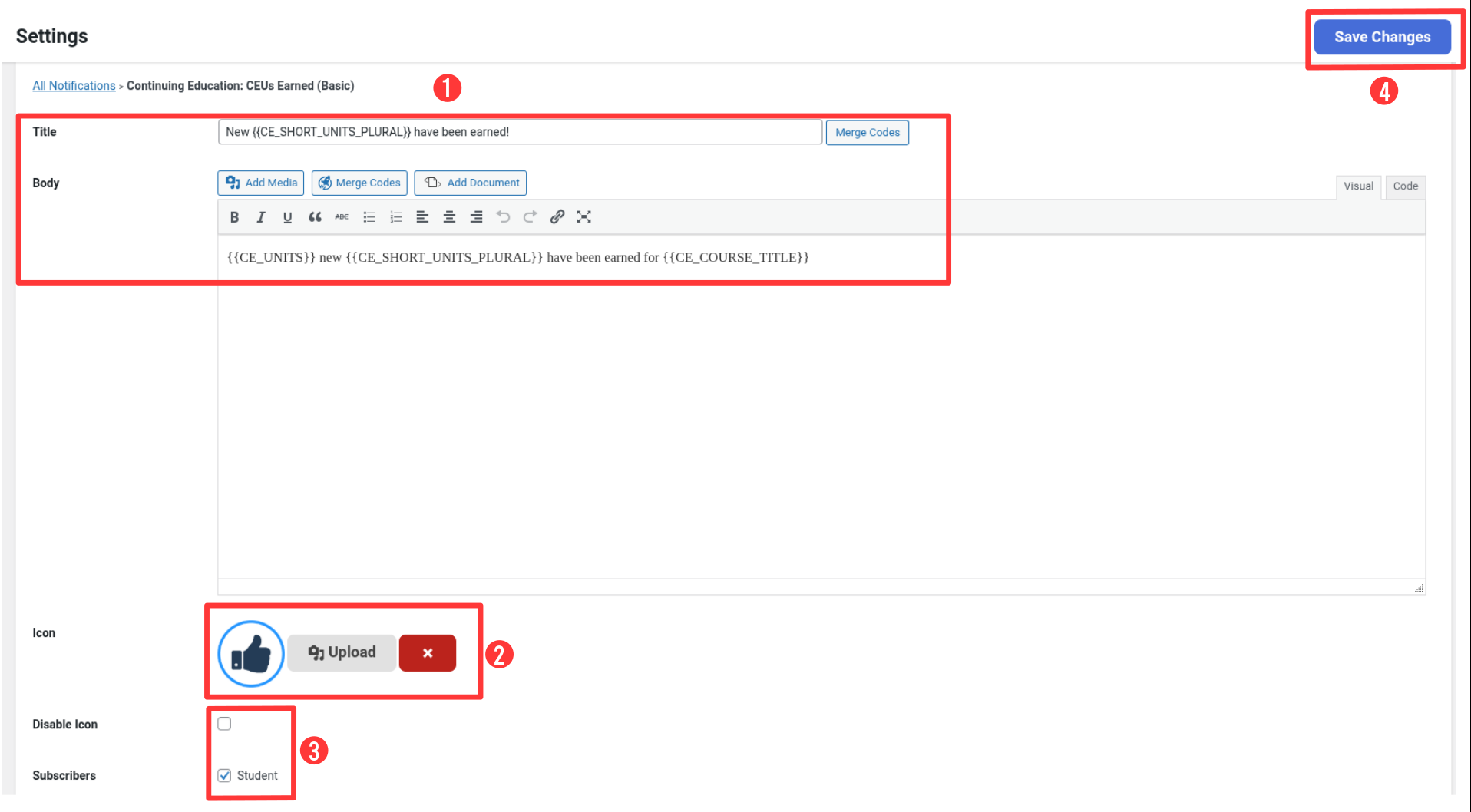
Example default content:
{{CE_UNITS}} new {{CE_SHORT_UNITS_PLURAL}} have been earned for {{CE_COURSE_TITLE}}
Note: The Basic version is limited to the Student recipient. Notifications are displayed on-site only.
- Click Email next to “Continuing Education: CEUs Earned.”
- Customize the Subject, Heading, and Body fields.
- Use merge codes to personalize each message.
- Scroll to the “Subscribers” section at the bottom to manage who receives the notification.
You can choose:
- Student: sends the notification to the learner who earned the CEUs.
- Additional Recipients: sends copies to other people, such as administrators or instructors.
If you select “Additional Recipients”, enter one or more email addresses in the text field. Separate multiple addresses with commas.
Click Save Changes when finished.

Default email content example:
Subject: New {{CE_LONG_UNITS_PLURAL}} have been earned
Body:
Hello {{STUDENT_NAME}},
{{CE_UNITS}} new {{CE_SHORT_UNITS_PLURAL}} have been earned for {{CE_COURSE_TITLE}}.
{{DIVIDER}}
View All {{CE_SHORT_UNITS_PLURAL}}: {{CE_DASHBOARD_URL}}
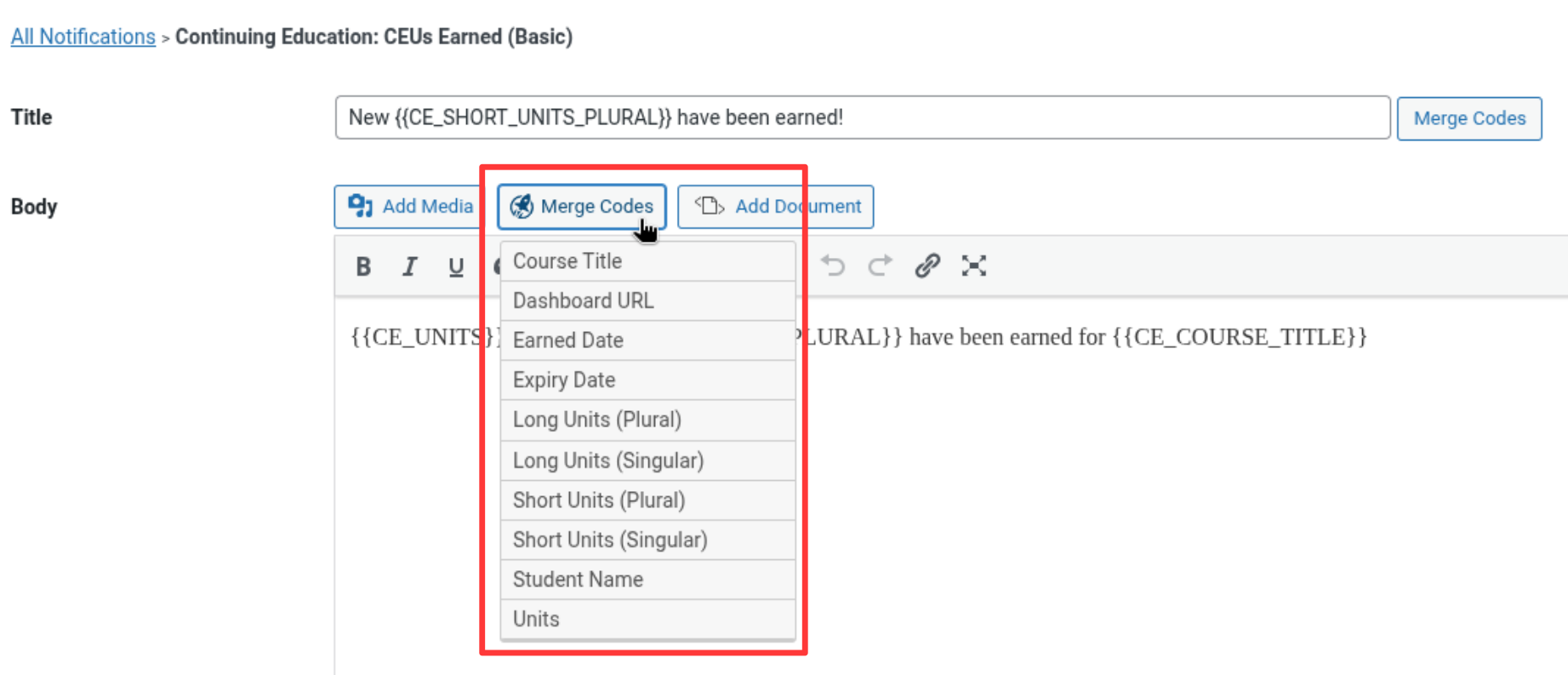
Merge codes insert personalized data automatically into your notification messages. The following codes are available for CE notifications:
| Merge Code | Description |
| {{STUDENT_NAME}} | Learner’s full name |
| {{CE_UNITS}} | Number of CEUs earned |
| {{CE_COURSE_TITLE}} | Title of the completed course |
| {{CE_LONG_UNITS_PLURAL}} | Long form CE label (e.g., Continuing Education Units) |
| {{CE_SHORT_UNITS_PLURAL}} | Short form CE label (e.g., CEUs) |
| {{CE_EARNED_DATE}} | Date CEUs were awarded |
| {{CE_EXPIRY_DATE}} | Expiry date for earned CEUs |
| {{CE_DASHBOARD_URL}} | Link to learner’s CE dashboard |
| {{DIVIDER}} | Inserts a horizontal divider line |
- Learner completes a course:
A “CEUs Earned” email automatically confirms the number of CEUs awarded. - Admin tracking learner progress:
Add an admin email under “Additional Recipients” to receive a copy of every CEUs Earned notification.
Visual reminder for learners:
Basic notifications appear instantly on-site when CEUs are awarded.
- Getting Started with LifterLMS Continuing Education
- Getting Started with LifterLMS Notifications
- How to Award a Certificate To a Student Manually
Version Information
Available from LifterLMS Continuing Education v1.1.0 and later.


