How do I use LifterLMS in a language other than English?
LifterLMS is fully translatable so that you can easily utilize LifterLMS in the language of your choice.
There are many different ways to translate LifterLMS and a translation of LifterLMS may already exist in your language.
Video Tutorial:
This video goes through using TranslatePress and POEdit. Loco Translate is another popular option.
There are several plugins available for WordPress to help you translate the text in your site. These can be used to modify the wording of text within LifterLMS.
Options include:
LifterLMS works with translators who have contributed their translations for anyone to use.
You can find the status of your language’s translations on wordpress.org.
Any language with 90% or higher completion will automatically be loaded on your site when you’ve selected that as your site’s locale. These files will automatically be downloaded and updated during WordPress and LifterLMS plugin updates.
If you’d like to use translations from languages with 89% or lower, you can follow the instructions here to export the translations and load them on your site.
If you’re interested in contributing translations, please read How can I Contribute? below.
You can create your own language files by using PoEdit, a program that allows you to easily create the translation file needed to load LifterLMS in your language.
You will need a copy of the LifterLMS .pot file to use a base for your translations. This file can be found in your LifterLMS plugin at wp-content/plugins/lifterlms/languages/lifterlms.pot. Or you can download the latest version here (right click and select “Save Link As” to download).
Once you’ve created your translation file, you can follow this tutorial to load it.
LifterLMS Add-ons and themes can also be translated using the same methods described above.
You can check on the status of existing translations and download the language packs at translate.lifterlms.com.
For more details on translating a specific add-ons, see our add-on guides and tutorials and look for the add-on of your choosing.
If you’re interested in contributing translations to LifterLMS or any LifterLMS Add-ons we’d love to work with you. Please read our translation contributor’s guide to get started.
LifterLMS forms can be edited by going to WordPress Dashboard > LifterLMS > Forms. As you can see below, out of the box, you will see three forms there: the Billing Information form, the Register form, and the Edit Account Information form.
The form field labels of these forms can easily be changed by simply typing the new form field labels, as you can see in this screenshot below.
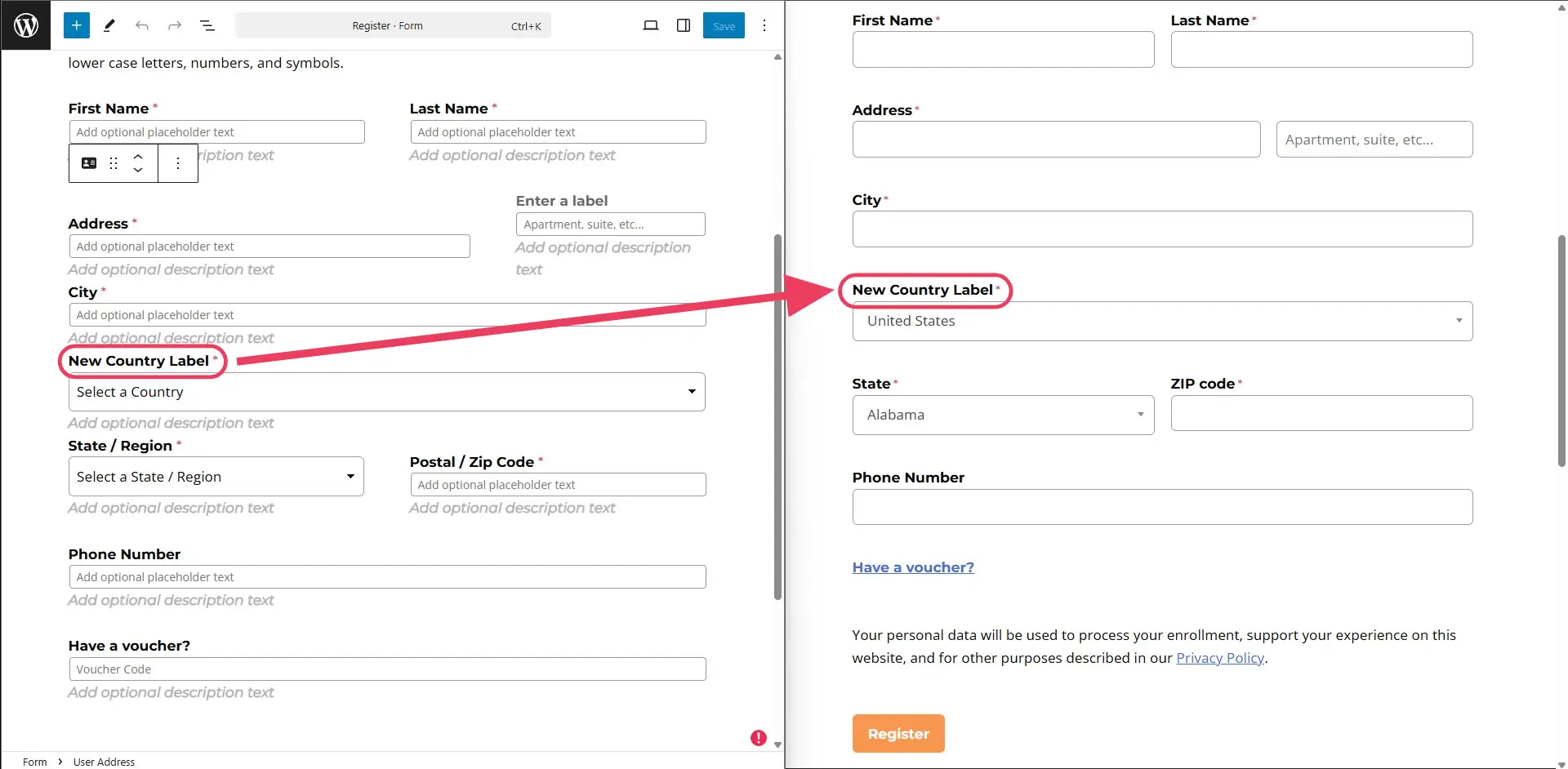
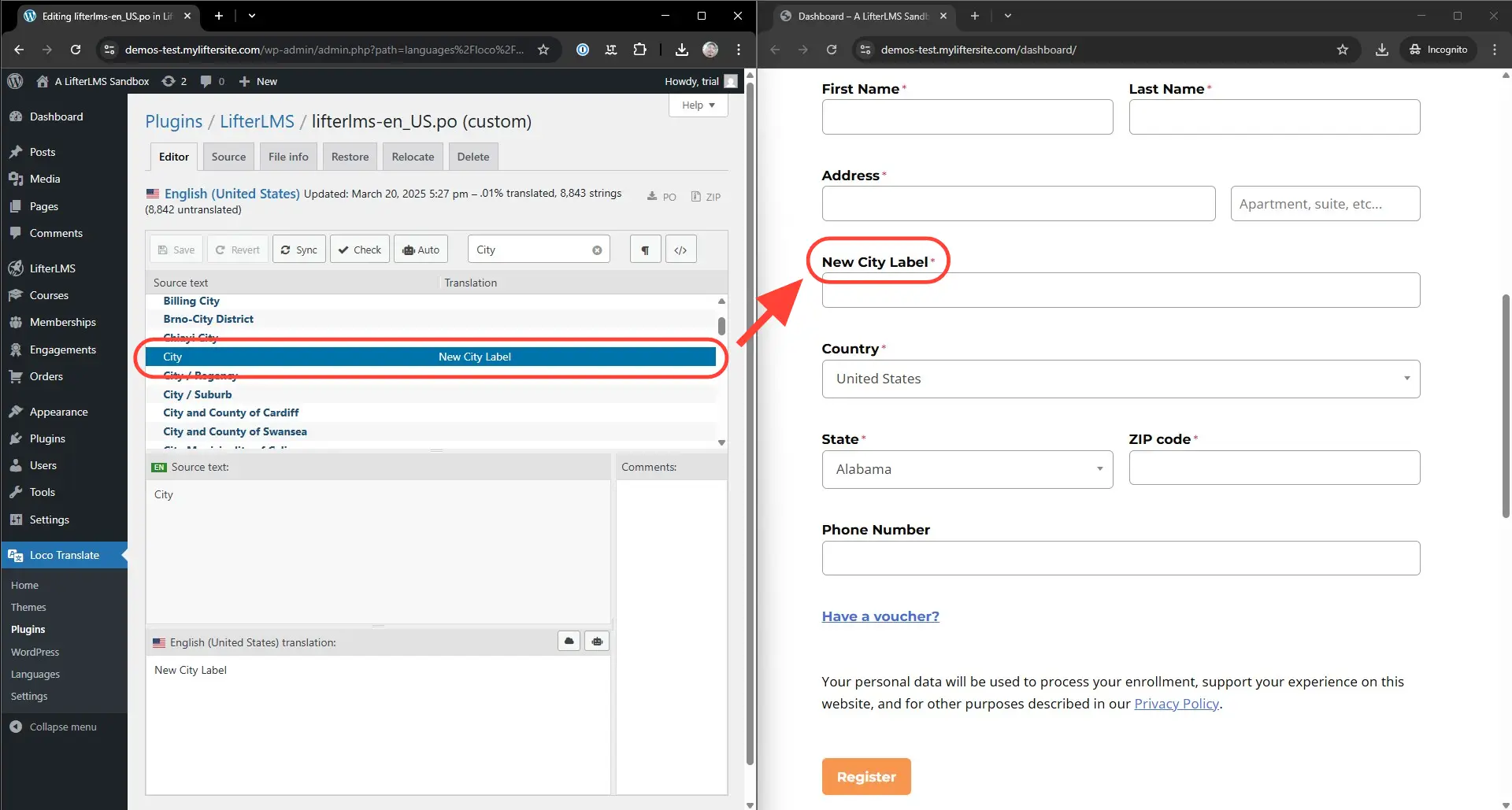
However, in cases where that does not work, you can use the free Loco Translate add-on to change these form field labels for you. For example, if you need to change (or translate) the City, State and ZIP code field labels in the “Register” form, then you can change them using Loco Translate. In the screenshot below, you can see the City field label being translated using Loco Translate.