

License No Longer Valid and was Deactivated
If you encounter an error message on your website that says “License no longer valid and was deactivated,” it means your LifterLMS license key is no longer working for that specific website.
This guide will help you understand why this happens and how you can fix it.
The most common reason for this error is that your LifterLMS license has expired. You must maintain an active subscription to continue using your license keys.
To check your expiration date and renew your license, follow these steps:
- Go to the LifterLMS website and log in to your account.
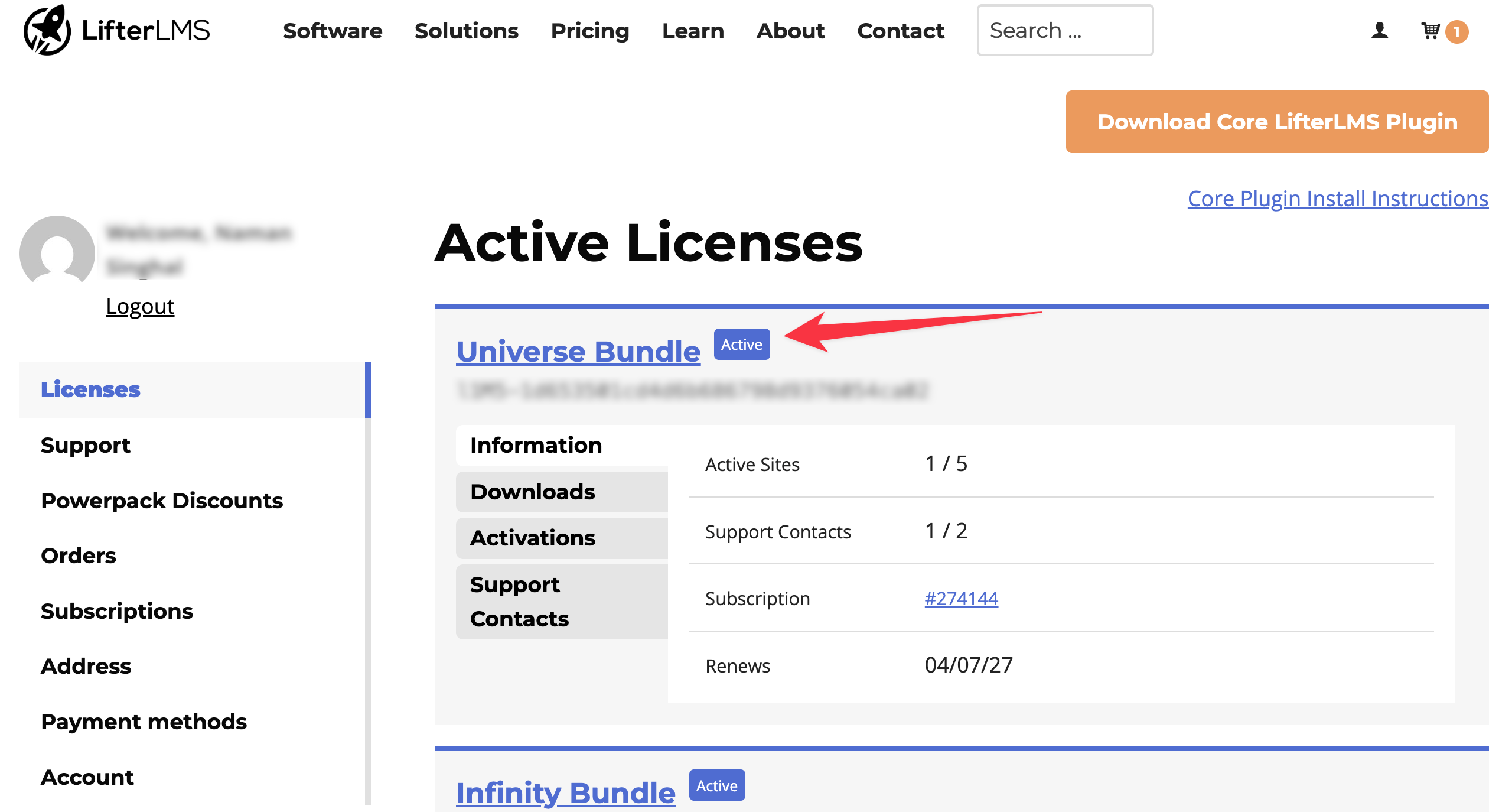
- Navigate to Licenses from the main menu.
- Check the “Status” of your subscription to see whether it is active or expired.
- Click the Renew button if your subscription has expired.
LifterLMS ties your license key to your specific website URL. If you move your website from a staging environment to a live domain, the system will automatically deactivate your license. This also happens if you change your website URL from HTTP to HTTPS.
To fix a URL change, follow these steps:
- Go to the LifterLMS website and log in to your account.
- Navigate to Licenses from the main menu.
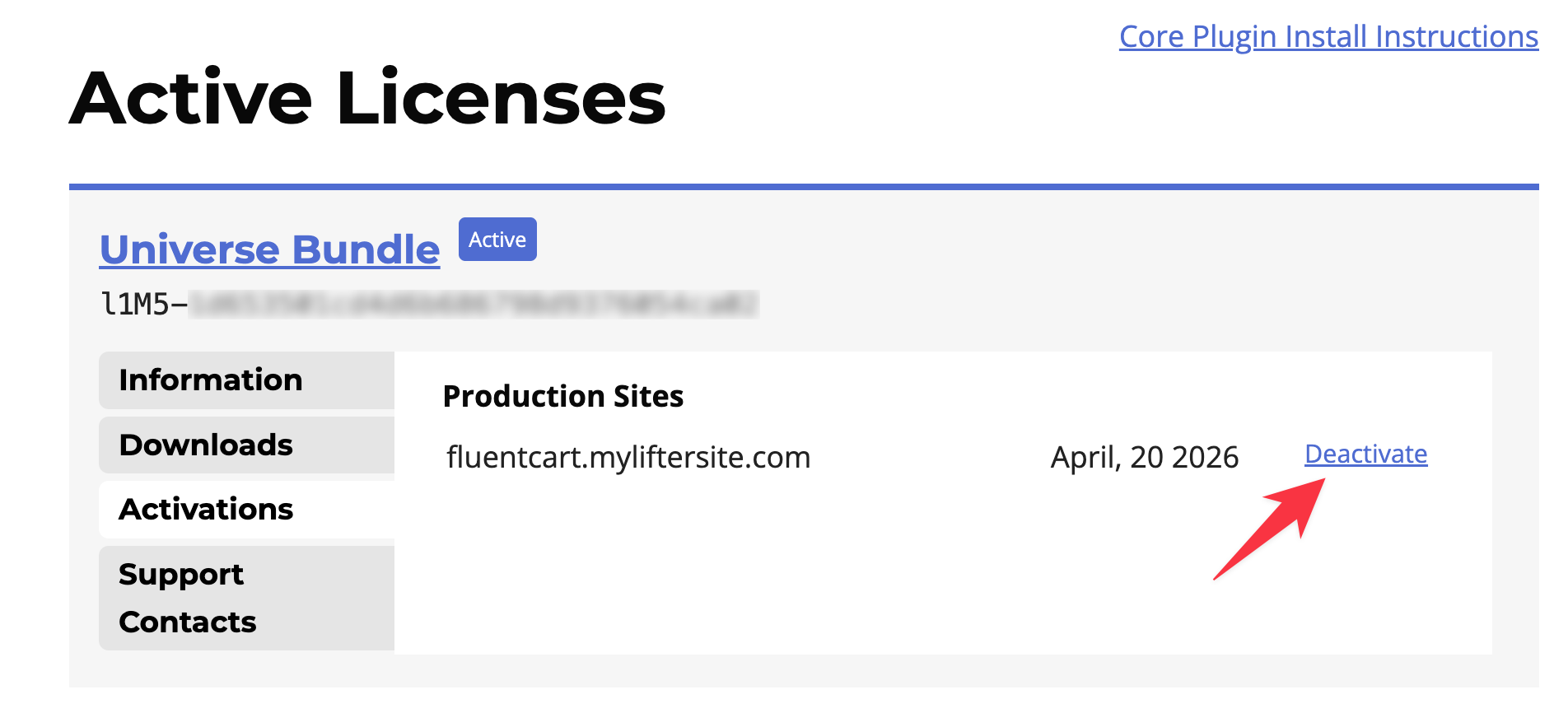
- Locate the license key you are trying to use, then switch to the Activations tab.
- Click the Disconnect button next to your old website URL.
- Return to your WordPress dashboard on your new website URL.
- Navigate to LifterLMS > Add-ons & More.
- Enter your license key in the “License Key” field and save your changes.
You will also see this message if you try to use an add-on that your current plan doesn’t support. For example, if you install the LifterLMS Groups add-on but your active license bundle doesn’t include it, the system will reject the license for that specific product.
If you see this error, review your active products to ensure your license bundle covers the add-ons you’re trying to use.
To review and upgrade your products, follow these steps:
- Go to the LifterLMS website and log in to your account.
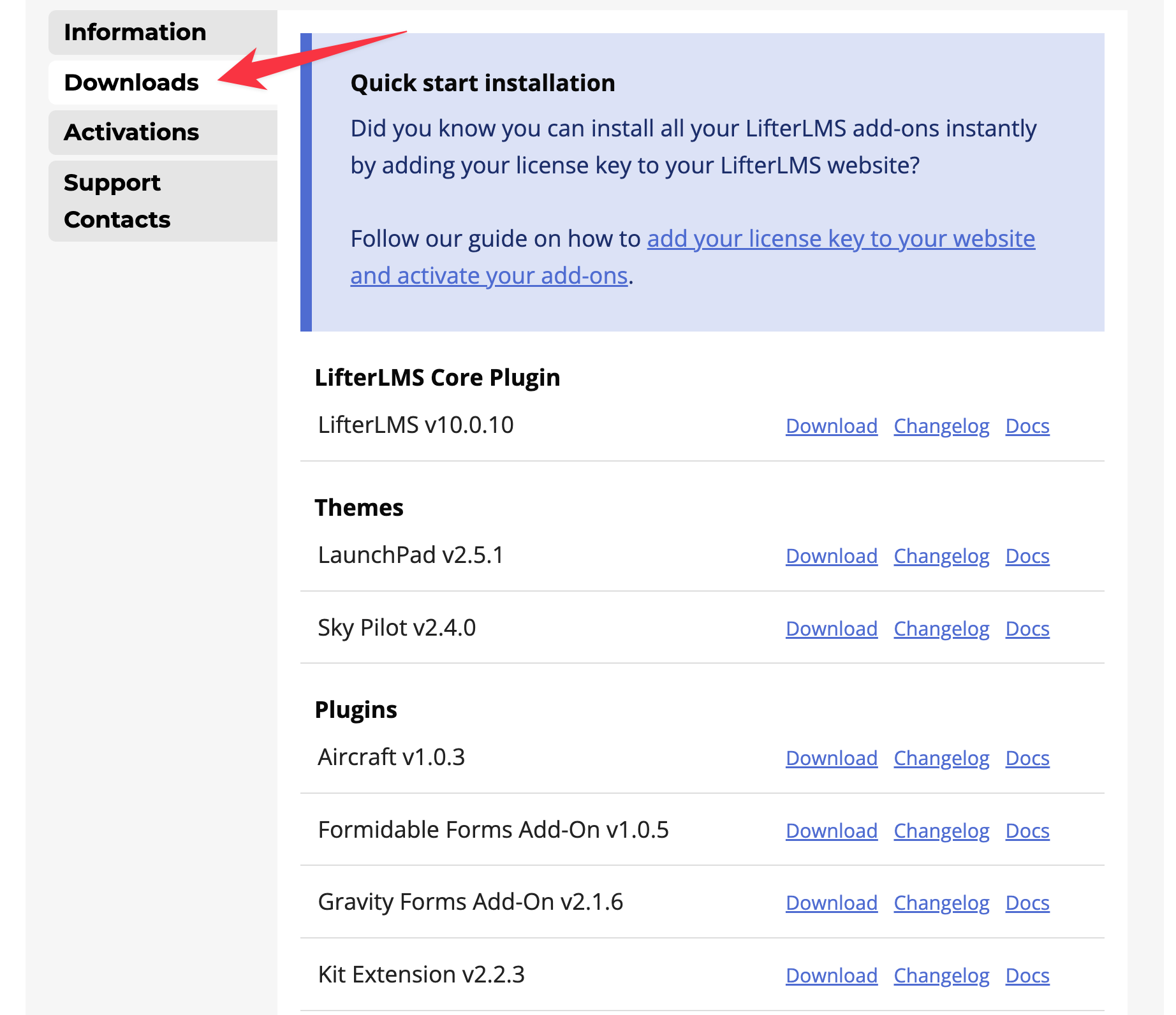
- Navigate to Licenses in the main menu and look for the “Downloads” tab to review the add-ons included in your active bundle.
- Verify whether the specific add-on you want to use is on your list of active products.
If the LifterLMS add-on you want isn’t included in your current bundle, you can upgrade your account. Upgrading allows you to access higher-tier features. For full step-by-step instructions, please read our guide on how to upgrade your LifterLMS license.
If you see the “License No Longer Valid and was Deactivated” error message, you don’t need to panic. Sometimes, this error can appear even if your license is genuinely active on your LifterLMS account page.
If you can confirm your license is active on your LifterLMS Account Page, the issue is most likely a “false-negative.” This usually happens when a firewall on our update server blocks your website’s IP address. Our system interprets the blocked connection as an invalid license and deactivates it on your site.
Even if you experience a false negative, it will not significantly impact your website. Your LifterLMS plugins will remain fully functional, and no features will be added or removed. The primary purpose of the license is to provide you with updates to our add-ons when we release them.
If you encounter this issue, please submit a support ticket and mention that you are seeing this error message. Our team can then investigate your server’s attempt to connect with our firewall to ensure this is the only issue.
If you are unsure where to enter your license key, please refer to our documentation titled “How Do I Add My License Keys and Add-Ons to LifterLMS on My Website?“


