

How to Protect Your LifterLMS Forms from Spam Using Akismet
Spammers and automated computer bots often try to create fake accounts on websites. If you offer free courses or open registrations on your website, these bots can fill up your system with fake users.
LifterLMS integrates with the Akismet plugin to check your form submissions and block known spam.
This guide will show you how to set up Akismet to protect your LifterLMS website.
Akismet is a standard WordPress plugin. You need to install and activate it before you can connect it to your LifterLMS forms.
- Navigate to Plugins > Add New from your WordPress dashboard.
- Type “Akismet” into the search bar.
- Find the “Akismet Anti-spam” plugin in the search results.
- Click the Install Now button.
- Click the Activate button once the installation is complete.
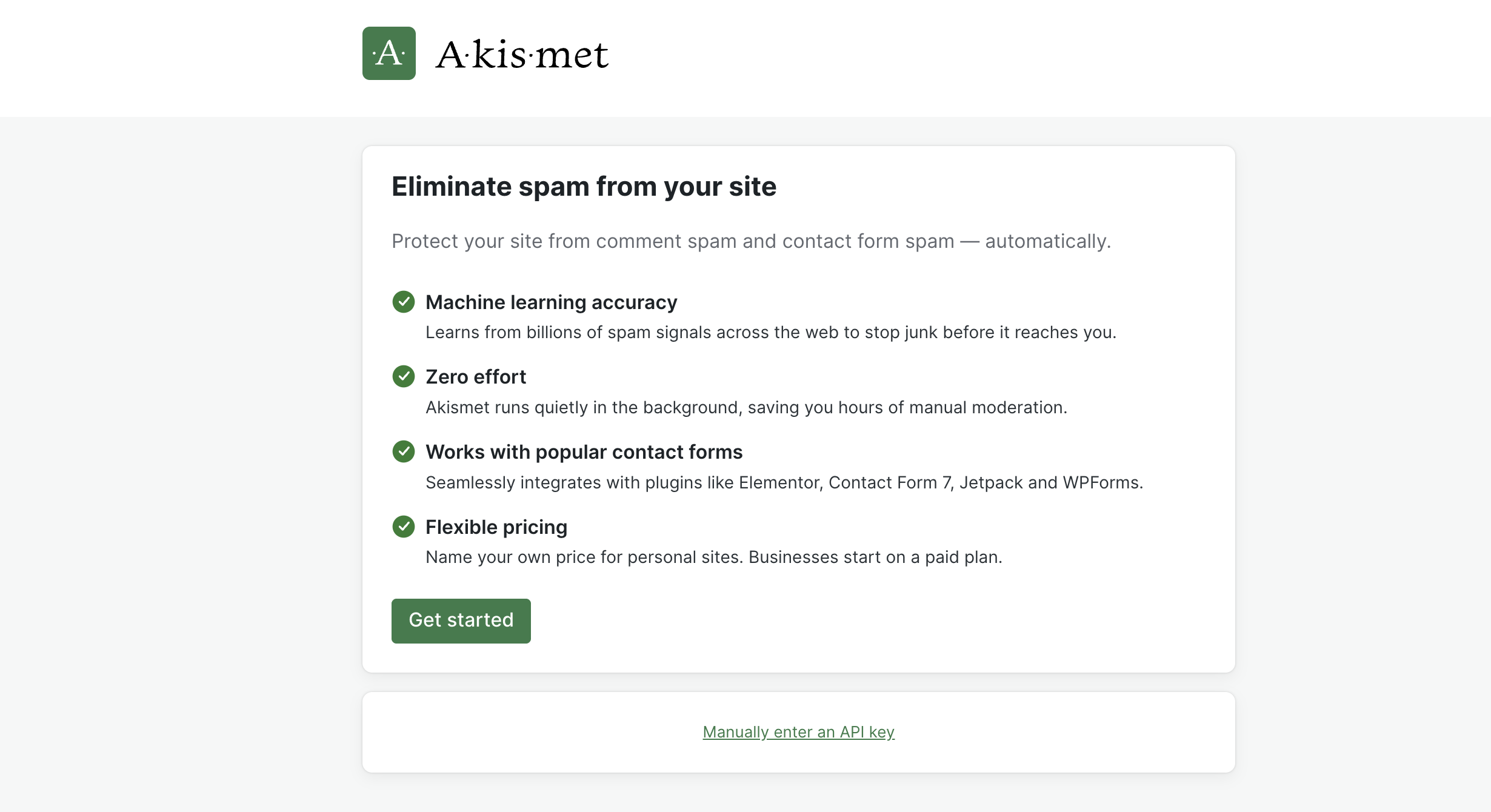
After you activate the plugin, you’ll need to create an Akismet account to get an API key. This key connects your website to the Akismet spam-blocking network.
- Click the Set up your Akismet account button on the screen that appears immediately after activation.
- Click the Get API Key button to go to the Akismet website.
- Follow the prompts on the screen to complete your checkout and create your account.
- Locate your new API key on the confirmation screen or in your email receipt.
- Copy the API key to your computer’s clipboard.
Now that you have your API key, you can activate the spam protection inside your LifterLMS settings.
- Return to your WordPress dashboard.
- Navigate to Settings > Akismet Anti-spam and paste your copied API key into the empty field.
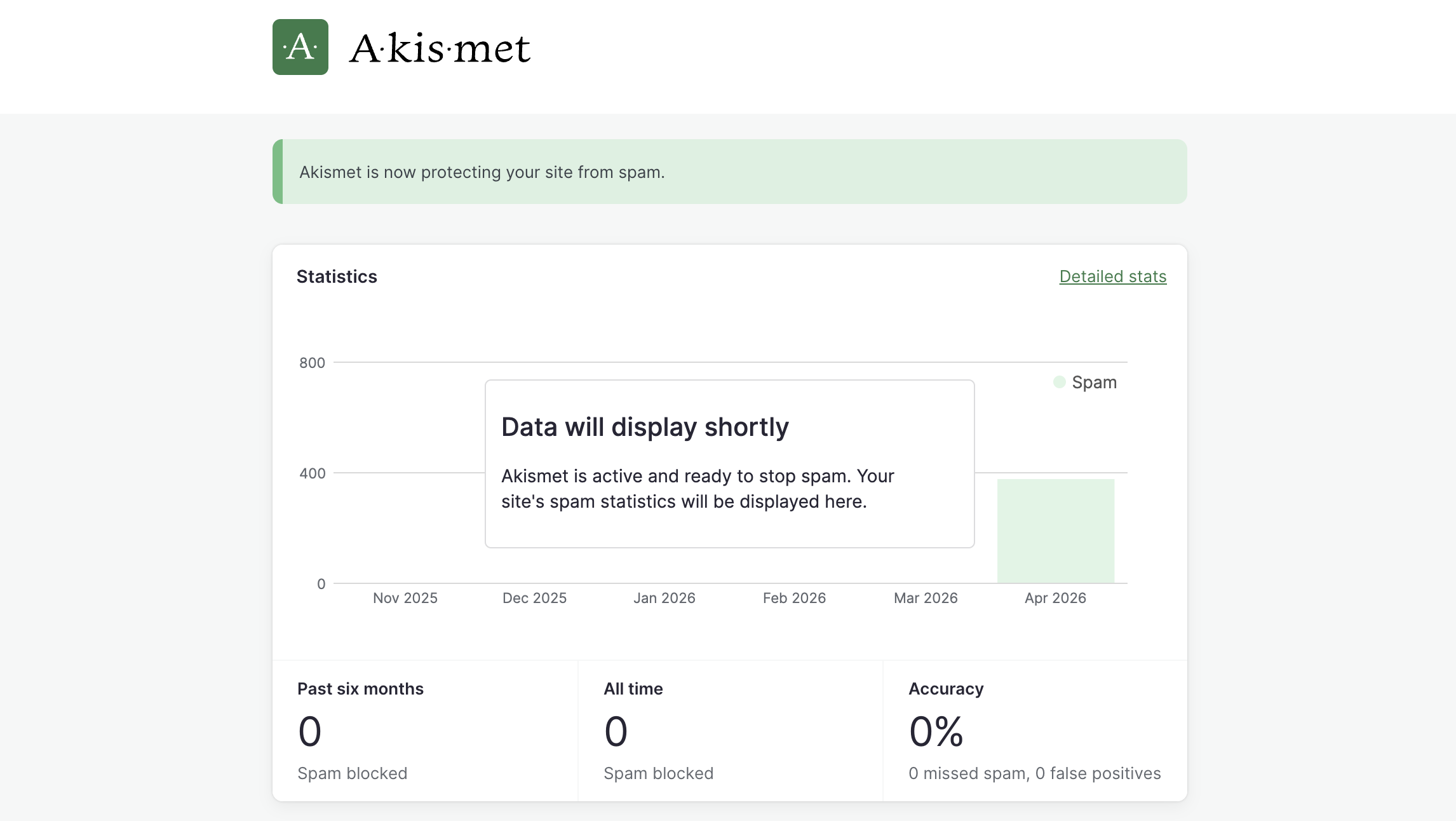
- Click the Connect with API key button. After activating your plugin, you will see a message “Akismet is now protecting your site from spam”.
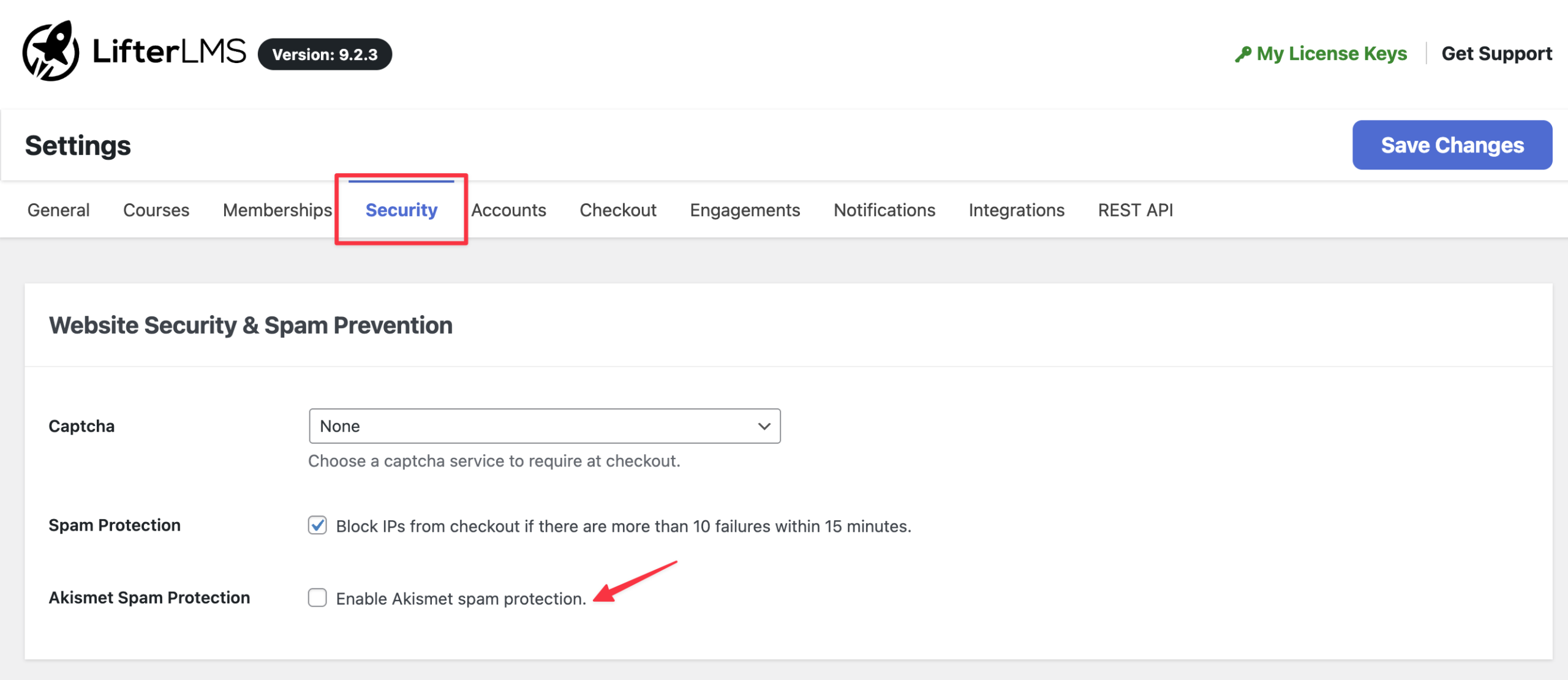
- Once the plugin is activated, navigate to LifterLMS > Settings in your WordPress dashboard.
- Click on the “Security” tab at the top of the screen.
- Locate the “Spam Protection” section on the page.
- Check the box next to the “Enable Akismet spam protection” option.
- Click the Save Changes button.
Once you enable this integration, Akismet runs quietly in the background within your LifterLMS checkout and registration pages. It adds a hidden text field to your forms that human visitors can’t see, but which automated spam bots will see and automatically fill out.
If the hidden field receives text, Akismet knows the user is a robot and immediately stops the form submission. Akismet also checks the user’s IP address and email address against a large global database of known spammers to ensure your website stays safe.


