

Student Login and Logout in LifterLMS
LifterLMS seamlessly integrates with the standard WordPress user system and allows administrators to use virtually any compatible third-party user management tool.
By default, LifterLMS provides a secure login area via the Student Dashboard page, but there are several other ways to enable student access.
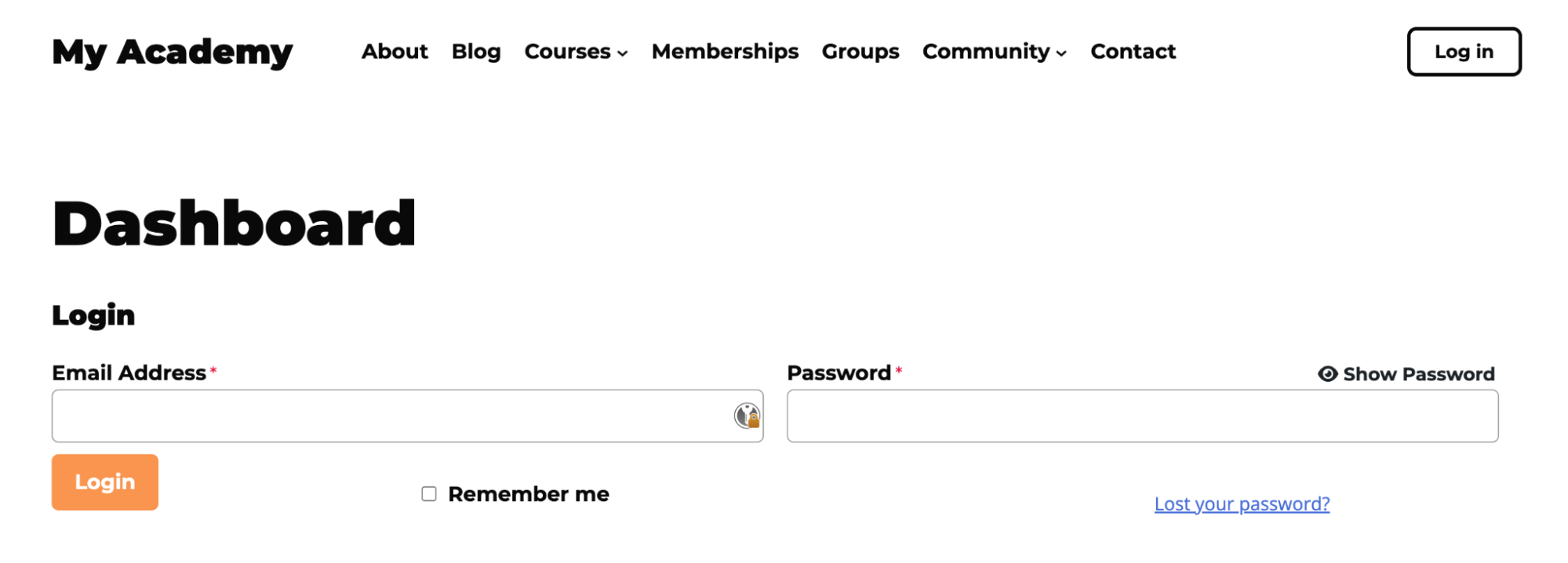
The most common way for a student to access their courses is through the Student Dashboard (the page containing the [lifterlms_my_account] shortcode).
To log in:
- Navigate to your Student Dashboard page.
- Enter the Username or Email Address associated with the account.
- Enter the Password.
- Click Log In.
To log out:
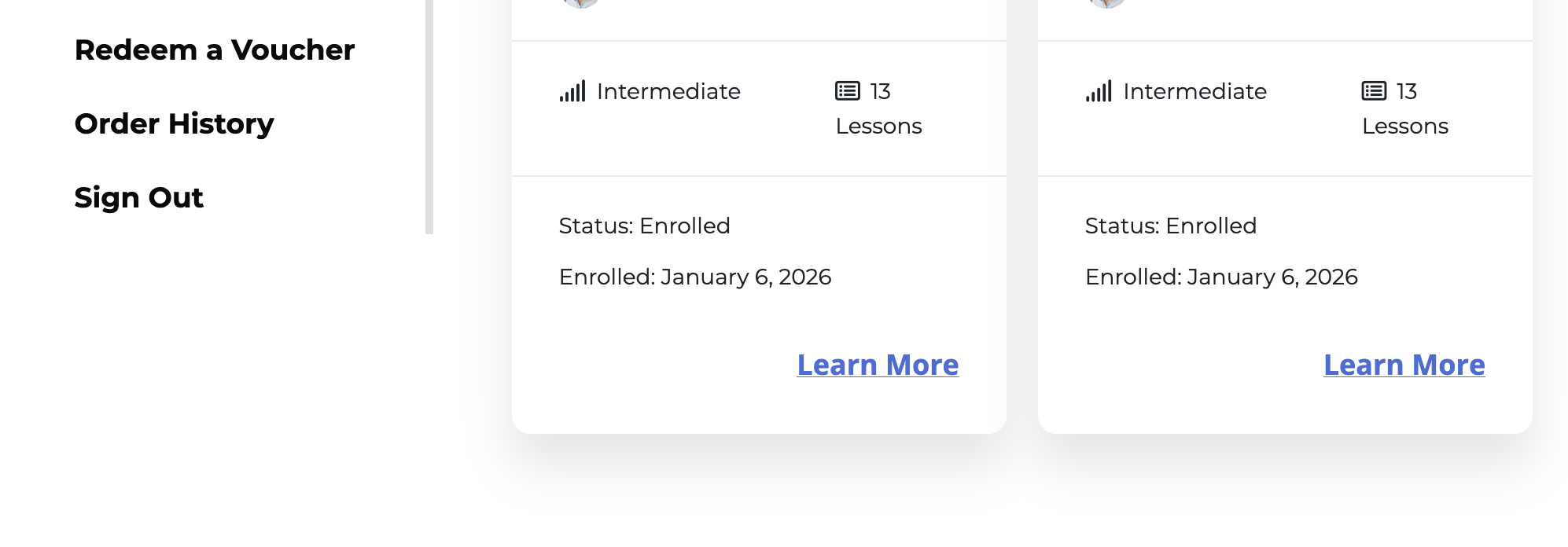
- Navigate to the Student Dashboard.
- Click the Sign Out link in the dashboard navigation menu.
You may want to provide login options on other parts of your site, such as a sidebar, a dedicated landing page, or your primary navigation menu.
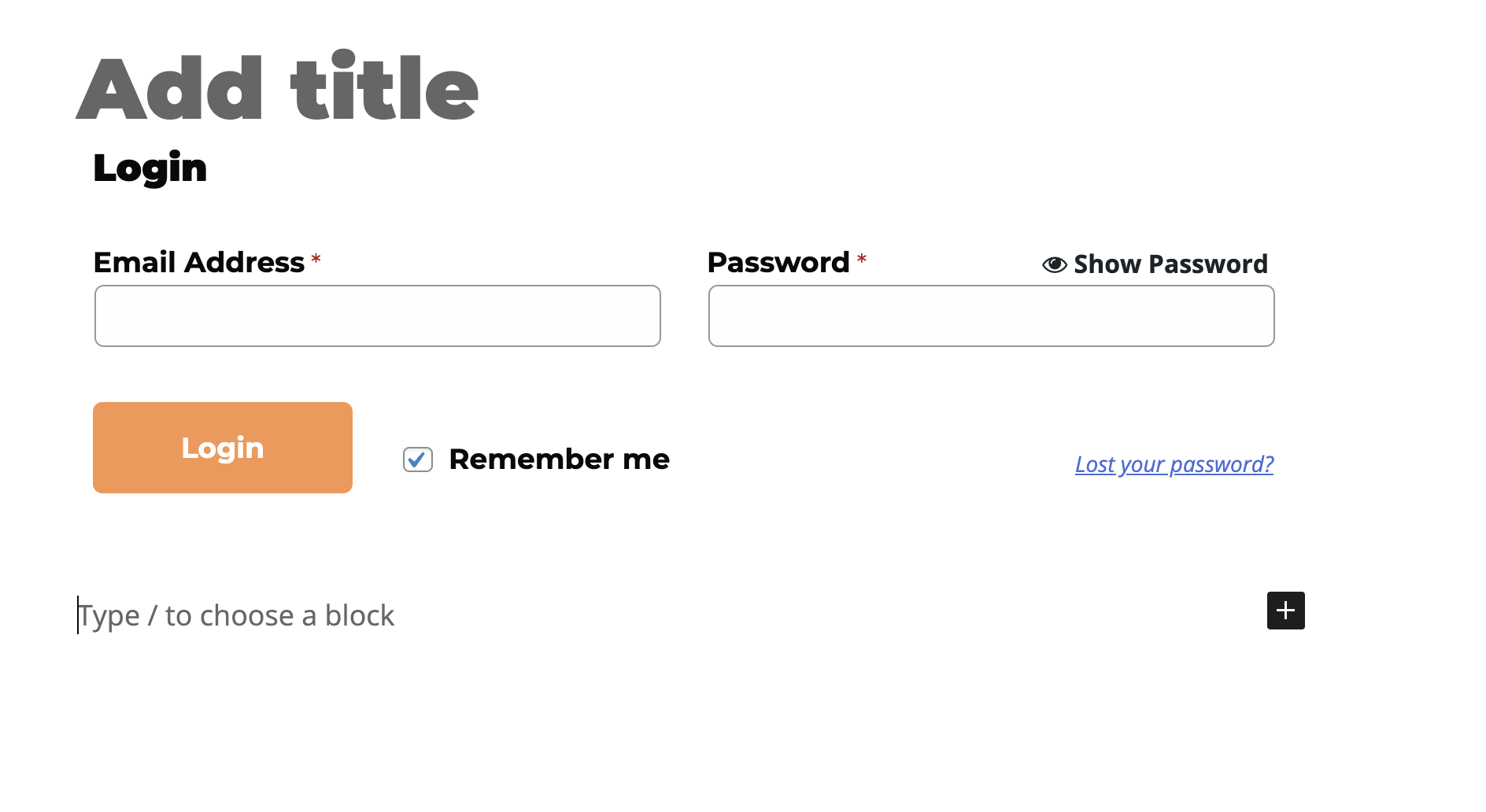
The LifterLMS Login Block (Gutenberg)
If you’re using the WordPress Block Editor, you can drop the LifterLMS Login Form Block onto any page or post. This is ideal for creating custom “Welcome” pages for your students.
Using Shortcodes
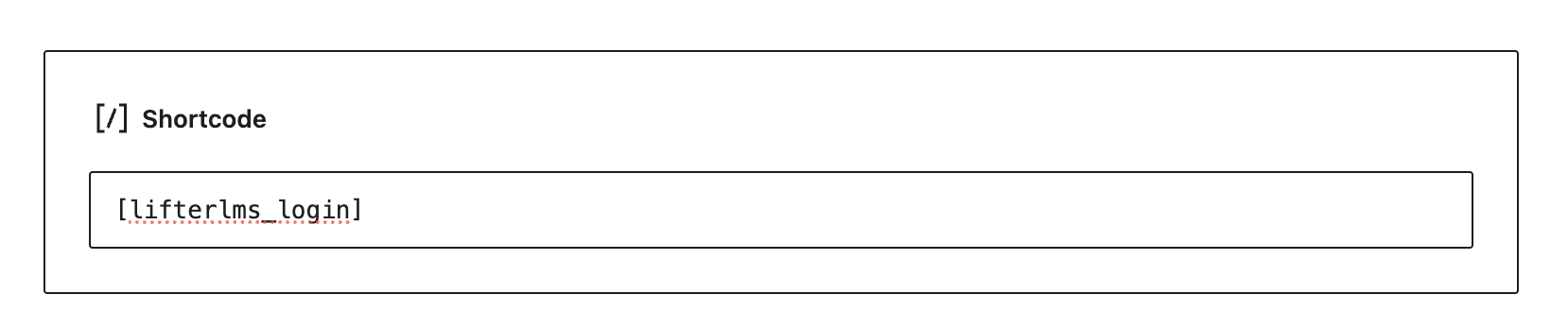
For those using Page Builders (such as Elementor, Beaver Builder, or Divi) or the Classic Editor, you can use the following shortcode to display a login form anywhere:
[lifterlms_login]
Navigation Menu Links
A common practice is to add a Login/Logout link directly to your site’s header menu.
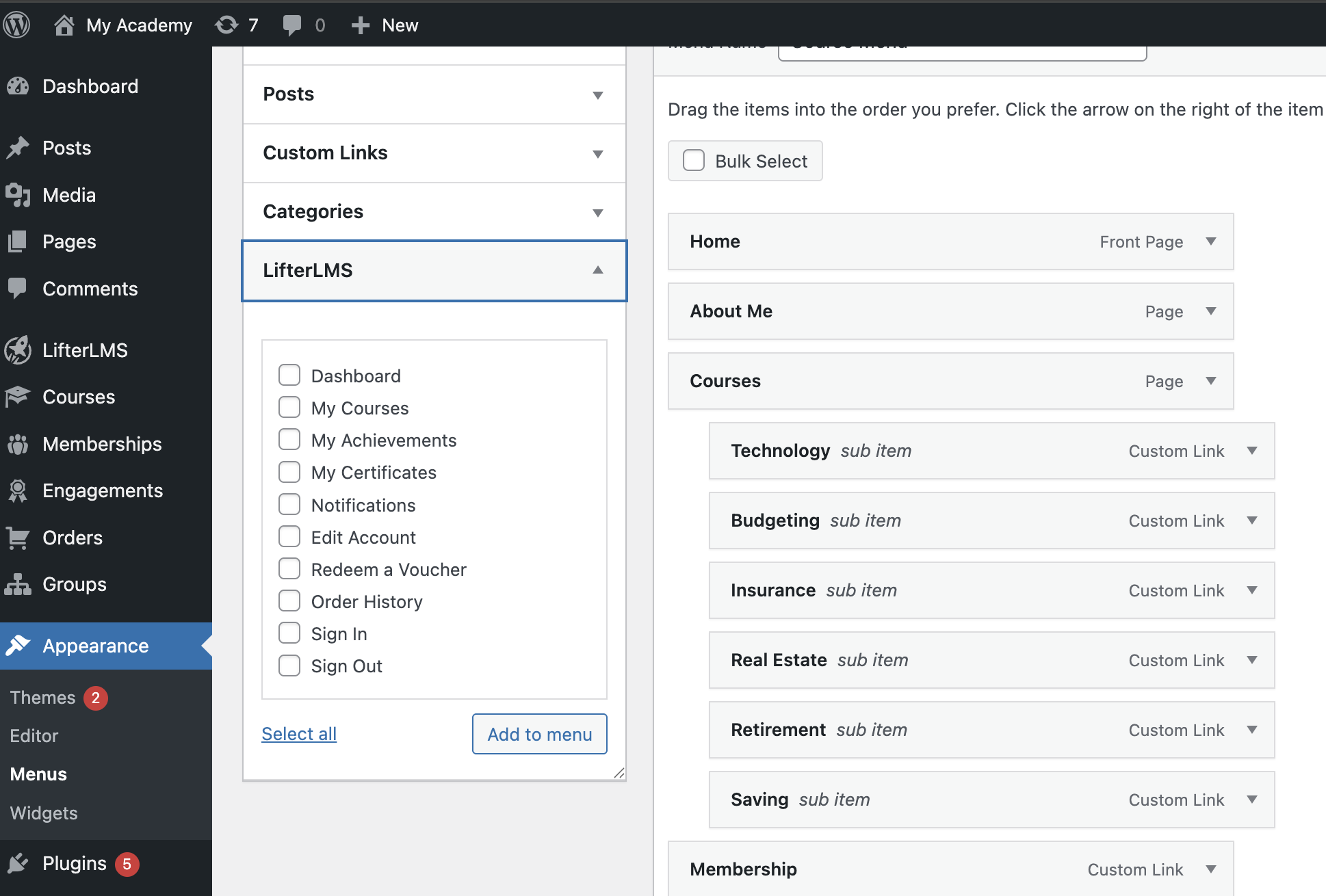
- Go to Appearance > Menus.
- Look for the “LifterLMS” section in the left-hand column.
- Add the Sign In/Sign Out link to your menu.
- Note: This link is dynamic; it will automatically show “Sign In” to logged-out users, and “Sign Out” to logged-in users.
Social Media & SSO Logins
To simplify onboarding, many site owners allow students to log in using their social media accounts (such as Google, Facebook, or LinkedIn).
LifterLMS is fully extensible and supports third-party Single Sign-On (SSO) and social login plugins.
Recommended Reading: For detailed instructions on configuring these tools, please see our guide: How to set up Single Sign-On (SSO) with Third-Party Plugins in LifterLMS.
Lost Passwords
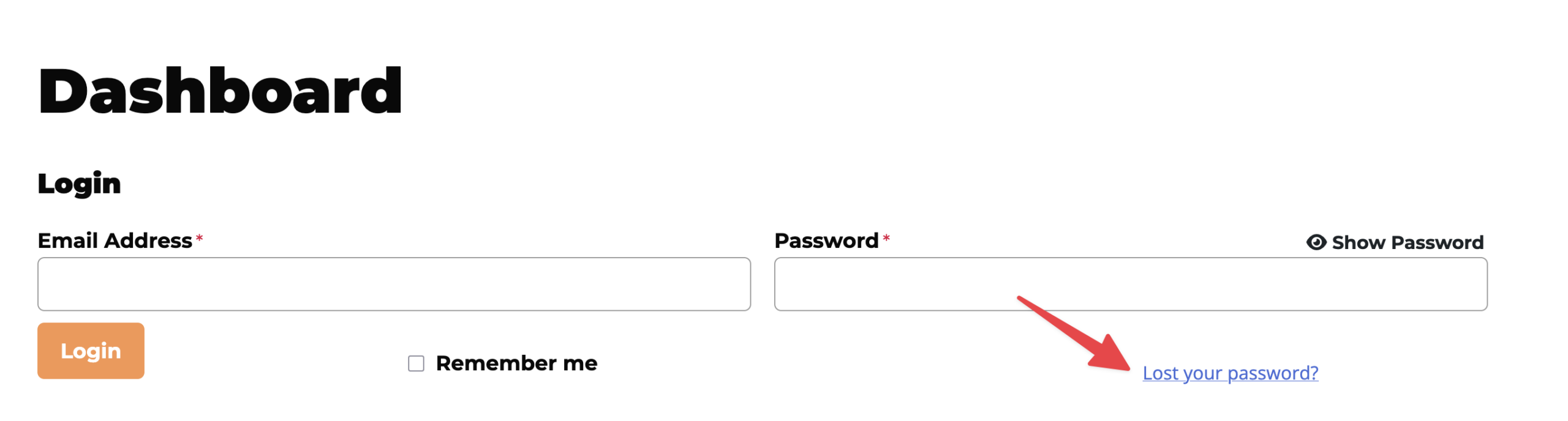
If a student forgets their password, they can click the “Lost your password?” link found directly below the standard LifterLMS login form. This triggers the standard WordPress password reset email flow.
Troubleshooting Login Issues
- If your students report that the “Sign In” button doesn’t seem to work, ensure that your caching plugin (such as WP Rocket or LiteSpeed) has excluded the Student Dashboard page from caching.
- LifterLMS (and WordPress) requires “cookies” to be enabled in the student’s browser to maintain a logged-in session.


