

How to Enable Focus Mode for a Distraction-Free Learning Experience
In a classroom, students learn in a structured, controlled environment. That all changes dramatically when the learning moves online. Web browsers seem almost built to distract, with menus, options, notifications, and many other enticing features that can slow down students’ learning.
That’s where Focus Mode with LifterLMS comes in.
LifterLMS provides Focus Mode to help you create a cleaner lesson environment with fewer distractions. It simplifies the lesson layout, reduces visual noise, and keeps the course content at the center of the learning experience.
Note: Focus Mode is available in LifterLMS 10.0 and later. If you don’t see the settings covered below, update LifterLMS before continuing.
Focus Mode is a LifterLMS layout option that creates a clean, distraction-free environment for lessons.
When you enable Focus Mode, the lesson view removes many of the standard website elements that can distract learners. These elements include:
- Main navigation menus
- Website headers and footers
- Sidebar widgets unrelated to the course
- Social sharing buttons and marketing banners
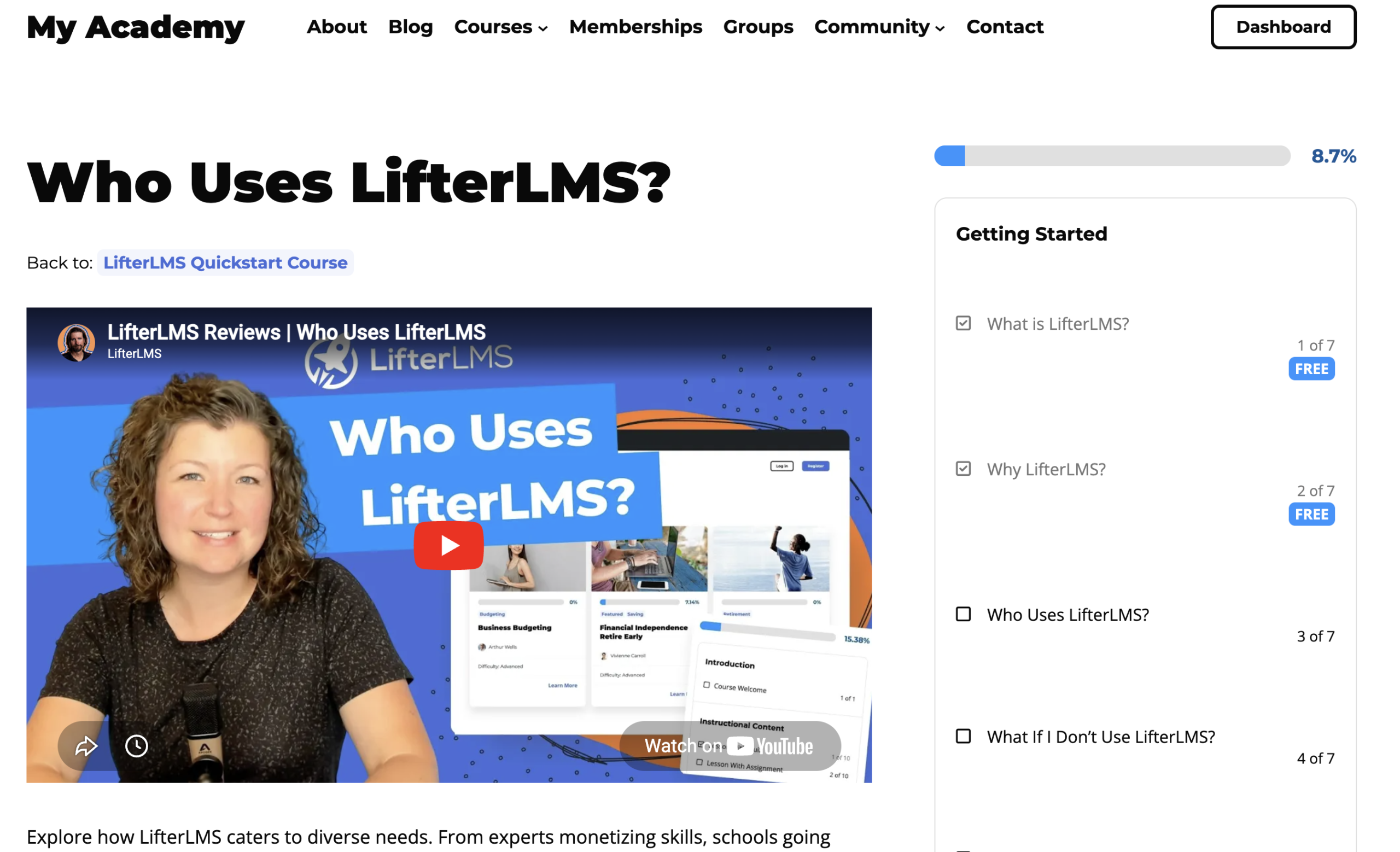
Here is an example of a standard LifterLMS layout:
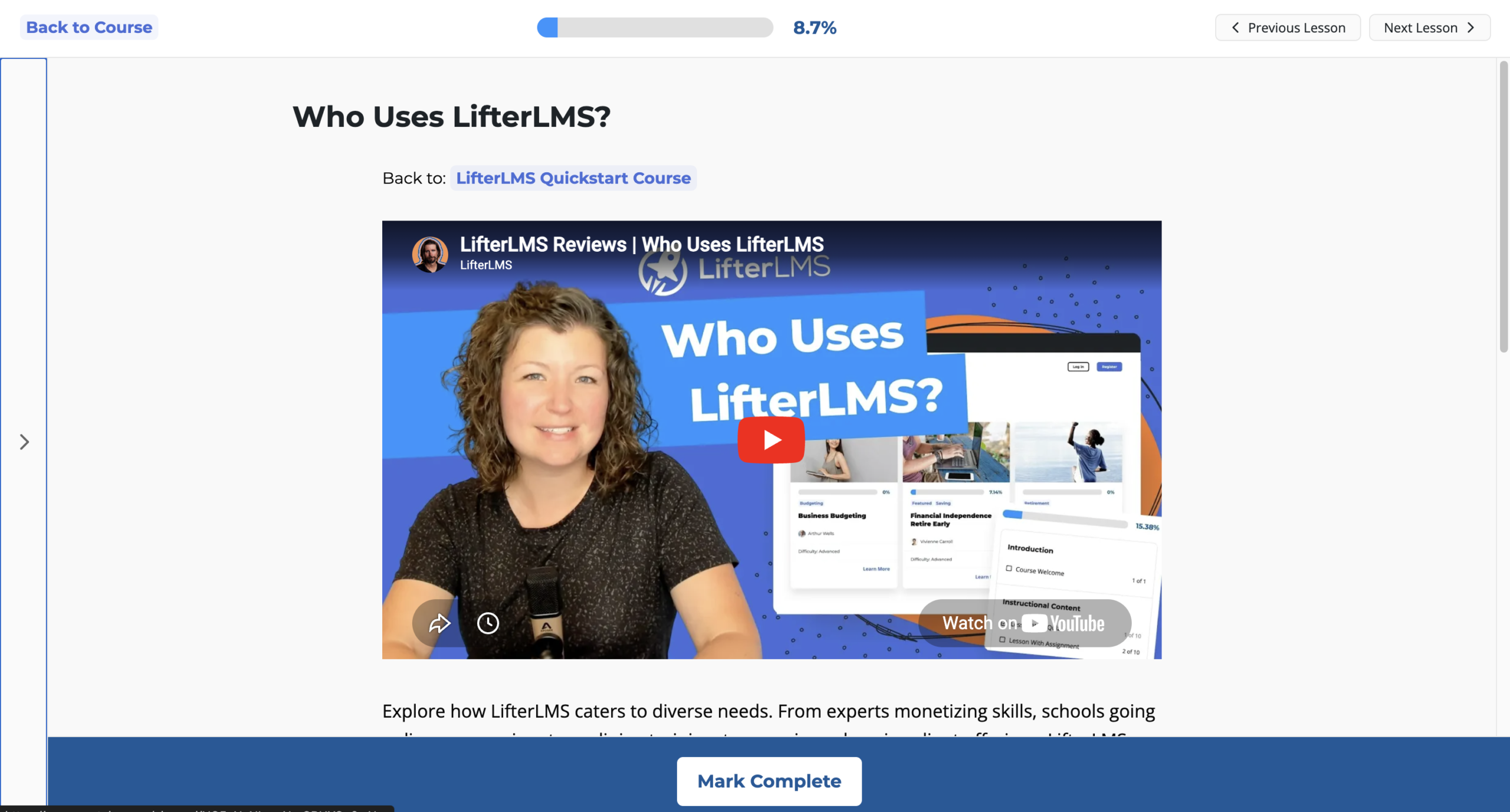
When you enable Focus Mode, your learners see a clean screen focused exclusively on the lesson, with the relevant content taking visual priority.
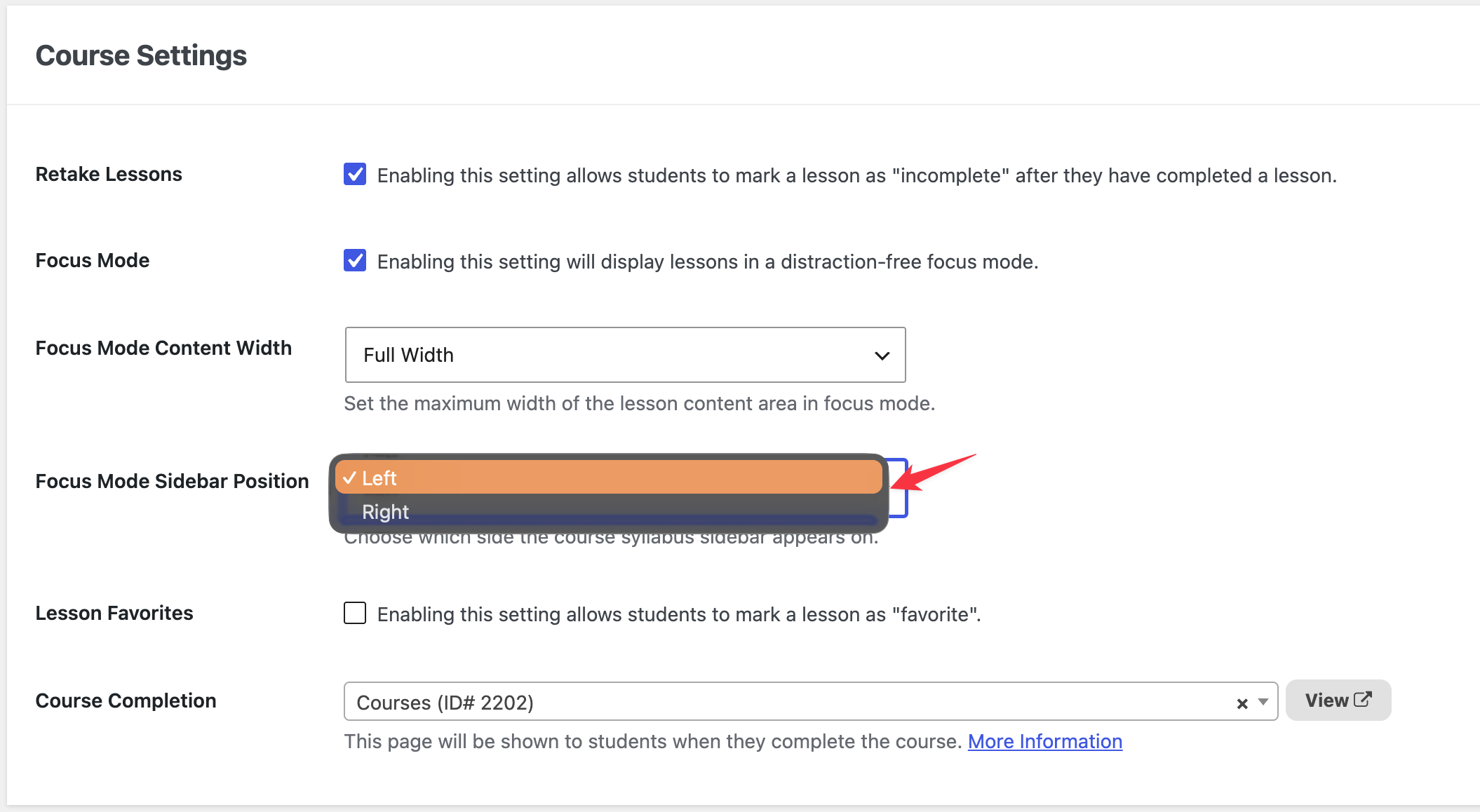
You can configure LifterLMS to use Focus Mode across all your courses automatically. Follow these steps to enable this feature globally:
- Log in to your WordPress dashboard.
- Navigate to LifterLMS > Settings > Courses.
- Scroll down to the “Course Settings” section.
- Locate the “Focus Mode” setting.
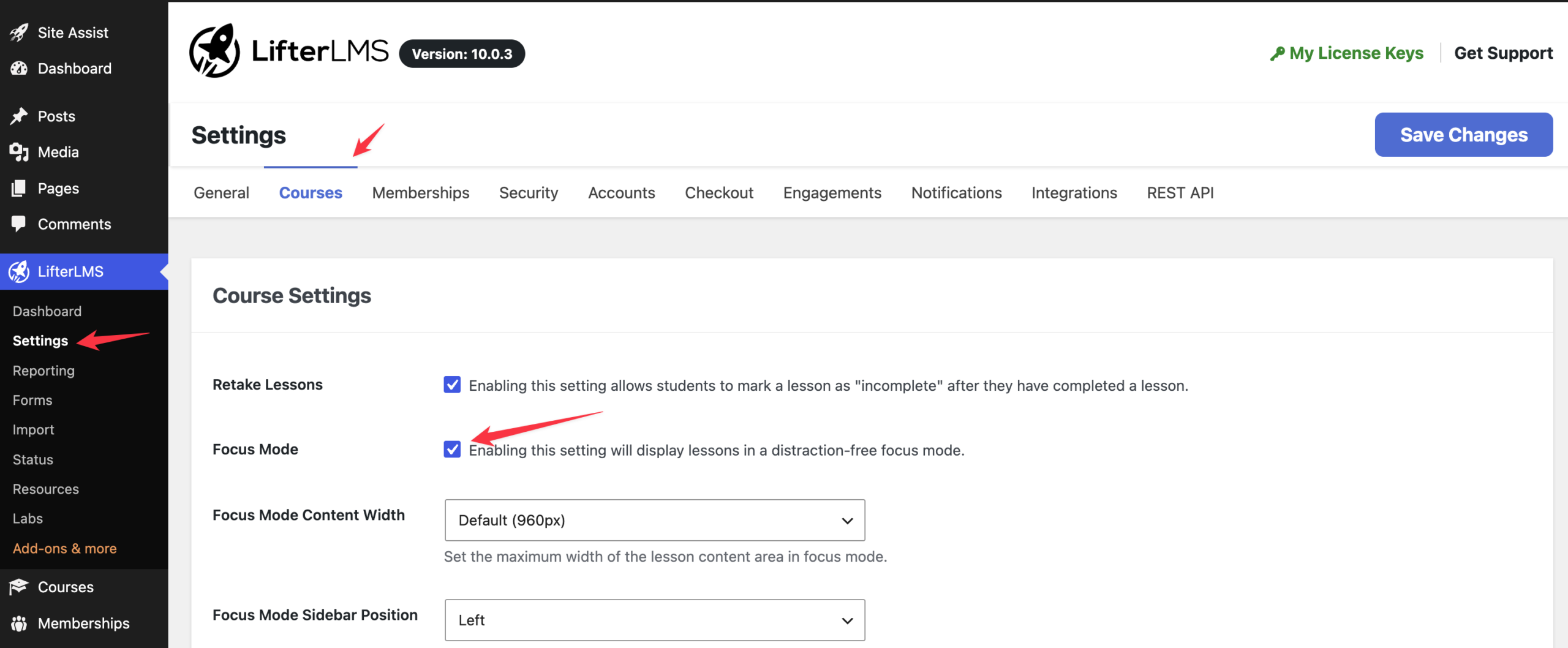
- Check the box next to “Enabling this setting will display lessons in a distraction-free focus mode.”
- Click the Save Changes button.
Once you enable Focus Mode, you can adjust the content width and the sidebar position to match your design configuration.
Adjusting the Lesson Content Width
Controlling the maximum width of your lesson content helps improve readability. Text-heavy layouts benefit from narrower containers, while video-first courses benefit from wider displays.
- Navigate to LifterLMS > Settings > Courses.
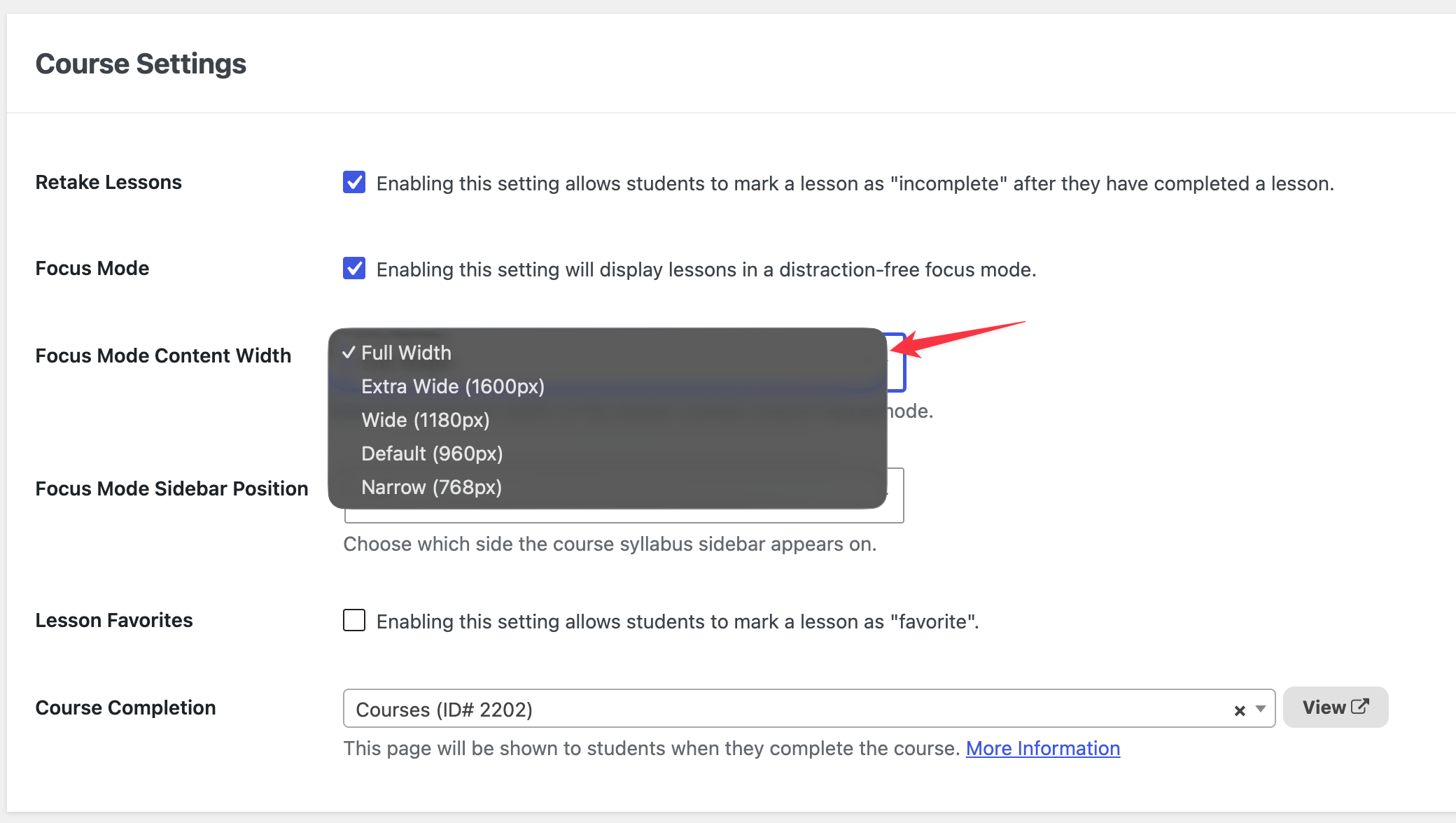
- Locate the “Focus Mode Content Width” setting.
- Click the dropdown menu to open the options.
- Select one of the available options: “Full Width”, “Extra Wide”, “Wide”, “Default”, or “Narrow”.
- Click the Save Changes button.
Choosing the Sidebar Position
The Focus Mode sidebar displays your course syllabus. You can choose whether this syllabus sits on the left or the right side of the lesson screen.
- Navigate to LifterLMS > Settings > Courses.
- Locate the “Focus Mode Sidebar Position” setting.
- Click the dropdown menu.
- Select either “Left” or “Right”.
- Click the Save Changes button.
Different courses require different learning environments. LifterLMS allows you to override your global Focus Mode settings on a course-by-course basis.
Course-level settings take precedence over your global defaults.
- Navigate to Courses > Courses in your WordPress dashboard menu.
- Hover over the course you want to customize and click the Edit link.
- Scroll down below the main block editor to find the “Course Options” meta box.
- Click on the “General” tab.
- Locate the “Focus Mode” setting dropdown menu.
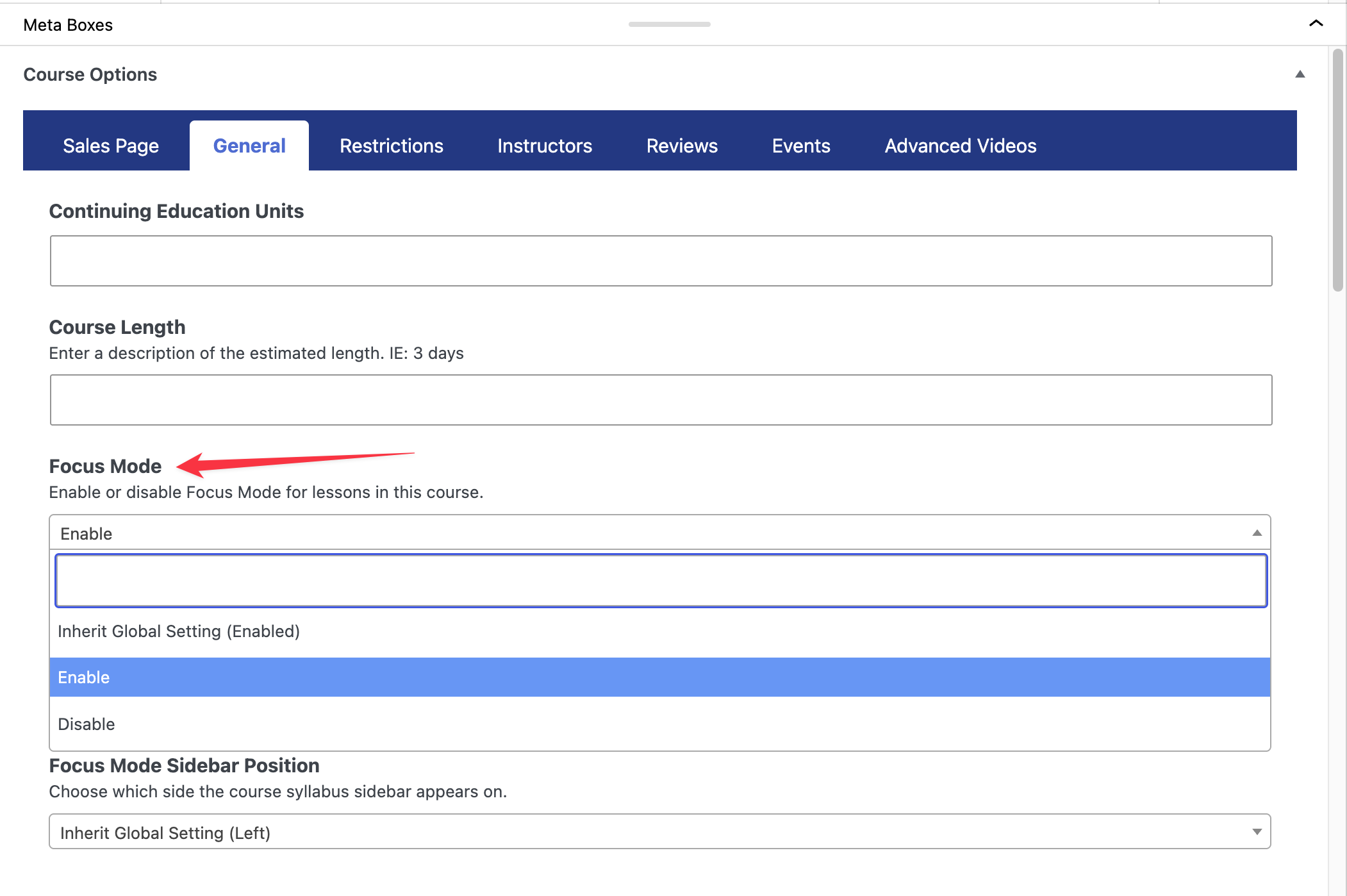
- Select your preferred option: “Enable” to activate Focus Mode for this course, “Disable” to turn it off, or “Inherit Global Setting” to keep your default setup.
- Locate the “Focus Mode Content Width” and “Focus Mode Sidebar Position” settings below if you want to override those layouts for this course.
- Scroll to the top of the page.
- Click the Update button to save your changes.
Focus Mode is a simple way to give learners a cleaner lesson experience without rebuilding your course layout. You can enable it globally for all courses, then override those settings for individual courses when needed.
Watch the video below for a walkthrough of how Focus Mode works in LifterLMS.


