

How to enable reCAPTCHA verification
Google reCAPTCHA verification protects your sign up and checkout forms from bots and spam. LifterLMS supports reCAPTCHA v3 for seamless protection.
Step 1. In your WordPress admin, go to LifterLMS > Settings and click on the “Security” tab
Step 2. In the Captcha dropdown, select “reCAPTCHA”
Step 3. Enter the Site Key and Secret Key after signing up for Google reCAPTCHA. Be sure to select “Score based (v3)” for the reCAPTCHA type.
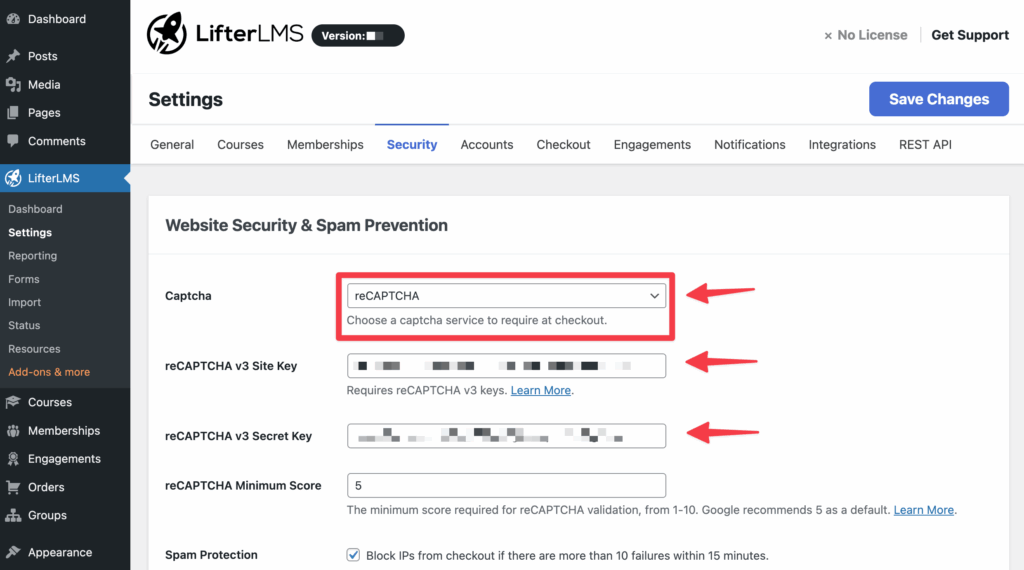
You can optionally adjust the “reCAPTCHA Minimum Score” value. Google recommends 5 out of 10. A higher means the reCAPTCHA score thinks the user is human. Setting the value too high may block more legitimate users, whereas too low many allow more spam and bots to complete the form.
You can either start a checkout with a gateway like LifterLMS Stripe, or enable open registration and visit the Dashboard page. If you are already logged in you may need to logout or open a new private (incognito) browser window.


