How to Reset Sky Pilot Theme Settings to Defaults
In order to reset Sky Pilot theme settings to defaults, you need to:
- Reset global styles.
- Reset each customized template one at a time.
- Reset each customized template part one-at-a time.
Keep following this documentation for help with each of these steps.
- Navigate to the Site Editor by clicking Edit Site from the WordPress Toolbar or by navigating to Appearance > Editor from the WordPress admin.
- In the Design panel on the left, click on Styles.
- This will open the site’s Index template in the site editor. If you have created a Front Page template, this will open up the Front Page template instead.
- Click on the template title, as shown in the screenshot below:
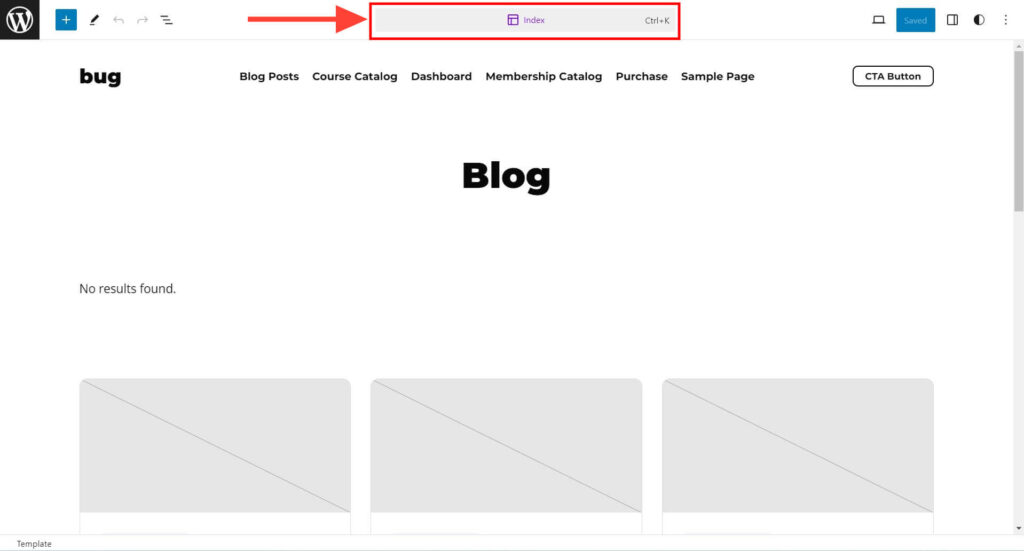
After clicking the title, a pop-up search field will appear. This search field helps you locate the Reset command.
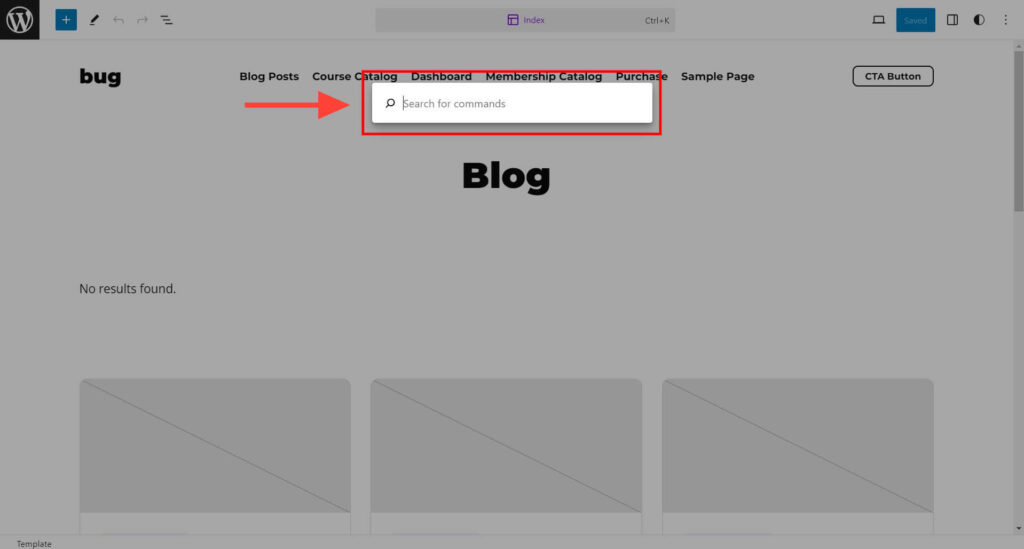
Type “Reset” in the search field.
- If your site has global custom styles to clear, you will see Reset styles to defaults as shown in the screenshot below. Click on “Reset styles to defaults” if you see it.
- If you do not see this option, your site does not have any global custom styles to reset.
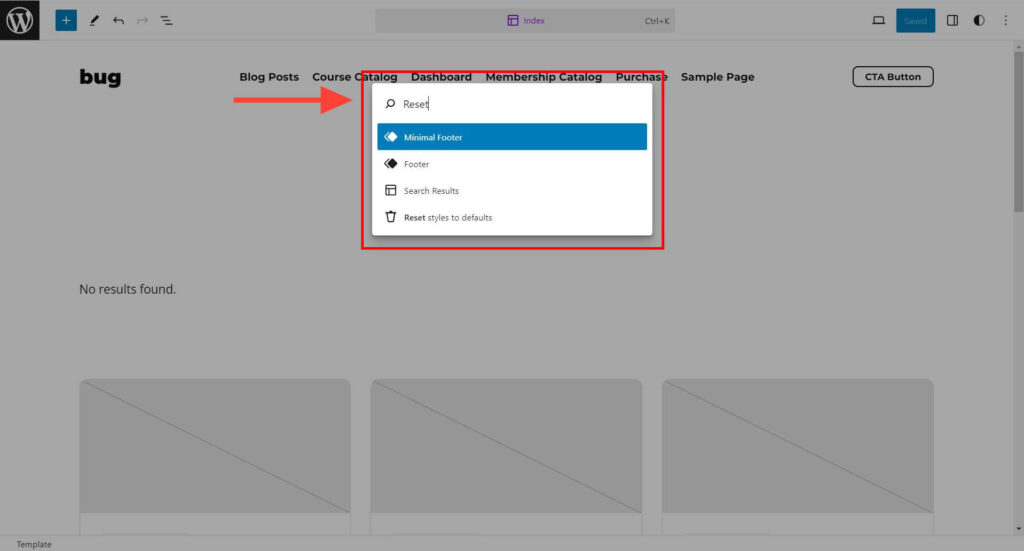
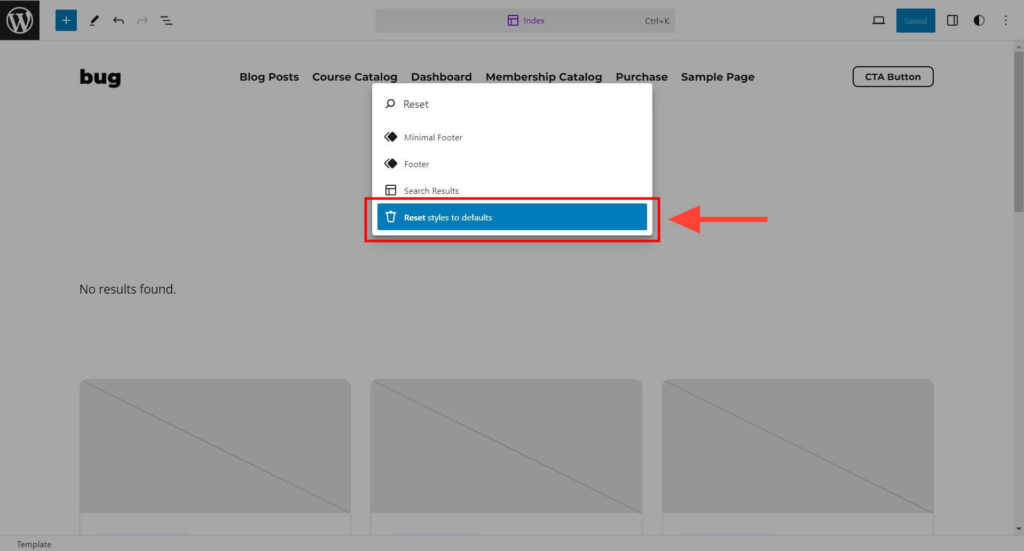
That’s it. You can check the frontend of your site to see if any global custom styles are still showing up.
Refer to our tutorial on how global custom styles are added in the Sky Pilot theme to confirm that your custom styles are cleaned up.
If you have modified a Sky Pilot template and want to start over, you can easily remove your changes and restore the original template layout.
- From your WordPress dashboard, go to Appearance > Editor to open the Site Editor.
- In the left-hand menu, click on Templates.
- Locate and click on the customized template you want to reset.
- Click the Options menu (the 3 dots) next to the template’s name.
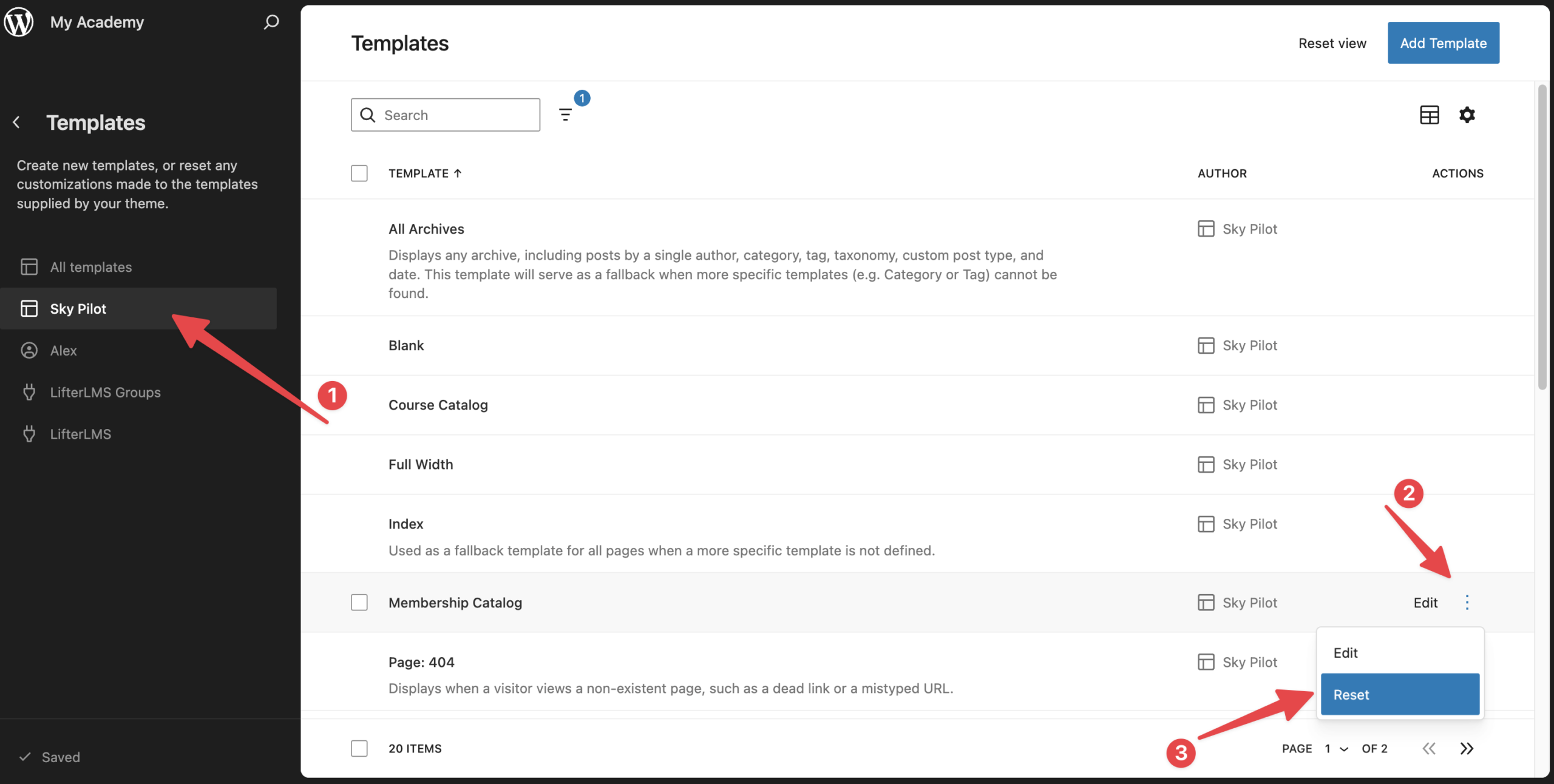
- In the options menu, click Reset. This will open up a new modal asking you to confirm your action. Click Reset once again to discard all customizations.
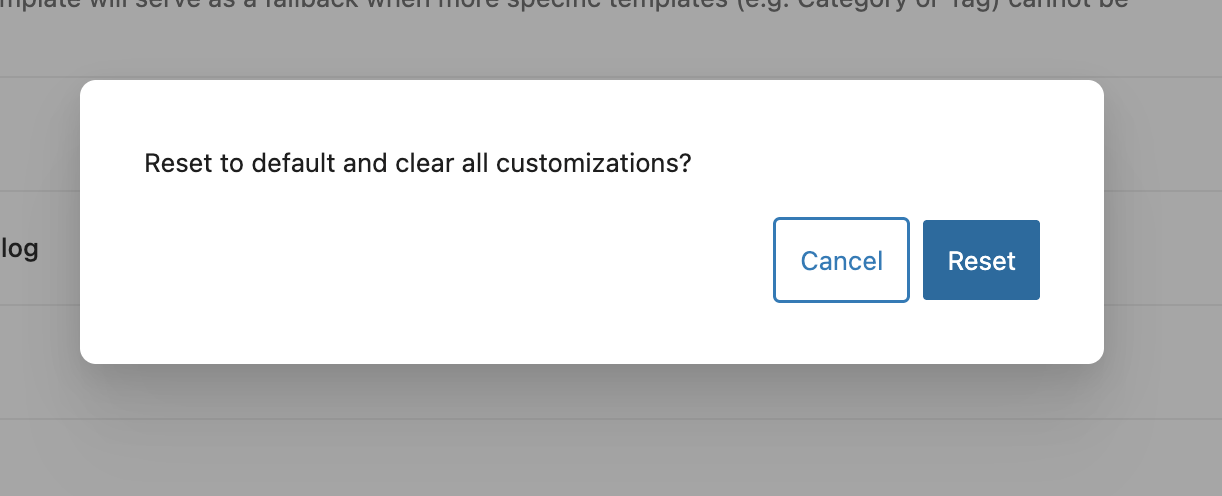
Note: The “Reset” option will appear only if the template has been customized.
Similar to resetting a Sky Pilot template, you can reset individual template parts, like your site’s header and footer.
- Navigate to the Site Editor by clicking Edit Site from the WordPress Toolbar or by navigating to Appearance > Editor from the WordPress admin.
- In the Design panel on the left, click on Patterns, then select Manage all template parts.
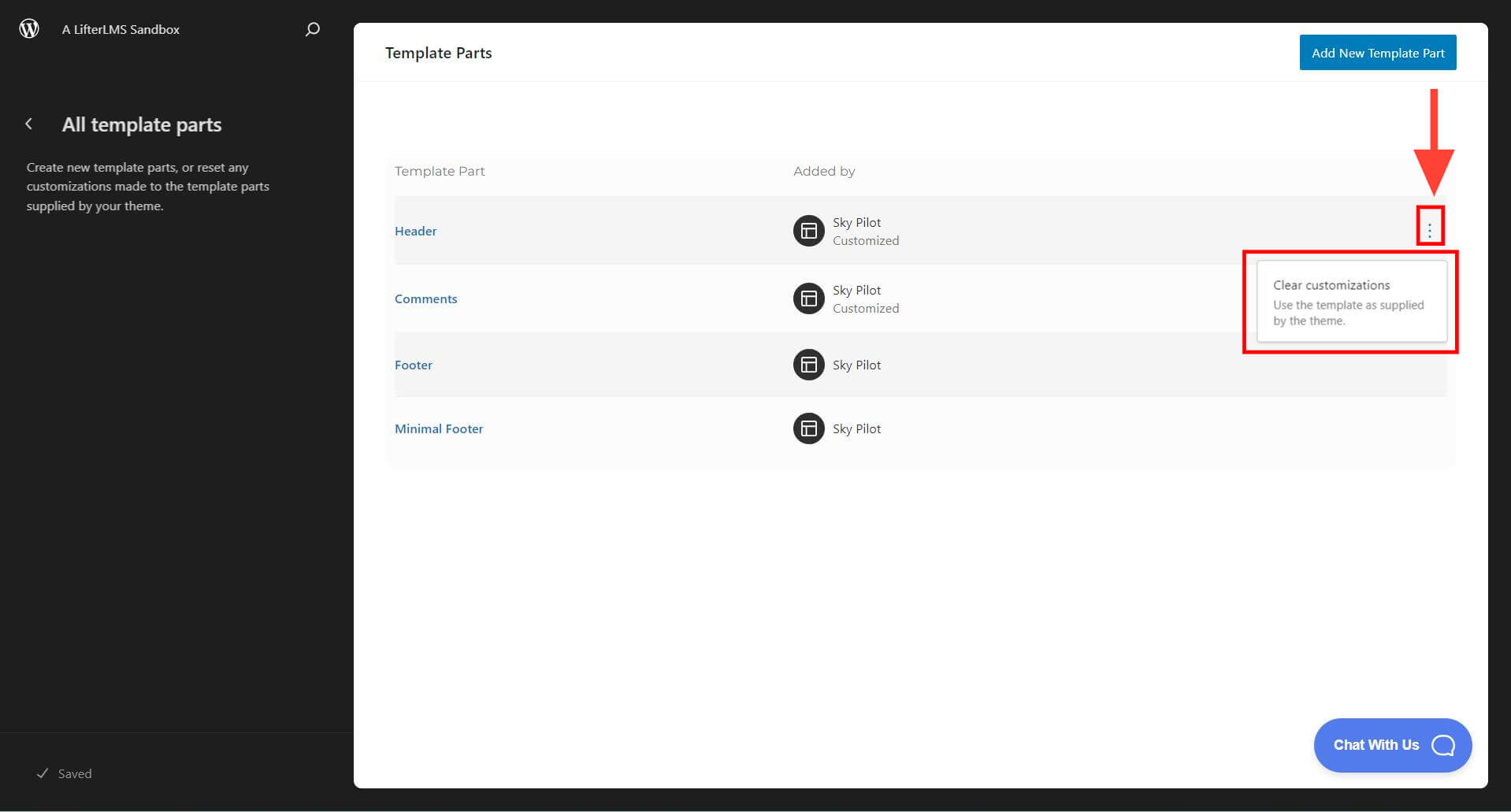
The list of template parts shows whether you have a customized version for your site.
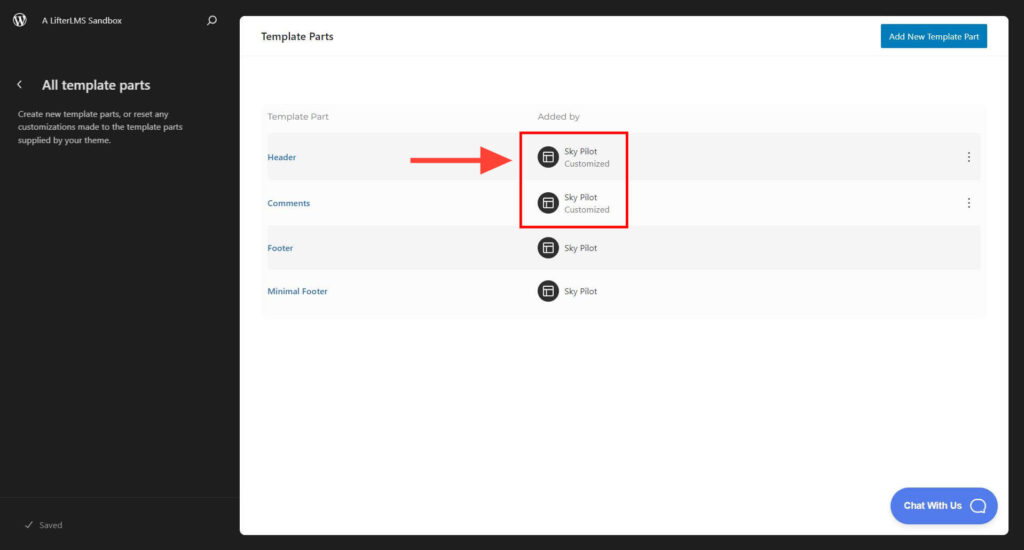
For each customized template part, click the three-dot icon to open the panel and click Clear customizations.
Repeat this step for each customized template part you want to reset.