

How Do I Set Up a LifterLMS Access Plan Associated With a WooCommerce Subscription Product?
Connecting your LifterLMS course or membership to a WooCommerce Subscriptions product allows you to automate enrollments based on recurring payments. This guide explains how to link these two tools using the LifterLMS WooCommerce Add-on.
If you prefer a visual walkthrough, you can watch the Feature Friday video on the LifterLMS YouTube channel:
Before you begin, make sure you have the following plugins installed and activated:
First, you must create the product that will handle the payment.
- Navigate to Products > Add New Product in your WordPress dashboard.
- Enter a name for your product in the “Product name” field.
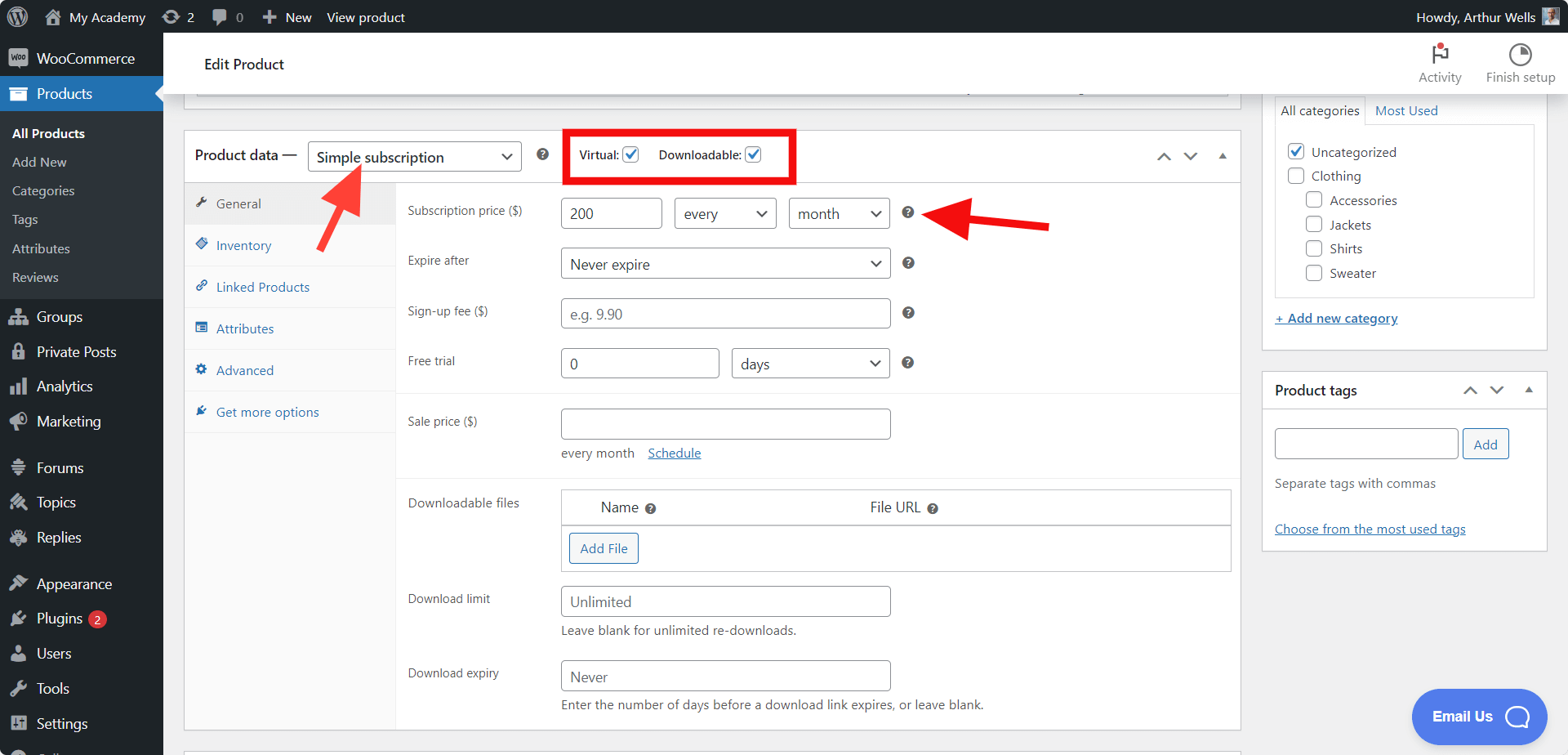
- Scroll down to the “Product data” box.
- Make sure to check the “Virtual” and “Downloadable” checkboxes.
- Select “Simple subscription” or “Variable subscription” from the dropdown menu.
- Enter your “Subscription price” and set the billing interval, such as “every month.”
- Click the Publish button.
Once your product is ready, you need to tell LifterLMS to enroll students when they purchase that specific product.
- Navigate to LifterLMS > Courses or LifterLMS > Memberships.
- Hover over the title of your course or membership and click Edit.
- Scroll down to the “Access Plans” section.
- Click the + Add New Plan button to create a new plan.
- Type a name for your plan in the “Plan Title” box.
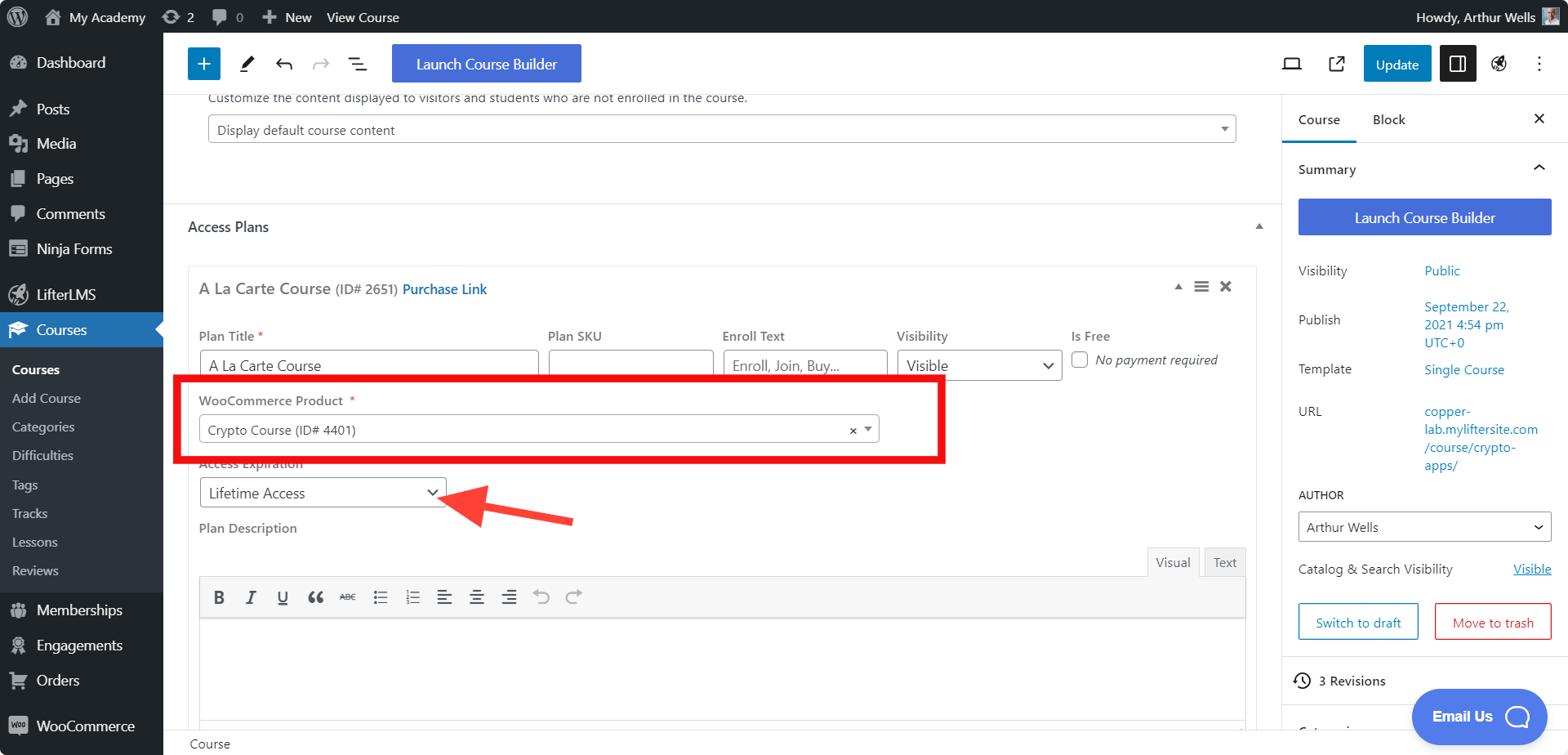
- In the “WooCommerce Product” dropdown, you need to select the name of the WooCommerce Subscriptions product you created in Step 1.
- Click the Save button on the access plan.
- Click the Update button in the top right corner of the WordPress editor to save your changes to the course.
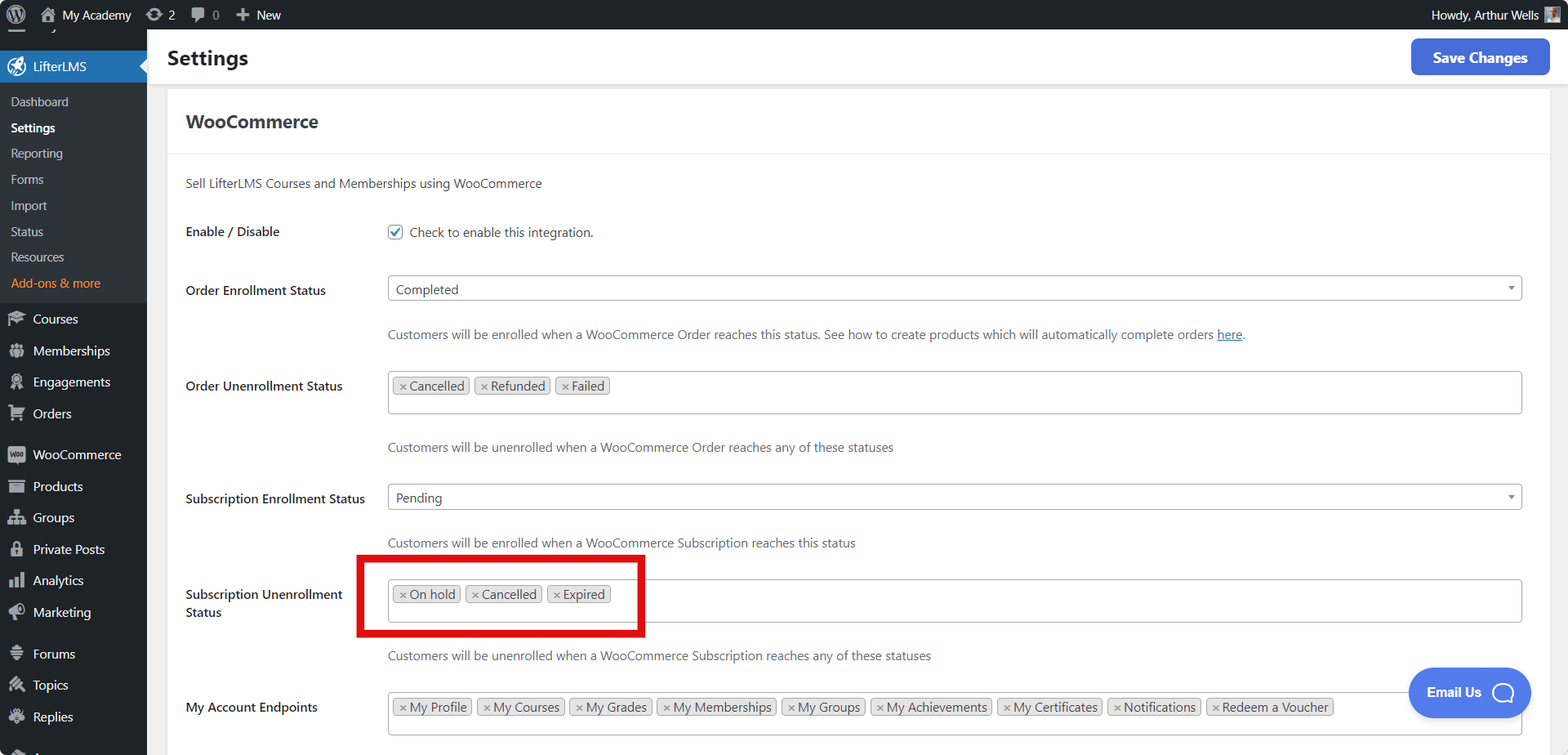
When a customer purchases the subscription through WooCommerce, the LifterLMS WooCommerce Add-on automatically enrolls them in the linked course or membership. If the subscription status changes to “Canceled” or “Expired” within WooCommerce Subscriptions, LifterLMS will automatically remove the student’s access.
This ensures your course content remains protected and only accessible to active subscribers. You can modify this behavior by navigating to LifterLMS > Settings > Integrations > WooCommerce and adding or removing tags as necessary:
Please read our documentation on “Getting Started with LifterLMS and WooCommerce” to learn more about linking your subscription status to your LifterLMS course or membership access.


