

Introduction to LifterLMS Translations
The core LifterLMS plugin, as well as all add-ons, are fully translatable.
Note: We also offer AI-assisted tools for approved contributors to speed up the process.
This guide explains where and how you can contribute translations.
If you’re a new translation contributor, we recommend you take a look at the WordPress.org translation handbook to help get started.
After submitting translations, a locale General Editor will review them and either approve or reject them. Some locales take longer than others, depending on the number of General Editors available for the locale.
If you’re interested in having your translations approved faster, you can request to be added as a Project Editor for LifterLMS. Project editors can manage translations for a specific plugin. Each language has its own set of requirements and guidelines for Project Editors.
We’ve found, generally, that it’s best to submit 50-100 translations prior to applying so that the General Editors can verify your work prior to appointing you as a project editor.
You must have an account to contribute translations.
- Visit translate.lifterlms.com.
- Log in with your LifterLMS account credentials.
- If you do not have an account, click the link to register for a free account on the LifterLMS website.
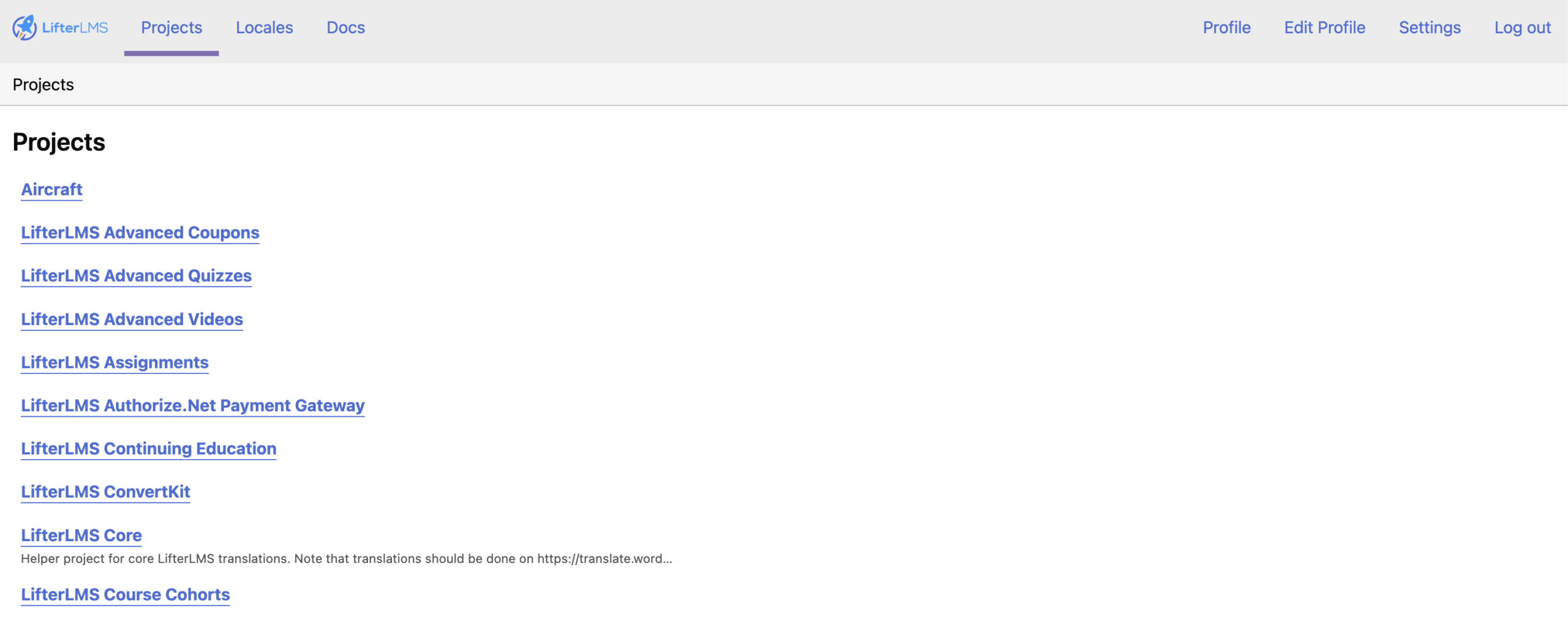
Once you log in, you can choose the project you want to translate.
- Select a project from the list, such as “LifterLMS Core” or an add-on such as “LifterLMS Stripe.”
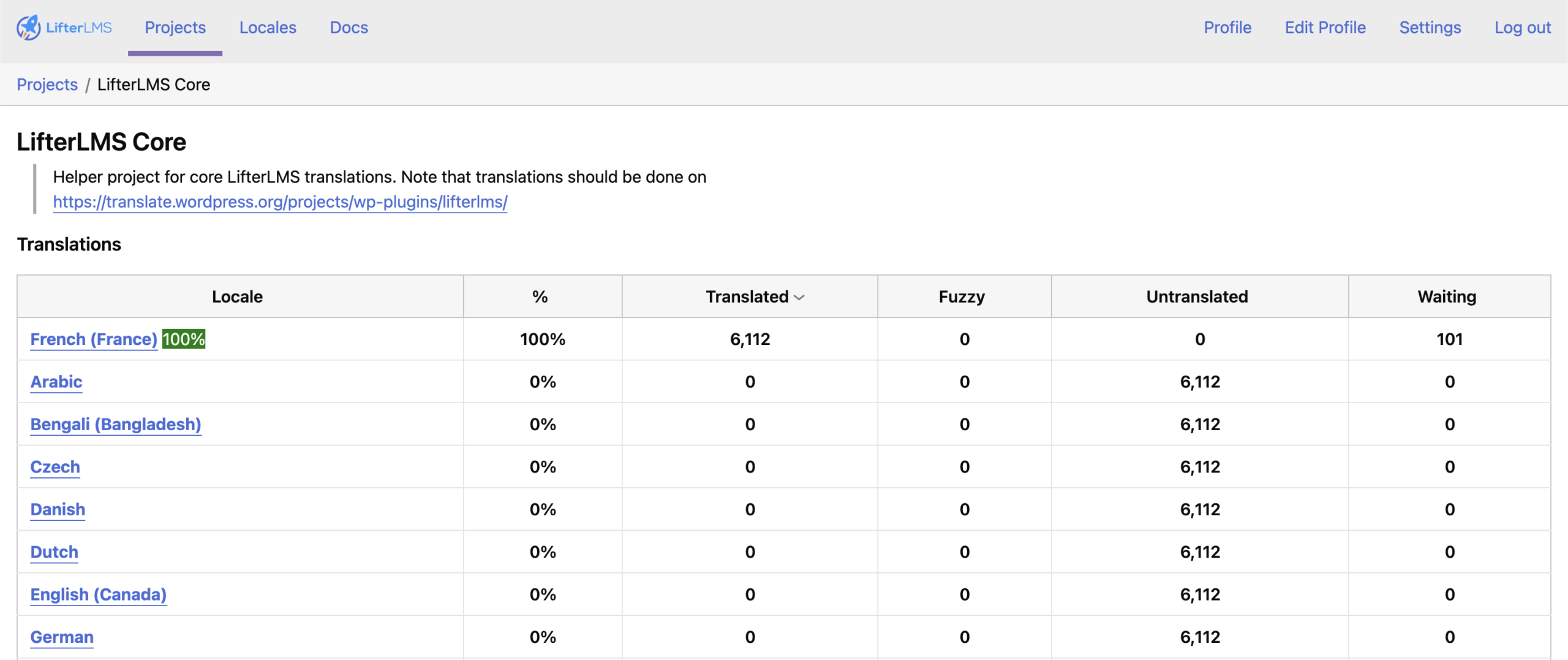
- Choose the language you wish to translate into from the list of available locales.
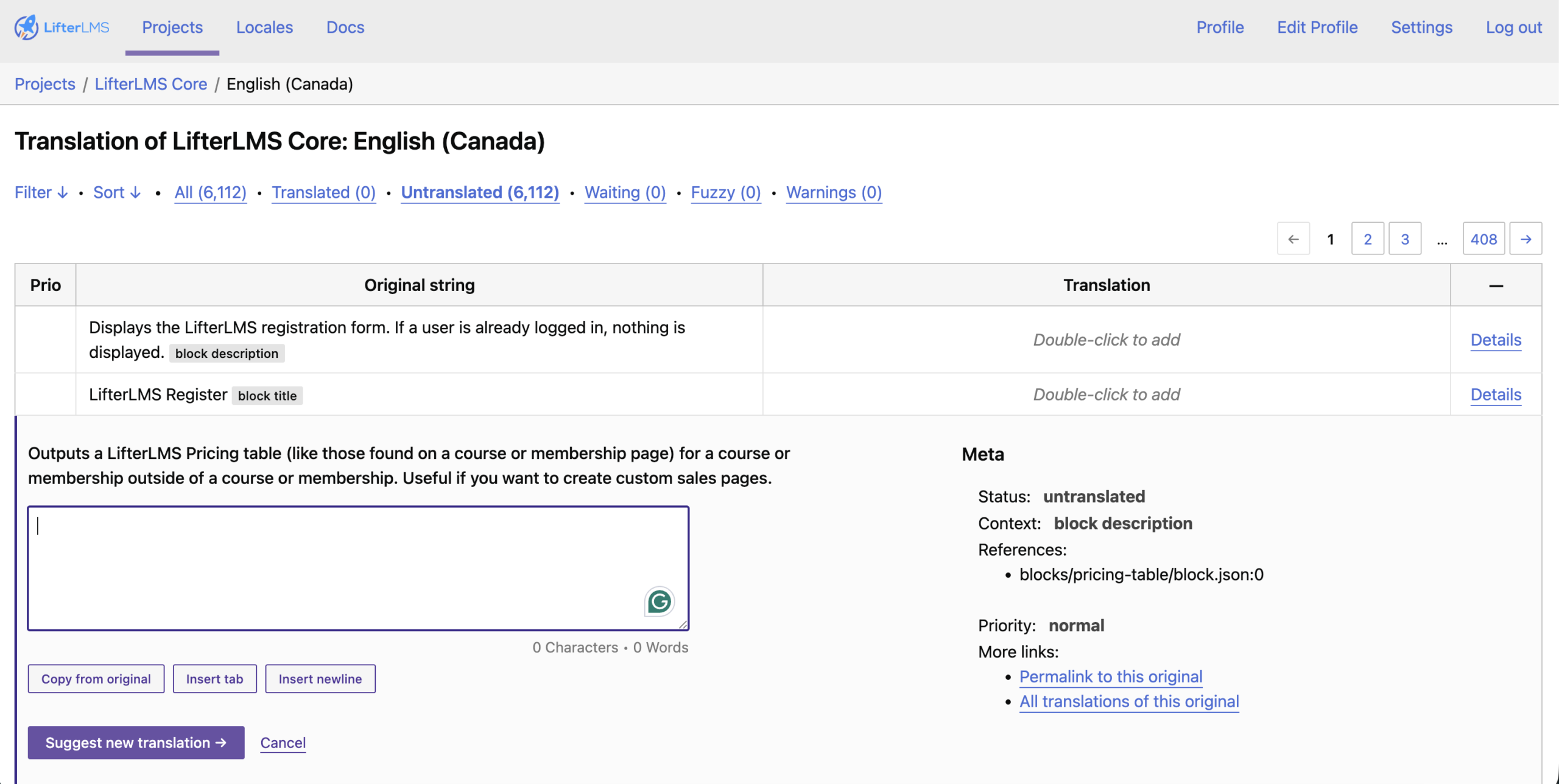
- Click on the “Filter” or “Untranslated” link to see words and phrases that still need a translation.
- Type your translation into the text box provided for each phrase.
- Click Suggest New Translation to save your work.
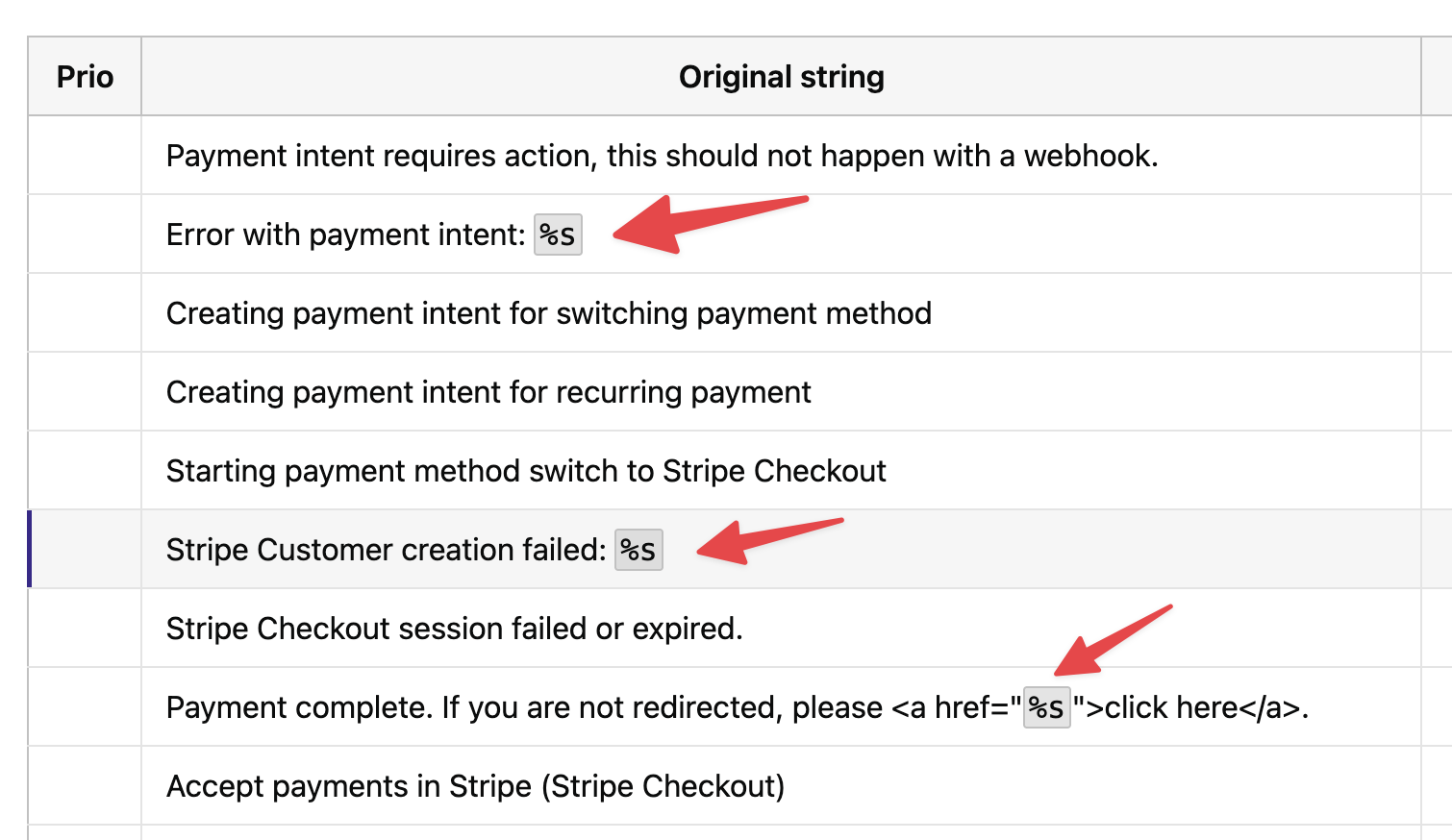
All entries should be checked for accuracy.
- Look for placeholders including %s or %1$s. You must keep these exactly as they appear in the original English text. These placeholders allow the plugin to insert data such as names or dates.
- Check for HTML tags such as <a> or <strong>. Make certain these tags aren’t broken or deleted.
- If a translation looks correct, click the “Approve” checkmark or button.
- Once enough phrases are approved, the system automatically generates a “Language Pack” that your WordPress site can download.
Before you begin translating, you must tell WordPress which language you want to use. LifterLMS automatically looks for a translation that matches your WordPress site language settings.
- Log in to your WordPress admin dashboard.
- Navigate to Settings > General.
- Locate the “Site Language” dropdown menu.
- Select your preferred language.
- Click the Save Changes button at the bottom of the page.
WordPress downloads these translations automatically once they reach 100% completion. If you want to use a custom translation or a partial translation immediately, you can upload the files manually.
- On the translation portal, scroll to the bottom of your language page.
- Choose “Machine Object Message Catalog (.mo)” from the export dropdown menu.
- Click the Export link.
- Rename the downloaded file using the format lifterlms-[locale].mo. For example, a Spanish (Spain) file should be named lifterlms-es_ES.mo.
- Connect to your site using FTP or a File Manager plugin.
- Upload the file to the
/wp-content/languages/plugins/folder on your server.
Approved contributors can use OpenAI to generate translations automatically. This allows you to focus on reviewing the content rather than typing every word.
- Go to the project and language you want to translate.
- Check the boxes next to the phrases you want to translate, or select the “Check All” box.
- Locate the “Bulk Actions” dropdown menu.
- Select “Translate with OpenAI” and click Apply.
- The system will generate translations and mark them as “fuzzy” in yellow. This means they are drafts that need a human review.
How to Request AI Access
By default, new accounts do not have access to the AI translation tools. If you are a native speaker and want to help translate LifterLMS more quickly, please email us at team@lifterlms.com. Tell us which language you speak and which plugins you intend to help translate. We will review your profile and enable the relevant AI features for you.


