

How to Detach and Reattach Quizzes in LifterLMS
In LifterLMS, deleting a quiz and detaching a quiz are two very different actions:
- Deleting a quiz moves it to the trash and removes it from your site.
- Detaching a quiz only removes its connection to a specific lesson, keeping the quiz and all of its questions safely stored so it can be reused elsewhere.
This guide walks you through how to safely detach a quiz from a lesson and how to attach an existing quiz using the Course Builder.
If your goal is to permanently remove a quiz, you can follow our documentation on deleting a quiz in LifterLMS.
Detaching a quiz is the right choice when you want to:
- Move a quiz to a different lesson
- Reuse the same quiz in another course
- Fix a quiz that was attached to the wrong lesson
- Keep the quiz content without affecting student data
If you no longer need the quiz at all, deleting it may be more appropriate.
Detaching a quiz removes the association between the quiz and the lesson, while keeping the quiz and its questions available for future use.
- Navigate to Courses > Courses in your WordPress dashboard.
- Hover over the course you want to edit and click Builder to open the LifterLMS Course Builder.
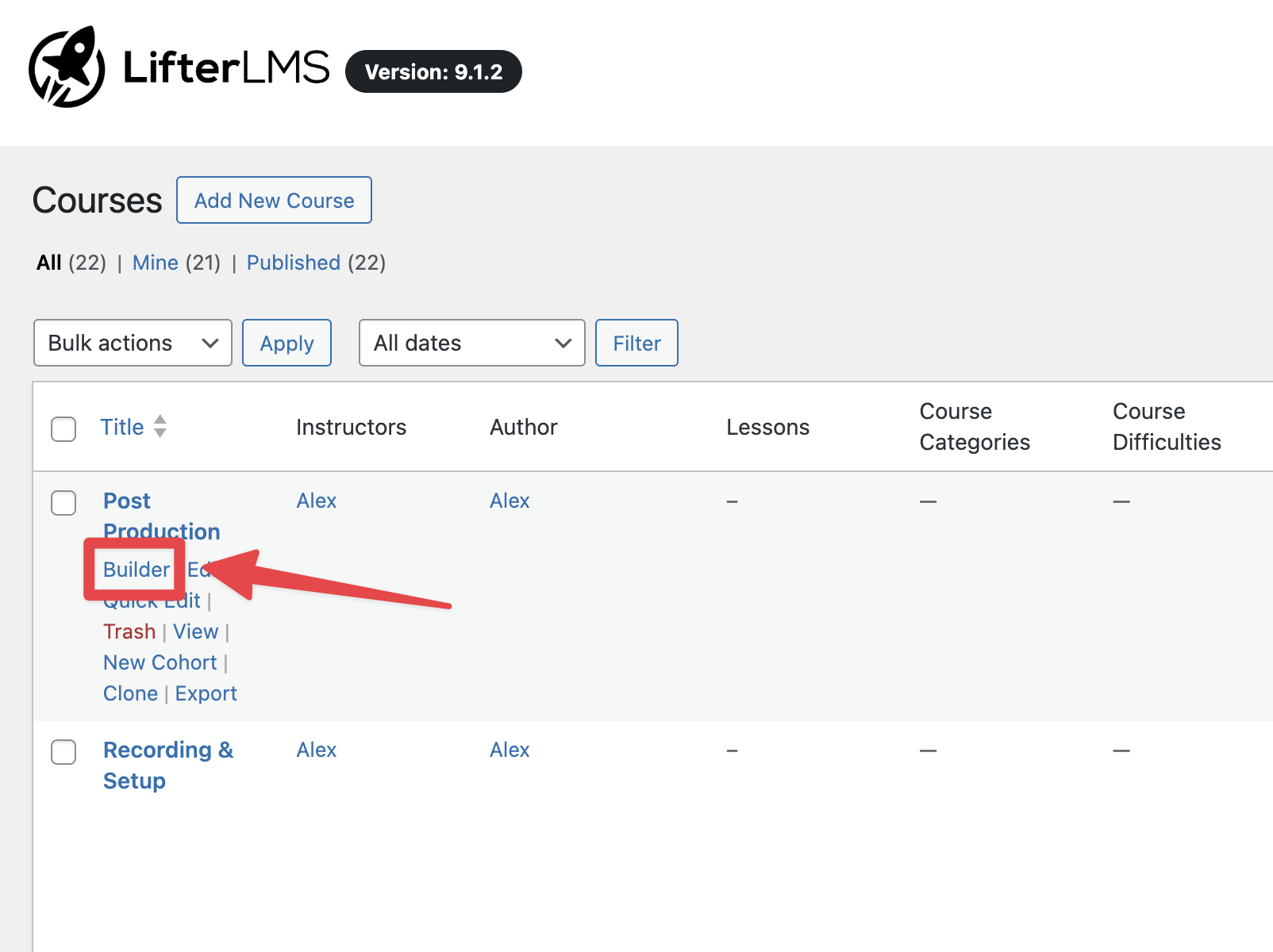
- Locate the specific lesson that currently contains the quiz you want to remove.
- Switch to the “Quiz” tab on the right side of the lesson to view the attached quiz.
- On the lesson bar, locate the quiz icons for editing and detaching the quiz.
- Click the Detach icon (represented by a broken chain link image).
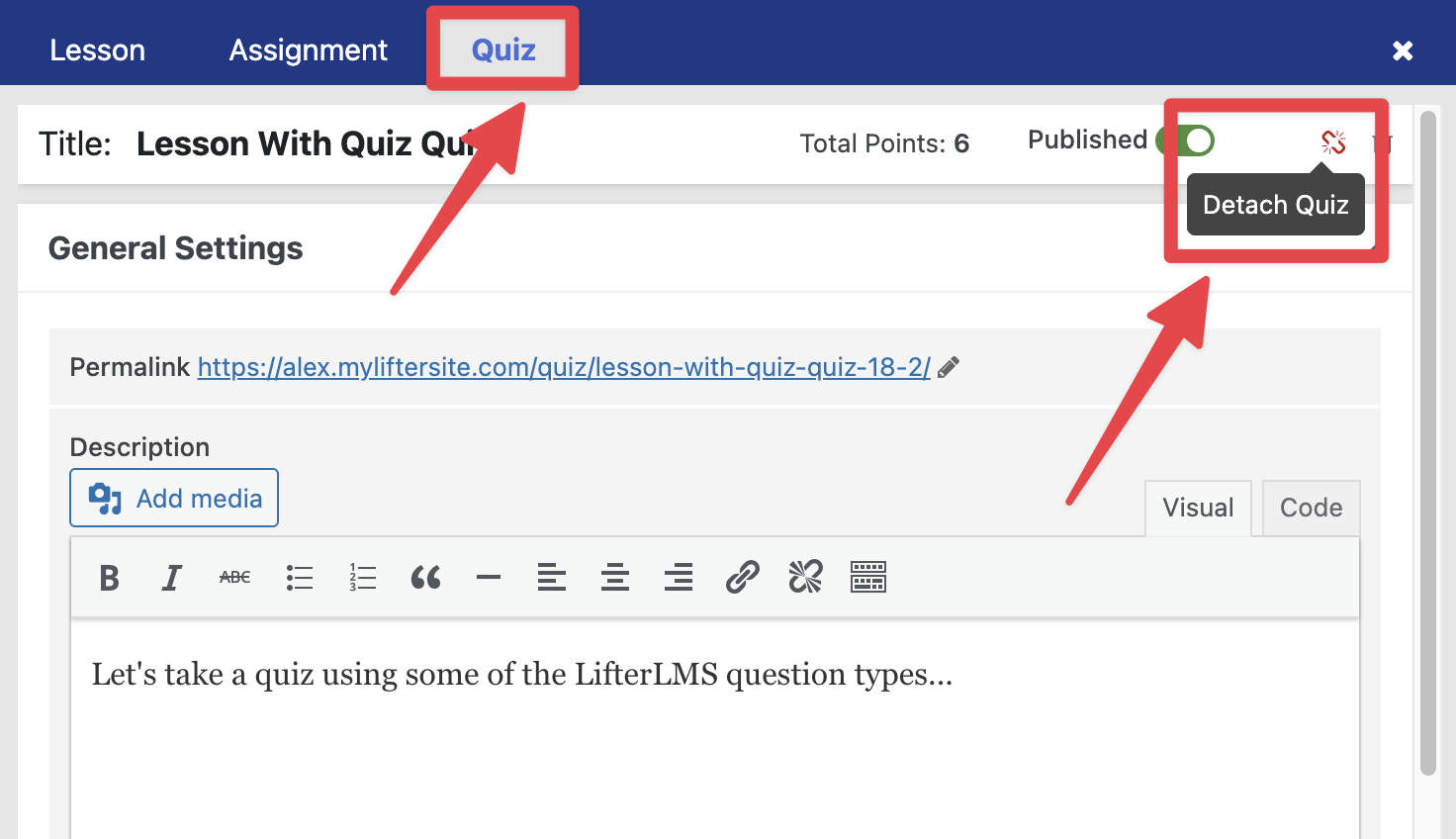
- A confirmation prompt will appear at the top of your browser asking, “Are you sure you want to detach this quiz?”
- Click OK to confirm the action.
Once confirmed, the lesson will save automatically.
You’ll then see a message in the expanded lesson area that says, “There’s no quiz associated with this lesson.”
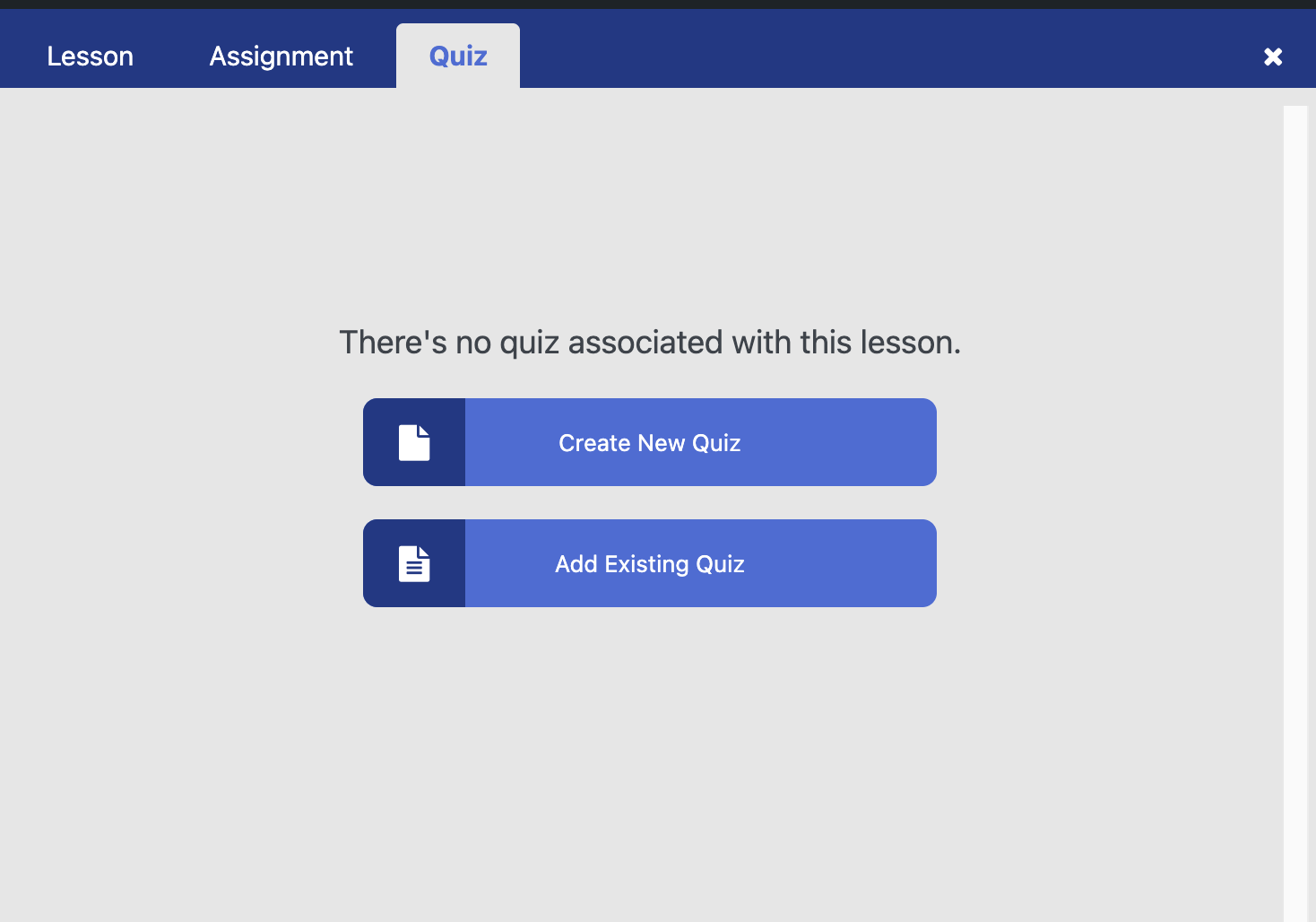
If you’ve detached a quiz and want to add it back, or you want to assign an existing quiz to a different lesson, you can use the “Add Existing Quiz” feature.
- Expand the lesson in the Course Builder where you want to place the quiz.
- Locate the section labeled “There’s no quiz associated with this lesson.”
- You will see two options: Create New Quiz and Add Existing Quiz.
- Click the Add Existing Quiz button.
- A search field will appear. Click into it to see a list of all existing quizzes on your site.
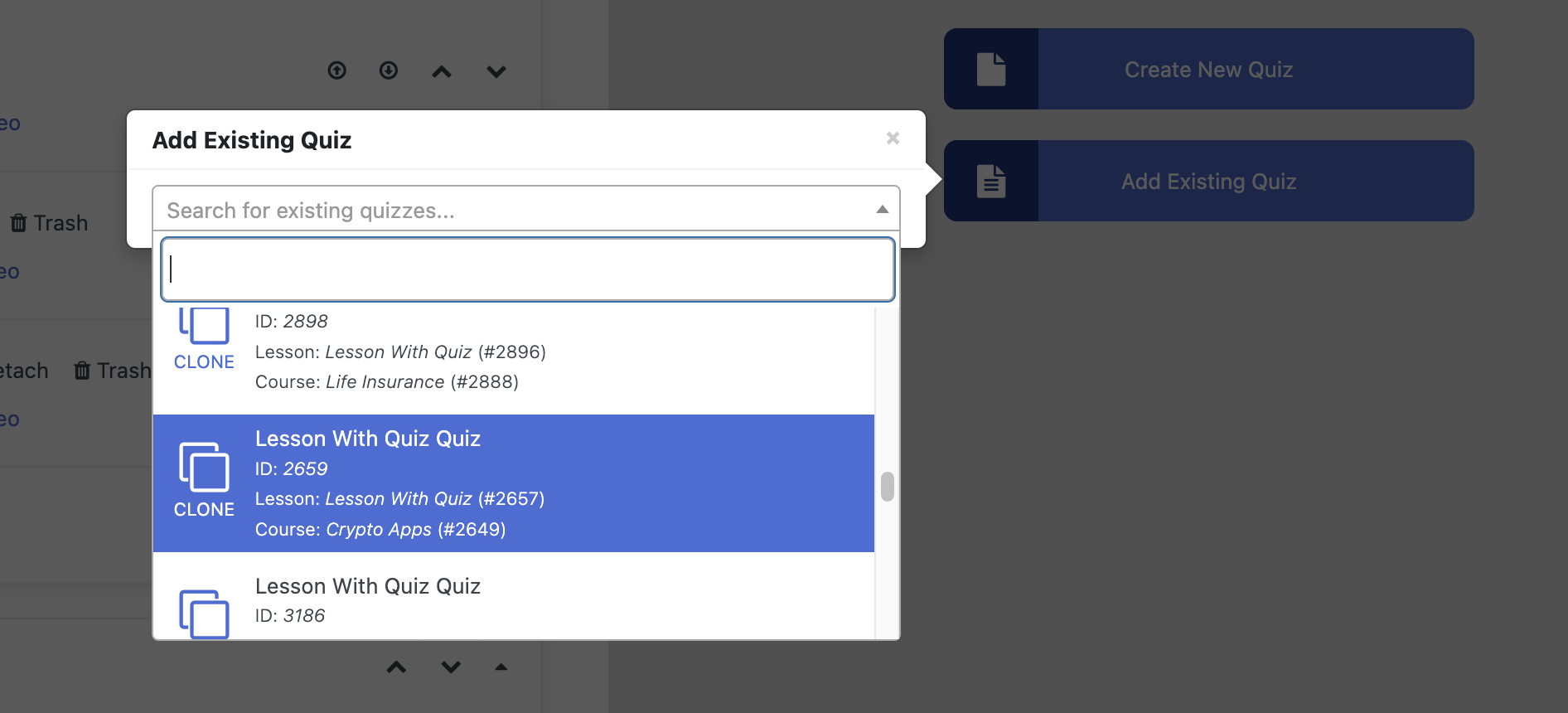
- Type the name of your quiz or select it from the list.
- The quiz will immediately attach to the lesson, and you will see the quiz icons appear on the lesson bar again.
If you choose Create New Quiz, LifterLMS creates a blank quiz with no questions.
To reuse a quiz you previously detached, select Add Existing Quiz instead.


