

How Protected Media Files Work
LifterLMS includes a built-in media protection system that restricts access to files, including videos, audio, documents, and images. When enabled, only logged-in users with the correct course or membership access can view or download protected files.
This guide explains how media protection works, how to enable it, and which files are automatically secured.
By default, WordPress stores uploaded files in a public directory. Anyone with a direct URL can access those files, even if they are not enrolled in a course.
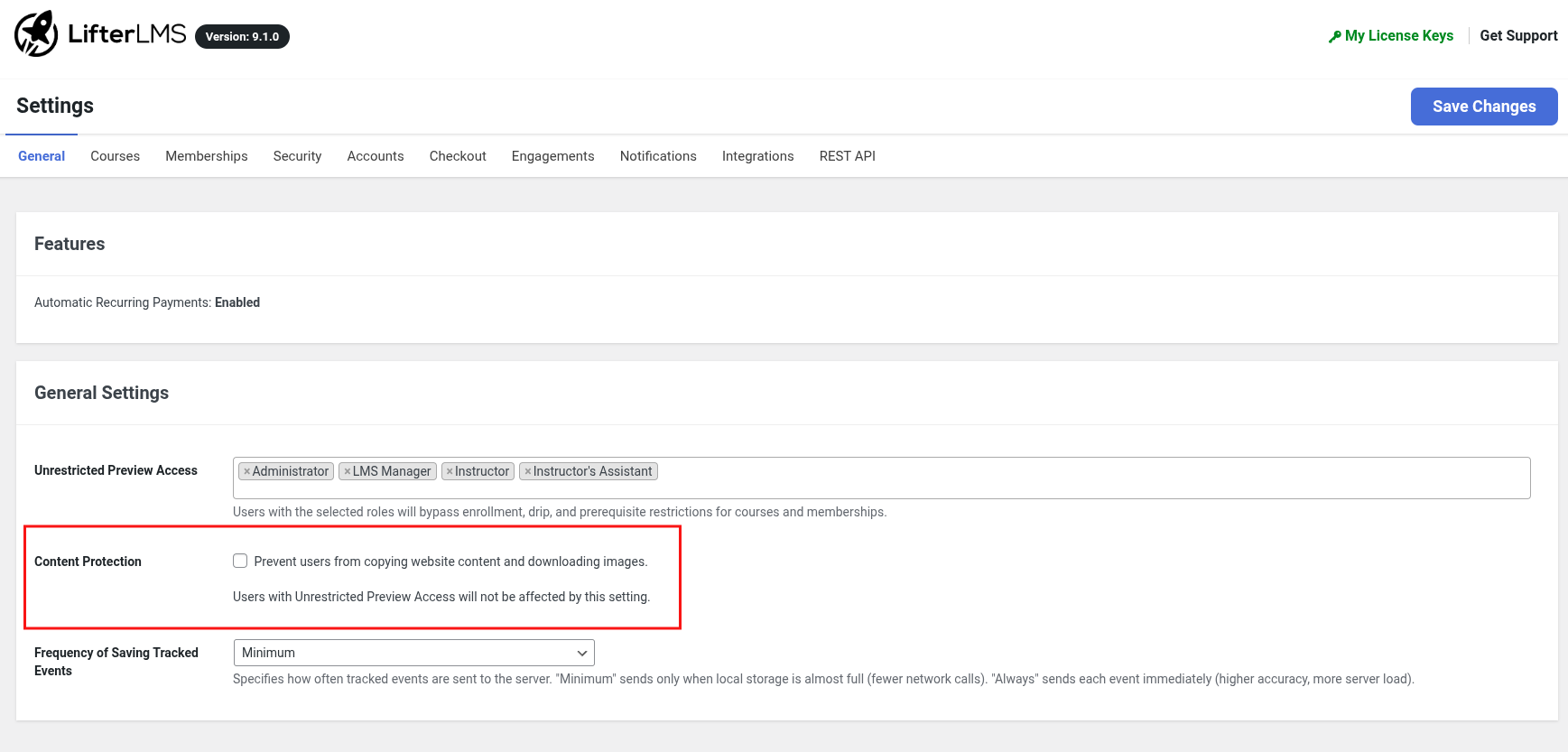
When you enable Content Protection in LifterLMS:
- Files are moved to a private directory on your server.
- Direct public access is blocked.
- LifterLMS verifies permissions before any file is delivered.
LifterLMS serves protected files through a secure PHP handler rather than a direct URL. This ensures files cannot be accessed or shared publicly.
The process is:
- Obfuscated URL
- Media is delivered through a protected link instead of /wp-content/uploads/….
- The real file path is hidden.
- Permission Check
- When a user opens a protected file, LifterLMS checks whether:
- they are logged in
- they are enrolled in a course or membership that grants access
- Secure Delivery
- If the user passes the permission check, the file is served.
- If not, access is denied.
This process is automatic and transparent to authorized users.
- Go to LifterLMS > Settings > General.
- Find “Content Protection”.
- Check “Enable File Protection” (or equivalent, depending on your version).
- Click Save Changes.
LifterLMS will create a private directory at:
/wp-content/uploads/lifterlms/
…and add an .htaccess file to block direct access (Apache only).
Media protection works automatically on Apache servers. NGINX servers require an additional configuration rule to secure your files and deliver them efficiently.
Apache
No action is required. LifterLMS configures your protection rules automatically through an .htaccess file.
NGINX
You must add a server rule to protect your media files. Without this rule, protected files may remain publicly visible or produce 404 errors.
Refer to our guide on Protected Media Files on NGINX to copy the standard server rules for your host or server administrator.
Efficient File Serving on WP Engine
On WP Engine, LifterLMS normally falls back to serving protected files through PHP. This keeps access protected, but serving large or frequently accessed files through PHP uses more server resources than handing file delivery to NGINX. While this keeps files private, delivering large or frequent media files through PHP consumes more server memory and CPU power.
If you host your site with WP Engine, you can configure your server to hand off file delivery directly to NGINX after LifterLMS confirms student access. This reduces the work handled by PHP and allows NGINX to serve the media file directly.
Follow these steps to enable efficient file serving on WP Engine:
- Contact WP Engine support through your hosting user portal.
- Ask support to add the following NGINX configuration block to your site, making sure to replace
https://example.com/with your actual site URL:
location ^~ /wp-content/uploads/lifterlms/ {
error_page 404 403 = @direct_access_redirect;
add_header X-Debug-Accel-Redirect "Working" always;
}

location @direct_access_redirect {
return 302 https://example.com/;
}
- Add the following PHP snippet to your website to instruct LifterLMS to use NGINX acceleration:
add_filter( 'llms_media_serve_method', function ( $serve_method ) {
if ( function_exists( 'is_wpe' ) && is_wpe() ) {
return LLMS_Media_Protector::SERVE_SEND_FILE;
}
return $serve_method;
} );
If you need guidance on adding PHP snippets to your site safely, read our guide on How to Add Custom Code to LifterLMS.
- Test a protected file while logged in as a user who should have access, then test the same file while logged out or in a private browser window. The authorized user should receive the file, while direct unauthorized access should remain blocked.
LifterLMS protects some images automatically (especially those used in quizzes). Others can be protected manually from the Media Library.
5.1 Automatically Protected Images (Quizzes)
The following quiz-related images are always protected when Content Protection is enabled:
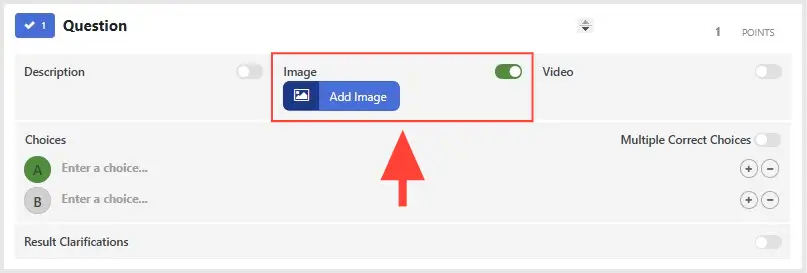
• Quiz Question Image Description
Images added to the Image Description field of a quiz question.
• Picture Choice Questions
All images used for Picture Choice question types.
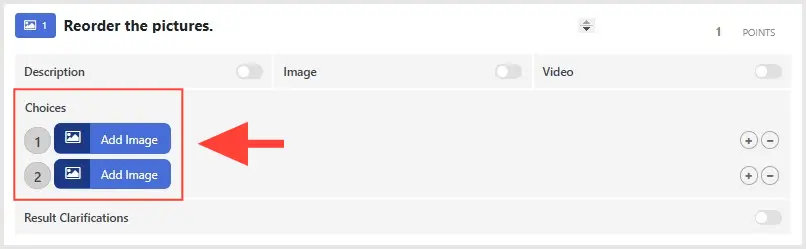
• Reorder Pictures Questions
(Advanced Quizzes add-on) Images used in Reorder Pictures questions.
5.2 Manually Protecting Other Images
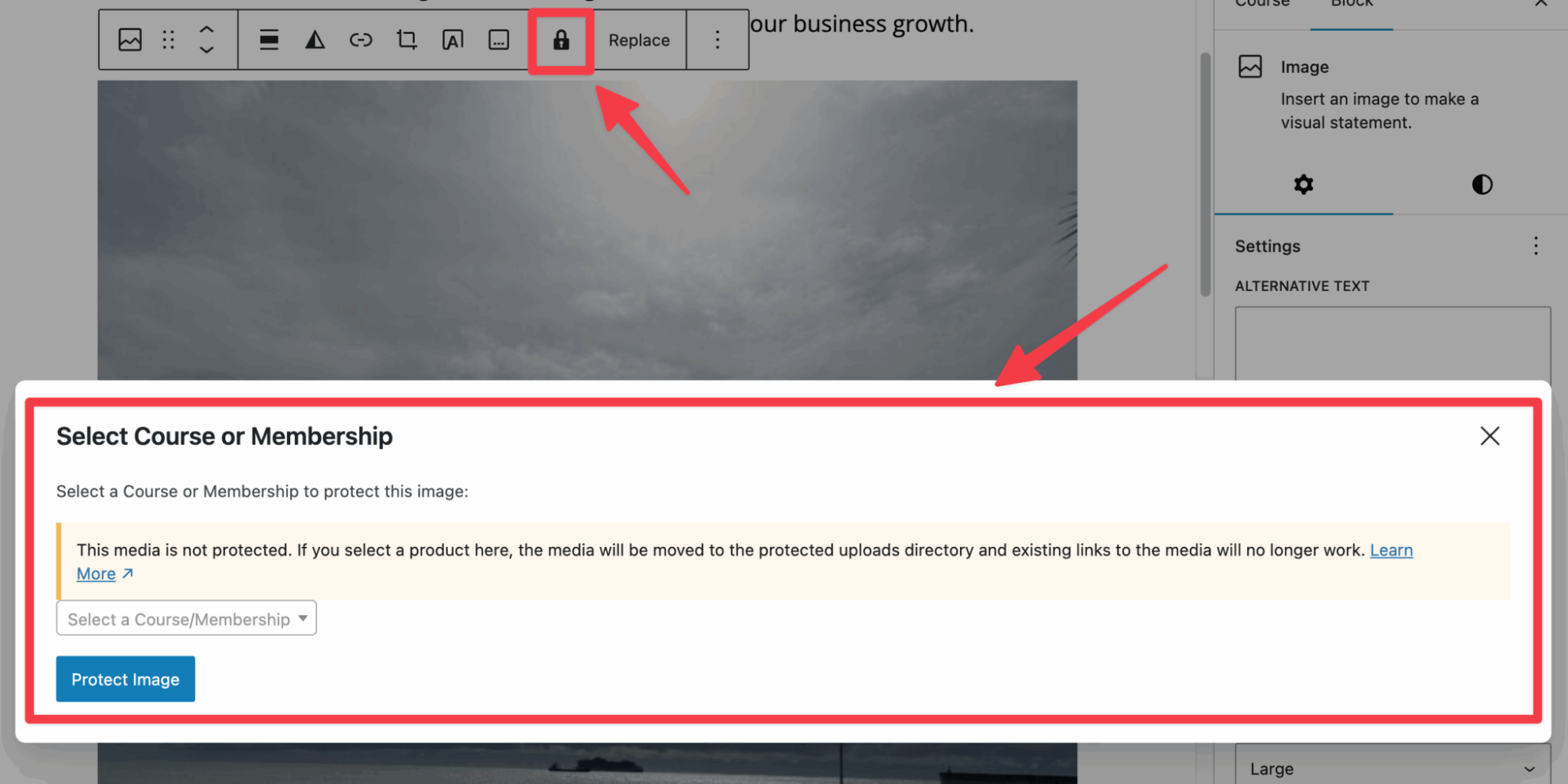
For any other image, including those used in lessons, course descriptions, or blog posts, you can manually mark the file as protected.
- Open the Media Library.
- Select the file.
- In Attachment Details, find the Protection dropdown.
- Choose Protected File.
Only authorized students will be able to view this image.
5.3 Images That Are Not Protected by Default
These images must be protected manually if you want them to be restricted:
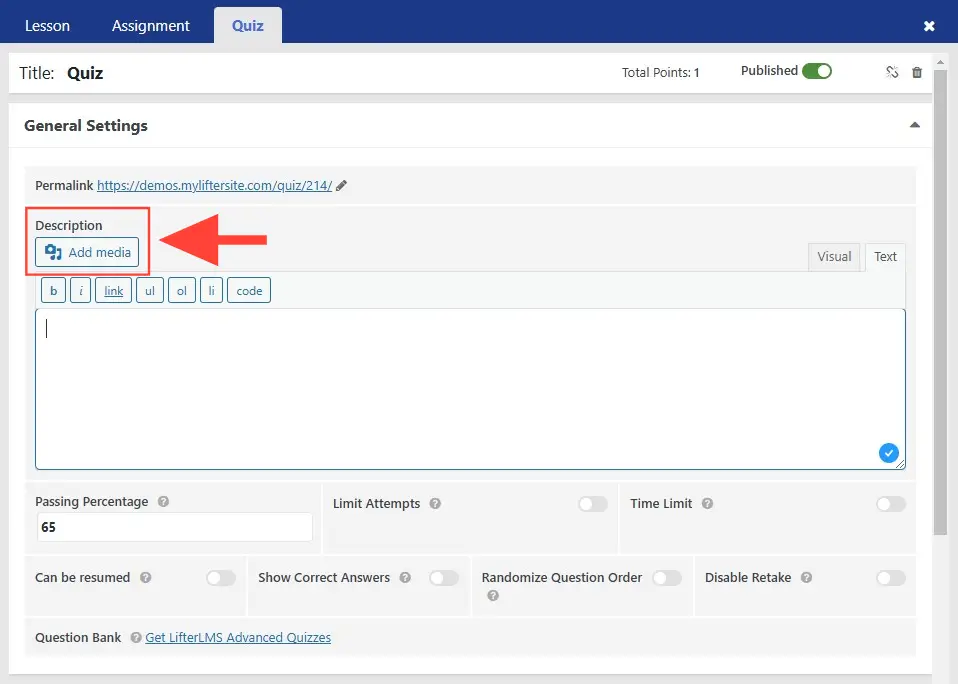
- Images added to the main quiz description
- Images placed in a question’s general description field (not the Image Description field)
Any image inserted directly into the text editor is publicly accessible unless manually protected.
If you have file protection enabled and are using LifterLMS Assignments 2.3.0 or newer, all student assignment uploads are protected automatically.
No additional configuration is required.
For a walkthrough of media protection features, watch:
What types of files can be protected?
Any file type supported by WordPress, including PDFs, MP4, MOV, MP3, JPG, PNG, DOCX, and PPTX.
Does this work with Amazon S3, Vimeo, or Wistia?
No. Media Protection only applies to files stored on your server. Use the privacy controls provided by your external storage or video provider.
Are assignment submissions protected?
Yes. With Content Protection enabled and Assignments 2.3.0+, all student submissions are protected.
Media Protection is available in the core LifterLMS plugin. Some quiz-related image protection features require the Advanced Quizzes add-on.


