

AI tools have been useful for course creation for a while now. They can draft lessons, suggest quiz questions, outline a course, or help you rethink a difficult section.
The catch has always been what happens next.
You ask the AI to create something, then you still have to copy it into WordPress, build the lesson, configure the quiz, attach everything in the right place, and check the settings yourself.
MCP changes that.
With LifterLMS 10.2 and a compatible MCP connector, you can connect an AI client like Claude or ChatGPT to your WordPress site. There are several ways to make that connection. We’ll use WPVibe as the main example in this article because it’s the setup we tested and demonstrated, but it isn’t the only option.
So instead of asking:
“Create a three-question quiz for this lesson, set the passing grade to 70%, and require students to pass before continuing.”
…and receiving a block of text to copy into LifterLMS, you can give that instruction to the LMS itself.
The AI can create the quiz, add the questions, apply the settings, and connect it to the right lesson.
LifterLMS 10.2 expanded this support across quizzes, quiz questions, quiz attempts, student grades, certificates, and other LMS resources. We’ve also tested several of these workflows on a live LifterLMS site rather than relying solely on what the API indicates is possible.
Here’s what currently works, how the connection fits together, and where you still need to keep an eye on the AI’s activity.
What is MCP?
MCP stands for Model Context Protocol.
Put simply, it gives AI applications a standard way to connect to external tools and data.
Without that connection, an AI assistant can explain how to create a quiz in LifterLMS. It can write the questions, suggest a passing grade, and tell you which settings to choose. What it can’t necessarily do is create the quiz on your site.
With MCP, the AI can discover which actions your WordPress site makes available and call those actions for you.
That takes you from:
“Here’s how I’d structure your course.”
to:
“I’ve created the section, added the lessons, built the quiz, and attached it to Lesson 2.”
That’s the real difference.
AI isn’t only helping you create content – it can carry out supported LMS tasks inside WordPress.
How does LifterLMS connect to AI?
One way to do this is through WPVibe, which acts as an MCP connector for WordPress. That’s the method we’ll use for the examples in this article, but LifterLMS isn’t tied to WPVibe. Other compatible connectors and tools can also expose LifterLMS abilities to AI clients.
For a broader overview of the available connection methods, supported AI tools, and how LifterLMS works with the WordPress Abilities API, see the LifterLMS guide to the WordPress Abilities API.
The basic flow looks like this:
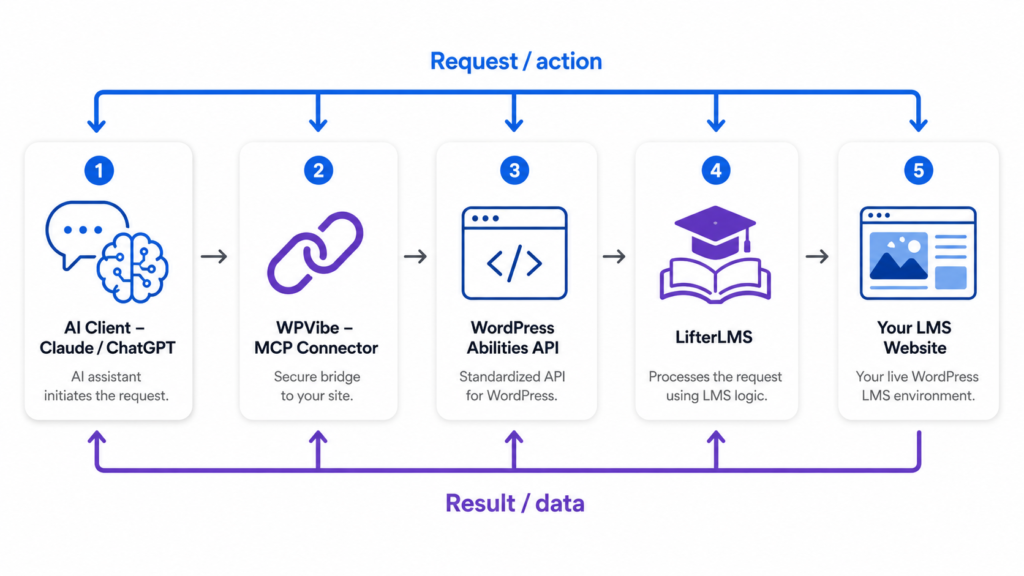
WPVibe provides the connection between an AI client, such as Claude or ChatGPT, and WordPress.
LifterLMS then exposes supported actions through WordPress Abilities. That allows the AI to see which LifterLMS actions are available and call them when needed.
LifterLMS REST operations can also be registered as WordPress Abilities, which is how MCP clients such as WPVibe discover and work with supported LifterLMS functions.
LifterLMS and WPVibe have already demonstrated this publicly on a real site. Using Claude, we built a course and quiz, created pricing and a membership, enrolled students, awarded a certificate, changed the course design, and sent enrollment data to a webhook.
The important part is that the underlying data still belongs to LifterLMS. The AI simply gives you a conversational way to work with it.
Want to hear more about how this works? In the LMSCast episode How to Vibe Code a WordPress Website With Claude and WPVibe, Chris Badgett talks with WPVibe founder John Turner about connecting AI to WordPress, how MCP fits into the process, and the kinds of tasks an AI agent can handle.
What can AI do in LifterLMS?
LifterLMS 10.2 increased the number of LMS actions that connected AI tools can perform.
Some of these are simple content-building jobs. Others involve actual LifterLMS objects, settings, grades, or student records. In our testing, we confirmed several of these workflows.
Create sections and lessons
Course structure is one of the clearest uses for an AI agent. You can point it at an existing course and ask it to create a section, add lessons, write initial content, and configure supported lesson settings.
For example:
“Add a new section called “Eating Healthy” to this course. Create one lesson covering the foundations of healthy eating and another covering meal planning.”
In our testing, Claude created the new section and both lessons inside the existing LifterLMS course.
You can also give it much more detail:
“Add a section called “Email Marketing Fundamentals” after Section 2. Create three lessons covering list building, segmentation, and campaign planning. Add a short introduction to each lesson.”
The clearer the instruction, the less the AI has to guess.
Course structure is a strong fit for MCP because sections and lessons are directly represented in LifterLMS. Once that structure is in place, the newer abilities let the AI work with more LifterLMS-specific features.
Create real LifterLMS quizzes
Quizzes are one of the clearest examples of what the newer abilities make possible.
LifterLMS 10.2 added REST endpoints and WordPress Abilities for quizzes, quiz questions, and quiz attempts, along with support for grading attempts.
In our newer test, Claude created a real LifterLMS quiz with:
- A multiple-choice question
- A true/false question
- A long-answer question
- A 65% passing grade
- Unlimited permitted attempts
- Resume support
- Correct-answer display
It then attached the quiz to the correct lesson and configured the lesson so students had to pass before progressing.
The student-facing lesson showed the standard “Take Quiz” option.

That’s a much more useful result than having AI simply write three questions for you.
Use Advanced Quizzes question types
You’re not limited to basic multiple-choice and true/false questions either. During testing, we asked Claude to create an Advanced Quizzes reorder question.
The instruction was roughly:
“Create a quiz for this lesson using an Advanced Quizzes reorder question. Ask students to arrange five meal-planning steps in the correct order.”
Claude created the question and returned the five markers needed to define the correct sequence.
LifterLMS also exposes Advanced Quizzes question data through the quiz question schema, with supported auto-grading using the same quiz-attempt grading route as standard quizzes.
For course creators, that makes AI-assisted assessment building much more useful than simply generating a bank of question ideas.
Create and attach assignments
LifterLMS Assignments 2.8.0 added REST endpoints for assignments and submissions, a grading route, webhook topics, and WordPress Abilities registration.
It also made the assignment associated with a lesson available through the lesson REST API.
In our test, Claude created a real assignment with:
- A 10-point value
- A 70% passing requirement
- Three student tasks
- A connection to the correct lesson
The assignment asked students to summarize three lesson takeaways, identify one point they wanted clarified, and rate their confidence on a scale of 1 to 5, with an explanation.
Once Claude attached the assignment, students saw the normal “Start Assignment” option on the lesson.
Assignment submissions can also be retrieved and graded through the supported API.
For uploaded files, LifterLMS can provide signed download links so an authorized external tool can retrieve the submission without needing direct wp-admin access.
Work with student grades
Not every useful MCP workflow involves creating content.
LifterLMS 10.2 also introduced a read-only student grades endpoint and registered student grades with the WordPress Abilities API.
That includes grade breakdowns by lesson. If LifterLMS Assignments is active, assignment results can appear in the grade data, too.
That makes questions like these possible:
“Show me this student’s grades for this course.”
or:
“Give me this student’s grade breakdown by lesson.”
Instead of clicking through several reporting screens, you can ask for the information directly.
The AI still works within the permissions of the connected WordPress account. Connecting an AI client doesn’t bypass the permissions assigned to that user.
Work with certificates
Certificate templates and awarded certificates are also available through REST and WordPress Abilities.
Supported actions include awarding and revoking certificates.
That opens up requests such as:
“Award the course completion certificate to this student.”
or:
“Show me the certificates this student has received.”
As with anything involving student records, you should still check exactly who the action applies to before approving it.
Work with groups
LifterLMS Groups has also added Abilities support.
Groups, members, invitations, and seats can be made available through the WordPress Abilities API, along with supported group enrollment settings.
That means some group administration can also move into a conversational workflow.
For example, an authorized user may be able to ask the AI to retrieve membership information or perform supported member actions rather than opening each corresponding WordPress screen.
Read orders and transactions
LifterLMS 10.2 also exposes orders and payment transactions through REST and WordPress Abilities.
There’s an important restriction here: orders are currently read-only.
The API doesn’t support changing an order status, adding notes, issuing refunds, or creating new orders through these endpoints.
So this works:
“Show me the recent orders associated with this course.”
This doesn’t currently represent a supported order ability:
“Refund this student’s order.”
A real example: building part of a course with AI
API lists can get abstract quickly, so here’s what this looked like in an actual test.
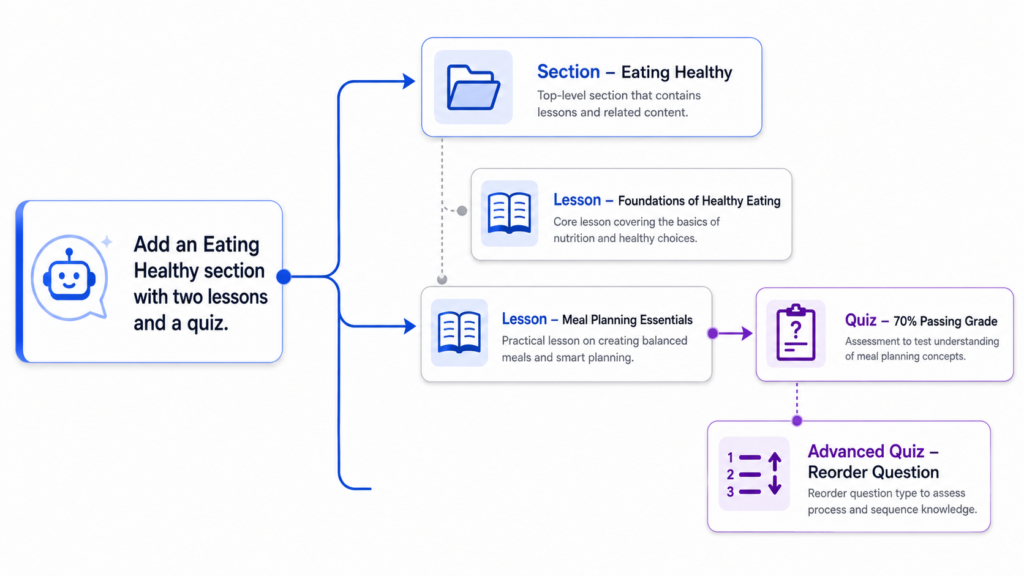
We gave Claude an existing LifterLMS course and asked it to add a new section about healthy eating.
It created:
- A section called “Eating Healthy”
- A lesson called “Foundations of Healthy Eating”
- A lesson called “Meal Planning Essentials”
- Content for both lessons
- A quiz for the second lesson
- A passing requirement for that quiz
- An Advanced Quizzes reorder question
The reorder question asked students to put five meal-planning steps into the correct sequence. In other words, one conversation resulted in changes across several connected LMS objects.
Claude wasn’t just generating text for us to paste into WordPress.
The same approach could work when building a course from scratch.
For example:
“Create a section called “Python Selection.” Add lessons covering Boolean expressions, IF statements, IF/ELSE statements, and nested selection. Add a short five-question quiz to the final lesson and require a 70% score to pass.”
For larger jobs, it usually makes sense to ask the AI to propose the structure first. Review the plan, make any changes, and only then ask it to build everything.
That’s also the approach LifterLMS and WPVibe recommend: plan first, work in smaller chunks, and spot-check the results as you go.
Want to see these AI workflows in action? Watch Chris Badgett and WPVibe’s John Turner build and manage a LifterLMS site through conversation with Claude.
Watch the LifterLMS + WPVibe webinar
Example prompts to try
Once your site is connected, you could try prompts such as:
“Add a section called “Email Marketing Fundamentals” to this course and create three lessons covering list building, segmentation, and campaign planning.”
“Create a five-question quiz for this lesson with three multiple-choice questions, one true/false question, and one long-answer question. Set the passing grade to 70%.”
“Attach the new quiz to Lesson 4 and require students to pass it before progressing.”
“Create an assignment worth 20 points asking students to submit a campaign plan based on this lesson.”
“Create an Advanced Quizzes reorder question asking students to arrange these five steps in the correct sequence.”
“Show me this student’s grade breakdown for this course.”
“Show me the certificates awarded to this student.”
“List the recent orders for this course.”
For larger tasks, focus your prompt on the result you want. You shouldn’t need to translate every request into individual API calls – that’s one of the main benefits of working through an AI agent in the first place.
AI still needs supervision
Connecting an AI tool to WordPress doesn’t mean it’ll interpret every request perfectly.
AI agents can still misunderstand ambiguous instructions, especially when a request could refer to more than one WordPress or LifterLMS feature. This is why clear prompts still matter.
A few habits help:
- Say exactly what you want changed.
- Break complicated jobs into smaller pieces.
- Check important changes once they’re complete.
- Read approval prompts before allowing destructive actions.
- Start a new conversation when you move on to a different job.
WPVibe puts destructive actions behind approval prompts.
That matters because an AI agent can sometimes be working with actions that delete or significantly change site content. Read the approval rather than treating it as another button to click.
You may also need to refresh WordPress after the AI finishes.
If you already have a lesson editor open while Claude changes that lesson in the background, the tab you’re looking at won’t automatically reload. Refresh it to see the current version.
What are the current limitations?
MCP doesn’t give an AI agent unrestricted access to every control in LifterLMS or wp-admin.
What it can do depends on the capabilities exposed by LifterLMS, WordPress, installed add-ons, and the MCP client itself.
Not every workflow is available
For example, an external system can’t currently start a quiz attempt or create an assignment submission through the API. Students still perform those actions via the standard LifterLMS frontend.
That makes sense when you think about the role MCP is currently playing. It can help you build and administer the LMS without replacing the learning experience students use.
Orders are read-only
As mentioned earlier, you can retrieve order data, but you can’t currently use these endpoints to issue refunds, create orders, or change order statuses.
Plugin versions matter
The abilities available to an AI client also depend on the versions of LifterLMS and its add-ons installed on your site.
For example, LifterLMS Events 1.1.0 added REST endpoints for scheduled events, schedule and product association fields, webhook topics, and WordPress Abilities registration.
Keep LifterLMS and any add-ons involved in your workflow up to date before checking which AI actions are available.
How to get started with LifterLMS and an MCP connector
For the newer AI abilities, you’ll want to be running LifterLMS 10.2 or later. The exact setup depends on the MCP connector or AI tool you choose. The steps below use WPVibe as an example.
A typical setup looks like this:
- Update LifterLMS and any add-ons you plan to work with.
- Install WPVibe on your WordPress site.
- Connect WPVibe to your preferred AI client.
- Authorize the WordPress site.
- Start with a simple request.
- Check the result before moving on to larger jobs.
WPVibe supports AI clients, including Claude, ChatGPT, Cursor, Gemini CLI, and others.
A good first test could be as simple as:
“Tell me the name of this LifterLMS site and list its courses.”
Then move on to a low-risk change:
“Add a draft lesson called “Introduction” to this course.”
Once you understand how the agent interprets your prompts and handles approval requests, you can start giving it more complicated jobs.
Why does this matter for course creators?
The big change isn’t that AI can now write course content – it could already do that. What’s different is that the AI can act on the LMS itself.
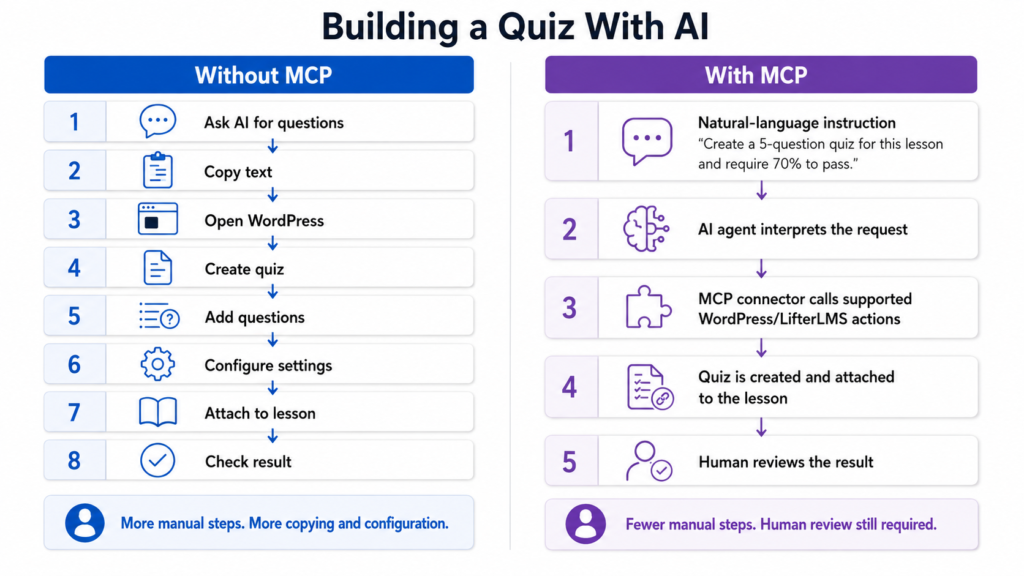
Think about what normally happens when you build a short quiz.
You might:
- Ask an AI tool to draft the questions.
- Copy the first question.
- Open WordPress.
- Create a quiz.
- Create the question.
- Add the answers.
- Configure its settings.
- Repeat the process for each question.
- Configure the quiz.
- Attach it to the lesson.
- Set progression requirements.
- Check everything works.
An MCP-connected AI agent can handle much of that process from one clear instruction.
The same idea applies to course structures, assignments, certificates, student data, and other supported areas.
It becomes especially useful when one job involves several connected pieces.
A quiz doesn’t just need questions. It needs to exist as a quiz, contain the right questions, belong to the right lesson, and use the correct settings.
An AI agent can work across those related objects without you manually opening each part of the LMS.
You still need judgment. You’re just spending less of your time on repetitive admin and more of it deciding what should be built and checking the result.
LifterLMS support for AI workflows is continuing to expand
LifterLMS 10.2 significantly increased the number of actions that AI clients can discover through WordPress.
Core support now includes quizzes, quiz questions, attempts, grades, certificates, orders, and other resources. Add-ons such as Assignments, Groups, and Events have also been adding REST and Abilities support.
As more LifterLMS features become available through those interfaces, compatible AI clients will be able to work with more of them.
For now, the sensible approach is to check which capabilities your site exposes, keep your plugins up to date, and test critical workflows before relying on them for larger changes.
Looking for the technical details? The LifterLMS WordPress Abilities API documentation explains the available AI connection methods and supported LifterLMS resources. Developers can also use the LifterLMS Developer Hub for the underlying REST API and code reference.
Frequently asked questions
MCP stands for Model Context Protocol.
It gives compatible AI clients a standard way to connect to external tools. LifterLMS registers supported functionality through the WordPress Abilities API, and compatible MCP connectors can expose those abilities to AI clients such as Claude or ChatGPT. WPVibe is one example of such a connector.
Yes. With a compatible MCP setup, an AI agent can create course structures, sections, and lessons.
LifterLMS and WPVibe have also demonstrated course creation using Claude.
Yes. LifterLMS 10.2 added REST endpoints and WordPress Abilities for quizzes, quiz questions, and quiz attempts.
In our own testing, Claude created a real quiz, added several question types, attached it to a lesson, and configured progression requirements.
Yes, provided the required LifterLMS Assignments functionality is installed and up to date.
Assignments 2.8.0 added assignment and submission REST endpoints, grading support, and WordPress Abilities registration.
Supported API routes include quiz-attempt grading and assignment-submission grading.
What your AI client can actually do still depends on the LifterLMS components installed on your site, the permissions of the connected WordPress account, and the abilities currently exposed.
Yes. LifterLMS 10.2 added a read-only student grades endpoint with per-lesson grade breakdowns and registered it with the WordPress Abilities API.
LifterLMS Events 1.1.0 adds REST endpoints for scheduled events, including scheduling and product associations, along with WordPress Abilities registration.
As with other add-ons, the actions available to your AI client depend on the version installed and the abilities exposed on your site.
Yes. One route is WPVibe, which can connect Claude to WordPress. LifterLMS and WPVibe have demonstrated this setup on a live LifterLMS site.
Yes. WPVibe lists ChatGPT among its supported clients, alongside Claude and several other AI tools.
No. WPVibe is one way to connect AI tools to a LifterLMS site, and it’s the connector used for the examples in this article.
LifterLMS works with the WordPress Abilities API, so other compatible tools can expose those same abilities to AI clients. Options include the official WordPress MCP Adapter and third-party tools such as AI Engine and AI Puffer.
See the LifterLMS guide to the WordPress Abilities API for the current connection options.
No. The connection works within the permissions of the WordPress user who authorizes it.
WPVibe also requires approval for destructive actions rather than carrying them out silently.
Start managing LifterLMS through conversation
LifterLMS 10.2 doesn’t make AI better at writing courses – it changes what the AI can do after the writing is finished.
A connected AI tool can now work with much more of the LMS itself. It can create course structures, build lessons, create real quizzes and assignments, retrieve grades, and work with certificates and other supported resources.
You’ll still want to give clear instructions, check important changes, and remember that some parts of LifterLMS have deeper MCP support than others. But the workflow is very different from copying AI-generated content into WordPress one field at a time.
Now, in many cases, you can describe the result you want and let the AI handle much of the work needed to build it.
Ready to build your LMS with LifterLMS?
LifterLMS gives you the WordPress LMS foundation behind these workflows, from courses and quizzes to assignments, certificates, memberships, and more. Start with the free core plugin, or explore the LifterLMS bundles to add the features your learning platform needs.



