

Understanding the Student Information Screen in LifterLMS
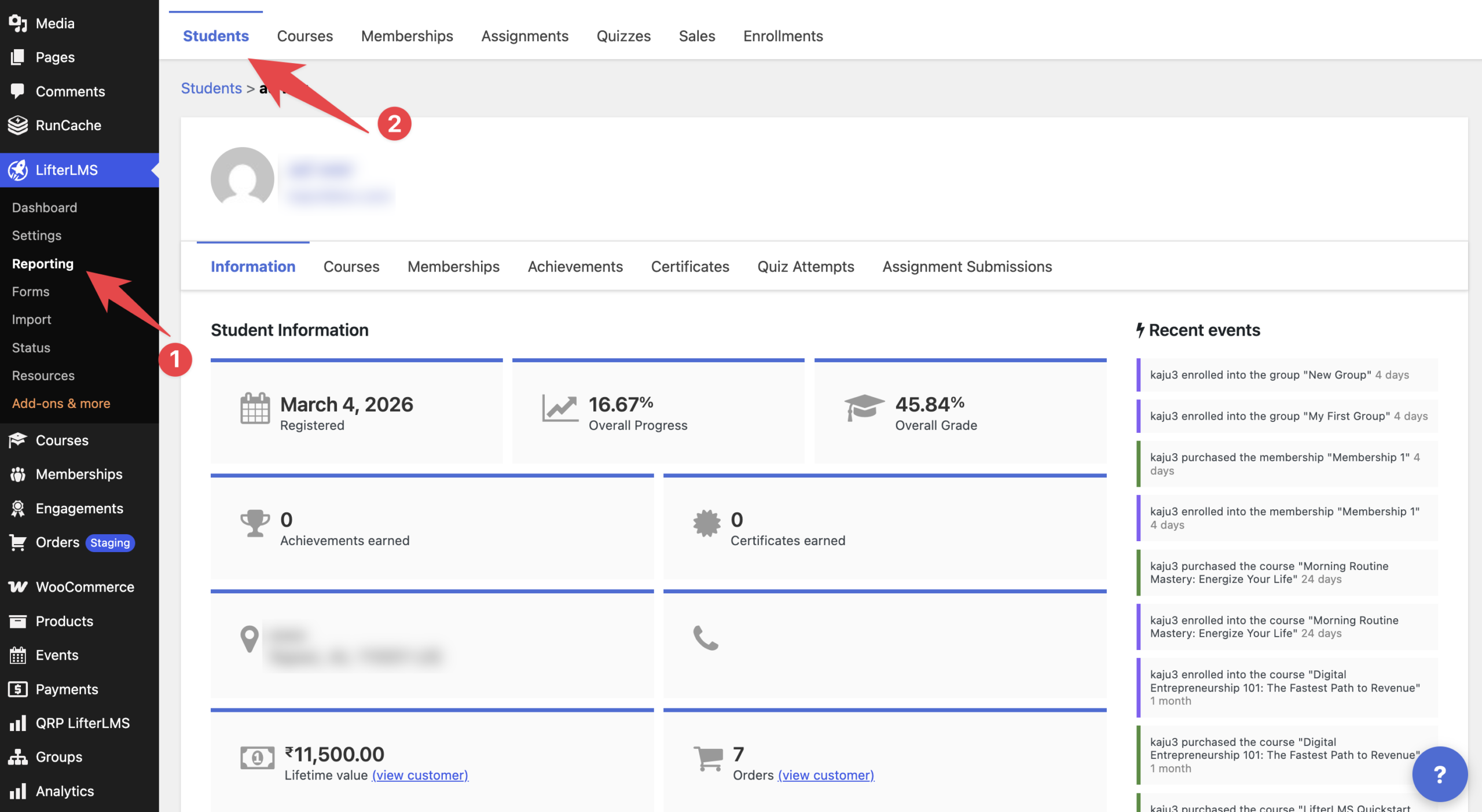
The “Student Information” screen gives you a quick snapshot of an individual learner’s academic performance and purchase history. When you manage an online school with LifterLMS, checking this page helps you track how much coursework a student completes, monitor their grades, and review their financial contributions to your platform.
Follow these steps to find this report in your WordPress admin dashboard:
- Log in to your WordPress admin dashboard.
- Navigate to LifterLMS > Reporting.
- Click on the Students tab at the top of the page.
- Locate the student you want to review in the list, then click their name to open their reporting page.
What Information Appears on This Screen
When you open this page, LifterLMS organizes the student’s data into clear metrics. Here is an explanation of each item shown for this student:
1. Account Details
- Registered Date: This date shows when the user created their account on your WordPress site. It allows you to see how long the student has been a member of your learning community.
- Billing Address: LifterLMS records the student’s address during checkout. You can use this physical location for tax records or shipping physical course materials.
2. Academic Performance
- Overall Progress: This metric measures the overall completion percentage across all courses the student is currently taking.
- Overall Grade: This percentage shows the student’s average score across all graded quizzes and assignments in their enrolled courses.
- Achievements earned: LifterLMS issues digital badges called achievements when students complete specific milestones.
- Certificates earned: This metric displays how many formal awards the student has earned.
3. Purchase History
- Lifetime value: This figure shows the total revenue this student has generated across all purchases on your platform.
- Orders: This number indicates that the user completed seven separate transactions on your site.


