

How to flush WordPress rewrite rules or permalinks
If you’re experiencing 404 errors on your WordPress website and you know you’re navigating to URLs that exist, chances are you need to flush the saved rewrite rules from the WordPress database.
LifterLMS flushes rewrite rules for you when you edit various LifterLMS endpoint URLs, but you may inadvertently make changes to your website that would require rewrite rules to be flushed.
When debugging 404 issues, our developers and support team will recommend a permalink flush or a rewrite rule flush before trying anything more complicated.
Follow these steps to successfully flush your rewrite rules and correct potential configuration errors:
- Navigate to your WordPress Admin panel and log in.
- Go to Settings > Permalinks in the main dashboard menu.
- Review your current settings under the “Permalink structure” section.
- If you have selected “Custom Structure”, you must ensure that your custom URL string ends with a forward slash (/).
- Incorrect:
/%postname% - Correct:
/%postname%/
- Incorrect:
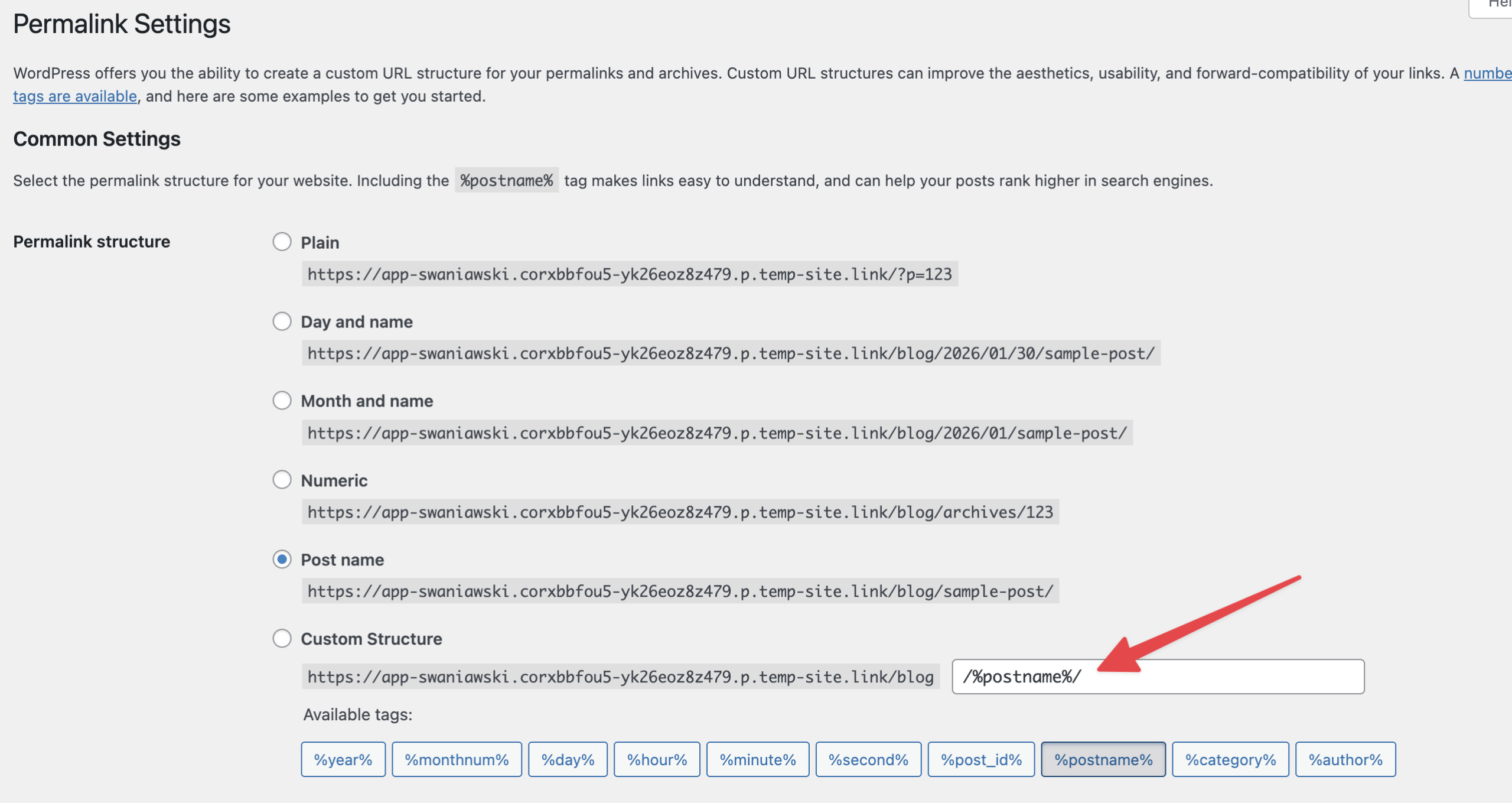
- Setting the “Custom Structure” to
/%postname%(without the trailing slash) creates a conflict that causes new LifterLMS content to redirect to a 404 page. Always include the extra/at the end of your custom structure to avoid these errors. - Scroll to the bottom of the screen and click the Save Changes button.
Note: Even if you did not make any edits to the structure in the previous step, clicking this button is necessary to flush the rewrite rules.
Now that you have flushed your rewrite rules and verified your structure settings, you can try visiting your problematic URL again. If rewrite rules were causing the issue, your page should now load correctly.


