

How to Download Reports and Reporting Data in LifterLMS
LifterLMS allows you to download student and course reporting data into CSV files. You can open these files in spreadsheet programs such as Microsoft Excel, Apple Numbers, or Google Sheets.
Follow these steps to export reporting data from your site:
- Log in to your WordPress admin dashboard and navigate to LifterLMS > Reporting.
- Click on the tab for the data you want to view, such as “Students” or “Courses”.
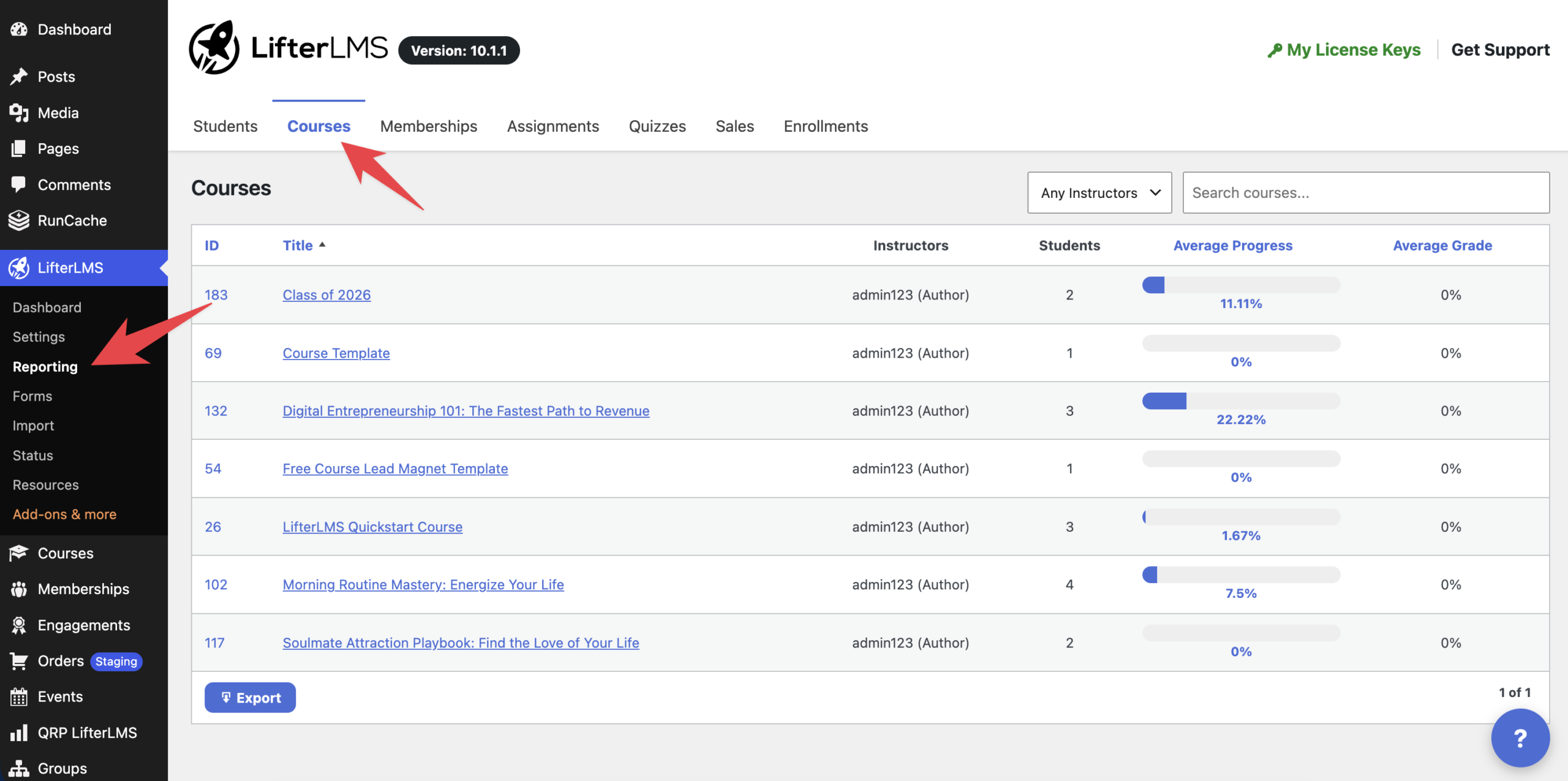
- Locate the table containing the information you want to download.
- Click Export at the bottom of the table.
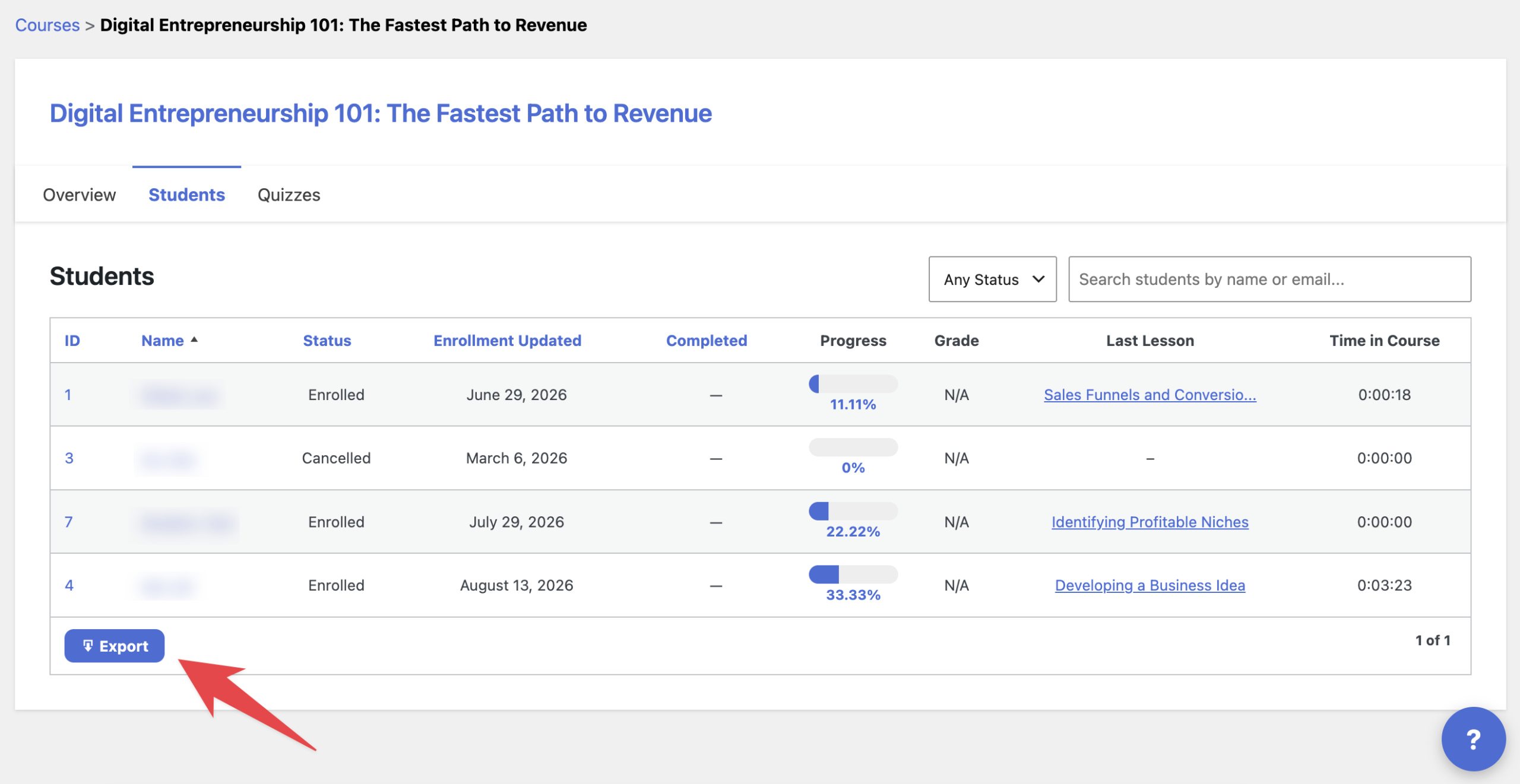
- Wait for the export file to finish generating in your browser. Once the report is generated, it will be automatically downloaded to your computer.
LifterLMS processes reporting data in batches to reduce the amount of server resources used at one time. When you export a large amount of data, keep the following guidelines in mind:
- Keep the browser tab open: You can switch to other browser tabs and continue working while the export continues. However, you must leave the original export tab open. Closing the tab will stop the export process.
- Keep your computer active: The export requires an active browser session. If your computer goes to sleep or locks, the export may be interrupted.
If your site contains thousands of student records, generating an export can take longer to complete. The following steps may help reduce the amount of processing required:
- Navigate to LifterLMS > Reporting.
- Click on the tab you want to export, such as “Students” or “Courses”.
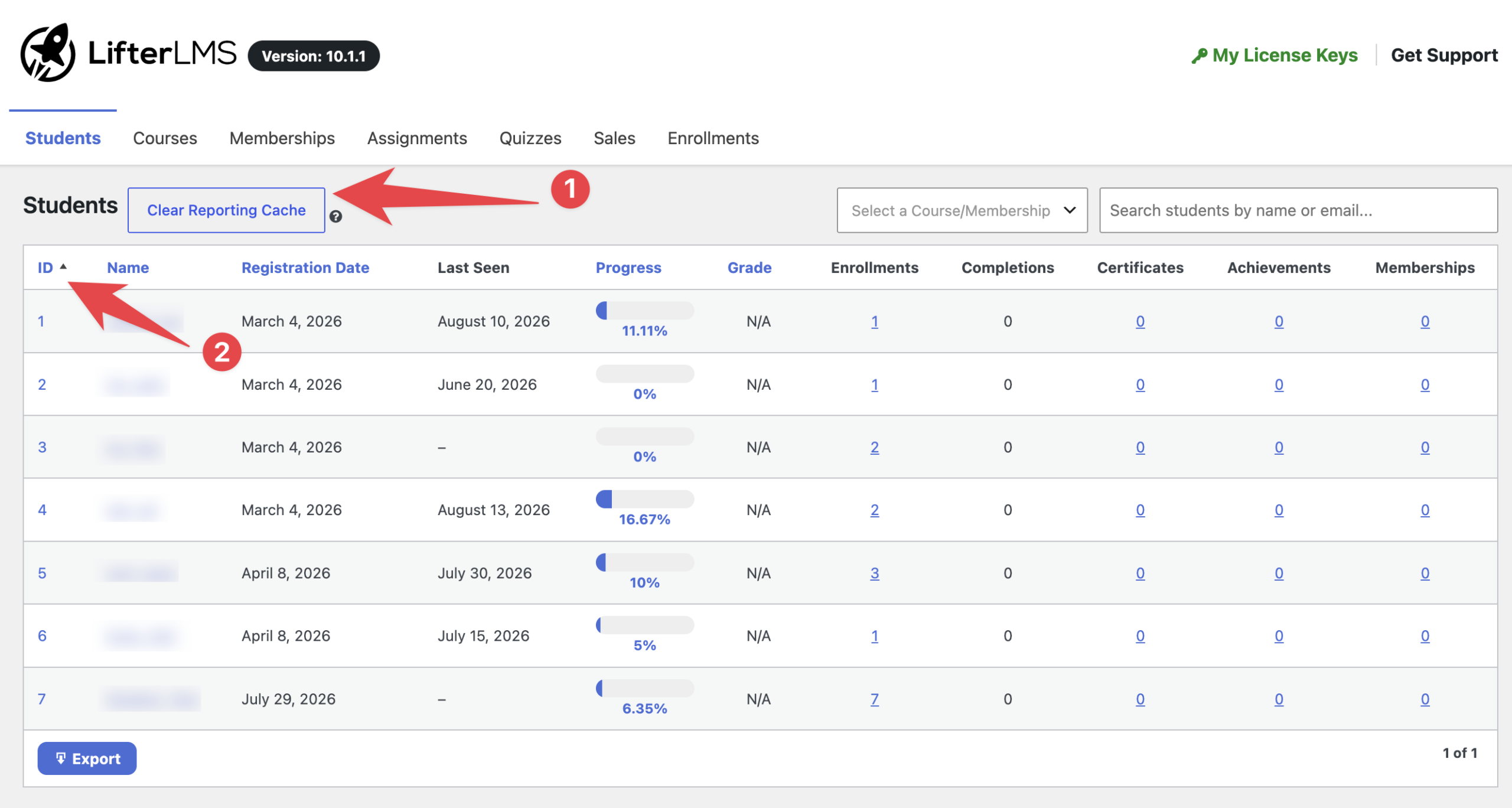
- Click the Clear Reporting Cache button above the data table.
- Click on the “ID” column header inside the table to sort records by ID. Sorting by ID can reduce the amount of sorting required during the export and may improve export times.
- After that, scroll down and click the Export button.
Watch this video to learn how to export LifterLMS reporting data as a CSV file and open it in a spreadsheet tool like Google Sheets. It also shows how you can sort, filter, and edit the exported data for further reporting or use in other tools.


