

How to Manually Copy Sky Pilot Designs from Your Trial Site to Your Live Website
When you purchase a 30-day trial site from LifterLMS, you receive a temporary workspace to test features and build your online courses.
Because these trial sites delete automatically after 30 days, you must move your custom designs to your permanent website before the trial expires.
The 30-day trial site is provided exclusively as a temporary testing environment to evaluate the full range of LifterLMS features and premium plugins. Its primary purpose is to allow users to test whether the plugins and theme will work for their custom use case or specific requirements before committing to a subscription and permanent hosting.
The trial site is NOT intended to replace a dedicated hosting service or serve as the primary platform for building your complete website over 30 days.
However, if you have already invested a significant amount of time configuring your site’s design and structure on the trial site, you can use the instructions below to manually copy those settings to your permanent WordPress installation.
Migration plugins attempt to copy premium software plugins that require an active subscription, which causes licensing errors on your permanent website. This guide teaches you how to manually copy your designs using the WordPress block editor.
Before you begin, prepare your workspace.
- Open your 30-day trial site in one browser tab.
- Open your permanent WordPress website in a second browser tab.
- Install and activate the Sky Pilot theme on your permanent website so that both sites use the exact same theme.
This manual code-copying process is effective for any reusable template parts or patterns you have customized within the Site Editor. You will start by copying the code that builds your structural templates. You can use this method for headers, footers, and other template parts.
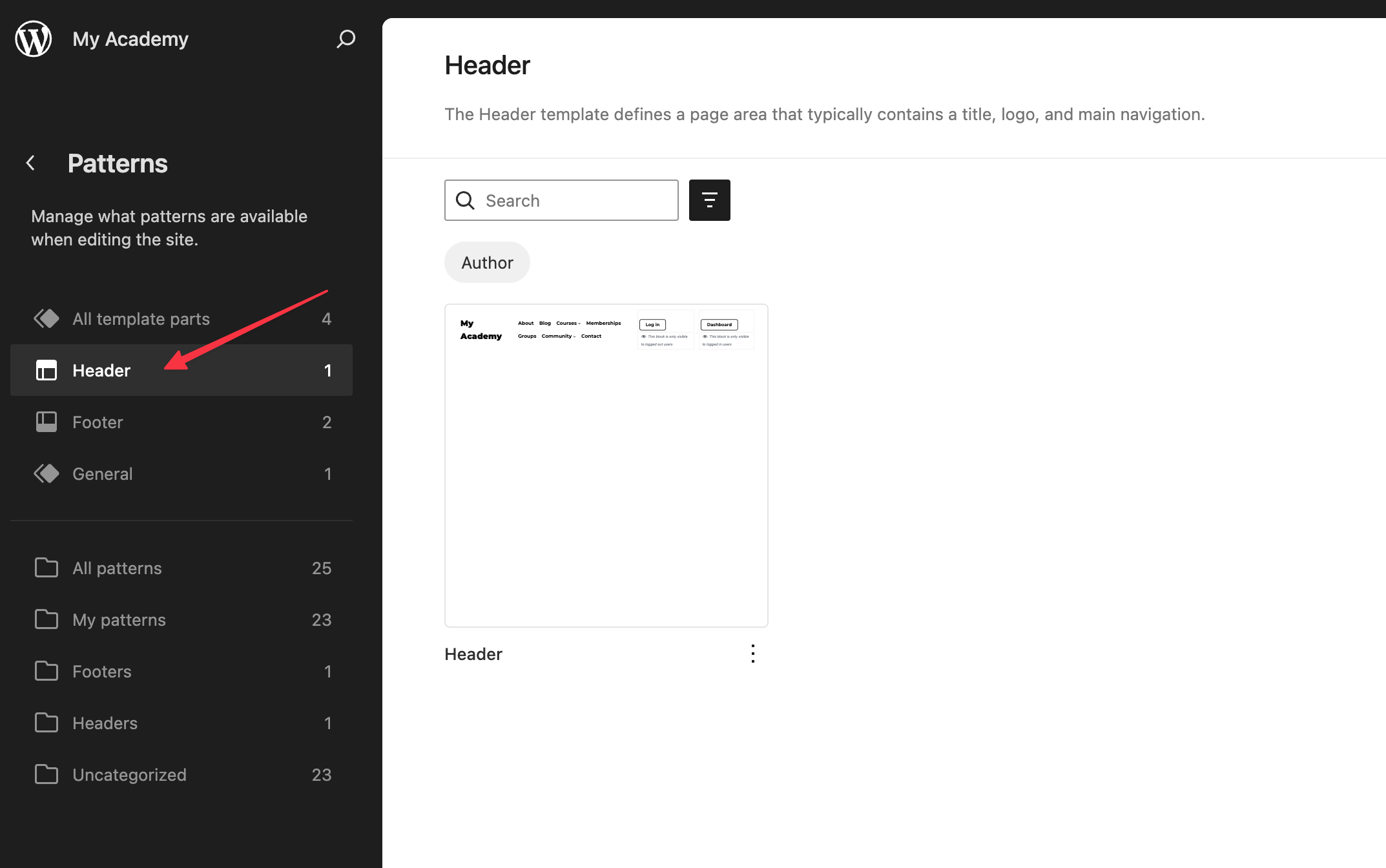
- On your trial site, navigate to Appearance > Editor > Patterns > Header.
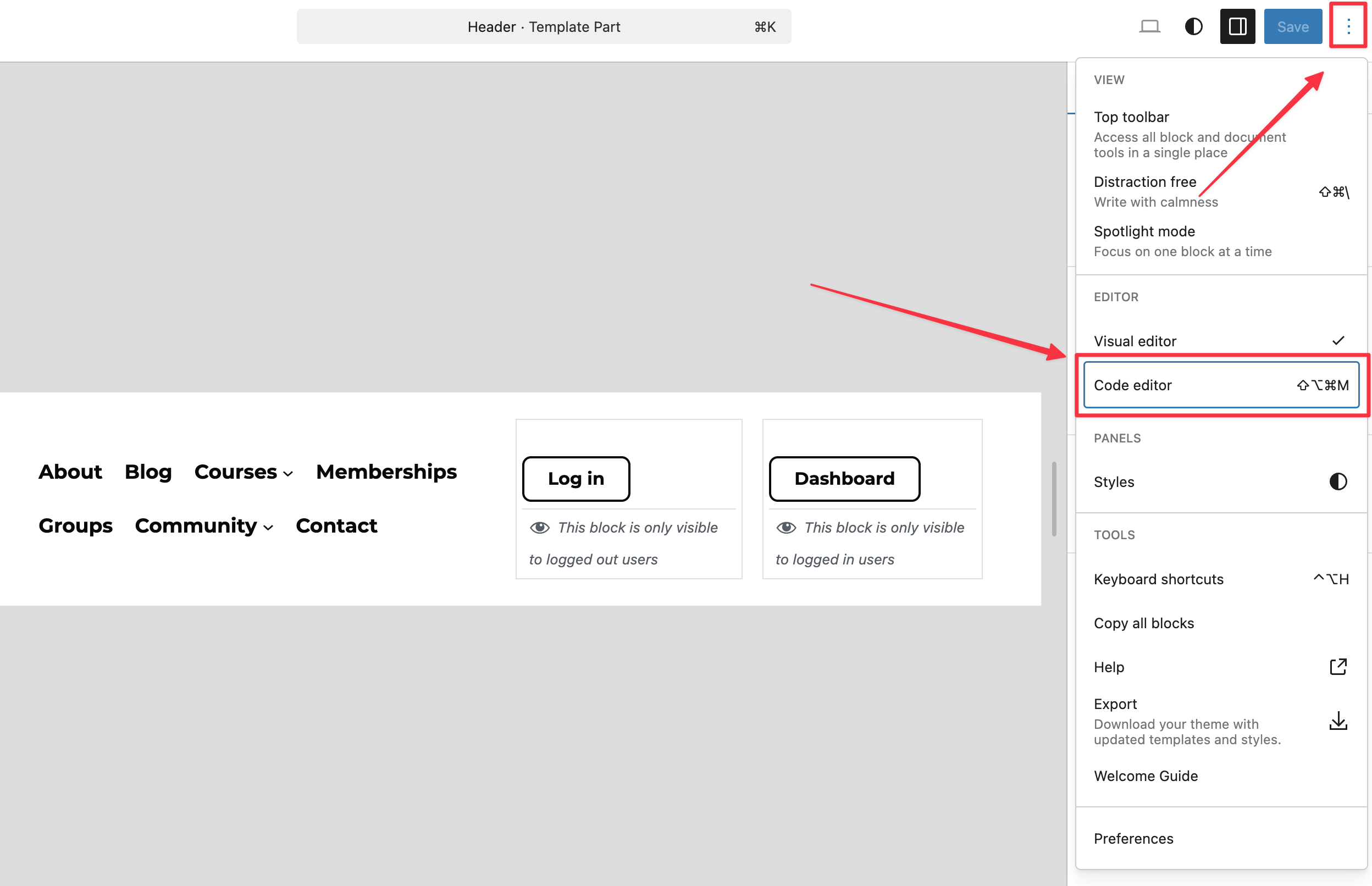
- Click the Options button, which looks like three vertical dots in the top-right corner of your screen.
- Click on “Code editor” from the dropdown menu.
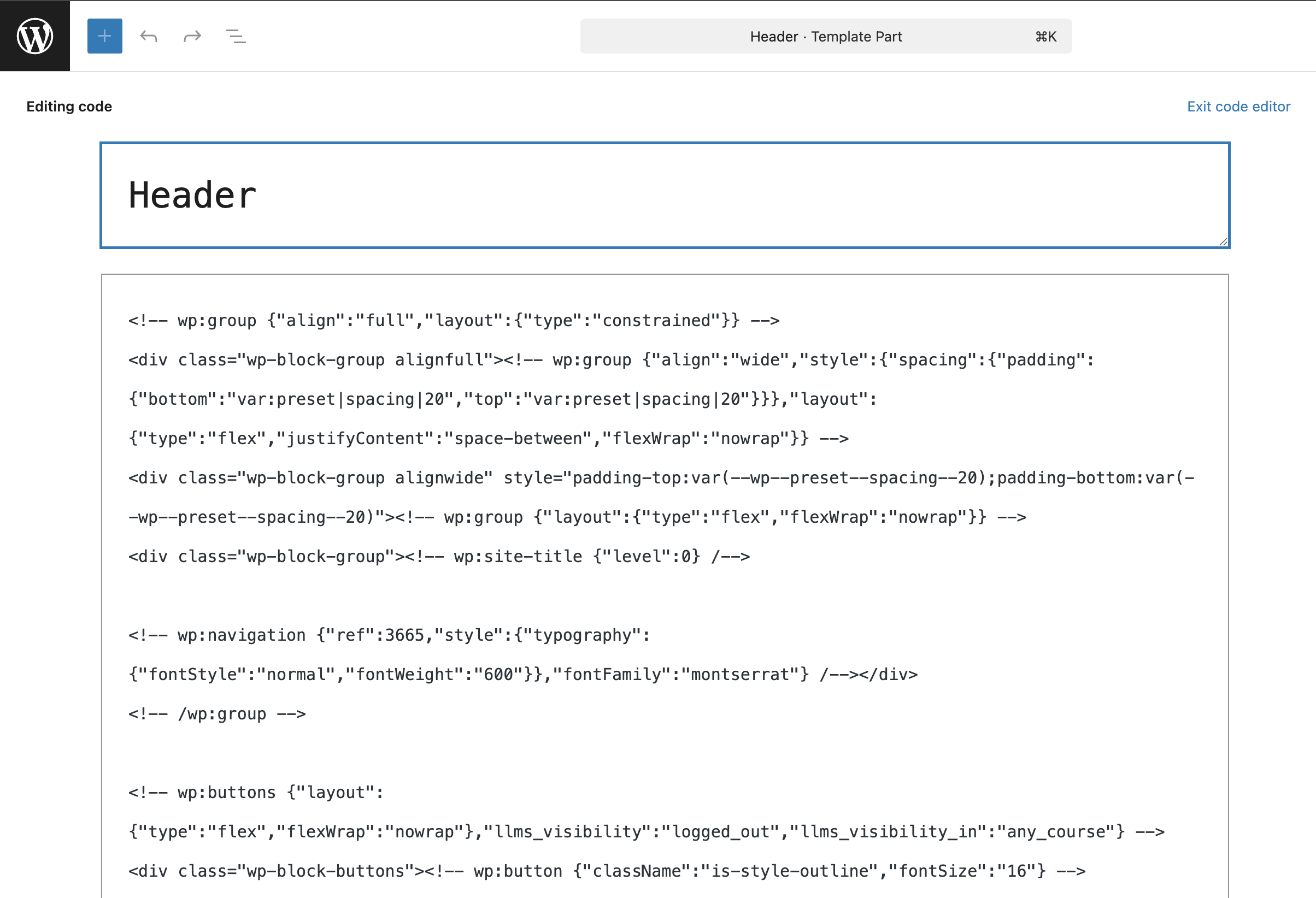
- Highlight all text on the editing screen and copy the highlighted text to your computer clipboard.
- Switch to the tab that opens your permanent website, then navigate to Appearance > Editor > Patterns > Header.
- Click the Options button in the top right corner and click on “Code editor” from the menu.
- Paste the text you copied from your trial site into the empty text area and click the Save button.
When you copy and paste the new code to your site, the images associated with that document aren’t transferred with it. You must manually download the images from the trial site and upload them to your permanent website.
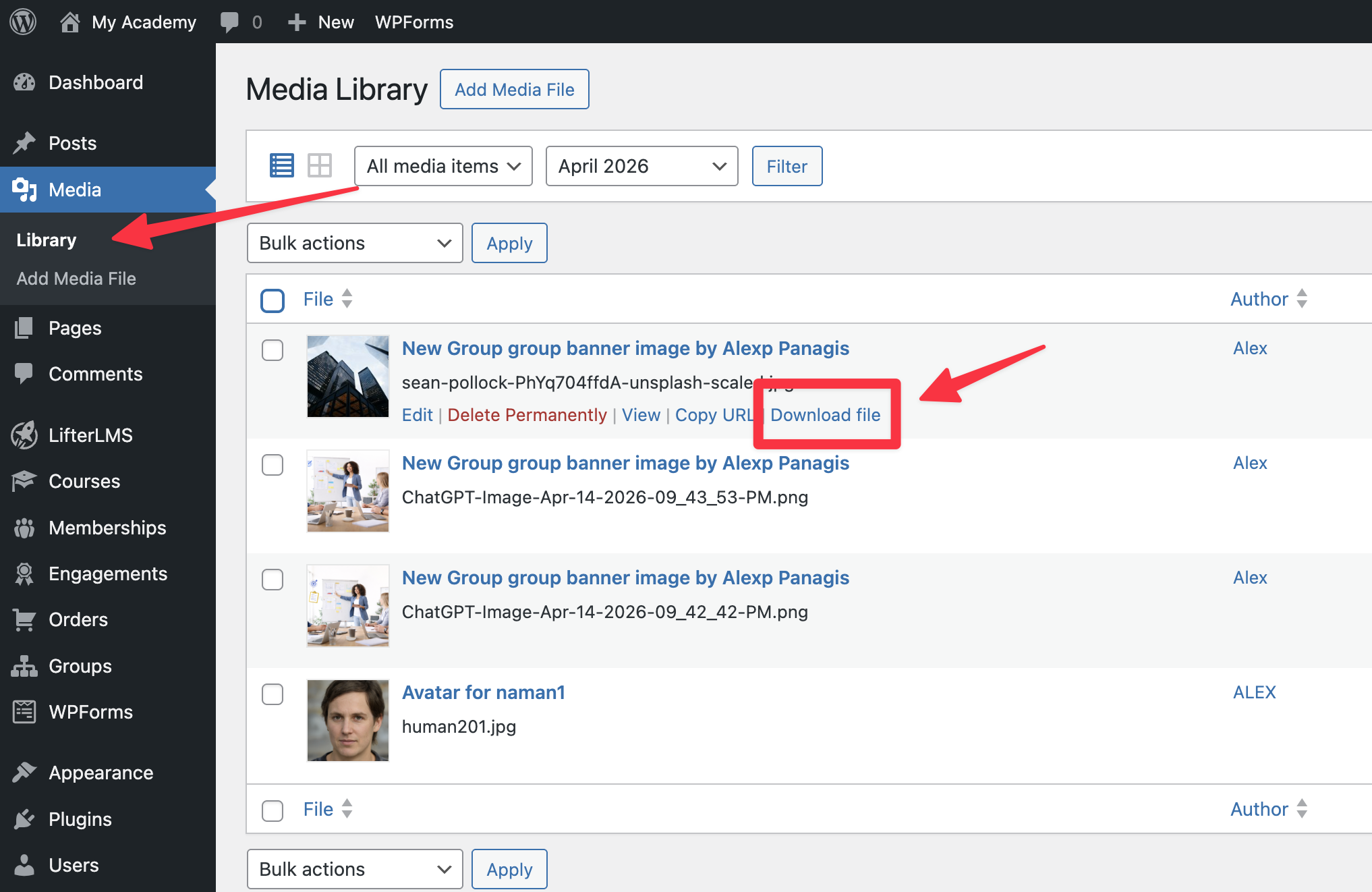
- Go to your trial site tab and navigate to Media > Library.
- Click on the images you used in your custom designs.
- Click the Download button to save the images to your computer.
- Switch to your permanent website tab and navigate to Media > Library.
- Click the Add New button and upload the images you just downloaded from your computer.
- Navigate back to the template where you pasted your code earlier, such as Appearance > Editor > Patterns > Header.
- Click the Options button, then click “Visual editor”.
- Click the broken image blocks on your screen, then click the Replace button on the image block toolbar.
- Select the correct image from your media library, then click the Save button to lock in the changes.
You can use the same code-copying method to move the design of standard pages, such as your customized home page.
- On your trial site, navigate to Pages > All Pages.
- Hover your mouse over the page you want to copy and click on the Edit button.
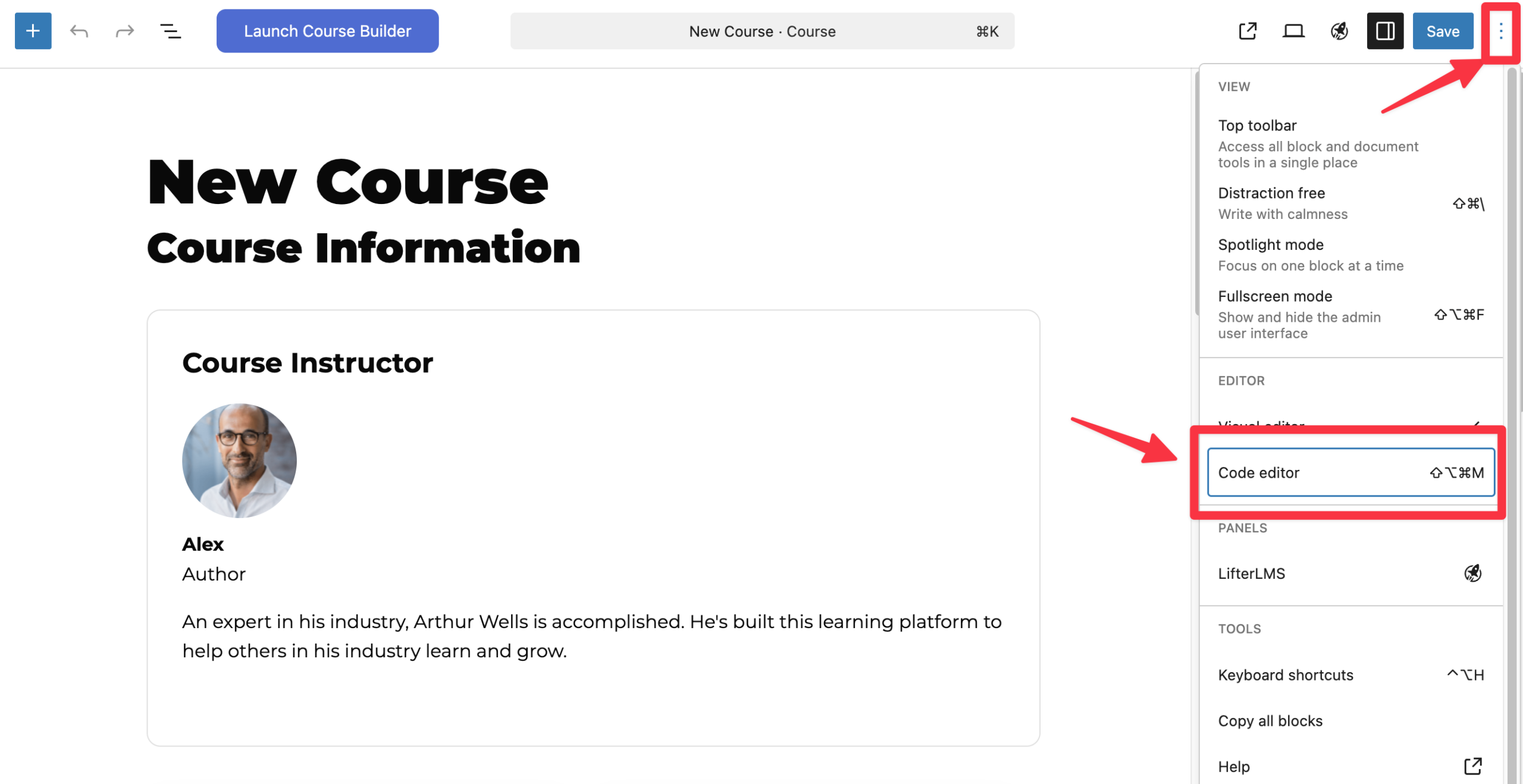
- Click the Options button in the top right corner of the page editor.
- Click on “Code editor” and copy all the code displayed in the text area.
- Switch to your permanent website and navigate to Pages > Add New.
- Click the Options button, then click “Code editor”.
- Paste the copied code into the text area.
- Click the Options button and click on “Visual editor” to see your design.
- Replace any missing images on the page by following the image replacement steps from the previous section.
- Click the Publish button to save your new page.
Note: This manual code-copying process can also be used for other custom post types, such as courses or lessons, by navigating to the corresponding editor screen on both your trial and live sites.


