

How to Change the Connected Stripe Account
There are scenarios where a site administrator may need to switch the Stripe account connected to their LifterLMS website (e.g., selling the business, moving to a new tax entity, or correcting a setup error).
While changing the API keys in LifterLMS is a simple process, it has significant and immediate consequences for existing recurring subscriptions.
There Is No Seamless Stripe Account Switch for Existing Subscriptions
Switching the connected Stripe account in LifterLMS is not a seamless change for existing recurring subscriptions.
Unless Stripe explicitly migrates customers and payment methods while preserving their IDs, existing subscriptions will not continue to charge automatically and will require manual action.
If you replace your current Stripe API keys with keys from a different Stripe account, all existing automatic recurring payments will fail when they attempt their next scheduled renewal.
Why Does This Happen?
When a student purchases a subscription, LifterLMS does not store their credit card number. Instead, Stripe creates a unique Customer ID and a payment token (a secure reference to the card) and sends those back to LifterLMS.
These tokens are strictly secured and isolated to the specific Stripe account where they were created.
- Stripe Account A has a record of Student_John and his token.
- Stripe Account B has no record of Student_John or his token.
When you switch your keys to Stripe Account B, LifterLMS will attempt to process the next renewal using the old token. Stripe Account B will reject this request because it does not recognize the customer or the token associated with it.
If you proceed with changing the Stripe account, here’s what you and your students can expect:
- New Orders: Any new customers who purchase courses after you switch the keys will work perfectly. Their data will be stored in the new Stripe account.
- Existing Subscriptions:
- The subscription status in LifterLMS will remain “Active” until the next payment due date.
- On the due date, LifterLMS will attempt to charge the card.
- Stripe will return an error.
- The payment will fail, and the LifterLMS subscription will switch to “On Hold” or “Expired”, depending on your payment retry settings.
Even if a subscription is marked as Pending Cancellation or Cancelled in LifterLMS, it may still attempt to interact with Stripe if a student reactivates it or updates payment details.
If the original customer does not exist in the new Stripe account, these actions will fail until the student re-enters their payment information and a new Stripe customer record is created.
- Refunds: You will not be able to process refunds for orders that were originally paid through the old Stripe account.
The new Stripe account cannot refund charges it did not collect. Any refunds for those orders must be handled directly inside the original Stripe account.
LifterLMS support cannot assist with transferring customer data, transaction history, or payment tokens between Stripe accounts. This includes both partial and full migrations between Stripe accounts. Stripe’s security model requires this behaviour and applies to all platforms that integrate with Stripe, including LifterLMS.
Because payment tokens are encrypted and unique to a specific Stripe account, our support team cannot move or “map” these tokens to a new account.
If you wish to attempt a data migration, you must contact Stripe Support directly.
Stripe may be able to migrate customers and payment methods between accounts while preserving the same Customer and Card IDs, but this is not guaranteed and is handled entirely at Stripe’s discretion.
If you need to change your Stripe account and a Stripe-led migration is not possible, the steps below outline the safest way to minimize disruption to revenue and student access.
1. Notify Your Students
Communication is vital. Before switching the keys, send an email to all students with active recurring subscriptions.
- Inform them that you are updating your billing system.
- Let them know their next automatic payment may fail or that they will need to re-enter their billing information.
2. Update the API Keys
Once you are ready to make the switch:
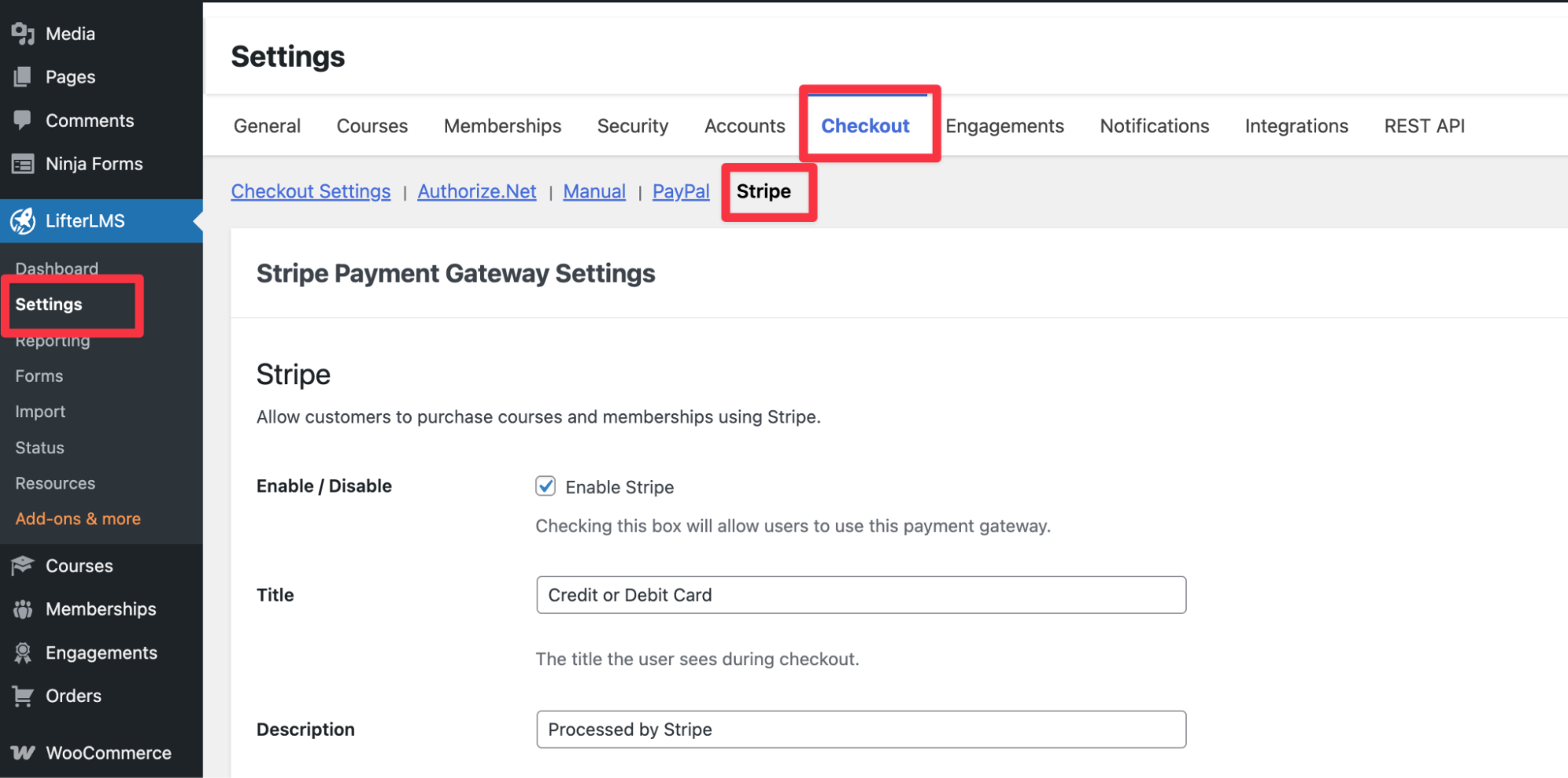
- Navigate to LifterLMS > Settings > Checkout > Stripe.
- Remove the existing Publishable Key and Secret Key.
- Enter the Publishable Key and Secret Key from your new Stripe account.
- Click Save Changes.
3. Ask Students to Re-enter Their Payment Details
For existing subscriptions to continue, the payment method must be re-tokenized on the new account.
- When the student’s next payment fails, they will receive a notification (if you have “Payment Retry” emails enabled).
- The student must log in to their dashboard.
- They must navigate to their Order or Subscription details.
- They must click Pay or Update Payment Method and re-enter their credit card details.
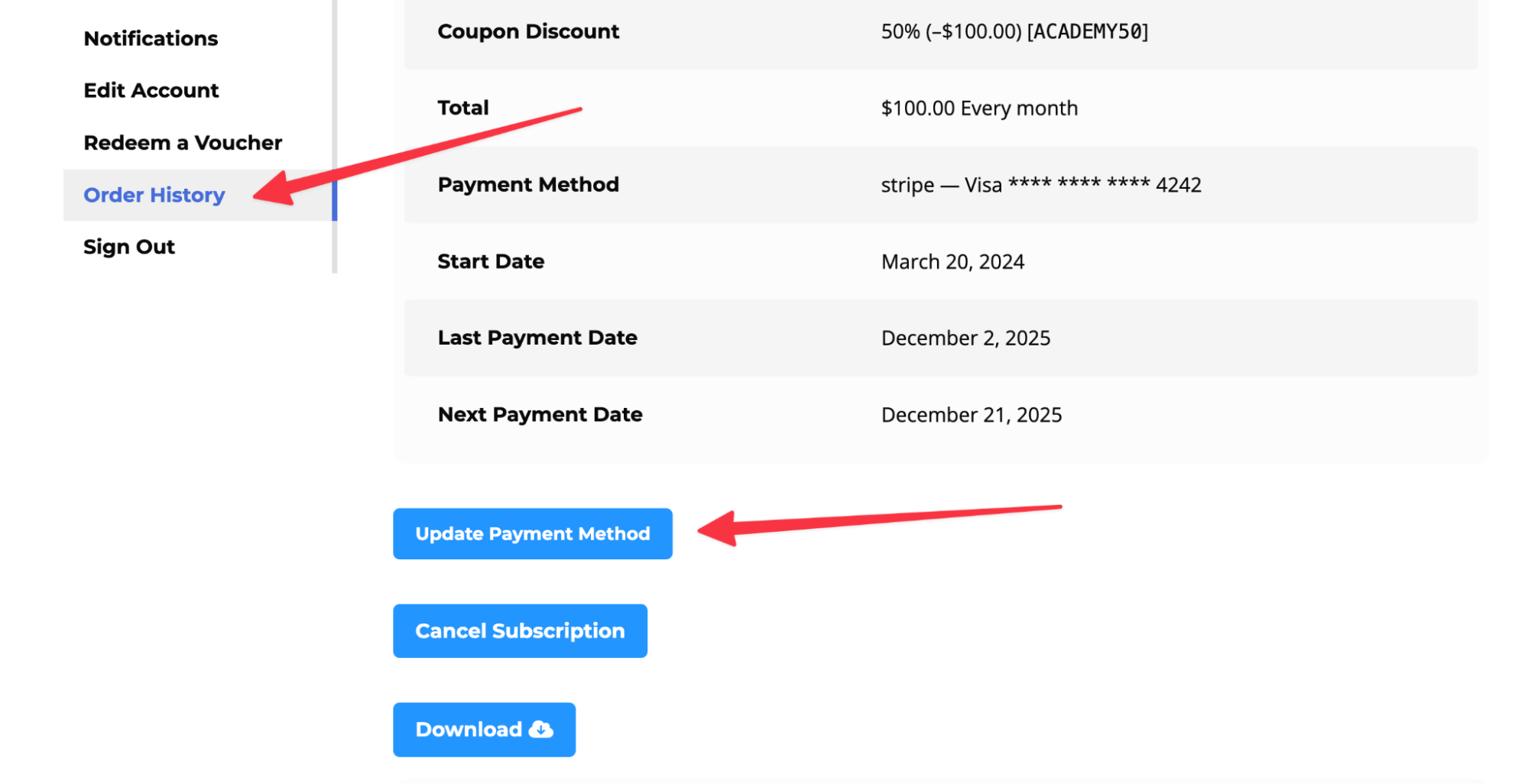
Once the student reenters their card information, a new Customer ID and token will be generated in the new Stripe account, and future automatic payments will resume normally.


