

How to Create and Use Reusable Patterns in Sky Pilot Theme
When using a full-site editing theme such as Sky Pilot, you may want to reuse a layout you have already built on one page and apply it to another.
The most efficient way to achieve this is by creating a Pattern.
Patterns allow you to save a specific arrangement of blocks and reuse them anywhere on your site. This guide explains how to make a pattern from an existing layout and how to import it into a new page.
Creating a Pattern from an Existing Layout
To copy a layout, you must first save it as a pattern.
- Navigate to Appearance > Editor > Templates and edit the page that contains the layout you wish to copy.
- Open the “List View” by clicking the three horizontal lines icon at the top left of the editor. This tool helps you see the structure of your page.
- Press the Shift key on your keyboard and click on the blocks (in list view) you want to include in your pattern. This will select the blocks or groups you wish to include in your pattern and highlight them in blue. If you want to copy an entire section, it is often easiest to select the parent “Group” or “Container” block that holds all the content.
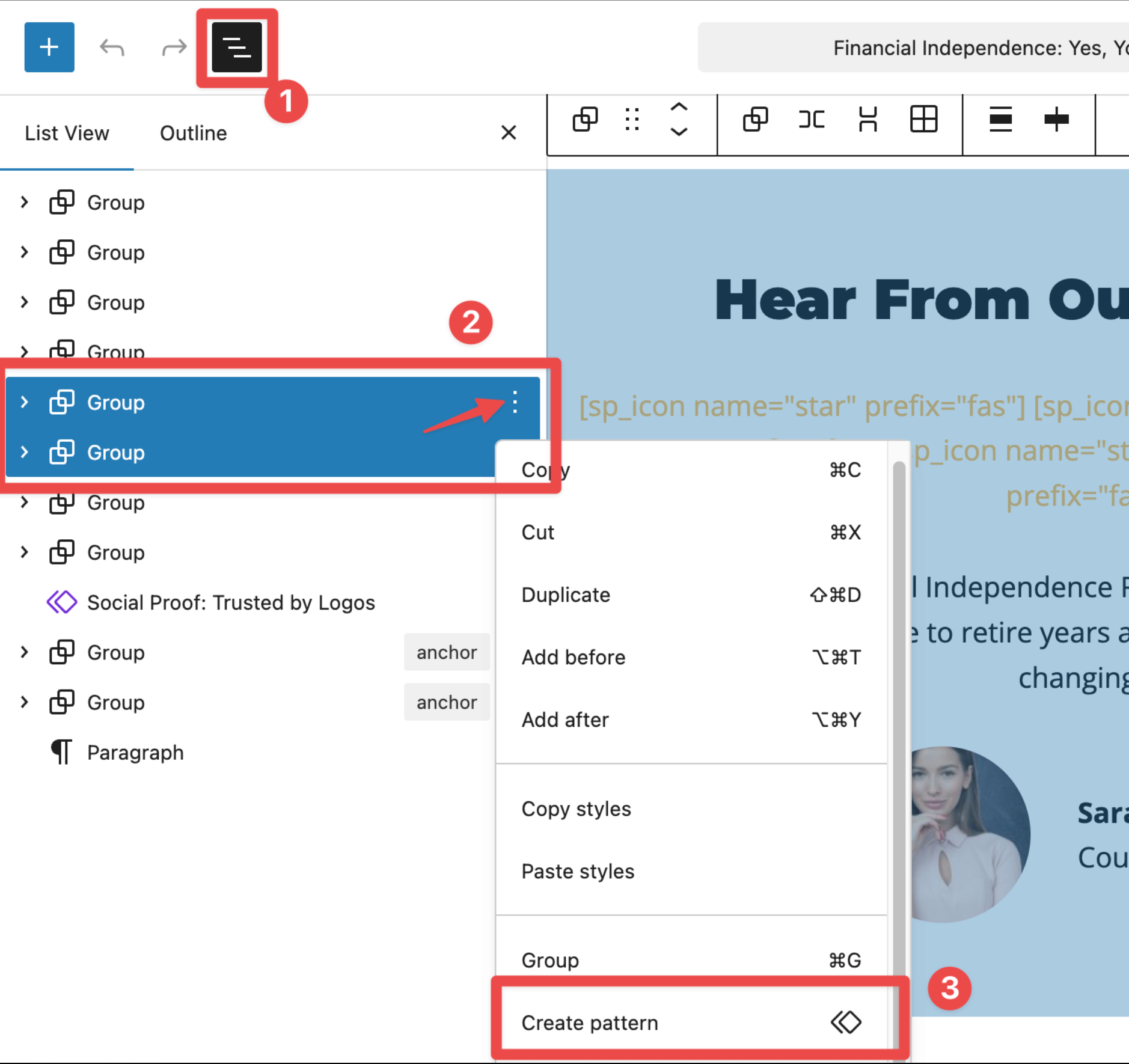
- Click the Options button (represented by the three vertical dots icon) on the block toolbar.
- Select Create pattern from the dropdown menu.
- In the pop-up window, enter a descriptive name for your pattern (e.g., “Course Sales Header”).
- Choose your synchronization setting:
- Synced: Leave the toggle on if you want edits to this pattern to update every page where it is used automatically. This is best suited for global elements, such as Call-to-Action banners.
- Not Synced: Toggle this off if you want to paste the layout but change the text or images on the new page without affecting the original. This is best for copying page templates.
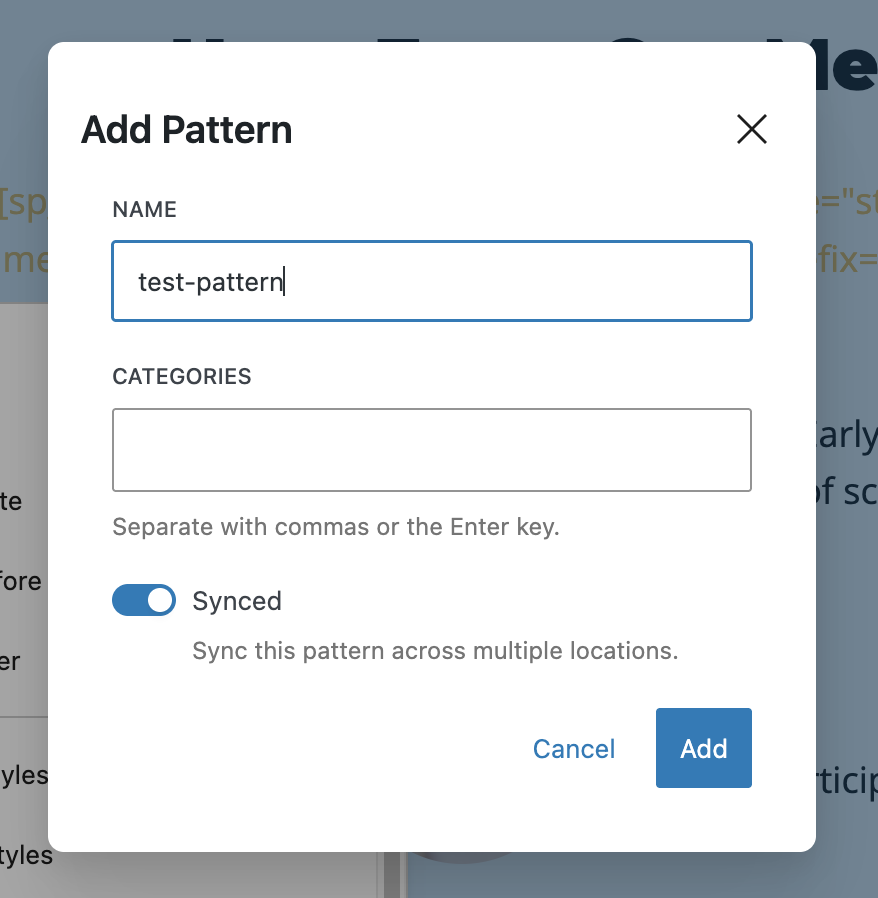
- Click Add to save this pattern on your site.
Importing the Pattern to a New Page
Once your pattern is saved, you can insert it into any page on your site.
- Navigate to Dashboard > Pages and open the page where you want to add the layout.
- Click the Toggle block inserter button (the blue + icon) at the top left of the screen.
- Click on the Patterns tab next to “Blocks” and “Media.”
- Click on the My patterns category (indicated by a folder icon). This folder contains all the custom patterns you have created.
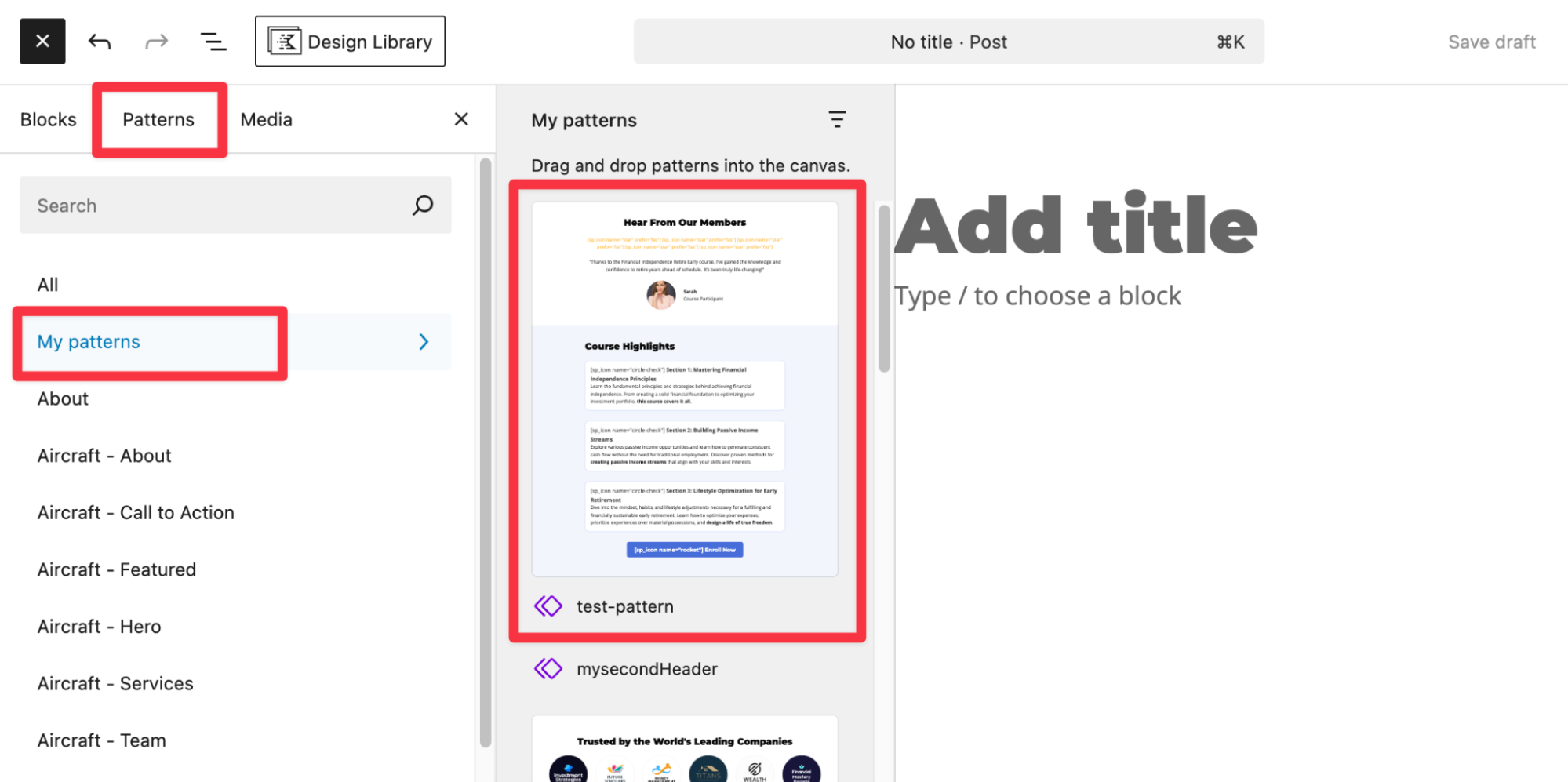
- Locate the pattern you named in the previous steps and click on it. This will insert the layout on your page, and you can arrange it as per your requirements.
- Alternatively, you can also press the ‘+’ icon in the post editor and directly search for the name of the pattern that you created in the previous section to insert it in a specific location on your page.
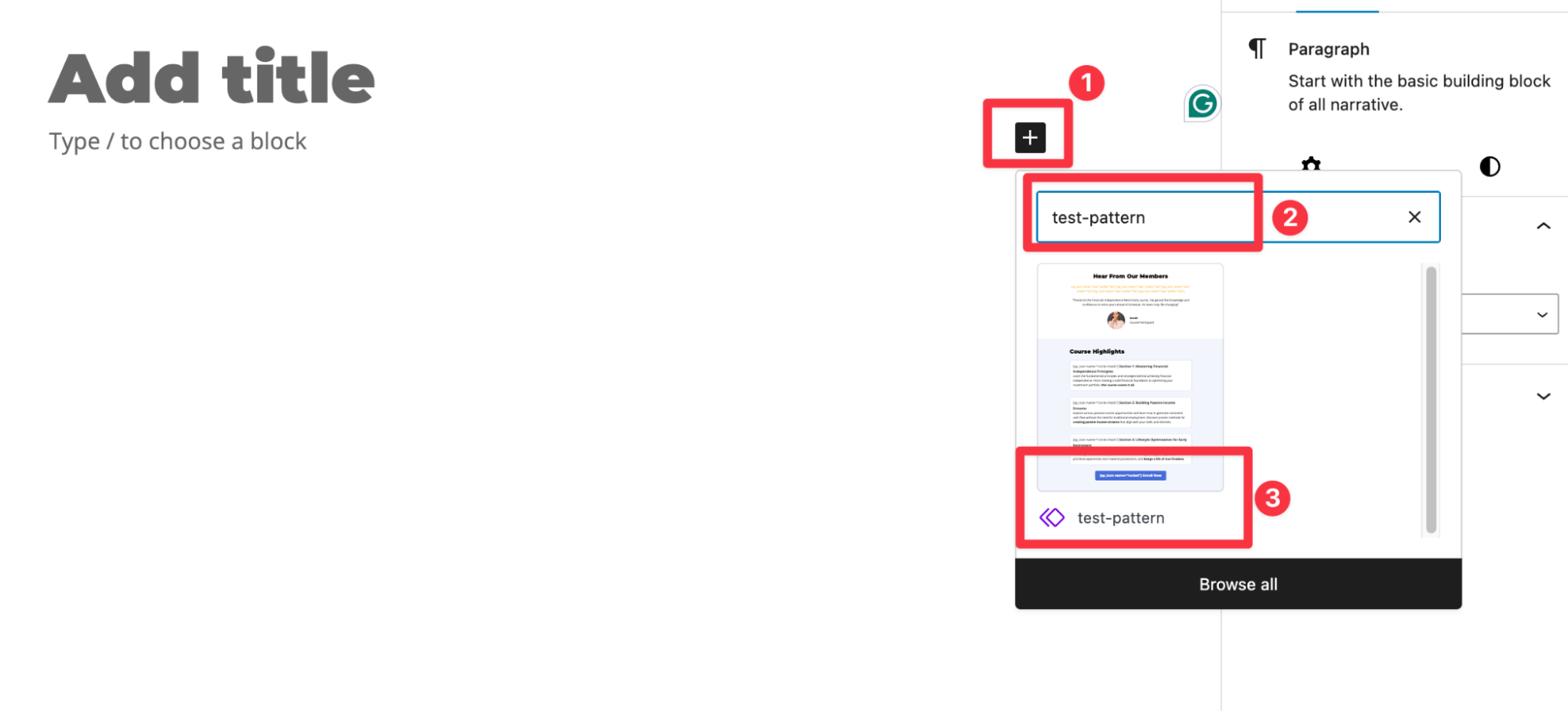
If you performed all the steps correctly, then you have now successfully copied a complex layout from one page to another using WordPress patterns.


