Managing Individual Student Assignments in LifterLMS
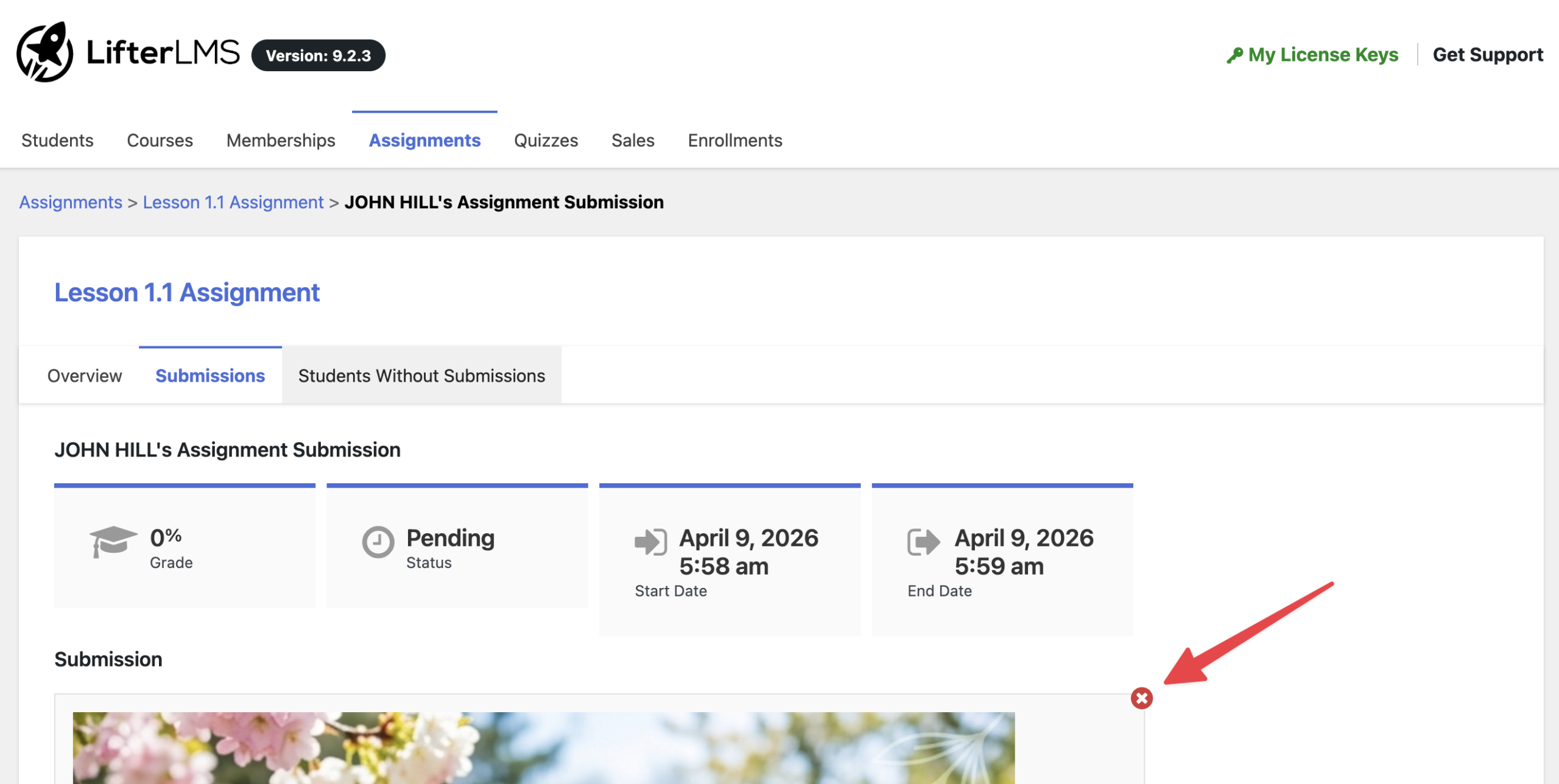
The Assignment Submission report for an individual student’s submission for an assignment shows details for that assignment submission, including the student’s name, the grade, the status, and the start and end dates for the assignment.
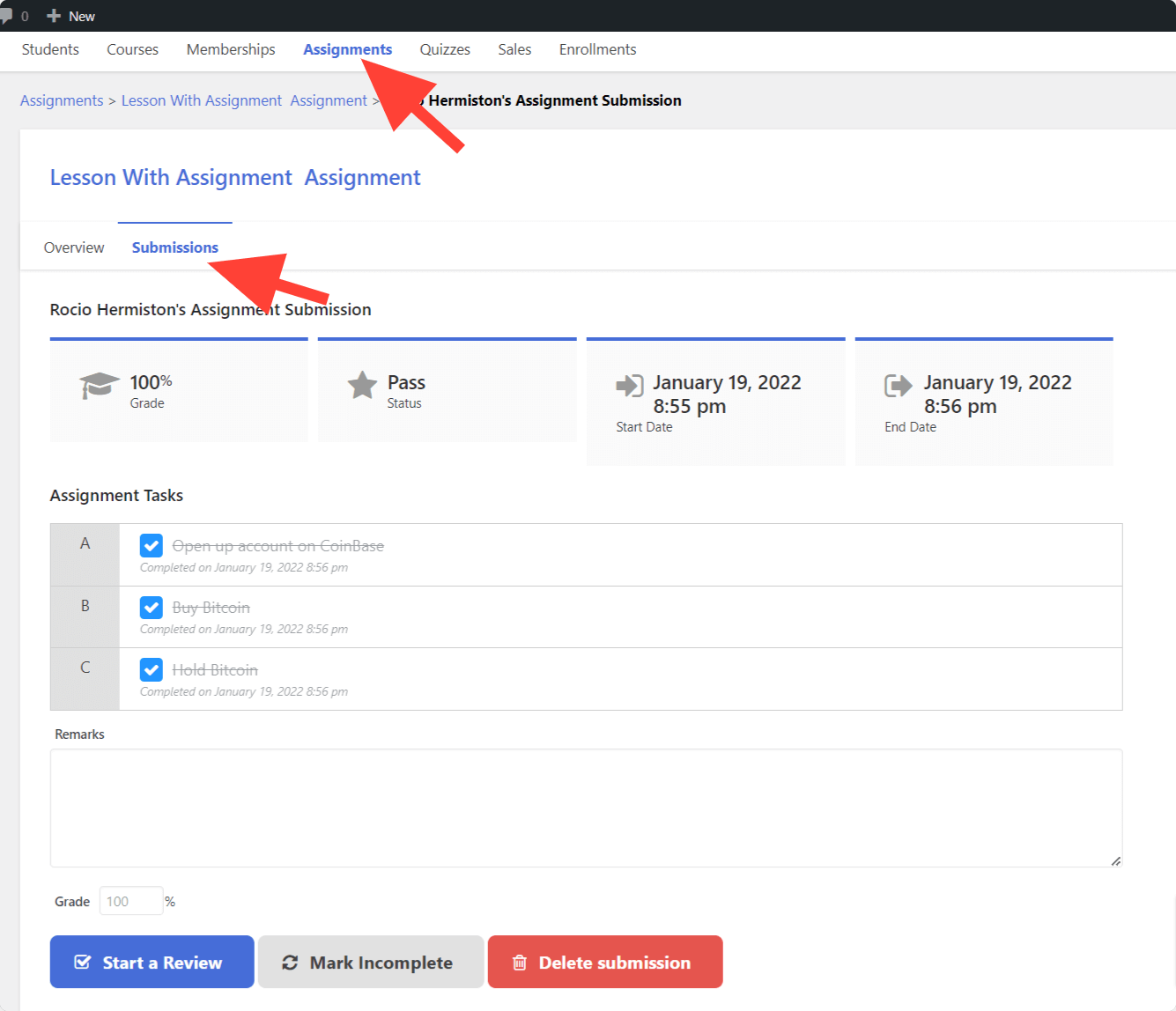
To view the Assignment Submission report for an individual student’s submission for an assignment, navigate to LifterLMS > Reporting from your WordPress dashboard. Then click on Assignments in the menu bar, and click on the assignment’s title from the list of assignments. Then click on Submissions in the menu bar, and click on the ID of the assignment submission you’d like to see details for.
As an instructor, you might encounter a situation in which a student uploads the wrong file, or you simply need to clean up old files from your website that are no longer needed.
You can easily remove assignment submissions directly from your WordPress dashboard, which removes the upload from your website. This will require the student to resubmit their work if it is still needed.
Follow these steps to manage and delete assignment submissions:
- Go to your WordPress dashboard and navigate to LifterLMS > Reporting.
- Click on the “Assignments” tab to view the list of student submissions.
- Click on the specific assignment attempt that you want to review.
- Click the X button next to the student’s submission to remove it.
- This action will mark the assignment as incomplete, and the student will have to complete it again.